

 Español
 Català
 Deutsch
 Français
 Português
 Italiano
 Nederlands
 Polski
Where it is and when you see it
Where is the button and in which versions does it exist?
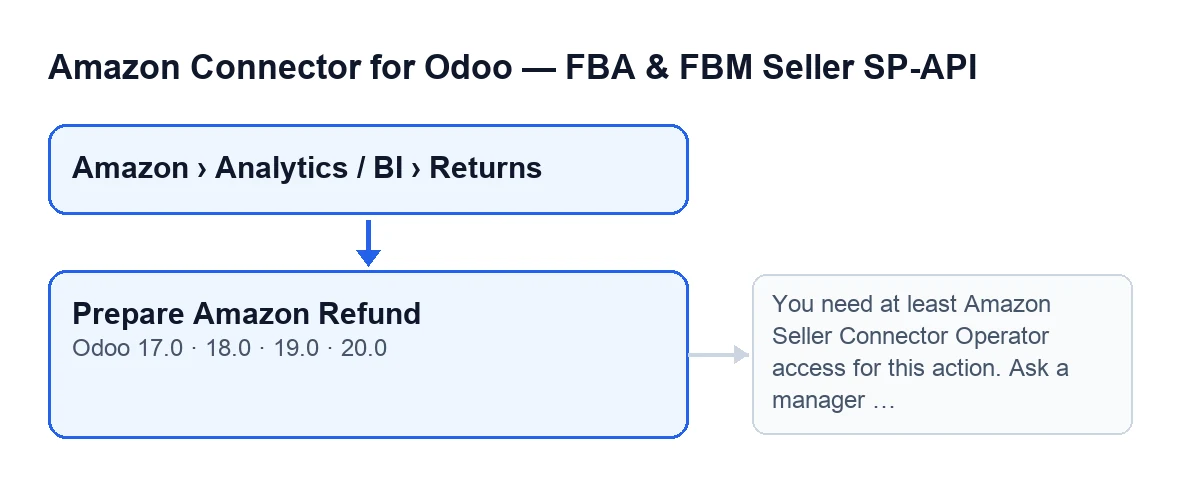
On the Returns (BI) screen, which you reach through the menu Amazon › Analytics / BI › Returns. Each part of that menu asks for the Viewer permission; without it you do not see that part. The button is in Odoo 17, 18, 19 and 20.
When does the button appear?
With default values it is visible. It is hidden when the Amazon Refund Processing Status field is DONE, SUBMITTED, IN_QUEUE or IN_PROGRESS. The condition is the same in Odoo 17, 18, 19 and 20; the permission check happens when you click.
What is the button called depending on the language of Odoo?
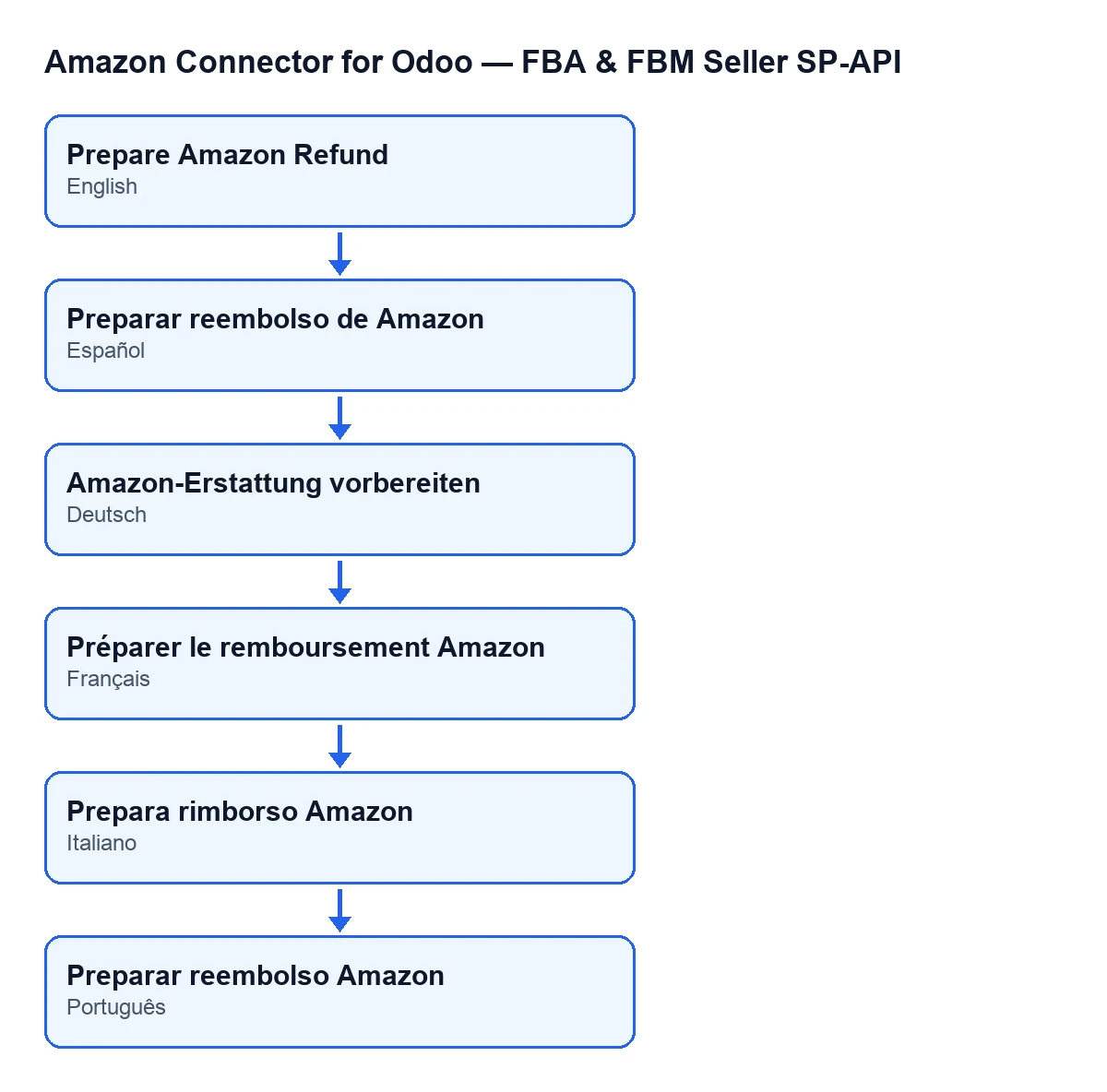
With Odoo in English, it is Prepare Amazon Refund. The module also publishes translations of that label for Spanish, German, French, Italian and Portuguese, so the button reads differently if your Odoo runs in one of those languages.

What it checks and what changes
What does the button check before doing anything?
Your permissions first. Unless the call is made as the system superuser, the module requires Operator access to Amazon Seller Connector. It also checks that you can write to the return records. The Viewer permission opens the menu, but clicking the button needs more.
Which error can it give and how do I fix it?
Without Operator access you get this message: You need at least Amazon Seller Connector Operator access for this action. Ask a manager to grant Operator or Manager access. The fix is to ask a manager to give you Operator or Manager access. Because that check is the first thing the button does, when you see this message nothing has yet changed on the return.
What does it complete on the return?
In Odoo 20, for each return it is run on, the button completes, among others, these details:
- The identifier of the Amazon order line, if the order provides it and the return did not yet have one.
- The refund reason code, if it was empty.
- The quantity to refund, if it was empty.
- The currency: if the Amazon order carries one, it takes priority over the company's. Otherwise the return's existing currency is used and, as a last resort, the company's.
If there is anything to save, the module writes it to the return.
Does it overwrite what was already filled in?
The button runs the preparation without the overwrite option: the line identifier, the reason code and the quantity are only completed if they were empty. The currency has its own rule: if the Amazon order carries a currency, it is written even if the return already had another.
What message appears at the end?
A non-sticky success notification titled Amazon SP-API with the message Amazon refund prepared on … return(s)., giving the number of returns processed. If any return ends up with a refund total of zero or less, this is added: … return(s) require manual refund amounts because Amazon order data did not provide refundable components. The notification appears as a success even when some returns need review, so read the second sentence.
Where can I see the resulting total?
On the Returns (BI) form, Refund tab, Amazon Refund Feed group, Amazon Refund Total field. It is read-only. The button counts a return as needing review when it ends with that total at zero or less, so that field is the first one worth checking after the message.
Without clicking, and the cost
Does any of this happen without clicking the button?
The permission check is reused outside the button: creating the draft credit note for a return also uses it, and that is reached without clicking anything from the scheduled tasks Amazon SP-API - Auto receive returns to stock (every fifteen minutes, active on install) and Amazon SP-API - Sync returns (every three hours, active on install). When the call is made as the system superuser, the check lets it through. That is a separate step from preparing the refund.
What do I need to use the module?
It is a one-off payment per Odoo version and needs the FlexigoTech Cloud subscription, Connector plan: €49/month or €490/year excluding VAT, up to 3 Amazon accounts (the Pro plan, €98/month or €980/year excluding VAT, up to 10). It is published for Odoo 17, 18, 19 and 20. With the subscription, the module for newer Odoo versions is included if you bought it on flexigotech.com; on the Odoo App Store, each version is bought there. Details are on the Odoo Apps listing and the module page.
Where can I read about other buttons of the module explained the same way?
If you are implementing Odoo and want someone to review your Operator permissions or your returns flow, FlexigoTech implements Odoo 17, 18, 19 and 20 and builds custom connectors and integrations.
Keep reading
Checked in the connector's source code (version 20.0) and the linked sources
Sources
- Module source code: flexigobe_amazon_seller_connector 20.0 (8576afa5): views/amazon_spapi_return_line_views.xml
- Module source code: flexigobe_amazon_seller_connector 20.0 (8576afa5): models/amazon_spapi_return_line.py
- apps.odoo.com/apps/modules/20.0/flexigobe_amazon_seller_connector
- flexigotech.com/precios.html
- flexigotech.com/en/services.html