

 Español
 Català
 Deutsch
 Français
 Português
 Italiano
 Nederlands
 Polski
What this message tells you
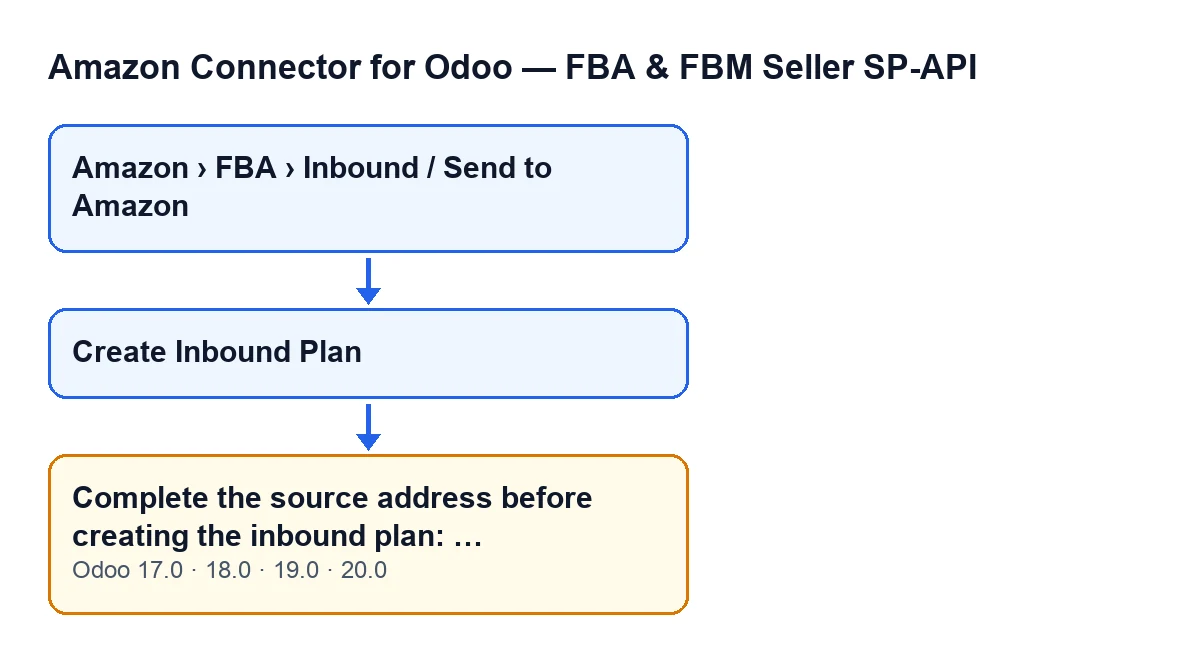
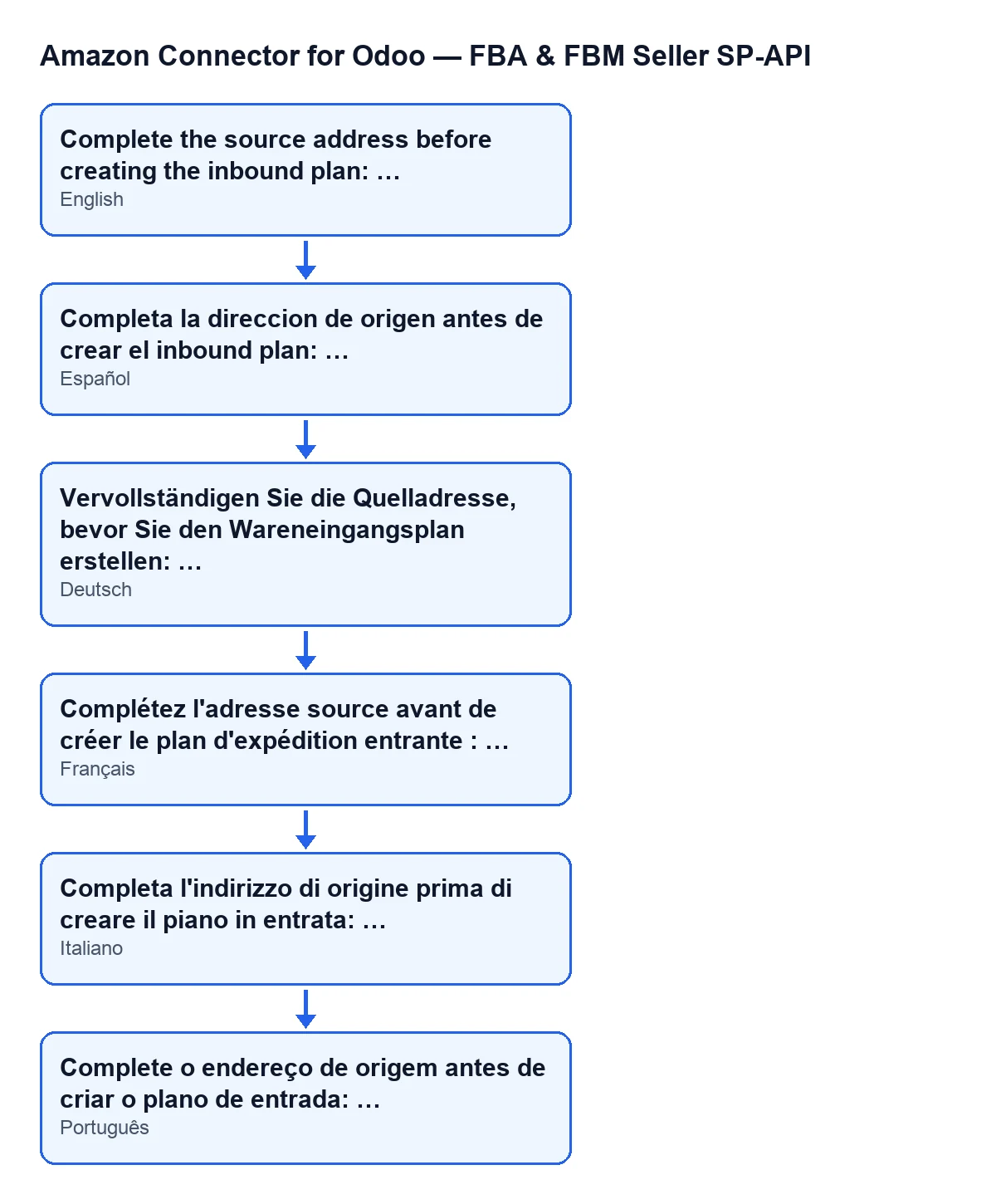
The message reads Complete the source address before creating the inbound plan: …. The dots stand for the part the module fills in: the names of the source details that are empty, separated by commas.
It is an error that stops the action: while any of those details is missing, the action does not go on. The message is in the published code of Odoo 17, 18, 19 and 20.

When exactly it appears
It appears when you press the Create Inbound Plan button on the inbound plan form. That button reaches a check of the plan's source address, and the check looks at these details, in this order:
Source contact nameSource address line 1Source citySource country codeSource phone numberSource postal code
Every detail that is empty is added to a list under its label. Once it has looked at all of them, if the list has anything in it, the check raises the message with those labels joined by commas and in the order above. If none is missing, this check does not raise the message.
The set of details that are checked comes from the Odoo 20.0 code.
How to read the list in the message
The list in the message follows the order above, not the order in which you filled the details in. If the city and the phone number were empty, you would see Complete the source address before creating the inbound plan: Source city, Source phone number.
If only one detail were missing, the list would have a single label, for example Complete the source address before creating the inbound plan: Source postal code. And if all of them were empty, the message would name each one in turn, from the contact name to the postal code.
When you can see the button
The button is hidden when the plan already has a value in Inbound Plan or when State is no longer at its default value. With the default values the button is visible. The condition is the same in Odoo 17, 18, 19 and 20. If you cannot see the button, that condition is the cause, not this message.
Where to open the plan
Inbound plan forms open from the menu Amazon › FBA › Inbound / Send to Amazon. Each part of the menu asks for the Viewer permission: if you lack one of them, you do not see that part.
How to fix it, step by step
- Read the whole message. After the colon come the names of the empty source details, in the same order as the list above.
- Open the plan from
Amazon › FBA › Inbound / Send to Amazon. - Complete the source details the message names: contact name, address line 1, city, country code, phone number or postal code, only the ones that are missing.
- Press
Create Inbound Planagain. The check starts afresh and looks at whatever the plan holds at that moment. - If the message appears again, read the list once more: it now names only the details that are still empty. Repeat until it stops appearing.
- If you cannot find the button, remember the condition that hides it: it depends on
Inbound PlanandState.
What to check afterwards
When the message stops appearing, the source address check has passed. Before moving on, go over the details you have just completed: the code only looks at whether each one is empty, so a mistyped phone number or postal code is not something this check catches.
Common questions about this message
Does it warn me about one missing detail or all of them?
All of the empty ones at once. The code goes through the source details one by one, gathers them into a single list and raises one message with it. You do not need to fix them one at a time: a single reading tells you what to complete.
What happens while the message keeps appearing?
The message stops the action: while any of those details is missing, pressing Create Inbound Plan brings it up again.
Does anything change between Odoo versions?
The message is in the published code of Odoo 17, 18, 19 and 20, and the condition that shows or hides the button is the same in all four. The set of source details that are checked is the one in the Odoo 20.0 code.
Who can reach the plan?
Anyone with the Viewer permission on all three parts of the menu: Amazon, FBA and Inbound / Send to Amazon. Without one of them, that part does not show.
How FlexigoTech can help
FlexigoTech implements Odoo 17, 18, 19 and 20 and builds connectors and bespoke integrations. If you are setting up the Amazon connector and would like us to go through how to prepare the source details before you create inbound plans, get in touch. You can see the module, published on Odoo Apps for 17, 18, 19 and 20, on its page at flexigotech.com.
Keep reading
Checked in the connector's source code (version 20.0) and the linked sources
Sources
- Module source code: flexigobe_amazon_seller_connector 20.0 (8576afa5): models/amazon_spapi_inbound_plan.py
- Module source code: flexigobe_amazon_seller_connector 20.0 (8576afa5): views/amazon_spapi_inbound_plan_views.xml
- apps.odoo.com/apps/modules/20.0/flexigobe_amazon_seller_connector
- flexigotech.com/en/services.html