

 Español
 Català
 Deutsch
 Français
 Português
 Italiano
 Nederlands
 Polski
The button is in Odoo 17, 18, 19 and 20. Before using it, it helps to know what Odoo already does on its own, because the normal route is automatic and the button is there to run it by hand.
What Odoo already does without you pressing anything
- The scheduled action
Amazon SP-API - Post-sales pipelineruns the pipeline every hour and is active when the module is installed. - That action goes through the active accounts and skips any account with all three post-sales boxes cleared. It runs the pipeline for accounts with at least one box ticked.
- The three boxes are on the account form, in the
Orders & Fulfillmenttab, inside thePost-Sales Cases (ON by default)group:Post-sales: auto case from return pending action,Post-sales: auto case from refundandPost-sales: auto case from shipping error. All three are ticked by default. - Note how the result looks on that route: in the summary the source is
CRONand no message is posted on the account form. If something fails, the error is not raised: it is added to the summary and kept on the account together with the date.

Before you press the button
- Open
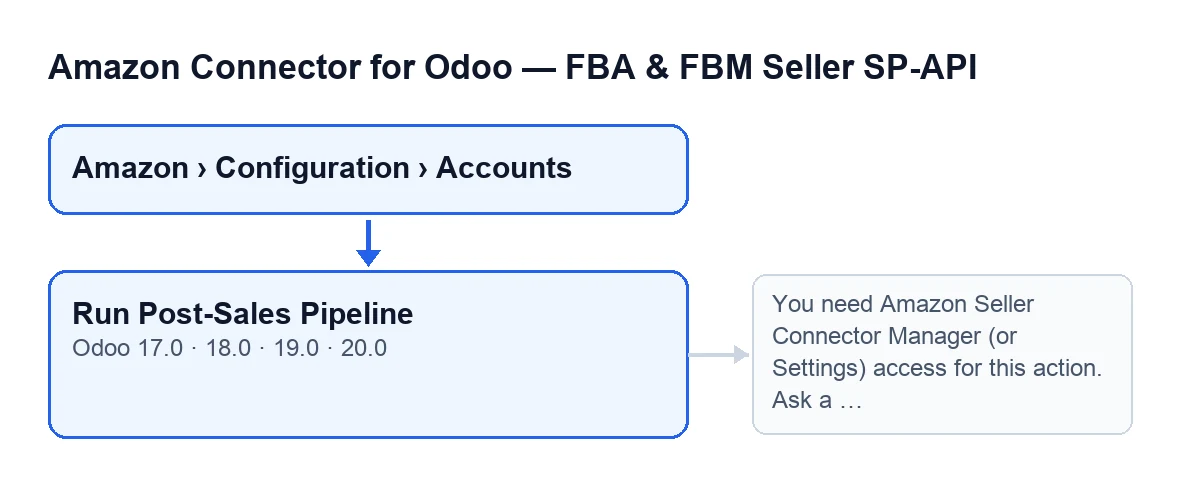
Amazon › Configuration › Accounts. TheAccountsandConfigurationparts of the menu needManagerpermission; theAmazonpart needsViewer. If you cannot see those parts, you are missing that permission. - Open the account form and look for the
Run Post-Sales Pipelinebutton. The view puts no condition on it: it is always visible. - Make sure your user has
Manageraccess to the Amazon connector or Settings access. Seeing the button is not enough: the code checks when you press it.
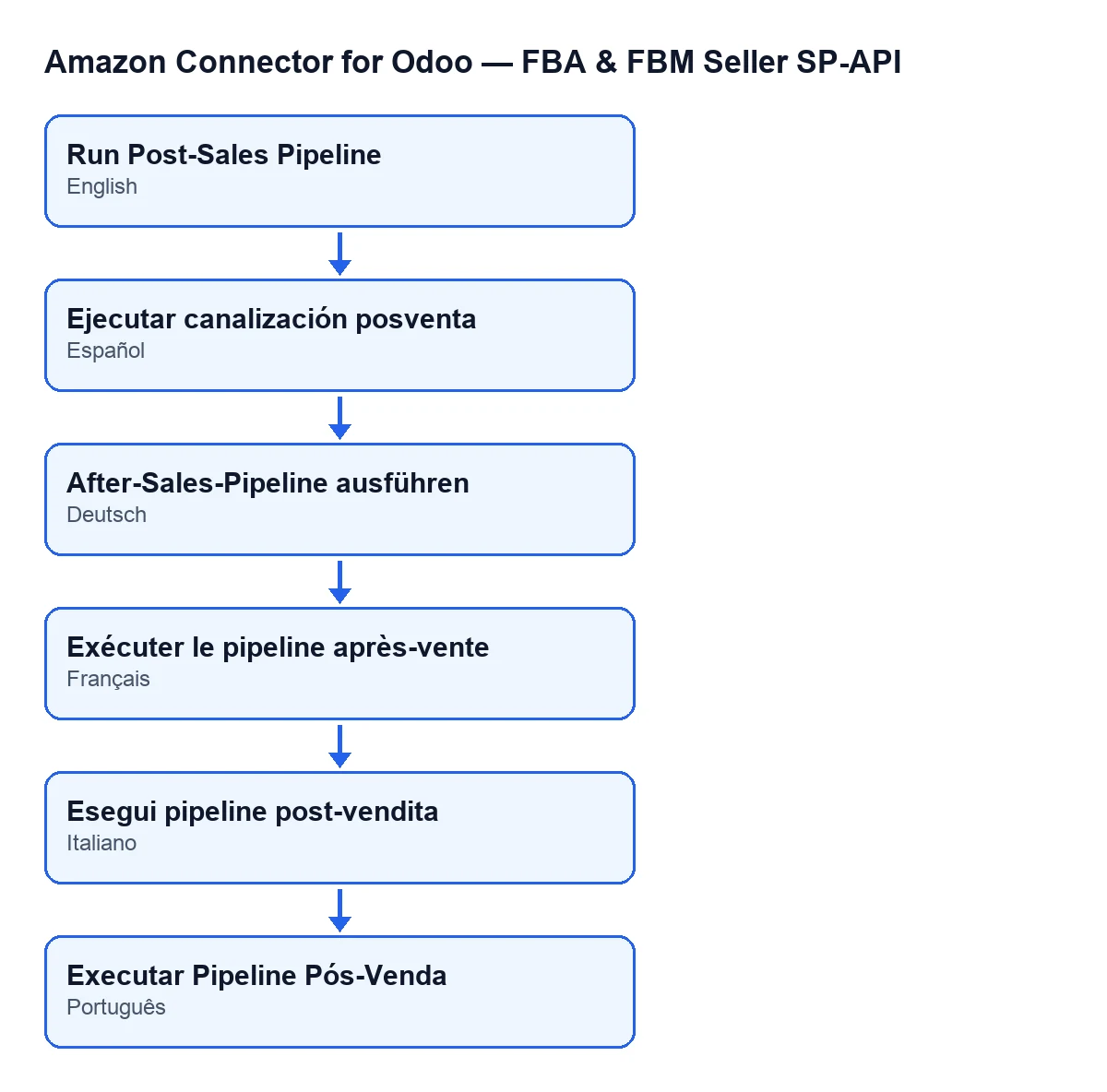
- If you work with Odoo in another language, look for the button under the label in your language. In English it is called
Run Post-Sales Pipeline.
What happens when you press it
- First the permission is checked. A superuser goes straight through; anyone else must belong to the Amazon connector
Managergroup or the Settings group. The code then also checks that you can write to the account. - If you fail the group check, the action stops with this message:
You need Amazon Seller Connector Manager (or Settings) access for this action. Ask a manager to grant Manager access.Nothing else runs. - With the permission in order, the post-sales pipeline runs for the account, with a manual source and with the instruction to pass errors on.
- The pipeline evaluates three blocks one after the other: returns with a pending action, partial refunds (by line) and shipping errors (by delivery order). In each block the module counts what was evaluated, what was created and what already existed.
- If all goes well, the account stores the date and time of this run and the result text, cut short if it is very long.
- When you press the button, the summary is also posted as a message on the account form (the scheduled action, by contrast, does not post it).
What to look at afterwards
- Open the message on the form. It starts with
Amazon post-sale pipeline finished., then gives the account (Account: …) and a source line (Source: …), which here readsManual. - Read the counters for each block:
Pending actions (returns evaluated): …,Partial refunds (lines evaluated): …andShipping errors (pickings evaluated): …, each with its cases created and those already existing, linked or open. - Compare the cases created with those that already existed to see whether the run opened new cases or simply found the earlier ones again.
- If you want it automated, nothing more is needed: the scheduled action runs the pipeline every hour on the active accounts that have at least one of the three post-sales boxes ticked.
If something fails
- If you see the access warning, ask a manager to give you
Manageraccess, as the message itself says. - If the error arrives during a manual run, the action stops and shows you the error on screen. With the scheduled action the error is not raised: it is added to the summary and kept on the account.
- If your user cannot reach the accounts menu, do not keep pressing at the button: make sure it has
Managerpermission for theConfigurationandAccountsparts.
Price and help
The module is a one-off purchase per version, published on Odoo Apps for 17, 18, 19 and 20 (listing and module page), and it needs a FlexigoTech Cloud subscription: the Connector plan costs €49 a month or €490 a year excluding VAT, with up to three accounts on the platform.
If you are implementing Odoo and want to review permissions, accounts and the post-sales tick boxes before the first run, FlexigoTech implements Odoo 17, 18, 19 and 20 and builds bespoke connectors and integrations.
Keep reading
Checked in the connector's source code (version 20.0) and the linked sources
Sources
- Module source code: flexigobe_amazon_seller_connector 20.0 (8576afa5): views/amazon_spapi_account_views.xml
- Module source code: flexigobe_amazon_seller_connector 20.0 (8576afa5): models/amazon_spapi_account.py
- apps.odoo.com/apps/modules/20.0/flexigobe_amazon_seller_connector
- flexigotech.com/precios.html
- flexigotech.com/en/services.html