

 Español
 Català
 Deutsch
 Français
 Português
 Italiano
 Nederlands
 Polski
What happens even if you press nothing
- Check that the scheduled task
Amazon SP-API - Refresh KPIsexists: it runs every day and is active when the module is installed. - Bear in mind that this task goes through the same date-range calculation as the button: the range starts at 00:00:00 on the first day and ends at 23:59:59 on the last.
- Use the button when you want to recalculate the dashboard's numbers right now.

Before you press: permission and screen
- Go to the
Amazonmenu. That section needs theViewerpermission: without it, you do not see the section. - Open the
Dashboardscreen. TheRefresh KPIsbutton is in the 17, 18, 19 and 20 branches of the module. - Do not look for a condition that makes it appear: the view shows it every time in those four versions.
- Remember that the button works with the Amazon account and the dates of that dashboard; with other values, you will get other results.
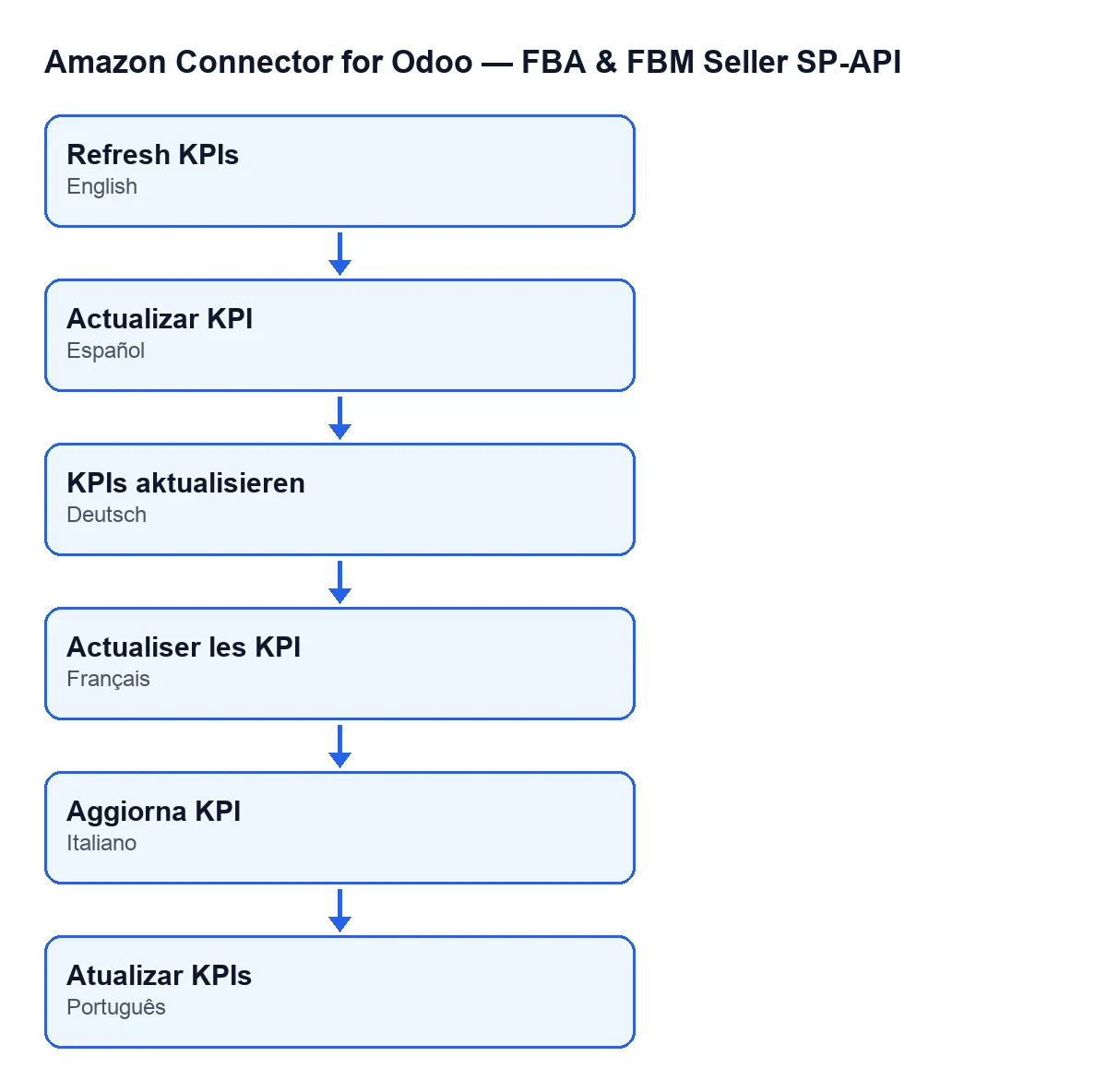
- If your Odoo is set to another language, look for the button under the translated label of that language: the module publishes translations for Spanish, German, French, Italian and Portuguese.
When you press: what each block counts
The button goes through each dashboard and calculates these blocks in order. Use them as a checklist against your own data. The blocks that depend on the dashboard's dates say so; the others ignore them.
- Sales: it counts the account's sales orders created within the range, leaving out those in draft, in the sent state or cancelled. It also adds up their total amount.
- Deliveries: it starts from the deliveries created in the range that belong to the account, either directly or through their sales order. From those it takes the deliveries already done (validated), of those the ones with a correct sync, and separately the ones in error and the pending ones.
- Sync delay: for each delivery that is already done (validated) and synced, and has both a done date and a last-sync date, it works out the minutes between the two (never below zero) and how many fall within one hour. Deliveries missing either date are skipped.
- Percentages and average: the success rate is the synced deliveries over the ones already done (validated), and the one-hour rate is those within that margin over the synced ones. If there are no deliveries already done or synced, the matching percentage stays at zero. Everything is rounded to two decimals.
- Returns: it counts the account's return lines whose request date falls in the range and adds up the refunded amounts.
- After-sales cases: it counts the account's cases created in the range that are open or in progress, and how many of those are overdue.
- Product bindings: it counts those of the account and its marketplace, those with an error (error state or an error counter above zero) and those with warnings. This block does not use the date range.
- FBA and FBM: it counts the account's Amazon orders that are not cancelled, split by fulfilment channel (FBA or FBM), with their amount. It does not use the date range either, and it leaves out cancelled orders.
- Inbound in transit: it counts the account's inbound plans in the shipped state, without looking at dates.
- Messaging: it counts the open threads and those requiring a response, also without looking at dates.
- Settlements: it takes the account's settlements with a deposit date inside the range and adds up net payout, fees, advertising and sales. The fee rate is the absolute value of fees plus advertising over the settlement sales; if those sales are zero, it stays at zero.
- AI and restock cards: it adds up the planning velocity of the account's analytics rows, counts those in reorder now or stockout, adds up the stranded value and takes from the account the median and the p90 of the FBA lead time plus the sample count. The AI summary comes from the account's latest correct weekly digest; if there is none, the text is
Generate your first AI report.. - Optional cards: account health, suppressed listings with revenue at risk, storage fees, recovered reimbursements, stranded inventory and Amazon restock flags. Each one only carries data when its report has rows, and the view hides it if the matching switch on the account is not turned on. Storage fees and recovered reimbursements are calculated within the dashboard's date range.
What changes at the end
- The counters and amounts are written together into the dashboard, one dashboard at a time, once its calculation finishes.
- The date and time of the refresh and a summary of the result are saved as well. That summary starts with
KPIs refreshed successfully.and goes on with lines such asAmazon orders: …,Deliveries done: …,Sync OK: …,Sync error: …,Returns: …andOpen cases: …, each with its figure. - The metrics fact sheet that feeds the AI is rebuilt at most every twenty-four hours. If that rebuild fails, the code logs a warning and the button carries on with the rest.
After you press: what to review
- If you see zeros, first check whether the dashboard's account has data between the dashboard's start and end dates. The blocks for sales, deliveries, returns, cases and settlements depend on the range.
- If sales and the FBA and FBM split do not match, remember that the split ignores dates and sales do not.
- If the deliveries panel looks short, remember that pending and error deliveries come from all the deliveries in the range, not only the ones already done (validated).
- If an optional card does not appear, it may be because the switch for that card is not turned on for the account; in that case the view hides it.
- If you cannot see the
Amazonmenu, check that your user has theViewerpermission.
Cost and help
The module is a one-off payment per Odoo version (published for 17, 18, 19 and 20) and needs the FlexigoTech Cloud subscription, Connector plan: €49 a month or €490 a year, excluding VAT. The connection goes through FlexigoTech Cloud, which stores the credentials encrypted and watches the sync. You can see the module on its Odoo Apps page or on flexigotech.com. FlexigoTech implements Odoo 17, 18, 19 and 20 and builds custom connectors and integrations, in case you need to adapt the dashboards to how you work.
Keep reading
Checked in the connector's source code (version 20.0) and the linked sources
Sources
- Module source code: flexigobe_amazon_seller_connector 20.0 (8576afa5): views/amazon_spapi_kpi_dashboard_views.xml
- Module source code: flexigobe_amazon_seller_connector 20.0 (8576afa5): models/amazon_spapi_kpi_dashboard.py
- apps.odoo.com/apps/modules/20.0/flexigobe_amazon_seller_connector
- flexigotech.com/precios.html
- flexigotech.com/en/services.html