

 Español
 Català
 Deutsch
 Français
 Português
 Italiano
 Nederlands
 Polski
The normal route: Odoo accepts orders by itself
Do I have to press Accept Order on every Mirakl order?
No. According to the code published for Odoo 20, acceptance is also triggered by two scheduled actions that are active as soon as the module is installed: Mirakl - Accept Orders and Mirakl - Sync Orders. Both run every 10 minutes and both reach the same method, the one that accepts an instance's pending orders. The button is the manual route for one specific order.
Which orders does that method pick up, and in what order?
Those of the instance that require acceptance (Requires Acceptance), whose acceptance state is pending or error, and that are not held back from sales orders: the code notes that accepting one of those orders would commit you to shipping something Odoo will never ship. It sorts them by order date, oldest first.
What happens if automatic acceptance fails?
If the call to Mirakl fails, on the automatic route the error is not re-raised: the order is left with its acceptance state set to error, the date and time of the attempt are recorded, the attempt counter goes up by one and the error text is stored. Because orders in error are part of the selection, the next run tries again. If FlexigoTech Cloud does not let the request through, the order is not marked and the next run retries it. If you doubt the connection, first read what the Test Connection button does.

The button: where it is, when you see it and who can press it
Where is it and when does it appear?
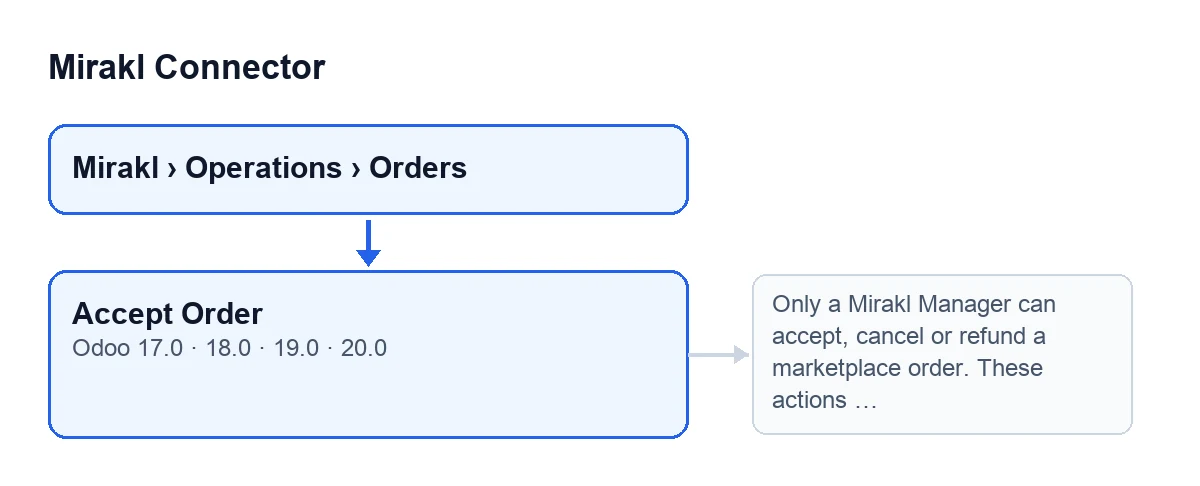
It is on the Mirakl Orders screen, opened from Mirakl › Operations › Orders, in Odoo 17, 18, 19 and 20. It is hidden when Acceptance State shows that the order is already accepted, or when Requires Acceptance is not ticked; the condition is the same in all four versions. The order shows its Instance on the form and in the list, and the acceptance is sent through that instance. With Odoo in Spanish the button is called Aceptar pedido; the second diagram shows how it is labelled in other languages.
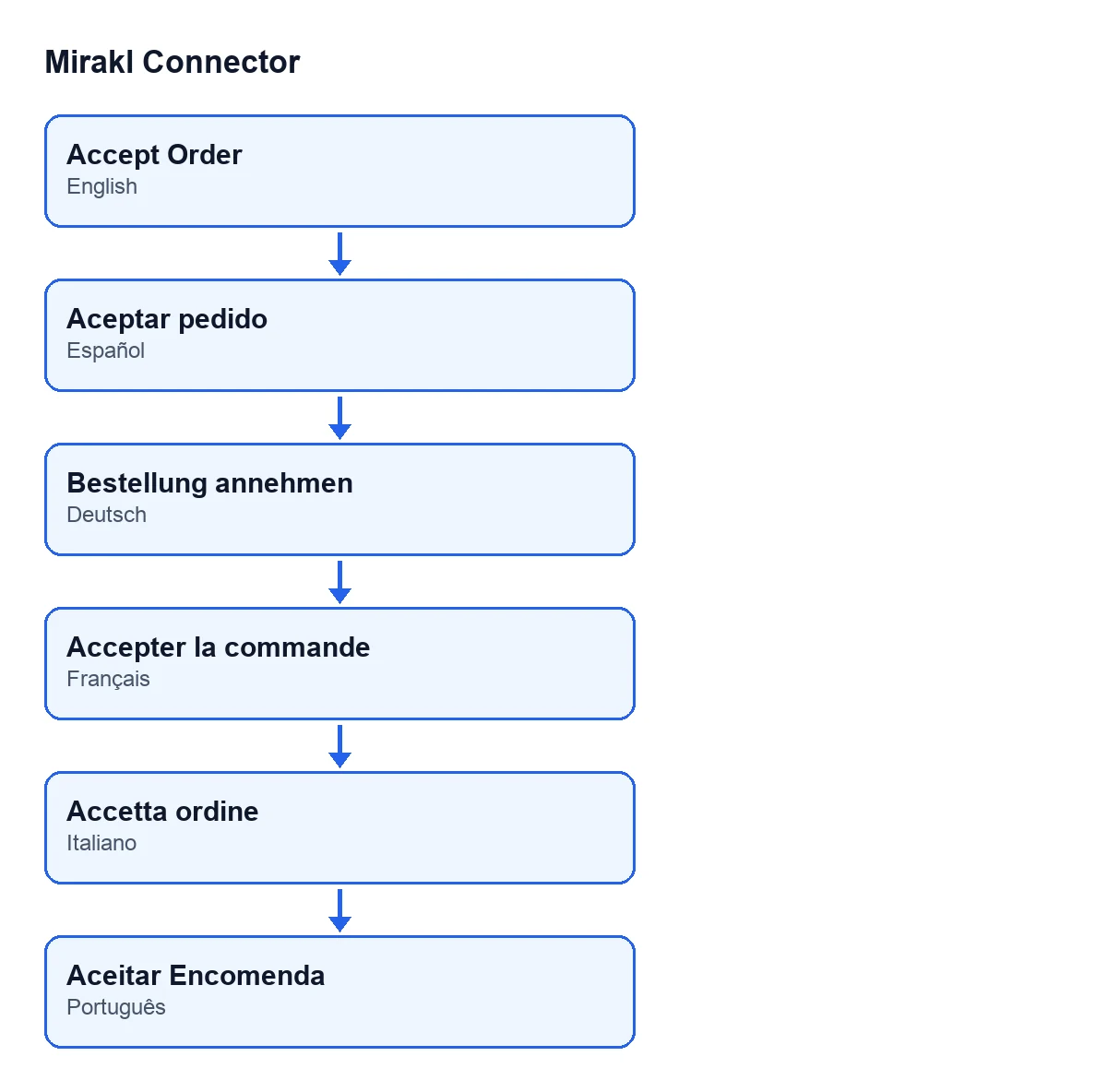
Aceptar pedido, in German «Bestellung annehmen», in French «Accepter la commande», in Italian «Accetta ordine» and in Portuguese «Aceitar Encomenda».What happens if my user is not a Mirakl Manager?
This is the first thing the button checks, before it touches anything. If you are not one, it stops with this message: Only a Mirakl Manager can accept, cancel or refund a marketplace order. These actions change the order on the marketplace and move real money. The fix is to press the button with a user who is a Mirakl Manager.
What it does when pressed and which errors it can give
What does it do step by step, and what changes if it works?
First it checks the Mirakl Manager permission. Then it checks that the order requires acceptance and prepares the data it will send to Mirakl; if that data has no order lines, it sends nothing. Next it sends the acceptance request to Mirakl, using the address and HTTP method configured on the instance. If Mirakl answers correctly, the order becomes accepted: the date and time of the attempt and of the acceptance are stored, the attempt counter goes up by one, the last error is cleared and Mirakl's response is saved. Because this is a manual acceptance, a message is also posted on the instance. As the acceptance state becomes accepted, the button is no longer visible on that order.
Which error do I see if the call to Mirakl fails?
The error itself, as it arrives. The button asks for errors to be passed on, so the action stops and what it was about to change is not saved (neither the error state nor the counter). On the automatic route, by contrast, the error stays recorded on the order. As the order is still not accepted, the button stays visible while it requires acceptance and you can press it again.
How does the button differ from the automatic route?
According to the code, the button first checks that you are a Mirakl Manager, shows errors instead of recording them on the order, posts a message on the instance when it accepts, and does not apply the filter for held-back orders, because it calls the order acceptance directly. Keep in mind the code's note about those orders: accepting them would commit you to shipping something Odoo will never ship.
If you need help getting started
Mirakl Connector is a one-off payment per Odoo version, published for 17, 18, 19 and 20, and it needs a FlexigoTech Cloud subscription, Connector plan: €49 a month or €490 a year excluding VAT, up to 3 marketplace accounts. Without a subscription, or with the service suspended, whatever the subscription provides stops; your data stays in your Odoo. You will find the details on the Odoo Apps listing and on the module page. If you are implementing Odoo, FlexigoTech implements Odoo 17, 18, 19 and 20 and builds custom connectors and integrations.
Keep reading
Checked in the connector's source code (version 20.0) and the linked sources
Sources
- Module source code: flexigobe_mirakl_connector 20.0 (aa05e537): views/mirakl_order_views.xml
- Module source code: flexigobe_mirakl_connector 20.0 (aa05e537): models/mirakl_order.py
- Module source code: flexigobe_mirakl_connector 20.0 (aa05e537): models/mirakl_instance.py
- apps.odoo.com/apps/modules/20.0/flexigobe_mirakl_connector
- flexigotech.com/en/services.html
- flexigotech.com/precios.html