

 Español
 Català
 Deutsch
 Français
 Português
 Italiano
 Nederlands
 Polski
Where the button is and what it does, in order
Listings open from the menu Temu › Catalog › Listings. The Validate Product for Temu button sits on the Product Publishing form and has no state condition: it always shows in Odoo 17, 18 and 19.
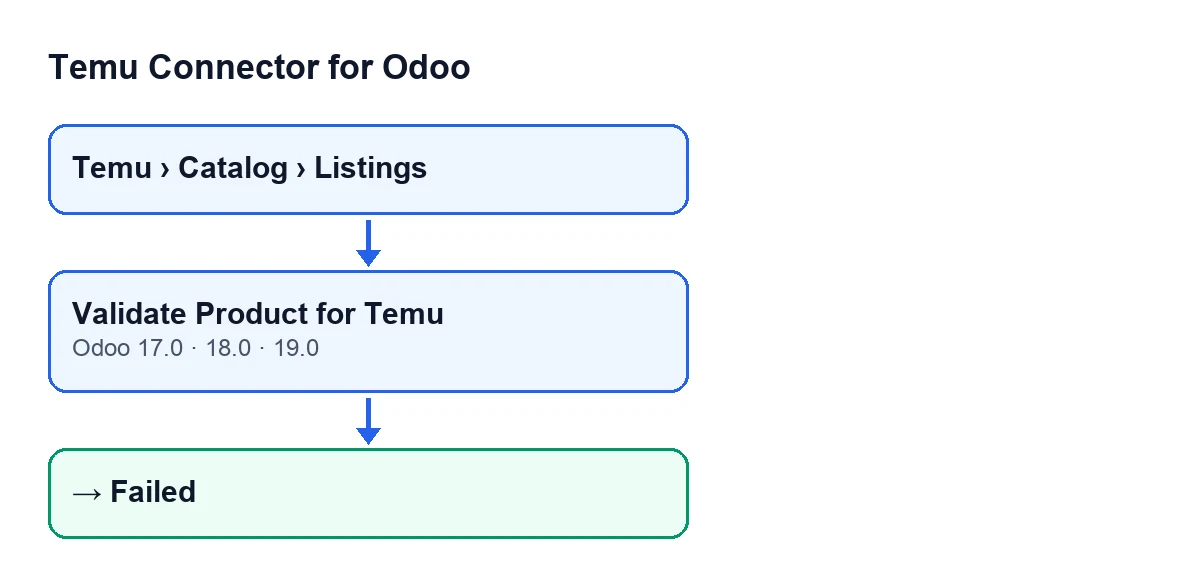
In Odoo 19, when you press it, the module does this, in this order:
- Open the listing from
Temu › Catalog › Listingsand pressValidate Product for Temu. - The module completes the listing with the Temu data defined on the product, mostly where the listing is empty (the product type is also taken if the listing has it at its standard value).
- It prepares the content that would be sent to Temu and, alongside it, a list of warnings.
- It checks compliance with Temu for the listing's category. If it finds errors, it stops here.
- It checks the product name and the description against disallowed vocabulary. If it finds errors, it stops here.
- If everything went well, it saves the prepared content, clears the previous error, saves the warnings if there are any and sets the listing to
Validated. - If anything fails at any point, it writes
Failedon the listing, saves the error text and raises the error again so that you see it.
The requests to Temu go through the listing's instance: the Instance field appears on the form and in the list of Product Publishing.
With Odoo in English, the button is called Validate Product for Temu.

Mistaken ideas about the button
«It only checks that the listing is complete»
Before checking anything, the button writes to the listing. If the listing has an empty cost template, brand, trademark, manufacturer representative, responsible person, regions of origin or external media addresses, and the product does have them defined for Temu, it copies them across. There are exceptions to «only if empty»: the product type is also taken from the product when the listing has it empty or at its standard value, and the second-hand scope is taken when the listing has it at zero. The other second-hand details are copied when the listing does not carry them. This step comes before the checks with Temu.
«It only appears when the listing is in a certain state»
The button has no view condition: it always shows, in Odoo 17, 18 and 19. It does not look at the starting state either, so if you press it again it repeats the whole flow and leaves the listing in Validated or Failed depending on the result.
«If Temu does not answer, validation always blocks»
It depends on which request it is. For vocabulary, the module treats the check as passed if the text is empty, if the instance has no such request defined or if the call to Temu fails. For compliance, if the instance has no compliance-rules request defined, there are no errors either. The request for the extra compliance template is ignored if it fails. By contrast, if the main compliance-rules request fails, the error comes out, the listing is left in Failed and you see the error text.
Practical consequence: a listing reaching Validated does not prove that Temu reviewed the vocabulary on that press.
«The button gathers the documents Temu asks for»
It only checks. If Temu's rules for the listing's category ask for additional information, or for an actual photo, and the listing carries neither compliance information nor attachments, the button gives a compliance error. Having just one of the two is enough for that check not to fail. The same applies if the extra compliance template contains required fields. If there are compliance errors, the button stops there and never reaches the vocabulary check.
«When it fails, there is no trace of why»
On any failure, the method writes Failed, saves the error text and raises it again, so the error appears when you press the button. Vocabulary errors are gathered before being raised: the name is checked first, then the description, and they come out as a single error. If Temu returns the disallowed words, the error lists them; if it only reports a violation, the error says so with the field name.
A successful validation does the opposite: it clears the previous error, saves the warnings from preparing the content (if any) and saves the prepared content.
What to check after pressing it
- That the listing has ended up in
Validated. - That the listing's instance (
Instance) is the one you want to use for the requests to Temu. - If it ended up in
Failed, read the whole error: it may come from compliance, from the vocabulary in the name and description, or from another step of the validation.
How it fits with your subscription and with FlexigoTech
FlexigoTech's Temu connector is a one-off purchase per Odoo version and needs the FlexigoTech Cloud subscription, Connector plan: €49 a month or €490 a year, excluding VAT. The connection goes through FlexigoTech Cloud. You can see the module on its Odoo Apps page or on the module page.
If you are implementing Odoo and need to fit the Temu publishing flow to your catalogue, FlexigoTech implements Odoo 17, 18, 19 and 20 and builds custom connectors and integrations. If you would like to see another button of the module, there is this article.
Keep reading
Checked in the connector's source code (version 19.0) and the linked sources
Sources
- Module source code: flexigobe_temu_connector 19.0 (455b3f0f): views/temu_product_binding_views.xml
- Module source code: flexigobe_temu_connector 19.0 (455b3f0f): models/temu_product_binding.py
- flexigotech.com/en/services.html
- flexigotech.com/precios.html