

 Español
 Català
 Deutsch
 Français
 Português
 Italiano
 Nederlands
 Polski
When you see the button and what Odoo does without it
Do I have to press the button for the invoice to reach Mirakl?
Not always. The module extends the standard validate button of the delivery order and, when the delivery is validated, it can also upload the invoice itself, provided the instance has invoice sending set to automatic mode and the delivery has no upload date yet. The button is for uploading it by hand. Separately, the Auto-create invoice on delivery validation checkbox makes Odoo create the customer invoice from the sale order when a delivery of a Mirakl order is validated. You will find it on the Mirakl Instances form, Orders and Returns tab, Sales Bridge group, and it is off by default. According to its help text, it respects the invoice policy (ordered or delivered) and never blocks the delivery if invoicing fails.
When does the button appear, and why might it be missing on a delivery order?
It is on the delivery order form (an Inventory transfer). It is hidden when the delivery is not for a Mirakl order or when its status is not Done. Put the other way round: you see it only if the delivery is for a Mirakl order and is Done. The Is Mirakl Order field does not appear in any view, so there is no checkbox to look at; what you can check is the status of the delivery. The condition is the same in Odoo 17, 18, 19 and 20.

What it does when you press it, step by step
What exactly does the button do?
The code goes through the delivery orders it acts on and keeps those that belong to a Mirakl order. For each one it looks up the Mirakl instance of the sale order the delivery is linked to. If the delivery has no sale order, there is no instance and the button simply moves on without doing anything. If there is one, it asks the instance to upload the invoice; according to the module's own code, what gets uploaded is the PDF of the posted invoice. If the upload succeeds, the module saves the date and time of the upload on the delivery and leaves a note on it.
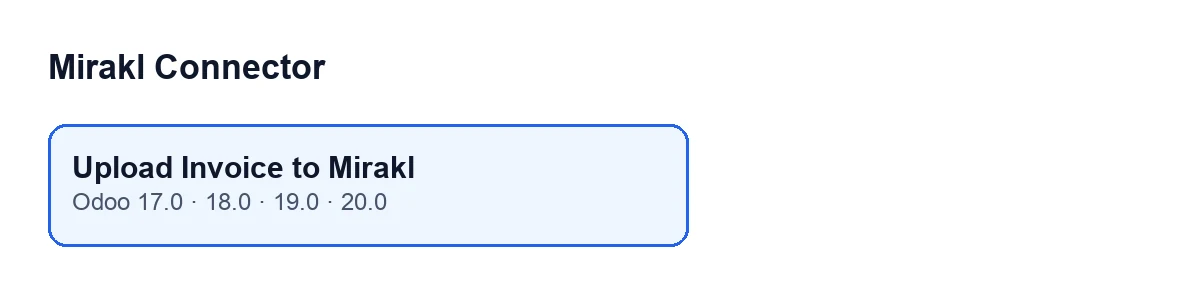
Upload Invoice to Mirakl button, present in Odoo 17, 18, 19 and 20.What changes on the delivery order if it works?
Two things: the date and time of the upload are saved, and the note Mirakl: invoice uploaded to the marketplace. appears on the delivery. The automatic route only uploads if that date is empty.
What happens if the upload fails?
With the button, the error is raised again: you see it on screen, the action stops and what it was going to change is not saved, so no upload date is left. If it is FlexigoTech Cloud that does not let the operation through, nothing is uploaded and nothing is marked, so it can be sent later, and the button also shows the error. On the automatic route, by contrast, the error is not raised again: for an ordinary failure the module leaves a note with the error on the delivery and the date is not marked; if FlexigoTech Cloud does not let it through, nothing is marked either. The exact text of the error depends on what the upload returns and is not set by the button.
Can I press it if the invoice has already been uploaded?
When you press it, the button itself does not check whether an upload date already exists, whereas the automatic route does require it to be empty. Before repeating the upload by hand, check the delivery's notes to see whether Mirakl: invoice uploaded to the marketplace. is already there.
Versions, subscription and help
Is the button in my version of Odoo?
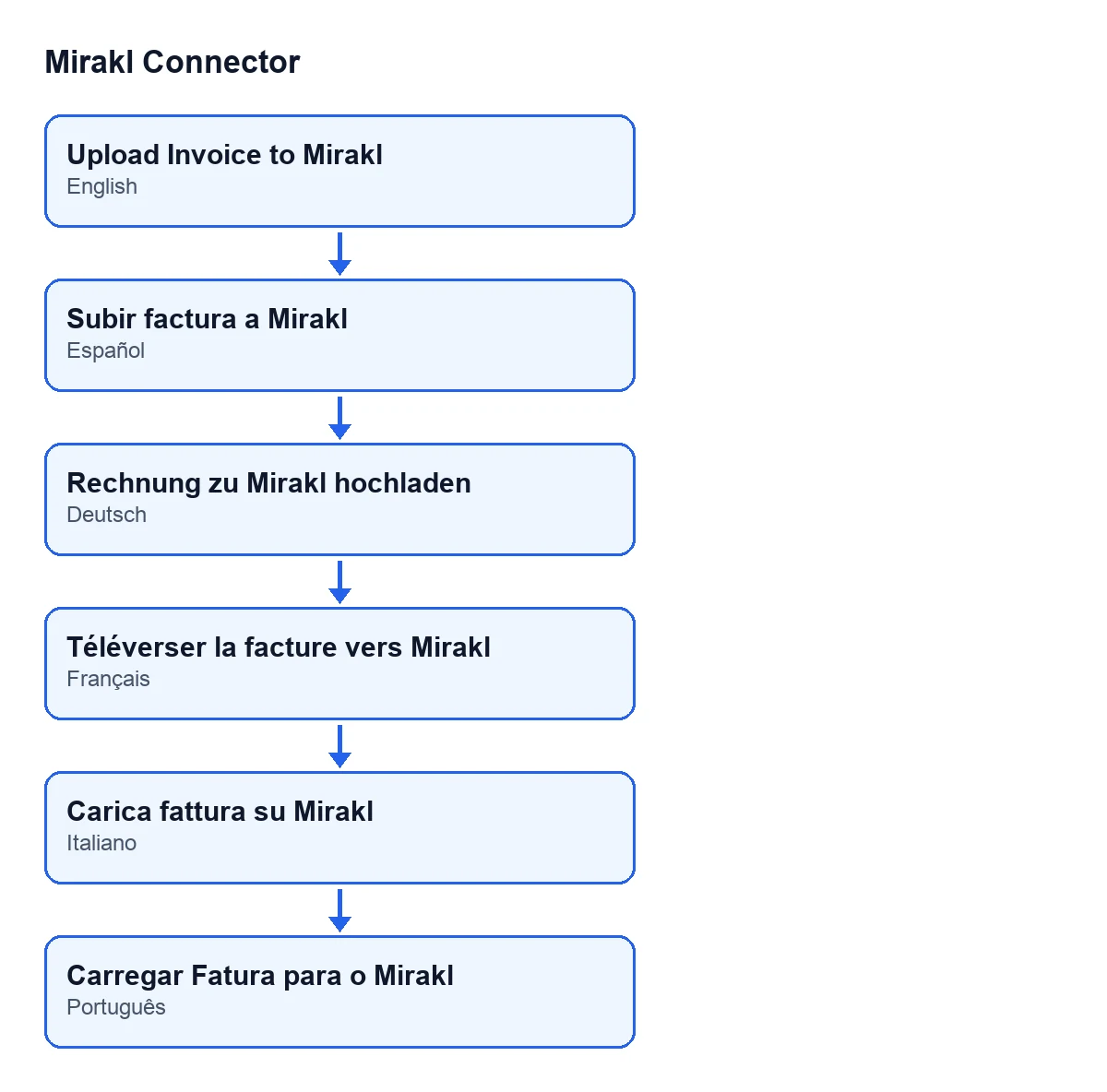
Yes: the module is published on Odoo Apps for Odoo 17, 18, 19 and 20, and the button is on the delivery order in all four branches. The step-by-step account above comes from the Odoo 20.0 code. With Odoo in English, the button is called Upload Invoice to Mirakl; the module also ships translations of it, shown in the second diagram.
What does it need to work, and what does it cost?
The module is a one-off purchase per Odoo version (each version's price is on the Odoo Apps listing and on the module page) and needs the FlexigoTech Cloud subscription, Connector plan: €49 a month or €490 a year, excluding VAT, with up to 3 marketplace accounts. The connection goes through FlexigoTech Cloud, which stores the credentials encrypted, monitors synchronisation and emails you if it fails. Without a subscription, or with the service suspended, whatever the subscription provides stops; your data stays in your Odoo. With the subscription, the module for newer Odoo versions is included if you bought it on flexigotech.com; on the Odoo App Store, each version is bought there.
Can you help me set it up?
FlexigoTech implements Odoo 17, 18, 19 and 20 and builds custom connectors and integrations.
Keep reading
Checked in the connector's source code (version 20.0) and the linked sources
Sources
- Module source code: flexigobe_mirakl_connector 20.0 (aa05e537): views/stock_picking_views.xml
- Module source code: flexigobe_mirakl_connector 20.0 (aa05e537): models/stock_picking.py
- Module source code: flexigobe_mirakl_connector 20.0 (aa05e537): models/mirakl_instance.py
- apps.odoo.com/apps/modules/20.0/flexigobe_mirakl_connector
- flexigotech.com/precios.html
- flexigotech.com/en/services.html