

 Español
 Català
 Deutsch
 Français
 Português
 Italiano
 Nederlands
 Polski
When the button appears
The Exchange Auth Code button sits on the Temu Dashboard form, and the forms are opened from the Temu menu. It is there in Odoo 17, 18 and 19.
It is not visible in every configuration. In those three versions the view hides it when the Temu connection field has its default value, so with the factory settings neither the button nor the Auth Code field (where you type the code) shows up. The button and the field are therefore only used when Temu connection holds a value other than the one it ships with.
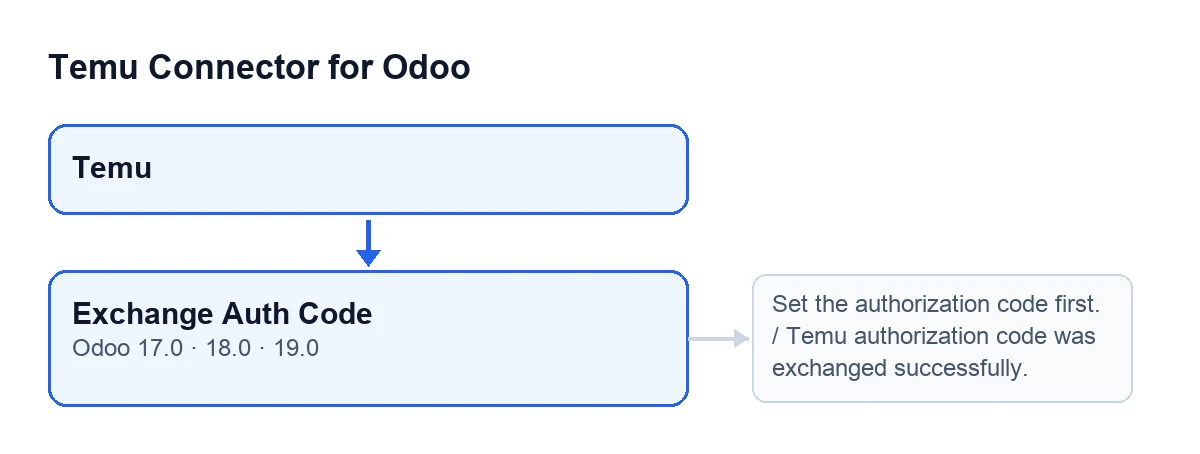
Set the authorization code first. and Temu authorization code was exchanged successfully., with the labels in the original English of the code.With Odoo in English the button is called Exchange Auth Code.

Step by step
- Open the
Temumenu and go into theTemu Dashboardform. With the factory settings you will see neither theExchange Auth Codebutton nor theAuth Codefield: in that case there is nothing to press and the steps below do not apply. If you can see both, carry on. - Type into
Auth Codethe one-time code that comes back from Temu's authorisation callback. The field's help describes it like this:One-time code from Temu auth callback. - Press
Exchange Auth Code. - Read the outcome. If
Set the authorization code first.appears, the field was empty. If the notificationTemu authorization code was exchanged successfully.appears, the exchange has finished. - After a success,
Auth Codeis empty. If you want to see which Temu method was used to request the token, look atMethod Token Createin theAPI Methodstab of the same form.
What the button does inside (Odoo 19)
This is the order followed by the published Odoo 19 code:
- It reads
Auth Codeand trims the spaces at both ends. If nothing is left, it stops with the message and saves no change. - It asks Temu for the token using the method held in
Method Token Create, sending the code as a parameter. - If the call fails, the error is written to the server log and the module may try another Temu method; if it does not, or all of them fail, the action stops with that error.
- If the method used for the request is not the one that was in
Method Token Create, the module writes the one it used into that field. Its default value in the code isbg.open.accesstoken.create. - It applies the response to the record (details below).
- It empties
Auth Codeand shows the green notification, which does not stay fixed on screen.
What changes on the record
When it applies Temu's response, the module writes to the record:
- The access token: the one in the response or, if the response carries none, the very code you typed.
- The token's expiry, if the response includes it and the module manages to read it as a date.
- The list of API scopes returned by Temu, one per line.
- The date and time of the last token check.
- The shop identifier, only if the response carries one and it differs from the one already stored. In that case the module also posts a message on the record announcing the change.
One point that can be read in the code: if Temu's response is not a set of data with fields, the module applies no token change. It still empties Auth Code and shows the notification, because the call raised no error.
Errors you can get when pressing it
Set the authorization code first.
It appears when you press the button with Auth Code empty or holding only spaces. The action stops and nothing changes. Type the code and press again. Bear in mind that after a successful exchange the field is emptied: if you press again without typing a new code, you will see this same message.
No Temu API method candidates are configured.
The part of the module that tries Temu's methods raises it when there is no candidate method. The action stops with that message and no token is saved.
Any other error from the call to Temu
If the call to Temu returns an error and trying another method does not resolve it, the button does not turn it into a text of its own: the action stops with that error before touching the record. Since Auth Code is emptied after the exchange, the code is still in the field and you can try again.
What to check afterwards
After a successful exchange, open the form again and check that Auth Code is empty. If the module changed the token creation method, you will see it in Method Token Create, in the API Methods tab. If the response carried a different shop identifier, you will find the message the module posts on the record announcing the change.
Requirements and price
Temu Connector for Odoo is a one-off payment per Odoo version (published on Odoo Apps for 17, 18, 19 and 20) and needs the FlexigoTech Cloud subscription, Connector plan: €49/month or €490/year excluding VAT, with up to 3 accounts of the platform. The connection goes through FlexigoTech Cloud, which stores the credentials encrypted. Remember that, with the default value of Temu connection, this button is not shown. You can find the Odoo Apps listing and the module page.
How FlexigoTech can help
FlexigoTech implements Odoo 17, 18, 19 and 20 and builds connectors and custom integrations.
Keep reading
Checked in the connector's source code (version 19.0) and the linked sources
Sources
- Module source code: flexigobe_temu_connector 19.0 (455b3f0f): views/temu_instance_views.xml
- Module source code: flexigobe_temu_connector 19.0 (455b3f0f): models/temu_instance.py
- Module source code: flexigobe_temu_connector 19.0 (455b3f0f): models/fgt_cloud.py
- apps.odoo.com/apps/modules/19.0/flexigobe_temu_connector
- flexigotech.com/precios.html
- flexigotech.com/en/services.html