

 Español
 Català
 Deutsch
 Français
 Português
 Italiano
 Nederlands
 Polski
Where the button is and when you see it
The Sync Amazon-Issued Invoices button is on the Accounts screen, opened from Amazon › Configuration › Accounts. The Configuration and Accounts steps of the menu ask for Manager access, and the Amazon step asks for Viewer. With Viewer alone you see the Amazon step but not the other two.
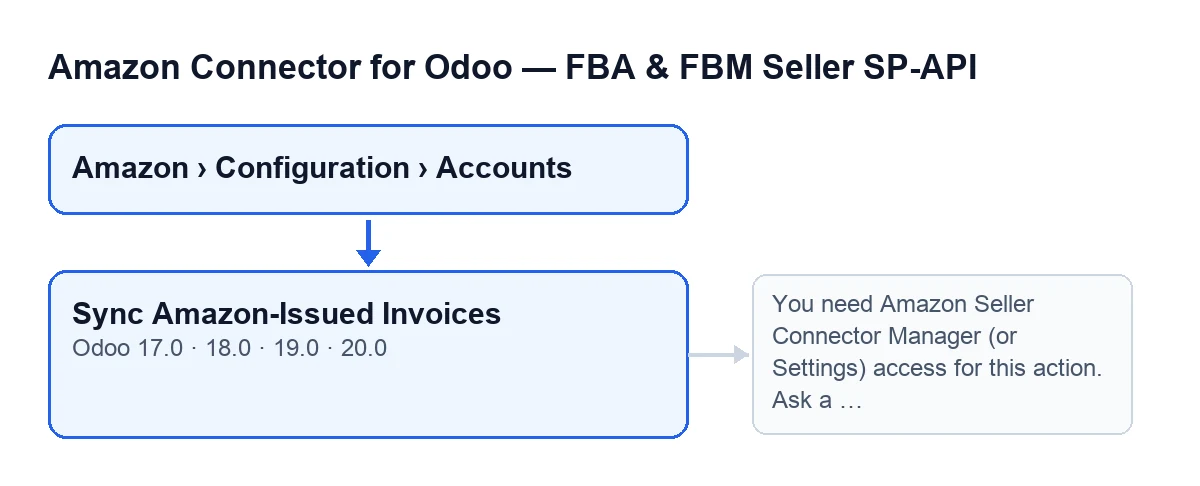
On the Accounts screen the button is only in Odoo 19 and 20 (not in 17 or 18), even though the module is published for Odoo 17, 18, 19 and 20. It is also hidden while the Reconcile Amazon-issued invoices (VCS) option is off, and with the default values it is off: by default you will not see the button.
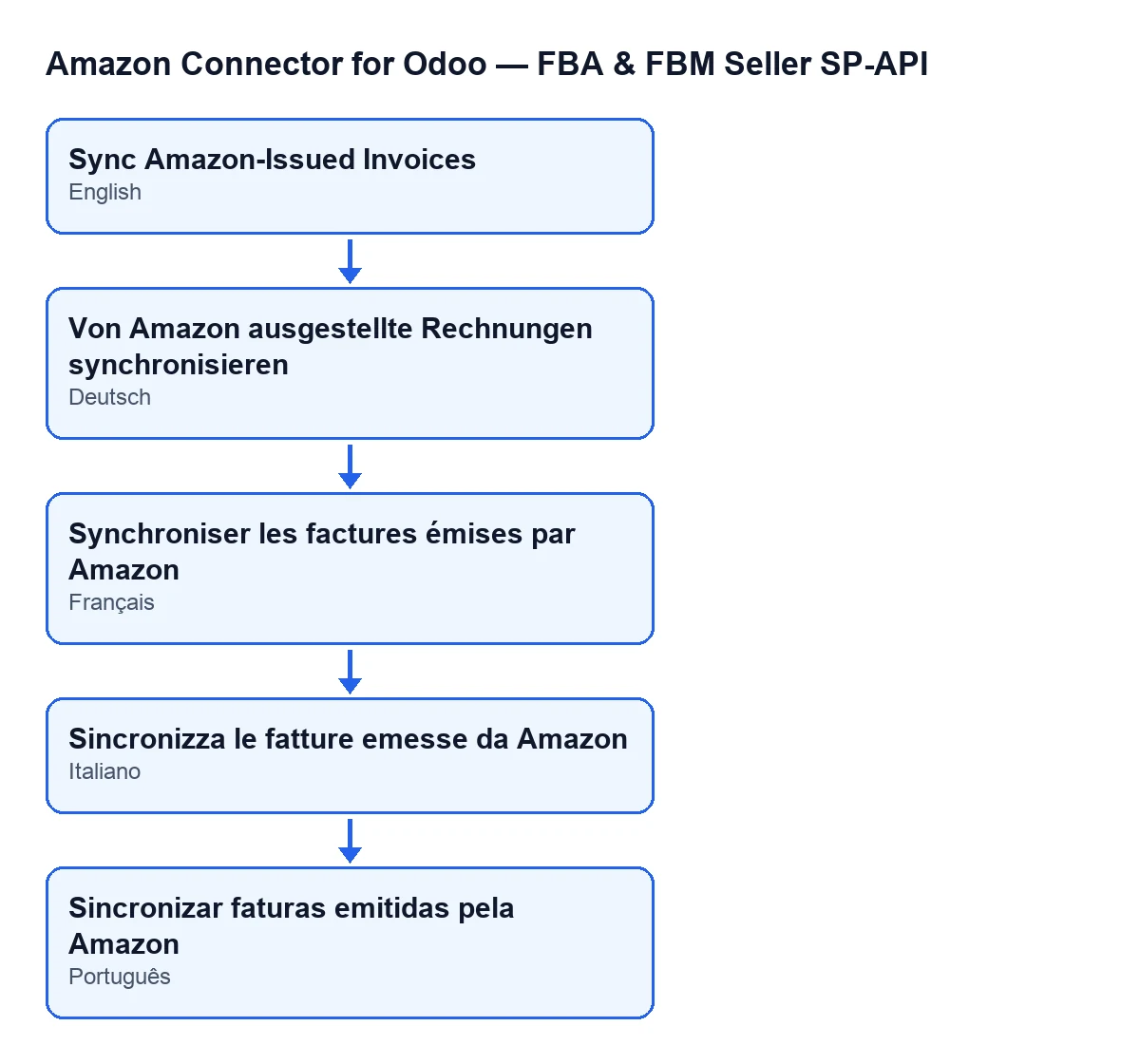
The label changes with the language of your Odoo. With Odoo in German it reads Von Amazon ausgestellte Rechnungen synchronisieren, in French Synchroniser les factures émises par Amazon, in Italian Sincronizza le fatture emesse da Amazon and in Portuguese Sincronizar faturas emitidas pela Amazon.

What happens first: the daily task
The normal route does not go through the button. The scheduled task Amazon SP-API - Reconcile Amazon-issued invoices (VCS, opt-in) runs every day and is active from installation. It goes through the active accounts that have the Reconcile Amazon-issued invoices (VCS) option on and runs, for each one, the same reconciliation the button runs, with the source CRON. If one account fails, the task writes a warning in the server log and carries on with the others.
The button is the exception: it runs that reconciliation by hand, without waiting for the next run. This is how it differs from the task:
| Daily task | Button | |
|---|---|---|
| Accounts it handles | All active ones with the option on | The account you have open |
| Source in the report | CRON | Manual |
| Message in the account's history | No | Yes |
| If there are errors or late-arriving lines flagged | Carries on and counts them in the report | Stops with an error |
A case: running it by hand before the close
Example Illustrative case: the company and its figures are made up to explain the flow.
Menaje Levante S.L., an invented company that sells on Amazon and keeps its books in Odoo 20, has the Reconcile Amazon-issued invoices (VCS) option on. The person in administration, who has Manager access, does not want to wait for tonight's task and runs it by hand:
- They open
Amazon › Configuration › Accountsand then the Amazon account. Because the option is on, they see the button. - They press
Sync Amazon-Issued Invoices. The first thing Odoo does is check that the user is aManager(or in Settings) and can write to that account. If that fails, the action stops there. - Odoo runs the reconciliation for that one account only, with the source
Manual. - From the resulting counts it builds a report. If there are no errors and no late-arriving lines flagged, it stores on the account the date and result of that run (the text is cut if it is very long) and posts the report as a message in the account's history.
- They read that message in the history.
Had the counts included errors or late-arriving lines flagged for review, the press would have ended with an error on screen instead of the report. Because the action stops, nothing that press was going to change is saved.
What the report says
The report starts with Amazon-issued invoice reconciliation finished., continues with Account: … and Source: …, and ends with these counts:
| Report line | What it counts |
|---|---|
Scanned invoice numbers | The invoice numbers scanned |
Amazon-issued (booked new entry) | Those issued by Amazon, for which a new entry is recorded |
Seller-issued (linked, nothing new) | Those issued by the seller: linked, nothing new created |
Skipped (seller invoice still in draft) | Those skipped because the seller's invoice is still in draft |
Late-arriving lines flagged for review | Late-arriving lines flagged for review |
Late-arriving lines relinked (seller-issued) | Late-arriving lines relinked as seller-issued |
Errors | The errors |
What errors it can give
Missing access
If your user is not a Manager and is not in Settings, pressing the button shows: You need Amazon Seller Connector Manager (or Settings) access for this action. Ask a manager to grant Manager access. The check comes before anything is run, so the reconciliation never starts. The message itself says what to do: ask a manager to give you Manager access.
Errors or late-arriving lines flagged
When you press the button, it adds up the Errors and the Late-arriving lines flagged for review. If the total is not zero, it stops with an error and what that press was going to change is not saved. The daily task does not stop for this: it counts them in its report and carries on.
Any other failure during the reconciliation
If the reconciliation fails for another reason, the code raises that failure again when you run it with the button. In the daily task, by contrast, the failure ends up as an Error: … line in the report.
What to take from the case
- The daily task is the normal route; the button is for getting ahead of it when you need to.
- If you cannot see the button, check the version first (19 or 20) and then the
Reconcile Amazon-issued invoices (VCS)option. - Whoever presses it needs
Manageror Settings access, and must be able to write to that account. - The report separates what Amazon issued, what the seller issued, what was skipped because it is in draft and what needs review.
Price and help
The module is a one-off purchase per Odoo version (price on the Odoo Apps page) and needs the FlexigoTech Cloud subscription, Connector plan: €49/month or €490/year, excluding VAT. More on the module page.
FlexigoTech implements Odoo 17, 18, 19 and 20 and builds custom connectors and integrations.
Keep reading
Checked in the connector's source code (version 20.0) and the linked sources
Sources
- Module source code: flexigobe_amazon_seller_connector 20.0 (8576afa5): views/amazon_spapi_account_views.xml
- Module source code: flexigobe_amazon_seller_connector 20.0 (8576afa5): models/amazon_spapi_account.py
- apps.odoo.com/apps/modules/20.0/flexigobe_amazon_seller_connector
- flexigotech.com/precios.html
- flexigotech.com/en/services.html