

 Español
 Català
 Deutsch
 Français
 Português
 Italiano
 Nederlands
 Polski
What this action is and when it runs
It is an Odoo scheduled action called Shopify Sync Products. It runs every hour and is switched off when the module is installed, so it does nothing until someone activates it. It exists in every published branch of the module (Odoo 17, 18, 19 and 20); in Odoo 17 it is set to repeat without end.
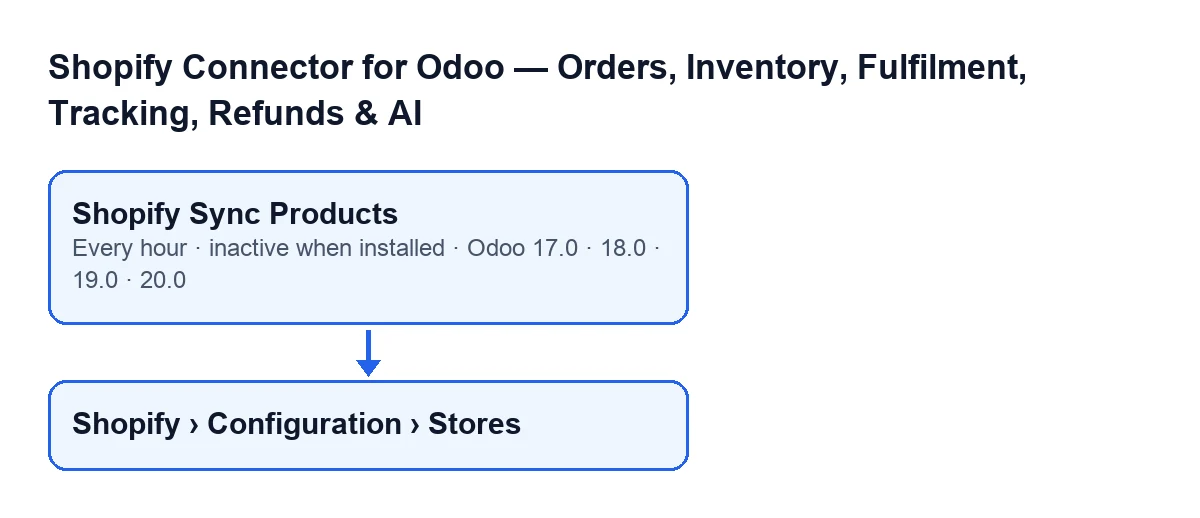
You open the stores from the menu Shopify › Configuration › Stores. If a menu level is missing, it is down to permissions: the Shopify level asks for Viewer and the Configuration level asks for Operator.

A worked case to follow one full pass
Example Illustrative case: the company and its figures are made up to explain the flow.
Casa Olivar is an invented homeware company with a main Shopify store and a small second store, both connected to its Odoo. Marta, the administrator, installs the module and activates the Shopify Sync Products action. In Odoo 20, on each pass the action does the following when the next run comes round:
- Odoo launches the action, and the first thing it checks is that whoever runs it is an administrator. If not, it stops with the message
Only an administrator can run this scheduled action.and does nothing else. - It picks the stores to work on: those that are active, have product sync enabled and have credentials stored, either an access token or the app's API secret. Casa Olivar's second store has neither yet, so it is left out of the pass.
- For each chosen store, the action asks Shopify for the products page by page.
- Each product is saved in isolation. If one fails, the action writes a warning to the technical log and moves on to the next: one bad product does not abort the pass. It keeps a count of the products that were saved.
- The pass ends when there are no more pages or when the store's page limit is reached. If it finishes completely, the action stores the current time as the last product sync time. If it was cut short by the limit with pages still left, the action can store instead the update date of the last product it saw, as long as that is later than the one already stored: never backwards. The idea is that the next pass carries on from there instead of treating everything it never read as seen.
- If the sync of a whole store fails, the action writes the failure to the technical log and goes on to the next store.
- There is one exception: if FlexigoTech Cloud pauses the sync, the pass for that store stops without skipping any product and is not recorded as failed.
In Casa Olivar's case, the main store has more pages of products than the limit. The first pass is cut short and the following hour resumes from the last product seen, until a pass reaches the end.
What to check if it does nothing
Go through these checks in order.
- The action is switched off. It ships that way. Until it is activated, it does not run.
- The store does not meet the conditions. The action only takes stores that are active, have product sync enabled and have an access token or the app's API secret stored. A store using client credentials may have no token until its first call, which is why having credentials is enough. Open the stores from
Shopify › Configuration › Stores. - Whoever runs it is not an administrator. The action stops with
Only an administrator can run this scheduled action.. - FlexigoTech Cloud has paused the sync. The pass for the affected store is cut short and is not recorded as failed. Without a subscription, or with the service suspended, what the subscription provides stops; your data stays in your Odoo.
- The pass was cut short by the page limit. If pages were left, the next pass continues from the last product seen.
- One particular product is missing. If that product fails to save, the action skips it, leaves a warning in the technical log and carries on with the others.
What the case teaches
A problem product is skipped, and a store that fails does not stop the next one from being processed. What does stop the action is someone other than an administrator running it; a pause from FlexigoTech Cloud cuts short the pass for the affected store. So when it seems to do nothing, it is worth checking first that the action is activated and that the store meets the conditions.
How FlexigoTech can help
The module is a one-off payment per version and needs a FlexigoTech Cloud subscription (Connector plan: €49 a month or €490 a year, excluding VAT). The connection goes through FlexigoTech Cloud, which stores the credentials encrypted, monitors the sync and emails you if it fails. It is published for Odoo 17, 18, 19 and 20; the price for each version is on the Odoo Apps listing and on the module page. With the subscription, the module for newer Odoo versions is included if you bought it on flexigotech.com; on the Odoo App Store, each version is bought there.
If you are implementing Odoo and want to review how your catalogue sync will work, FlexigoTech implements Odoo 17, 18, 19 and 20 and builds custom connectors and integrations.
Keep reading
Checked in the connector's source code (version 17.0 and 20.0) and the linked sources
Sources
- Module source code: flexigobe_shopify_seller_connector 20.0 (d7e627b4): data/ir_cron_data.xml
- Module source code: flexigobe_shopify_seller_connector 17.0 (437257e3): data/ir_cron_data.xml
- Module source code: flexigobe_shopify_seller_connector 20.0 (d7e627b4): models/shopify_instance.py
- Module source code: flexigobe_shopify_seller_connector 20.0 (d7e627b4): models/fgt_cloud.py
- apps.odoo.com/apps/modules/20.0/flexigobe_shopify_seller_connector
- flexigotech.com/en/services.html
- flexigotech.com/precios.html