

 Español
 Català
 Deutsch
 Français
 Português
 Italiano
 Nederlands
 Polski
A case to see it: the done delivery and the button that says no
Example Illustrative case: the company and its figures are made up to explain the flow.
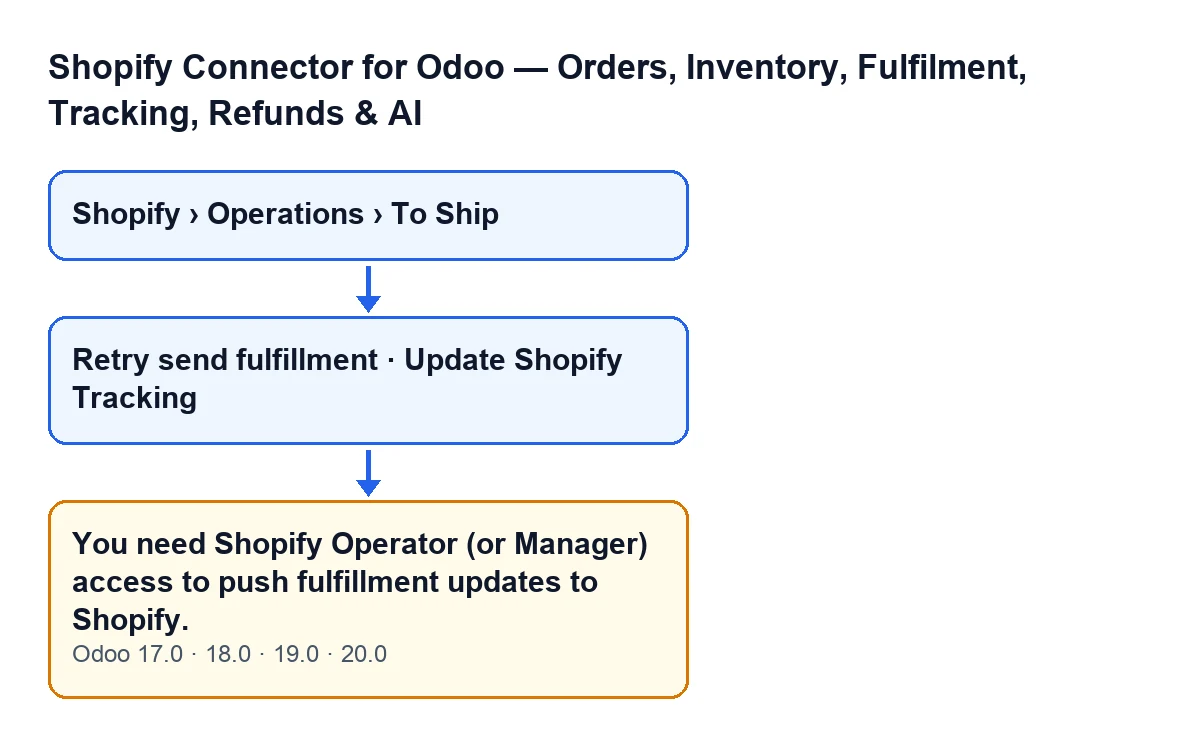
Picture an invented company, Cerámicas del Norte, that sells on Shopify and runs its warehouse in Odoo. Lucía works in the warehouse, has ordinary Inventory access and has not been given any Shopify permission. A delivery order for a Shopify order is in the Done state, with something written in Shopify Fulfillment Error. Lucía sees the Retry send fulfillment button, presses it and Odoo answers:
You need Shopify Operator (or Manager) access to push fulfillment updates to Shopify.
The action stops. The message is not about the delivery order, it is about the user: Lucía is missing a permission.

When exactly it appears
The message can appear when you press one of these buttons on the delivery order form:
Retry send fulfillmentUpdate Shopify Tracking
A check in the module raises it when those buttons call their method. The condition in the code is this: if your user does not belong to the Shopify Operator group, the action stops with the message. The check is skipped when the call is made by the superuser (the code mentions internal automation). The message also names Manager, but what the code reads is membership of the Operator group.
To reach the delivery orders from the menu: Shopify › Operations › To Ship. The Shopify and Operations levels ask for the Viewer permission; if you do not have it, you do not see that level. The buttons, however, go through the Operator check.
When the buttons are visible
These view conditions apply in Odoo 17, 18, 19 and 20:
| Button | When it appears |
|---|---|
Retry send fulfillment | The delivery order belongs to a Shopify order (the Is Shopify Order field, which does not appear in any view), has a value in Shopify Fulfillment Error and is in the Done state. |
Update Shopify Tracking | The delivery order belongs to a Shopify order, is in the Done state and has a value in Shopify Fulfillment. |
In Lucía's case, seeing the button was not enough. The conditions in the table are about the delivery order, not about who is looking at it.
What it means and why the module asks for it
A delivery order is a standard Odoo model. According to the module's own code, anyone with ordinary Inventory access can read and write a delivery order linked to Shopify with no Shopify group at all.
Those buttons hand over to the part of the module that writes to Shopify using the connection's credentials. Without an explicit check, any authenticated user with Inventory access could trigger that write, whether or not they hold a Shopify role. That is why the module checks the permission on the server, inside the method itself: a group set only on the view's button is a screen convenience and does not apply if the method is called directly.
So the message is not a Shopify failure or a connection problem: it is the module telling you that your user lacks the permission that action requires.
How to fix it
- Check that the message appears when you press
Retry send fulfillmentorUpdate Shopify Tracking. Those are the buttons that go through the check. - Ask whoever administers users in your Odoo to give you the Shopify Operator permission. The message also mentions Manager, but the condition in the code is the Operator one.
- Open the delivery order again and repeat the action with your user.
- If you should not hold that permission, ask someone who does to press the button.
The same label in other languages
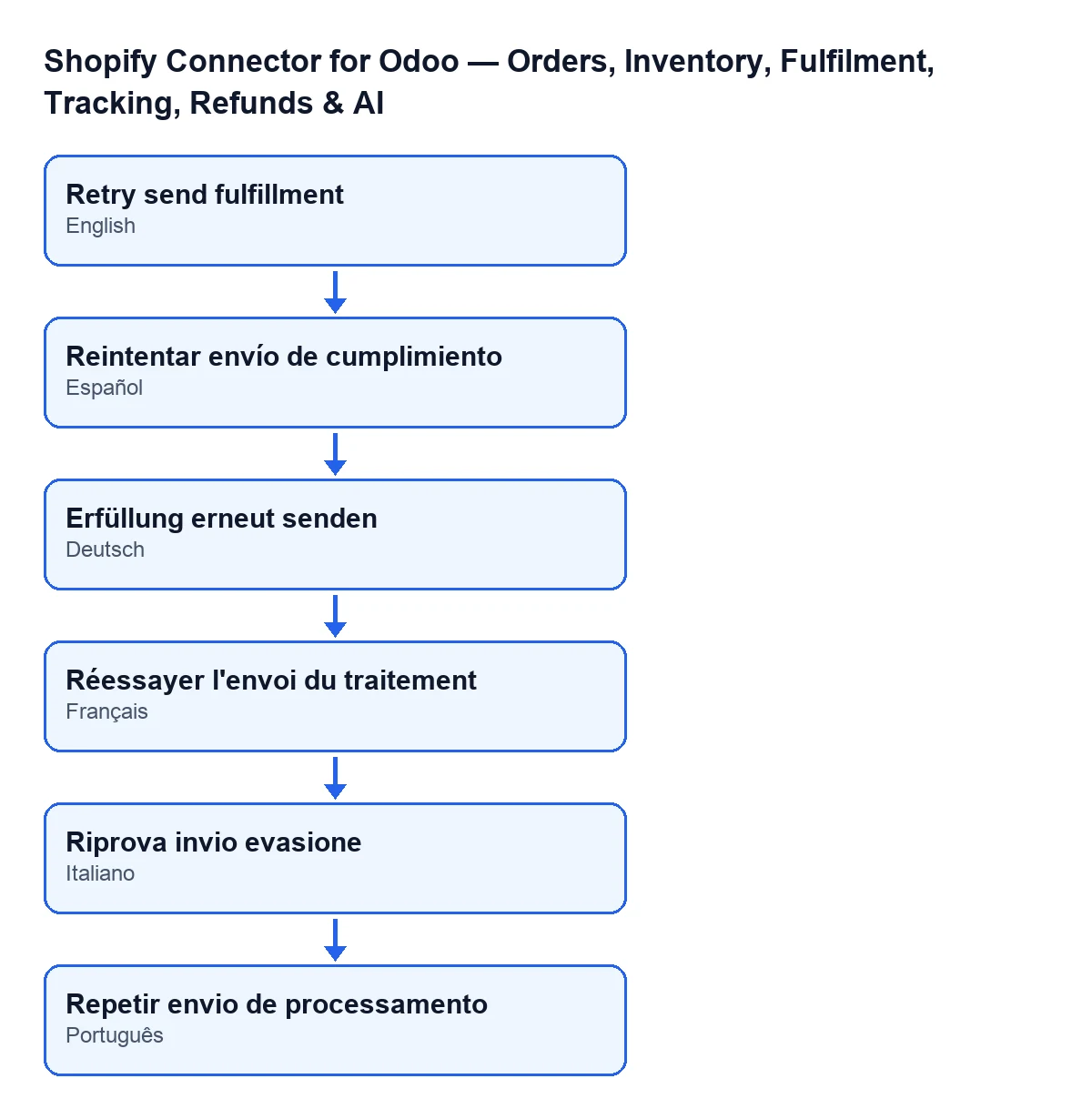
The diagram below shows how the retry button's label looks depending on the language of Odoo:
| Language | Button label |
|---|---|
| English | Retry send fulfillment |
| Spanish | Retry send fulfillment |
| German | Erfüllung erneut senden |
| French | Réessayer l'envoi du traitement |
| Italian | Riprova invio evasione |
| Portuguese | Repetir envio de processamento |
Questions you may ask
Why do I see the button if I do not have the permission?
Because the view decides whether to show it from the delivery order (a Shopify order, its state and the field each button asks for). When you press it, the check looks at your user.
Is the Viewer permission enough?
That is the permission the Shopify and Operations levels of the menu ask for. The condition in the code for these buttons is the Operator one.
Is there any call that skips the check?
Yes: the one made by the superuser, which the code exempts.
Does it change with the Odoo version?
The message is in the published code of the 17, 18, 19 and 20 branches, and the button conditions in the table apply in all four.
What to take from the case
- The check looks at your user, not at the delivery order.
- Seeing the button does not prove you hold the Operator permission.
- Seeing the
Shopify › Operations › To Shipmenu requiresViewer; the buttons go through the Operator check.
If a similar notice appears on another screen of the module, the article on the access notice for pushing changes to Shopify covers the same permission from a different starting point.
How FlexigoTech can help
FlexigoTech implements Odoo 17, 18, 19 and 20 and builds connectors and custom integrations. If you are sharing out permissions between the warehouse and e-commerce, we can go through with you who needs which one. You will find more detail about the connector on the module page.
Keep reading
Checked in the connector's source code (version 20.0) and the linked sources
Sources
- Module source code: flexigobe_shopify_seller_connector 20.0 (03641761): models/stock_picking.py
- Module source code: flexigobe_shopify_seller_connector 20.0 (03641761): views/stock_picking_views.xml
- apps.odoo.com/apps/modules/20.0/flexigobe_shopify_seller_connector
- flexigotech.com/en/services.html