

 Español
 Català
 Deutsch
 Français
 Português
 Italiano
 Nederlands
 Polski
The normal route and where the button is
Do I have to press the button for the credit note to be created?
Not necessarily. The scheduled task Shopify Create Credit Notes (every three hours, disabled on install) does the same without you pressing anything, but only for stores that have Finance enabled and have opted in to automatic credit notes. It looks for refunds in the initial state that have a sale order (up to one hundred per run), skips those whose order has no posted invoice and, for the rest, creates the note and posts it. It commits refund by refund: if one fails, only that one is rolled back and the others carry on. This task does not create credit notes for partial refunds. While it stays disabled, that route does not run and the note is created with the button.
Where is the button?
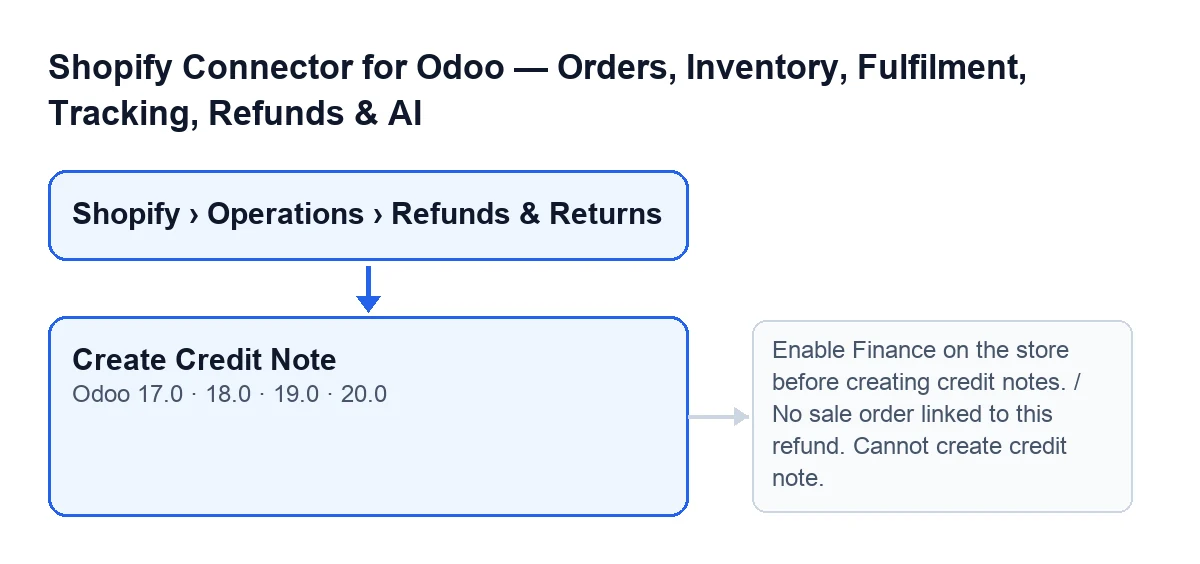
Open the menu Shopify › Operations › Refunds & Returns and go into a refund's form, on the Shopify Refunds screen. Both menu levels, Shopify and Operations, ask for the Viewer permission: without it you do not see that level. The button is called Create Credit Note and it exists in the 17, 18, 19 and 20 branches.
When does the button show and when does it disappear?
It is hidden when the refund's State is neither the initial one nor the failed one. A new refund starts in the initial state, so there you see it. If creating the note fails and the refund moves to the failed state, the button shows again and the Error field appears, which has no label and only shows its content. As soon as the refund is left with its credit note created, the button is hidden. The condition is the same in 17, 18, 19 and 20.

What it checks and what changes when you press it
What does the button check, and in what order?
First it looks at whether the refund already has its credit note created and linked: if so, it does not create another one and opens the existing one. Otherwise it checks, in this order:
- That the store has Finance enabled.
- That the refund has a linked sale order.
- That the order has a posted customer invoice.
Only then does it try to create the note. If a check fails, the button stops with its message and what it was about to change is not saved.
What changes when the refund is a full one?
The module treats a refund as full when its amount matches the invoice total (a difference below 0.01 is tolerated). It then reverses that posted invoice: the note gets Shopify Refund … as its reference and Shopify refund … with the refund's identifier as its internal note. The invoice date is the refund date or, if there is none, today's date. Because the button asks to post, the note is posted. The refund moves to the credit-note-created state, the Credit Note field is filled in and the Error field is emptied. When it finishes, Odoo opens the note's form in the same window.
The Credit Note field is on the form, in the Amounts group, it is read-only and only shows when it has a value. The module fills it in, not you.
And if the refund is a partial one?
The button does accept it, unlike the scheduled task. It still creates a full reversal of the invoice, but leaves it as a draft and adds a note to its history: you need to adjust the lines to the refunded amount before posting it. The refund still moves to the credit-note-created state.
Errors and questions
What do the messages that stop the button before it creates anything mean?
These are some of the messages it can give:
Enable Finance on the store before creating credit notes.: the refund's store (theInstancefield, in theShopifygroup of the form) does not have Finance enabled. Enable it on that store and press again.
No sale order linked to this refund. Cannot create credit note.: theSale Orderfield, in theAmountsgroup, is empty. It is read-only and the module fills it in, so you cannot type it yourself.
No posted invoice found for sale order …. Invoice the order first before creating a credit note.: the order has no posted customer invoice. Invoice the order, post the invoice and press again.
What does Failed to create the credit note: … mean?
It comes up when, once the checks are passed, no note is obtained. The text after the colon is the one the refund keeps in its Error field, which is filled in when reversing the invoice fails. With the button, the warning stops the action and what it was going to change is not saved. Read the text, fix the problem it points to on the invoice and try again. When the failure happens in the scheduled task, the refund is left in the failed state with the Error field visible. The Ignore and Retry buttons empty that field.
What does it cost and in which versions is it available?
The module is published on Odoo Apps for 17, 18, 19 and 20 (listing, module page). It is a one-off payment per version and needs the FlexigoTech Cloud subscription, Connector plan: €49 a month or €490 a year, excluding VAT.
How FlexigoTech can help
FlexigoTech implements Odoo 17, 18, 19 and 20 and builds custom connectors and integrations. If your Shopify refunds need different accounting treatment, get in touch. Another button of the same connector is explained in Cancel in Shopify.
Keep reading
Checked in the connector's source code (version 20.0) and the linked sources
Sources
- Module source code: flexigobe_shopify_seller_connector 20.0 (2950bdc0): views/shopify_refund_views.xml
- Module source code: flexigobe_shopify_seller_connector 20.0 (2950bdc0): models/shopify_refund.py
- apps.odoo.com/apps/modules/20.0/flexigobe_shopify_seller_connector
- flexigotech.com/en/services.html
- flexigotech.com/precios.html