

 Español
 Català
 Deutsch
 Français
 Português
 Italiano
 Nederlands
 Polski
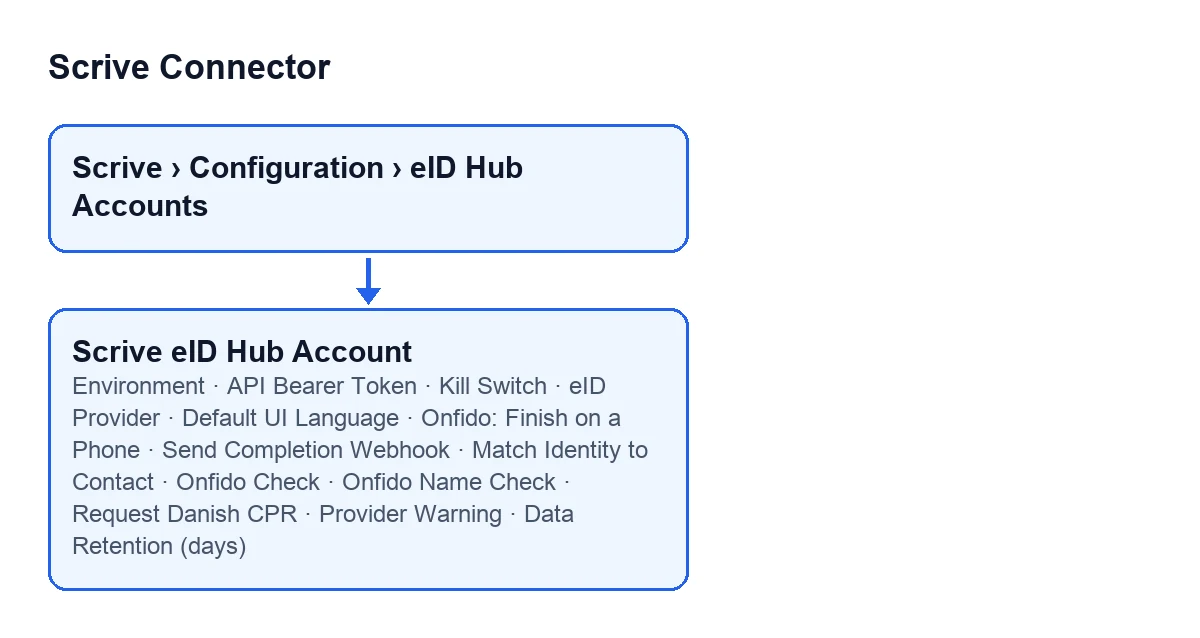
The form opens from the menu Scrive › Configuration › eID Hub Accounts. The Configuration step asks for the Manager permission and the Scrive step asks for User: if you lack one, you do not see that step. The module is published on Odoo Apps for 17.0, 18.0, 19.0 and 20.0.
Before you open the form
- Have the eID Hub API token to hand, the one Scrive issues under your eID Hub agreement. Your Scrive eSign (Document API) credentials are not accepted in the form.
- Find out which environment that token was issued for. Scrive issues testbed and production tokens separately, and the form's environment has to match the token.
- Check that your user reaches the menu: you need to see both the
ScriveandConfigurationsteps.
- Remember that the module works with the FlexigoTech Cloud subscription (Connector plan: €49/month or €490/year excluding VAT, up to 3 platform accounts). The connection goes through that service. The module's one-off payment is separate, and its price for each Odoo version is on the Odoo Apps listing.

The Connection group
This group (Connection) holds the details the account uses to call Scrive.
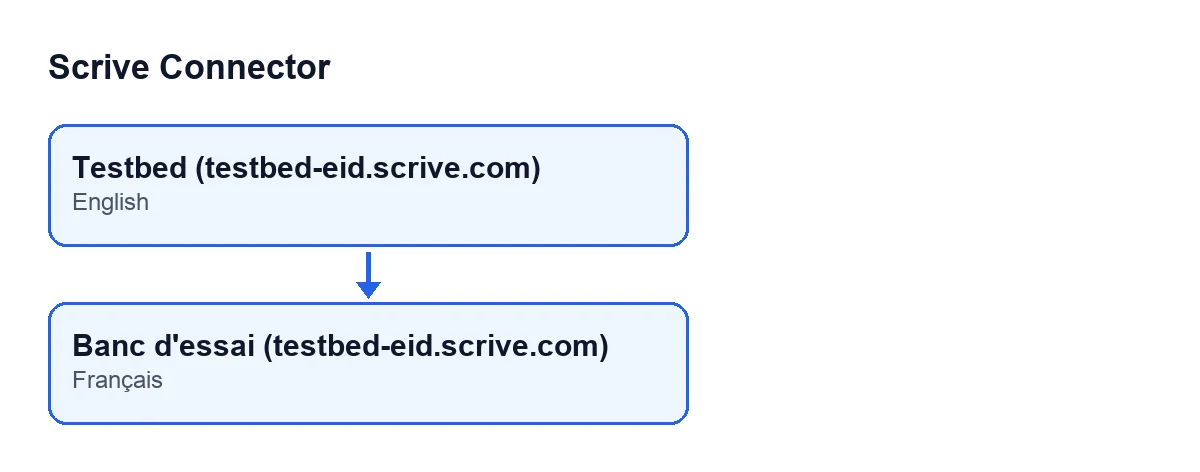
Environment. Picks the eID Hub host the account calls. The options areProduction (eid.scrive.com)andTestbed (testbed-eid.scrive.com); the default is production. According to the help, the testbed is connected to the eID providers' test systems and only accepts their test identities. With a testbed token, choose testbed; with a production token, production. It also shows in the list of accounts.
API Bearer Token. Paste the eID Hub token here. Only users with Odoo administration permissions can see it; if it is missing from your form, ask an administrator to fill it in. The help says it is kept by FlexigoTech Cloud, not in Odoo.
Banc d'essai (testbed-eid.scrive.com).The Defaults group
Here (Defaults) you decide what the person verifying their identity sees.
eID Provider. This is the eID rail offered to end users on this account. The help adds that Scrive's own hosted frontend handles each provider's specific flow. It comes with one already chosen by default, and it also appears in the list of accounts. Which other fields in this group are shown depends on it.
Default UI Language. The language of the Scrive-hosted verification screen when the contact has no language set. A contact who has one gets it if Scrive offers it (Norwegian Bokmål and Nynorsk get Norwegian; Catalan, Basque and Galician get Spanish) and English if not. Two providers have shorter lists: Danish MitID is shown in Danish when that is the language chosen and in English otherwise; Onfido speaks English, Spanish, German, French, Italian, Portuguese and Dutch, and for any other language follows the person's browser. The default is English.
If you choose Onfido
With the default eID Provider these three fields are not visible: they appear when the provider is Onfido.
Onfido: Finish on a Phone. It comes switched on: the person is sent to their phone to photograph their identity document, even when they started on a desktop. Switch it off to also offer the desktop upload screen, which the help says is the only way in for someone without a smartphone.
Onfido Check. Chooses which check is requested: the document check reads the identity document; the facial match also compares a selfie with the photo on it. The default is the document check. Onfido bills them separately, so decide with the invoice in mind.
Onfido Name Check. It comes switched off. If you switch it on, the contact's name is also sent to Onfido, which compares it with the identity document and fails the check when they differ. The name is split at the first space: 'Jan Erik Janssens' is sent as first name 'Jan' and last name 'Erik Janssens', so a document whose given names are 'Jan Erik' may be refused, and a refused check is still billed. Switch it on only if your contacts' names are recorded exactly as on their identity documents. Without it,Match Identity to Contactstill compares, more tolerantly, the name Onfido read off the document.
If you choose Danish MitID
Request Danish CPR. Visible only when the provider is Danish MitID. It comes switched off. It asks MitID for the person's CPR number, which the help says is the only identifier that ties a MitID verification to a specific person and is sensitive personal data: switch it on only if you have a lawful basis to store it. Without it, only the verified name is available for the contact match.
The Identity, Retention & Safety group
The Identity, Retention & Safety group holds the identity, retention and blocking fields of the account.
Match Identity to Contact. It comes switched on. With the box ticked, access to an Odoo contact's documents opens only if the identity the provider returns is that contact's, the one the verification was started for. If you untick it, a successful verification by anybody is enough to open those documents. The help gives an exception: providers that return no identity at all (SMS one-time password) can never satisfy the comparison, so turn it off if you use one of them. It also shows in the list of accounts.
Kill Switch. Blocks every outbound eID Hub API call from this account. Leave it unticked while you want the account to call eID Hub, and know where it is: it shows on the form and in the list of accounts.
Data Retention (days). Verified-identity data (name, personal number, raw payload) captured on each verification is purged after this many days. The help says it mirrors Scrive's own 30-day eID Hub data retention, and that the value runs between 1 and 3650 days. It comes with a default; adjust it to what you want to keep in your Odoo.
The Completion Webhook (optional) group
Send Completion Webhook. It comes switched off and, according to the help, leaving it off is safe: the result is always re-fetched from Scrive when the person comes back from the verification. Only users with the Scrive manager permission can see it. If you switch it on, Scrive also POSTs a notification to the callback URL the help refers to. Scrive only accepts URLs whitelisted for your eID Hub client: have them whitelisted FIRST, because while it is not, Scrive refuses every verification with HTTP 400.
After saving
- Keep an eye on the
Provider Warningfield. It has no label and only appears when it has content; the module's code writes it, not you. According to its help, it is set when Scrive refuses the configured eID provider for that token and cleared as soon as a verification is accepted.
- Review the list of accounts: it shows
Environment,eID Provider,Kill SwitchandMatch Identity to Contact, which is handy for spotting at a glance an account pointing at the wrong environment.
If you want a hand
FlexigoTech implements Odoo 17, 18, 19 and 20 and builds custom connectors and integrations. If you would rather have someone set up the eID Hub account with you, or you need another provider or flow, write to us from the module page. Without a subscription, or with the service suspended, whatever the subscription provides stops; your data stays in your Odoo.
Keep reading
Checked in the connector's source code (version 20.0) and the linked sources
Sources
- Module source code: flexigobe_scrive_connector 20.0 (442af8bf): models/scrive_eid_account.py
- apps.odoo.com/apps/modules/20.0/flexigobe_scrive_connector
- flexigotech.com/en/services.html
- flexigotech.com/precios.html