

 Español
 Català
 Deutsch
 Français
 Português
 Italiano
 Nederlands
 Polski
How to read a Real Estate Management message
The messages are shown exactly as they are in the module: %s, %d and %.2f are placeholders where the specific detail appears (the lease name, the current status or the amount you typed). If the message says is currently "%s", that placeholder is the record's status: check it first.
When asking your consultant for help, copy the whole message with the details filled in. The overall flow of the module is in how Real Estate Management works under the bonnet.
Leases and tenants
| Message | When it appears | What to do |
|---|---|---|
End date must be after start date for lease "%s". | The end date is not later than the start date. | Set an end date after the start. |
Rent amount must be greater than zero for lease "%s". | The rent is zero or negative. | Enter a rent above zero. |
Security deposit cannot be negative for lease "%s". | The security deposit is negative. | Set it to zero or a positive amount. |
Only draft leases can be activated. Lease "%s" is currently "%s". | You activate a lease that is not in draft. | Check the status in the message: only drafts can be activated. |
Cannot create or activate a lease for blacklisted tenant "%s". | You create or activate a lease for a blacklisted tenant. | Check whether they should stay on it; only a Real Estate manager can remove them. |
Cannot activate lease for blacklisted tenant "%s". | You activate a lease for a blacklisted tenant. | Same as the previous one. |
Only active or draft leases can be terminated. | You terminate a lease that is neither active nor draft. | Check its status. |
Only Real Estate managers can add a tenant to the blacklist or remove it. | A user who is not a Real Estate manager adds or removes a tenant from the blacklist. | Ask a Real Estate manager to make the change. |
Credit score must be between 0 and 999 (got %d). | The credit score is outside that range. | Enter a value between 0 and 999. |
ID expiry date must be later than the issue date for tenant "%s". | The ID document expiry date is not later than its issue date. | Check both dates. |
Monthly income cannot be negative for tenant "%s". | Monthly income is negative. | Enter zero or a positive value. |
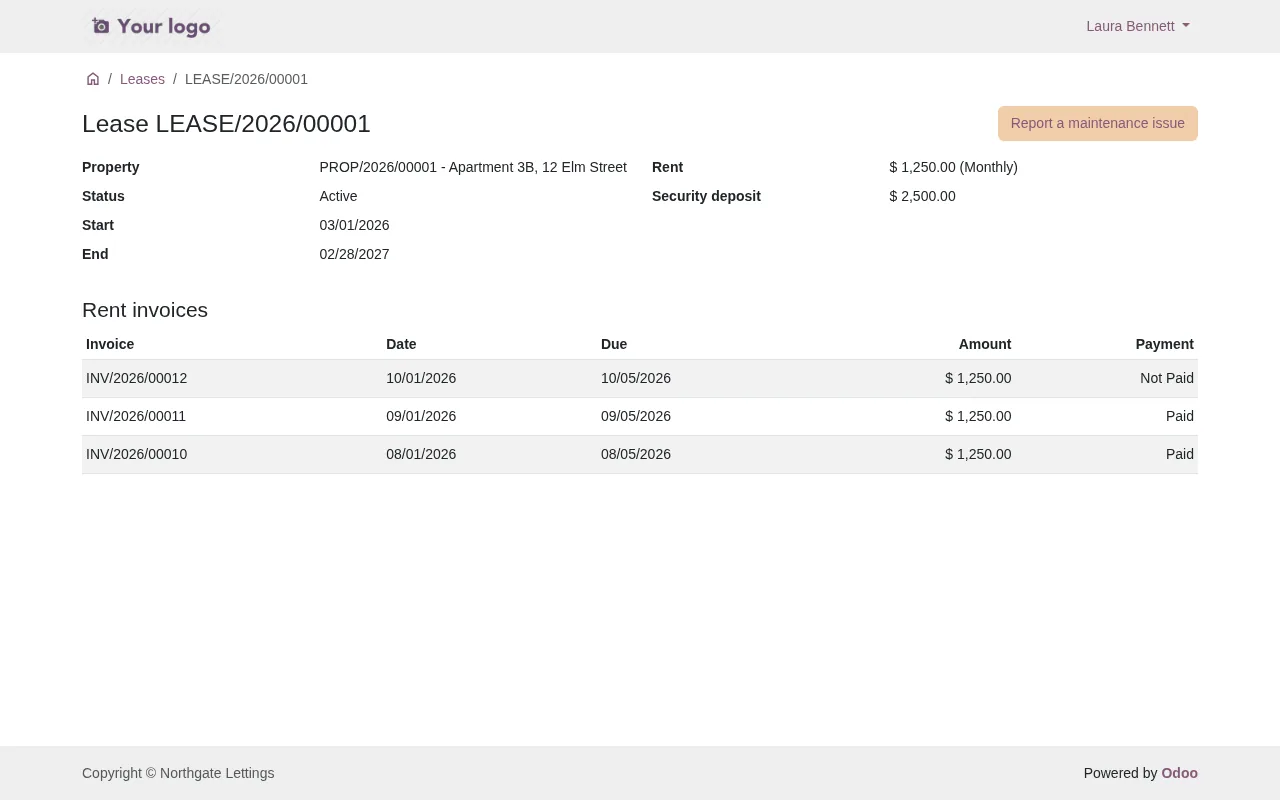
Properties
| Message | When it appears | What to do |
|---|---|---|
Acquisition cost cannot be negative for property "%s". | The acquisition cost is negative. | Enter zero or a positive amount. |
Area (sqm) cannot be negative for property "%s". | The area in m² is negative. | Correct the area. |
Construction year %d is not valid for property "%s". | The module does not accept the construction year. | Check the year shown in the message. |
Cannot mark property "%s" as sold: it has active leases. | You mark a property with active leases as sold. | Review its active leases; the module lets you terminate active or draft leases. |
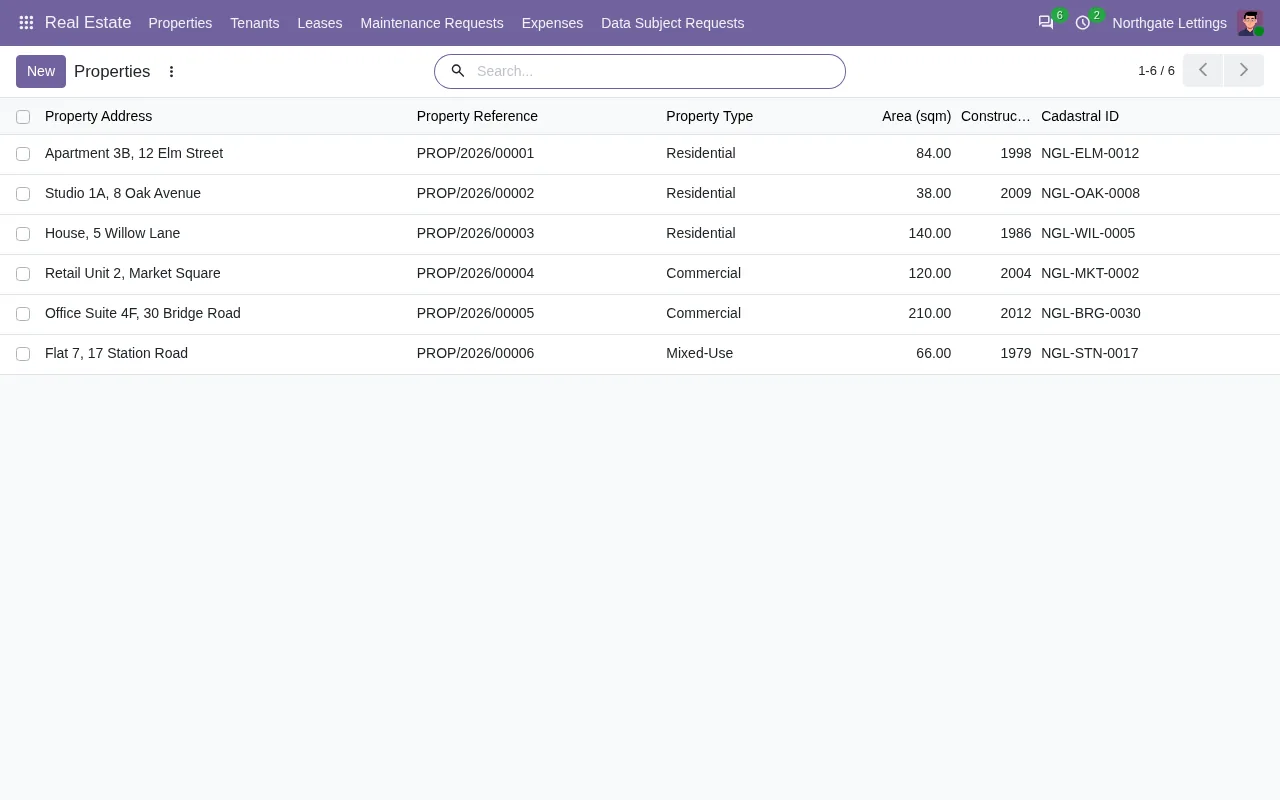
Real Estate › Properties list with six properties; area and construction year are two of the details the module checks.Maintenance requests and long texts
| Message | When it appears | What to do |
|---|---|---|
Only new requests can be assigned. Request "%s" is "%s". | You assign a request that is not new. | Check the status in the message: only new requests can be assigned. |
Please select a responsible person before assigning request "%s". | You assign with no responsible person. | Choose the responsible person and assign again. |
Request "%s" cannot be started from status "%s". | You start the request from a status that does not allow it. | Check the status in the message. |
Request "%s" cannot be completed from status "%s". | You complete the request from a status that does not allow it. | Check the status in the message. |
Labor hours cannot be negative for request "%s". | The labour hours are negative. | Enter zero or a positive number. |
Material cost cannot be negative for request "%s". | The material cost is negative. | Enter zero or a positive amount. |
Title must not exceed 255 characters (currently %d). | A title is over 255 characters; the message says how many it has. | Shorten it to 255 at most. |
Description must not exceed 5000 characters (currently %d). | A description is over 5000 characters. | Trim it to 5000 at most. |
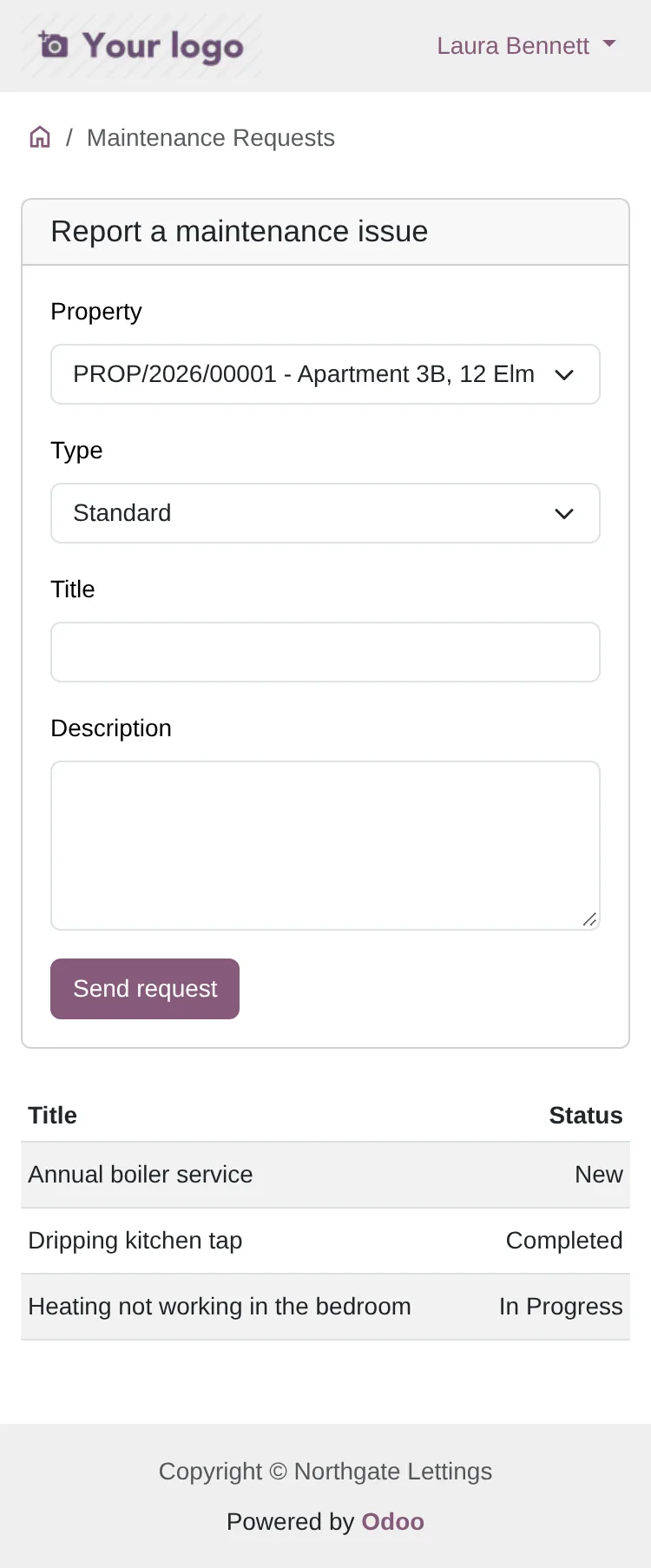
Report a maintenance issue form, with the table of requests and their status.Expenses
| Message | When it appears | What to do |
|---|---|---|
Expense amount must be greater than zero (got %.2f). | The amount is zero or negative; the message shows it. | Enter an amount above zero. |
Expense date %s appears invalid. | The module does not accept the expense date. | Check the date shown in the message. |
No vendor invoice is linked to this expense. | The expense has no vendor invoice linked. | Check whether it should have one and whether you are on the right expense. |
Tenant DSARs
| Message | When it appears | What to do |
|---|---|---|
Only requested DSARs can be approved. "%s" is currently "%s". | You approve a DSAR that is not requested. | Check the status in the message. |
DSAR "%s" cannot be rejected from status "%s". | You reject from a status that does not allow it. | Check the status in the message. |
Please provide a rejection reason before rejecting DSAR "%s". | You reject without a reason. | Enter the reason and reject again. |
A rejection reason is required when rejecting DSAR "%s". | A rejected DSAR is left without a reason. | Add the rejection reason. |
Effective date cannot be before the requested date for DSAR "%s". | The effective date is earlier than the requested date. | Correct the effective date. |
Only approved DSARs can be processed. "%s" is currently "%s". | You process a DSAR that is not approved. | Approve it first, if appropriate. |
Generate the data export of DSAR "%s" before processing it. | You process without generating the data export. | Generate the export, then process. |
This module does not erase or rectify tenant data. Do it on the tenant record (keeping what the law requires, such as leases and invoices), then set the status of DSAR "%s" to Processed. | The module warns that it does not erase or rectify tenant data. | Make the change on the tenant record, then set the DSAR to Processed. |
In order: a DSAR is approved if it is requested and processed if it is approved and, where needed, once its export has been generated. Rejecting it requires a reason.
The erase or rectify warning comes from the module itself: it does not touch the tenant's data and sends you to the tenant record, where it says to keep what the law requires, such as leases and invoices.
How FlexigoTech can help
If a message keeps coming back and you cannot see why, FlexigoTech implements Odoo 17, 18, 19 and 20 and builds bespoke connectors and integrations: we can go through the case with you. Real Estate Management is on Odoo Apps for Odoo 17, 18, 19 and 20 at €9 excluding VAT per version (one-off payment), and also at flexigotech.com. If you are still deciding, read whether Real Estate Management suits your business.
Keep reading
Checked in the module's source code (version 20.0) and the linked sources
Sources
- Module source code: flexigo_real_estate_management 20.0 (1ee4171b): models/real_estate_dsar_request.py
- Module source code: flexigo_real_estate_management 20.0 (1ee4171b): models/real_estate_expense.py
- Module source code: flexigo_real_estate_management 20.0 (1ee4171b): models/real_estate_lease.py
- Module source code: flexigo_real_estate_management 20.0 (1ee4171b): models/real_estate_maintenance_request.py
- Module source code: flexigo_real_estate_management 20.0 (1ee4171b): models/real_estate_property.py
- Module source code: flexigo_real_estate_management 20.0 (1ee4171b): models/real_estate_tenant.py
- apps.odoo.com/apps/modules/20.0/flexigo_real_estate_management
- apps.odoo.com/apps/modules/17.0/flexigo_real_estate_management
- apps.odoo.com/apps/modules/18.0/flexigo_real_estate_management
- apps.odoo.com/apps/modules/19.0/flexigo_real_estate_management
- flexigotech.com/en/services.html