

 Español
 Català
 Deutsch
 Français
 Português
 Italiano
 Nederlands
 Polski
Where it is and when you see it
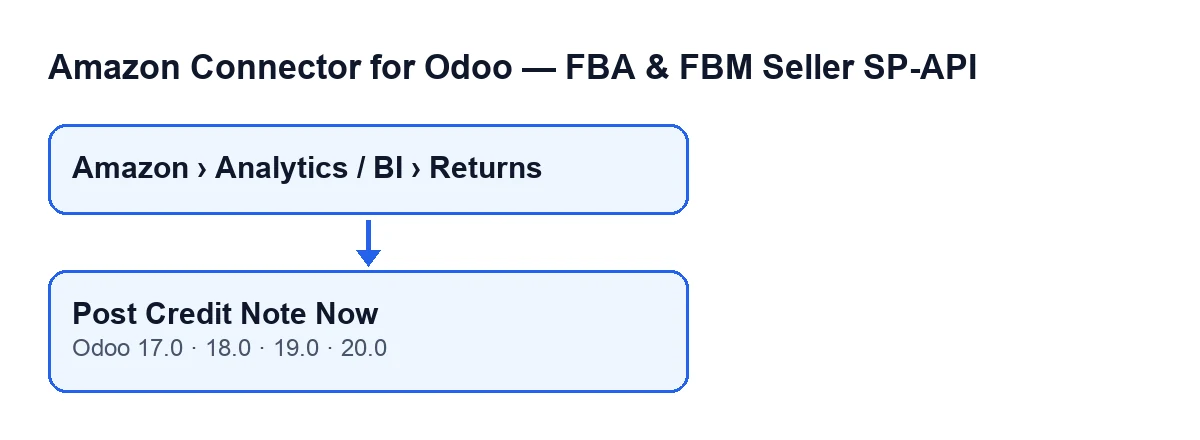
You reach it from the menu Amazon › Analytics / BI › Returns. Each part of that path asks for the Viewer permission. The button is on the Returns (BI) screen and acts on one return line at a time. It exists in the published branches of the module: Odoo 17, 18, 19 and 20.
With the default values the button is visible. It is hidden when the Credit Note State field shows that the credit note is already posted.
Having Viewer lets you reach the screen. Whether the button works for you depends on the access checks described below.

Before the button: the automatic route
The button is the manual route. Odoo can also create these credit notes by itself. The Auto-create credit notes (opt-in) checkbox is on the Accounts form, in the Returns & Reviews tab, and it is off by default. Its help text reads: Automatically creates a draft customer credit note when the return refund amount is reported and the sale is accounted in Odoo.
With the checkbox on, the account's automatic returns run is started by two scheduled tasks, both active on install: Amazon SP-API - Auto receive returns to stock, every 15 minutes, and Amazon SP-API - Sync returns, every 3 hours.
That run goes through the account's return lines that have a refund amount above zero and no credit note, and for each one calls the same internal step the button uses. Some differences:
- It posts only if the account's automatic-posting setting allows it; otherwise it leaves the credit note as a draft. The button always asks to post.
- It goes through a limited number of lines in each run.
- If a line fails, it marks the line as skipped or as errored depending on the type of failure and stores the error text.
- The Accounting access check applies only when a person does it, not in that run.
That is why the button is left for posting a specific line by hand.
What the button does, in order
- Because you pressed it yourself, it checks that you have Accounting (invoicing) access; if you do not, it stops.
- If the line already has a credit note and it is a draft, it posts it, sets the credit note state to posted, records the processing date and clears the error. It does not create another one. If the existing credit note is not a draft, the button opens it without posting anything.
- If there is no credit note, it looks for the sale order. If it cannot find one, it stops with
Sale order not found for Amazon order …. - It looks for the source customer invoice. If it cannot find a posted one, it stops with
No posted customer invoice found for sale order …. - It creates the customer credit note with the source invoice's company, customer, currency and journal. The origin is the sale order name and the reference is
Amazon return …, with the return identifier or, failing that, the order's. It sets today's date, empties the payment term and links it to the source invoice, as far as Odoo has those fields. - It posts the credit note and records on the line the source invoice, the credit note, the posted state and the processing date, and clears the error.
- It opens the credit note in a window called
Posted Credit Note, in the same screen.
If any of the steps above fails, the code writes the error state, the date and the error text on the line, and raises the error again so you see it.
An illustrative case
Example Illustrative case: the company and its figures are made up to explain the flow.
Hogar Mediterráneo is an invented shop that sells on Amazon and keeps the automatic creation checkbox off. Lucía, in administration, has Accounting access. Pedro can open the returns screen but has no Accounting access. Both open Amazon › Analytics / BI › Returns.
- First line, with a sale order and a posted invoice. Lucía presses the button. The module creates the credit note from the source invoice, posts it and opens
Posted Credit Note. Back on the line, the button is gone because the state now shows the credit note as posted. - Second line, with a draft already created. Lucía presses the button and the module posts that draft. No second credit note is created.
- Third line, pressed by Pedro. The button is visible, but when he presses it the code stops because Pedro has no Accounting access. Lucía posts it afterwards.
- Fourth line, with no posted customer invoice. Before creating anything the module looks for that invoice and, if it cannot find one, stops with the message that no posted customer invoice was found for the sale order. The invoice for that order has to be sorted out first.
What to take from it: the button is visible even when access or some data is missing, and you find out what is missing when you press it. Going through it does not duplicate credit notes, because if the line already has one, it works with that one.
What to check afterwards
Open the credit note the module shows you and look at the Amazon return … reference, the origin and the link to the source invoice. Go back to the line and check that Credit Note State no longer leaves the button visible. If the action stopped, read the error on screen and fix the cause it describes (Accounting access, sale order, posted customer invoice) before pressing again.
Cost and help from FlexigoTech
The module is a one-off purchase per Odoo version and is published on Odoo Apps for 17, 18, 19 and 20 (see the listing or the module page). The connection goes through FlexigoTech Cloud, which stores the credentials encrypted, watches the synchronisation and emails you if it fails. You need the Connector plan: €49 a month or €490 a year, excluding VAT, for up to 3 accounts on the platform.
If you are implementing Odoo and need to decide who posts Amazon returns, or you need a bespoke integration, FlexigoTech implements Odoo 17, 18, 19 and 20 and builds connectors.
Post Credit Note NowKeep reading
Checked in the connector's source code (version 20.0) and the linked sources
Sources
- Module source code: flexigobe_amazon_seller_connector 20.0 (8576afa5): views/amazon_spapi_return_line_views.xml
- Module source code: flexigobe_amazon_seller_connector 20.0 (8576afa5): models/amazon_spapi_return_line.py
- Module source code: flexigobe_amazon_seller_connector 20.0 (8576afa5): models/amazon_spapi_account.py
- apps.odoo.com/apps/modules/20.0/flexigobe_amazon_seller_connector
- flexigotech.com/en/services.html
- flexigotech.com/precios.html