

 Español
 Català
 Deutsch
 Français
 Português
 Italiano
 Nederlands
 Polski
When exactly it appears
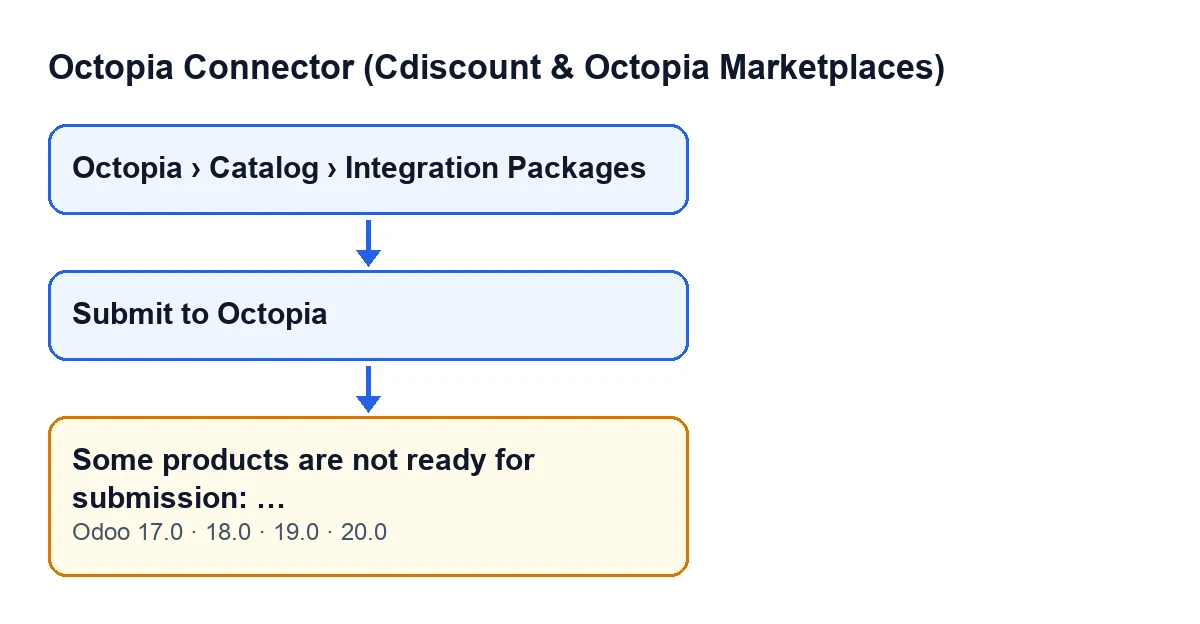
The message Some products are not ready for submission: … can appear when you press the Submit to Octopia button on the Octopia product view in Octopia Connector (Cdiscount & Octopia Marketplaces). The button has no visibility condition in Odoo 17, 18, 19 and 20, and the message is in the published code of all four versions.
There is a single condition: before sending anything, the module goes through the products in the submission and asks each one for its list of problems. If, once added together, that list is not empty, the module raises the message. This check comes first, before the data for the submission is prepared and before Octopia is called.

What happens when it appears
The action stops and nothing it was going to change is saved: no integration package is created, no product moves to the pending state, and the log entry for a successful submission is not written. Because the check looks at every product in the submission before sending, a single product with problems also holds back the others.
The message carries one line per problem: the product name, a colon and the text of the problem. It shows at most the first twenty lines, so after you fix those, others that did not fit may appear.
What each line means
What follows the colon on each line is one of these texts, listed in the order the module checks them. One product can add several lines.
| Line in the message | When it appears | What to do |
|---|---|---|
| The reason given by the GTIN check | The product's GTIN fails the module's check | Fix the GTIN according to the reason on the line |
Missing seller product reference. | The product has no seller product reference | Fill it in |
Missing title. | The product has no title | Give it a title |
At least one public picture URL is required: Octopia refuses any product without a first image. | The product has no public picture URL | Add at least one |
Missing Octopia category. | The product has no Octopia category | Assign one; lines that depend on the category may appear afterwards |
Category … is not a level-3 category; only level-3 categories accept product submissions. | The assigned category is not level 3 | Choose a level-3 category |
Category … requires a brand. | The category requires a brand and the product has none | Enter the product's brand |
Missing mandatory attribute '…' (property …). | The category has a mandatory attribute and the product has not filled it in; an attribute with no value counts as not filled in | Fill in that attribute |
Value '…' is not among the allowed choices of attribute …. | An attribute with a value holds one that is not in the list of choices the category allows for it | Change the value to one of the allowed choices |
Checklist
Before pressing the button
- Check that you can see the
Octopiapart of the menu: without theOctopia Userpermission, that part does not appear.
- Be clear about which products are in the submission: one product with problems stops the submission of all of them.
- Review the basic data the module looks at: the GTIN, the seller product reference and the title.
- Check that each product has at least one public picture URL.
- Check that the Octopia category is set and is level 3, and that the product has a brand if the category requires one.
When reading the message
- Look at the name that opens each line: it tells you which product it is about.
- Read all the lines for that product before correcting anything: it can have several problems at once.
- Remember that only the first twenty lines are shown: if there are more problems, they will appear when you repeat the submission.
- On a mandatory attribute line, the name between single quotes is the attribute's label, or its reference if it has no label.
- On a disallowed value line, choose one of the options the category allows for that attribute.
After correcting
- Press
Submit to Octopiaagain: the check runs again in full.
- If you changed the category, go over the brand and the mandatory attributes again, because they are checked against the product's category.
- Repeat until the message stops appearing.
Once the message no longer appears
- If Octopia returns the package identifier, the module creates an integration package (with the account, the identifier, the language and the submission date) and one line per product with its GTIN and its seller product reference.
- Check that the submitted products have moved to the pending state.
- Open
Octopia › Catalog › Integration Packagesto see the package.
- The module also writes a product sync log entry with a successful result, carrying the package identifier, the number of products and the language.
For the rest of what the button does, see the article on what the Submit to Octopia button does.
If you would like a hand
FlexigoTech implements Odoo 17, 18, 19 and 20 and builds custom connectors and integrations. If you are setting up your Octopia catalogue in Odoo and would like to go through it with someone, get in touch.
Keep reading
Checked in the connector's source code (version 20.0) and the linked sources
Sources
- Module source code: flexigobe_octopia_connector 20.0 (4848da6a): models/octopia_product.py
- Module source code: flexigobe_octopia_connector 20.0 (4848da6a): views/octopia_product_views.xml
- apps.odoo.com/apps/modules/20.0/flexigobe_octopia_connector
- flexigotech.com/en/services.html