

 Español
 Català
 Deutsch
 Français
 Português
 Italiano
 Nederlands
 Polski
Where the form is and who sees it
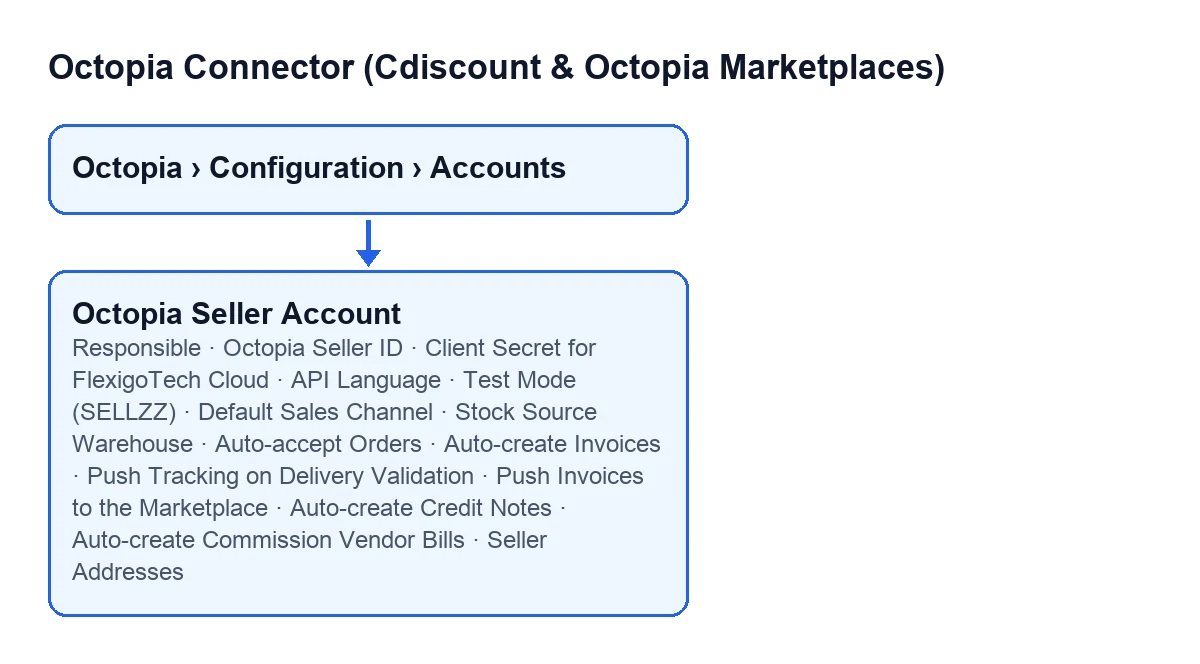
The forms open from the menu Octopia › Configuration › Accounts, in the Octopia Accounts list. Each menu level asks for a permission, and if you lack one you do not see that level: Octopia asks for Octopia User, Configuration asks for Octopia Manager and Accounts asks for Octopia Admin.
The module is published for Odoo 17, 18, 19 and 20.

Before you open the form
- Be clear about the cost. The module is a one-off payment per version and needs the FlexigoTech Cloud subscription: the Connector plan costs €49/month or €490/year excluding VAT and covers up to 3 platform accounts. Prices for each version are on the Odoo Apps listing.
- Have your Octopia back office details to hand: the seller number and confirmation that you have accepted the Client ID.
- Check who will fill in the form.
Octopia Seller IDandClient Secret for FlexigoTech Cloudare only visible to users with Odoo administration permissions.
Credentials
Octopia Seller ID, in theCredentialsgroup. Its help says: «The numeric SellerId header value, e.g. 98979. The seller must have accepted this Client ID in their Octopia back office.» Enter the number, and first check that the Client ID has been accepted in your back office.
Client Secret for FlexigoTech Cloud, in the same group. With the default values it is visible; it is hidden only if the account does not use the FlexigoTech Cloud route. Its help says: «Sent once, encrypted, to FlexigoTech Cloud with the Client ID and the Seller ID. Not saved in Odoo.» Keep the value wherever you store your credentials, because Odoo does not save it.
- Bear in mind that the connection goes through FlexigoTech Cloud, which stores the credentials encrypted, watches the synchronisation and emails you if it fails.
Connection
Responsible, in theConnectiongroup. Its help says: «Receives an activity whenever a sync error occurs.» By default it is your own user; change it to the person who will deal with those errors.
API Language. Options:French (fr-FR),English (en-US)andSpanish (es-ES); the default isfr-FR. Its help says: «Sent as Accept-Language. Also defines the product submission language: only fr-FR products are sellable on Cdiscount.» If you are going to sell on Cdiscount, leavefr-FR.
Test Mode (SELLZZ). Its help says: «Octopia has no separate sandbox host: SELLZZ is the 'Seller Sandbox' sales channel INSIDE the production API. While enabled, offer/product publications target the SELLZZ channel.» Switch it on to test, and remember you are still inside the production API. This field also appears in theOctopia Accountslist, so you can see at a glance which accounts have it on.
Default Sales Channel. Its help says: «Channel used for offer publication when none is specified (e.g. CDISFR = Cdiscount France).» Pick the channel you will publish to most often.
Automation: the Automation tab
The fields below are in the Automation tab, split into groups.
The Orders group
Auto-accept Orders. Its help says: «Automatically accept orders arriving in Waiting Acceptance (per-channel override possible on the sales channel).» Decide whether you want to accept automatically or by hand, and check the sales channel if you need an exception.
Auto-create Invoices. Its help says: «Create (and post) the customer invoice automatically once the marketplace order is shipped.» Note that the invoice is created and posted, not left as a draft.
The Outbound Pushes group
Stock Source Warehouse. Its help says: «Warehouse whose available quantity is pushed to Octopia. Leave empty to push the company-wide aggregate.» Choose a warehouse if you only want to send that one's stock; left empty, the company-wide aggregate is sent.
Push Tracking on Delivery Validation. Its help says: «Declare the shipment (parcels + carrier + tracking) to Octopia when the delivery order is validated.»
Push Invoices to the Marketplace. Its help says: «Upload the posted customer invoice PDF to Octopia (a channel obligation on Cdiscount).» If you sell on Cdiscount, this checkbox deserves a deliberate decision, because the help speaks of a channel obligation.
The Accounting group
Auto-create Credit Notes. Its help says: «Mirror accepted cancellations and commercial gestures with a draft credit note in Odoo.» What is created is a draft.
Auto-create Commission Vendor Bills. Its help says: «Create a draft vendor bill for each Octopia commission invoice imported by the finance sync.»
Seller addresses
- Look at the
Seller Addressestab. Its field has the same name and is described as: «Registered seller addresses as returned by GET /sellers/addresses.» It is read-only and only visible to users with theOctopia Adminpermission. It is not typed in by hand: thePull Seller Addressesbutton fills it.
Final review
- In the
Octopia Accountslist, check thatTest Mode (SELLZZ)is set the way you want before you publish.
- Confirm that the
Responsibleuser is the person who should receive the error activities.
- Go back over each checkbox in
Automationand note which ones you left on.
How FlexigoTech can help
If you would rather have someone set the account up with you, FlexigoTech implements Odoo 17, 18, 19 and 20 and builds custom connectors and integrations. Without a subscription, or with the service suspended, whatever the subscription provides stops; your data stays in your Odoo.
Keep reading
Checked in the connector's source code (version 20.0) and the linked sources
Sources
- Module source code: flexigobe_octopia_connector 20.0 (4848da6a): models/octopia_account.py
- Module source code: flexigobe_octopia_connector 20.0 (4848da6a): models/octopia_seller_extras.py
- apps.odoo.com/apps/modules/20.0/flexigobe_octopia_connector
- flexigotech.com/en/services.html
- flexigotech.com/precios.html