

 Español
 Català
 Deutsch
 Français
 Português
 Italiano
 Nederlands
 Polski
Where the button is and when it appears
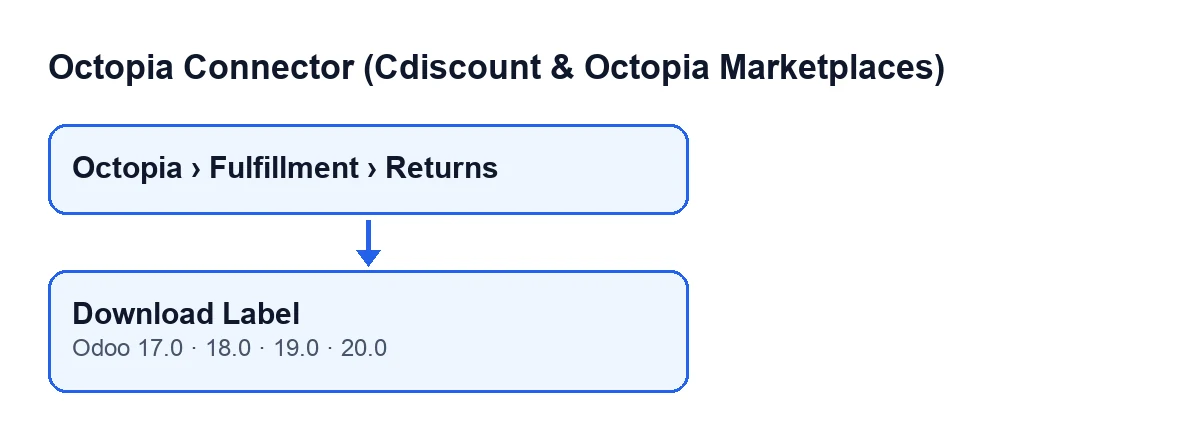
The Download Label button is on the FFM Returns form. That form opens from the menu Octopia › Fulfillment › Returns. The Octopia part of the menu requires the Octopia User permission: without it, you do not see that part.
The button is in every published branch of the module: Odoo 17, 18, 19 and 20. What is described below is how the Odoo 20 code works.
The label of the button changes with the language of your Odoo:
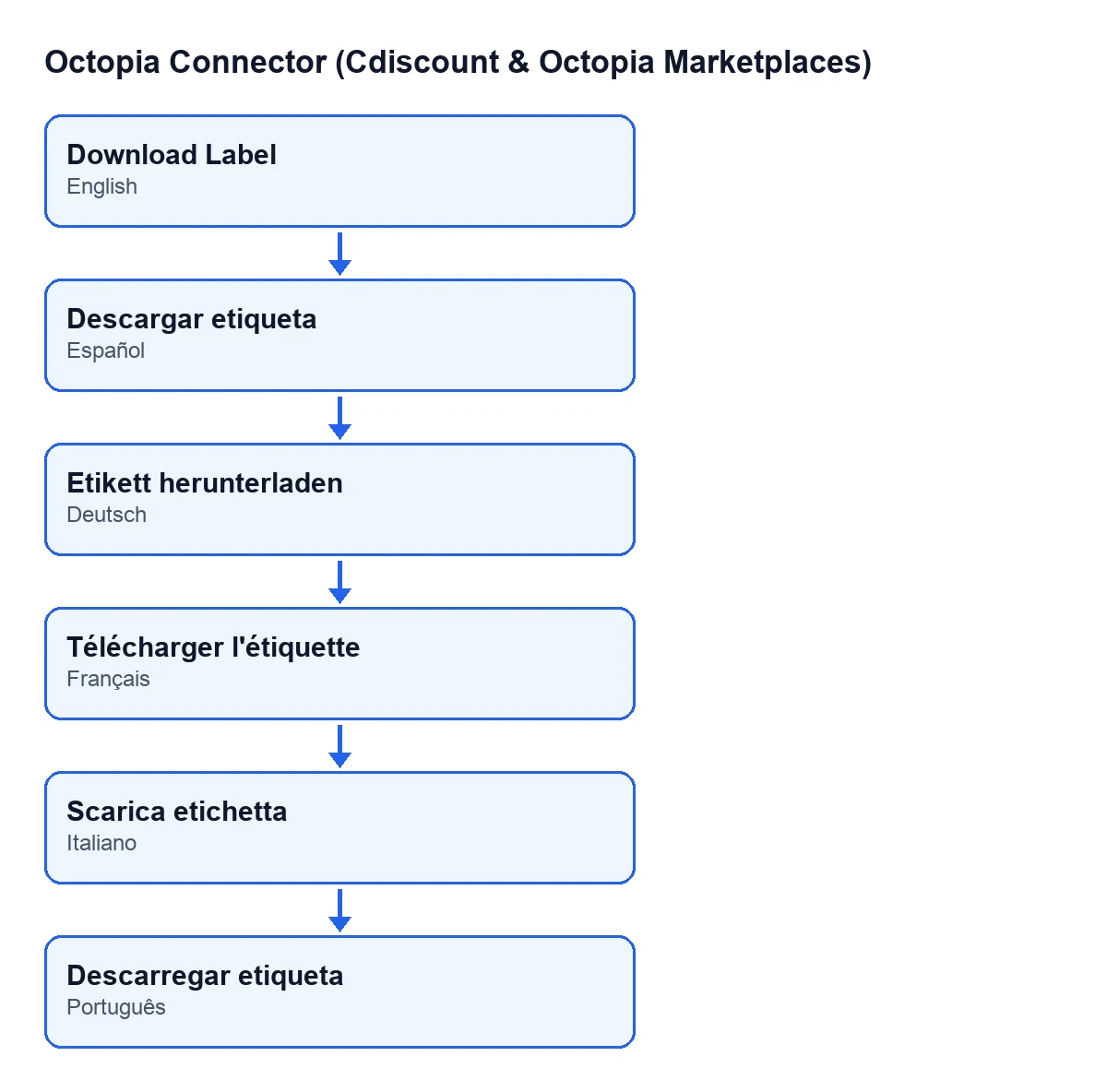
Descargar etiqueta in Spanish, Etikett herunterladen in German, Télécharger l'étiquette in French, Scarica etichetta in Italian and Descarregar etiqueta in Portuguese.
Misconceptions about the button, one by one
"The button is on any return"
In fact, the button is hidden when the Return ID field is empty. With the default values that field is empty, so the button is not visible. The field appears on the form and also in the FFM Returns list, so it is the first thing to look at if you cannot find the button. The condition is the same in Odoo 17, 18, 19 and 20.
"The button builds the label from Odoo data"
The Odoo 20 code does something else. For each return, it takes the account in the Account field and obtains its client. It then asks for that return's label, identified by the value of Return ID. In other words, the label is requested with that identifier and through the return's account.
"Pressing the button is enough to get the label"
Only if what comes back is a file with content. According to the code, if the response is not a file (bytes) or comes back empty, the method moves on to the next return without creating anything and without touching the record. After pressing, check whether the Label Attachment field has been filled in. If it is still empty, the method did not receive a file with content for that return.
"Download means the PDF is saved on your computer"
What the method does is save the label inside Odoo. It creates a PDF attachment named octopia-return-…-label.pdf, with the Return ID in place of the dots, and links it to the return itself. It then places that attachment in the Label Attachment field.
That field is visible on the FFM Returns form and is read-only: the code writes it when the button is pressed, not the user.
"Pressing it twice changes nothing"
Each time the method receives content, it creates a new attachment and the Label Attachment field points to it. If on a second press no file with content arrives, the method moves on to the next return and the field stays as it was.
"Any user reaches the button, on any return"
There are two caveats. The first is the menu: the Octopia part requires Octopia User, and without that permission you do not see it. The second is in the code: the method only works on returns that have a Return ID and skips the rest.
What to check after pressing it
On the return form:
- The
Label Attachmentfield has a value. That shows the method received a file with content and saved it. - The attachment is named
octopia-return-…-label.pdfwith that return's identifier. - The
AccountandReturn IDfields are the ones for the return you meant. They are the two values the method uses to request the label.
If you are looking for a different button in the module, Submit to Octopia has its own article: Submit to Octopia.
Cost and how FlexigoTech helps
Octopia Connector is a one-off purchase per Odoo version and needs a FlexigoTech Cloud subscription, Connector plan: €49 a month or €490 a year excluding VAT, with up to 3 marketplace accounts. It is published on Odoo Apps for Odoo 17, 18, 19 and 20; on the Odoo App Store, each version is bought there.
The connection goes through FlexigoTech Cloud, which stores the credentials encrypted, monitors synchronisation and emails you if it fails. If you are implementing Odoo and need to set up the Cdiscount or Octopia returns flow, FlexigoTech implements Odoo 17, 18, 19 and 20 and builds custom connectors and integrations.
Keep reading
Checked in the connector's source code (version 20.0) and the linked sources
Sources
- Module source code: flexigobe_octopia_connector 20.0 (4848da6a): views/octopia_fulfillment_views.xml
- Module source code: flexigobe_octopia_connector 20.0 (4848da6a): models/octopia_fulfillment.py
- apps.odoo.com/apps/modules/20.0/flexigobe_octopia_connector
- flexigotech.com/precios.html
- flexigotech.com/en/services.html