

 Español
 Català
 Deutsch
 Français
 Português
 Italiano
 Nederlands
 Polski
When the message appears and what it means
When exactly does it appear?
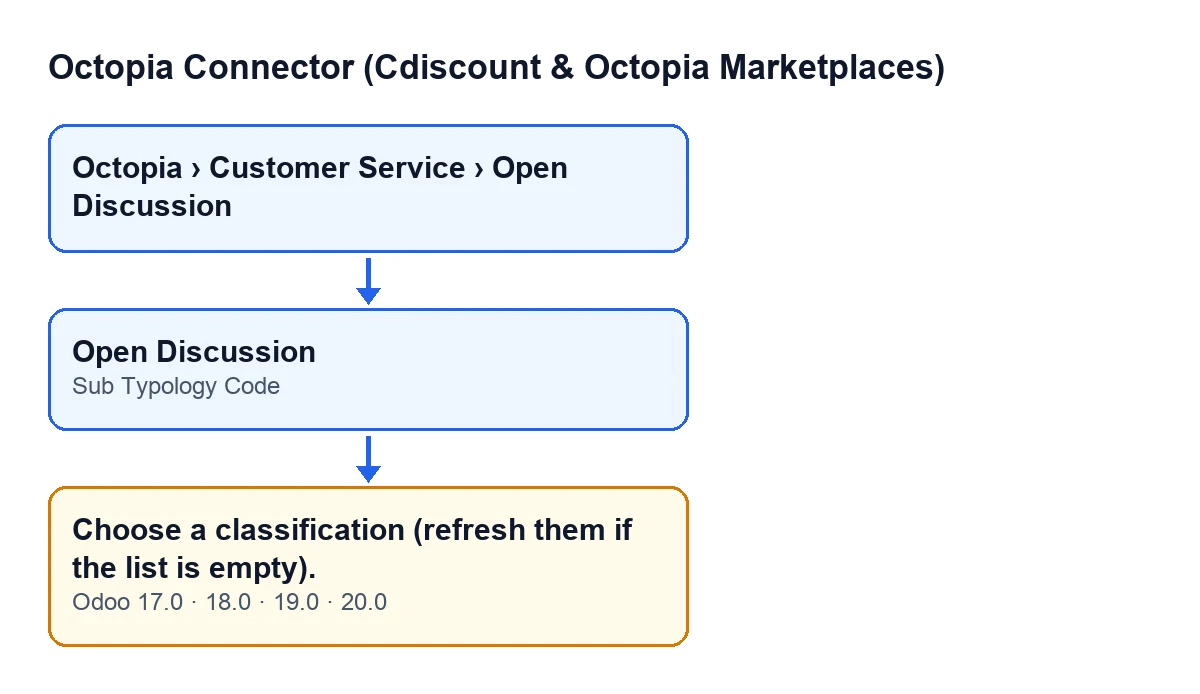
It appears when you press the Open Discussion button while the Sub Typology Code field is empty. In the code published for Odoo 20.0, the method that checks the form starts with exactly this check: if the field is empty, it raises Choose a classification (refresh them if the list is empty). and the action stops. That condition only looks at whether the field has a value at the moment you press the button.
Which screen does it come from?
The Open Discussion form opens from the menu Octopia › Customer Service › Open Discussion. That form holds the Open Discussion button and the Sub Typology Code field. The button has no visibility condition: it is always shown in Odoo 17, 18, 19 and 20. The message can appear when you press it, because the method the button runs reaches the classification check.
What does it mean?
It means you pressed the button without a classification chosen. The message asks for two things: choose a classification and, if the list of classifications comes up empty, refresh it before choosing. At that point, the condition in the code only checks that Sub Typology Code is not empty.
How does it look with Odoo in another language?
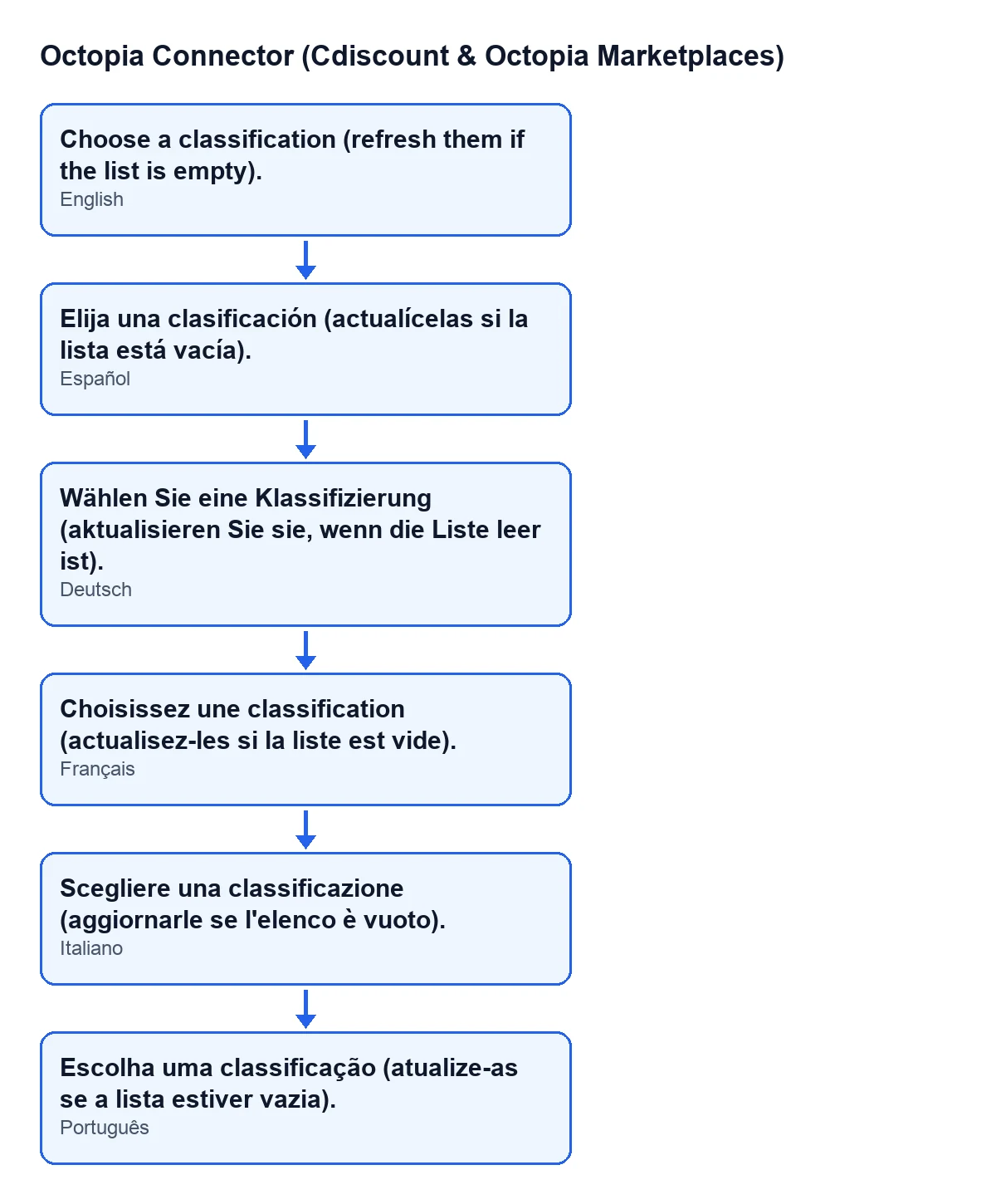
The next diagram gathers the same message in Spanish, German, French, Italian and Portuguese, based on the module's published translations. With Odoo in Spanish, for instance, it reads Elija una clasificación (actualícelas si la lista está vacía).
Does the method carry on with other checks when it appears?
No. The message stops the action: the code raises the error and ends there, without carrying on to any other check on that press.

How to fix it
What do I do, in order?
First, open the form from Octopia › Customer Service › Open Discussion. Second, look at the Sub Typology Code field: if it is empty, that is why the message appears. Third, make sure a classification is chosen; if the list of classifications is empty, refresh it, as the message itself asks, and then choose one. Fourth, press Open Discussion again.
What if I press it again without changing anything?
The same message will appear. The check runs on every press of the button and is met as long as Sub Typology Code stays empty, so pressing again does not change the outcome.
How do I know it is fixed?
Press Open Discussion again: if this message no longer appears, the classification check has been passed. If a different warning shows up, it is no longer this one.
What if I cannot see the menu or the form?
The menu depends on permissions. The Octopia level asks for Octopia User and the Open Discussion level asks for Octopia Manager. If you lack either one, you do not see that part of the menu. In that case, ask whoever administers your Odoo to review your permissions.
Versions and what comes next
Does it work the same in every version?
The message is in the published code of the 17, 18, 19 and 20 branches of Odoo, and the module is published on Odoo Apps for those four versions. In the Odoo 20.0 code, the message appears when the Sub Typology Code field is empty. The Open Discussion button is shown without any condition in all four versions.
Is it the only check behind the button?
No. The classification is the first check in the method; after it, the same method goes on to checks on the subject and on the body of the message. So once you get past this message, another warning about those data may appear.
How can FlexigoTech help?
FlexigoTech implements Odoo 17, 18, 19 and 20 and develops connectors and custom integrations. If you are rolling out the connector, we can help you get it up and running.
Keep reading
Checked in the connector's source code (version 20.0) and the linked sources
Sources
- Module source code: flexigobe_octopia_connector 20.0 (4848da6a): wizard/octopia_discussion_wizards.py
- Module source code: flexigobe_octopia_connector 20.0 (4848da6a): views/octopia_discussion_views.xml
- apps.odoo.com/apps/modules/20.0/flexigobe_octopia_connector
- flexigotech.com/en/services.html