

 Español
 Català
 Deutsch
 Français
 Português
 Italiano
 Nederlands
 Polski
The case: a Mirakl order with no sales order
Example Illustrative case: the company and its figures are made up to explain the flow.
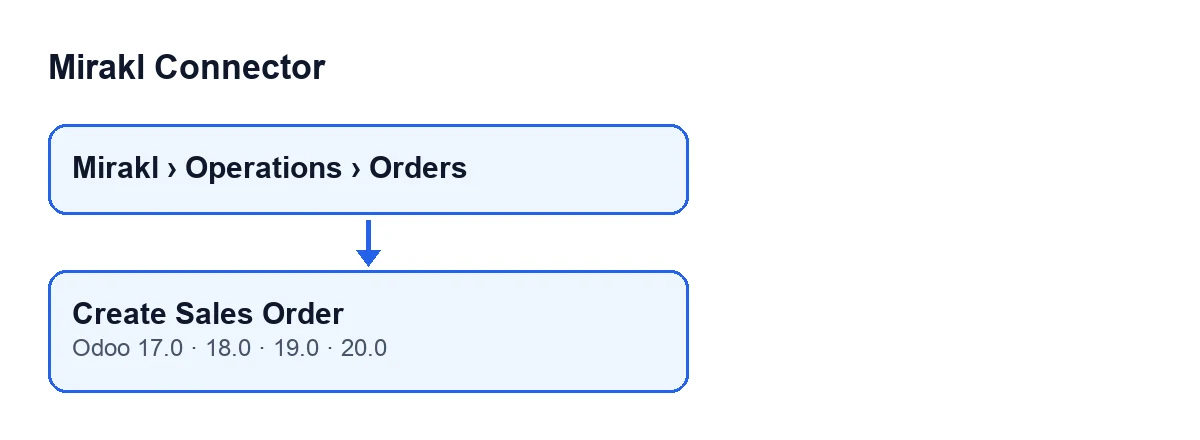
Muebles Ribera is an invented shop that sells on a Mirakl marketplace and runs Odoo with Mirakl Connector. The orders manager opens Mirakl › Operations › Orders and finds a Mirakl order whose Sale Order field is empty. The connector had held it back: the button is meant for orders the seller deleted, orders already shipped, and orders dated before the start date. She decides this order should exist as a sales order in Odoo and presses Create Sales Order. The sales order opens, still a quotation, and she is the one who confirms it.

The automatic path and the tick box that goes with it
The routine behind the button is not only called when you press it. The module extends the standard validate button on deliveries: when some checks of the module's own are met and the delivery belongs to a sales order that comes from Mirakl, validation calls that same routine, but without the instruction to skip the hold check. If that call fails, the module logs a warning and carries on with the rest of its delivery contact routine.
The tick box that decides that path is Auto Confirm Sale, on the Mirakl Instances form, in the Orders and Returns tab, Sync Policy group. It is off by default and its help reads: Automatically confirm imported sale orders after sync.
The button is the exception, for the order the connector held back. That sales order stays as a quotation and the seller confirms it.
When the button appears
On the Mirakl Orders form, the Create Sales Order button is hidden in two cases: when the Sale Order field already has a value, or when the State field shows the order is cancelled. With the default values it is visible. The button is in all four published branches, Odoo 17, 18, 19 and 20.
Sale Order also shows in the Mirakl Orders list, read-only. You do not fill it in: the create-or-update routine writes it, and that routine is reached from this button and from the delivery validation described above.
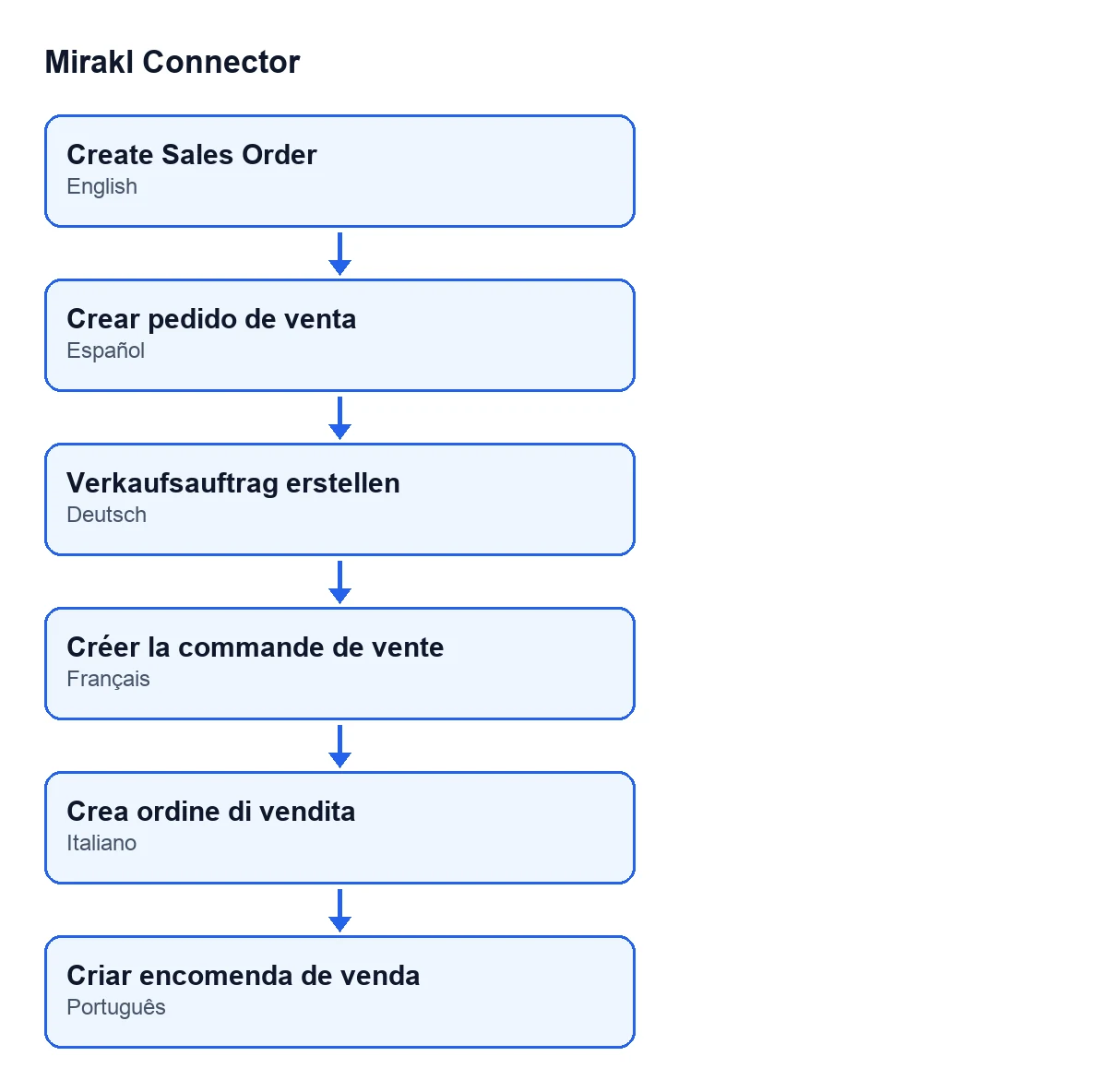
The module ships translations of the button. This is its name depending on your Odoo language:
| Odoo language | Button text |
|---|---|
| English | Create Sales Order |
| Spanish | Create Sales Order |
| German | Verkaufsauftrag erstellen |
| French | Créer la commande de vente |
| Italian | Crea ordine di vendita |
| Portuguese | Criar encomenda de venda |
Step by step: what it does when you press it in Odoo 20
- You open the Mirakl order form from
Mirakl › Operations › Orders. The button is visible if the order has no sales order and is not cancelled. - You press
Create Sales Order. If the order already had a sales order, the button skips it and touches nothing. - If it has none, it removes the hold marker from the order and records that the sales order was created by hand.
- It calls the create-or-update routine with the instruction to skip the hold check. That check, when it is not skipped, can stop the creation and note the reason on the order.
- The routine first looks for a sales order with the same Mirakl order identifier in the same instance. If it finds one, it reuses it and writes the data onto it instead of creating another.
- If it finds none, it prepares the lines and the header data of the new sales order, which stays as a quotation.
- When it finishes, it opens the sales order form.
The hold exists for a reason the module itself explains in a comment: re-syncs used to recreate a sales order the seller had deleted, and the first import turned orders already shipped by hand into new deliveries, so the goods went out twice. Pressing the button skips that safeguard for this order, so check first whether the order has already shipped.
What data the code prepares for the sales order
Among others, these:
- the customer and the delivery contact (a sales order that is already confirmed keeps its customer and, if the buyer's address does not change, its delivery contact), with the customer itself as the invoice address;
- the instance's company and the Mirakl order's currency;
- the Mirakl order's name as the customer reference;
- the instance, the Mirakl order identifier, its state and the time of the last sync;
- the label of the shipping method the buyer chose;
- the buyer's phone and contact person, when the sales order has those fields;
- the order date, if the Mirakl order has one, and the instance's sales team and warehouse, if it has them set.
When no sales order exists yet, the code also prepares the order lines.
If something does not go as expected
- You cannot see the button: check the
Sale Orderfield (if it has a value, one is already linked) and theStatefield (if the order is cancelled, the button is hidden). - You press it and no form opens: the sales order only opens if the Mirakl order has one linked after the call. Check the
Sale Orderfield. - A failure when validating a delivery: on that path the routine's error is caught and logged as a warning.
If you doubt the instance is properly connected, first read what the Test Connection button does.
How FlexigoTech can help
FlexigoTech implements Odoo 17, 18, 19 and 20 and builds connectors and custom integrations. Mirakl Connector is published on Odoo Apps for those four versions: see its listing and the module page.
Keep reading
Checked in the connector's source code (version 20.0) and the linked sources
Sources
- Module source code: flexigobe_mirakl_connector 20.0 (aa05e537): views/mirakl_order_views.xml
- Module source code: flexigobe_mirakl_connector 20.0 (aa05e537): models/mirakl_order.py
- Module source code: flexigobe_mirakl_connector 20.0 (aa05e537): models/stock_picking.py
- Module source code: flexigobe_mirakl_connector 20.0 (aa05e537): models/mirakl_instance.py
- apps.odoo.com/apps/modules/20.0/flexigobe_mirakl_connector
- flexigotech.com/en/services.html