

 Español
 Català
 Deutsch
 Français
 Português
 Italiano
 Nederlands
 Polski
Before installing: version and cost
FlexigoTech Migration Base is published on Odoo Apps for Odoo 17.0, 18.0, 19.0 and 20.0. The listing for each of those versions shows it as free (excluding VAT). What you need to settle first is which database you will install it on and who will enter the data.
- Check the exact version of your Odoo database and download the module from the listing for that same version.
- If you are implementing Odoo while preparing the migration, agree the target version first with whoever is running the implementation.
- Decide who handles the mapping and who reviews the reconciliation: further down you will see that the module records who signs off each line.
- If you want to see which menus the module adds beforehand, read how it works under the bonnet.
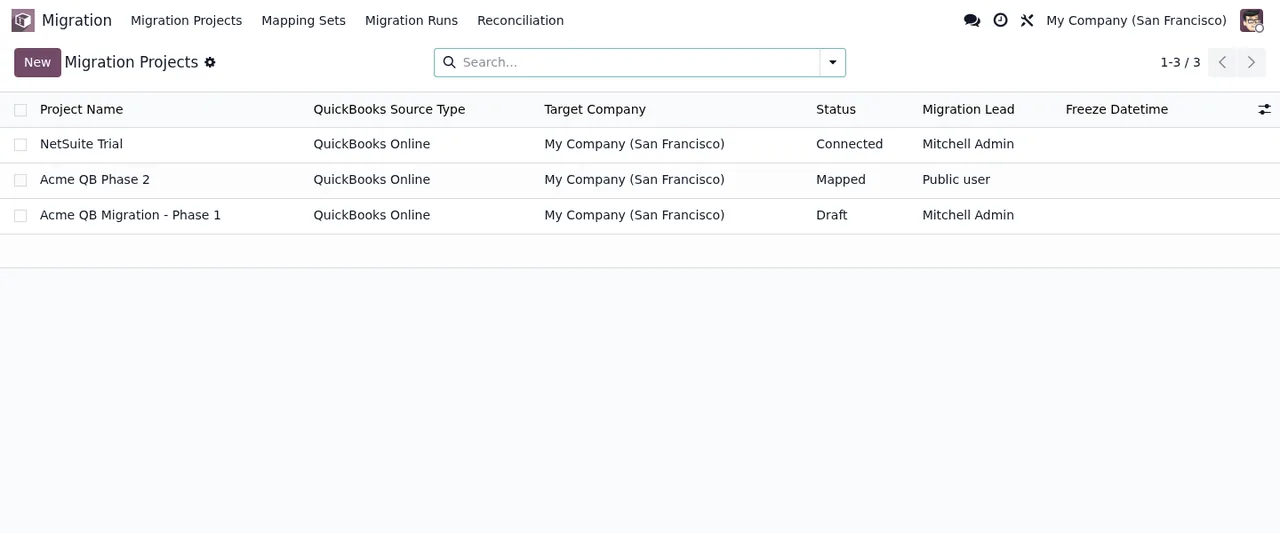
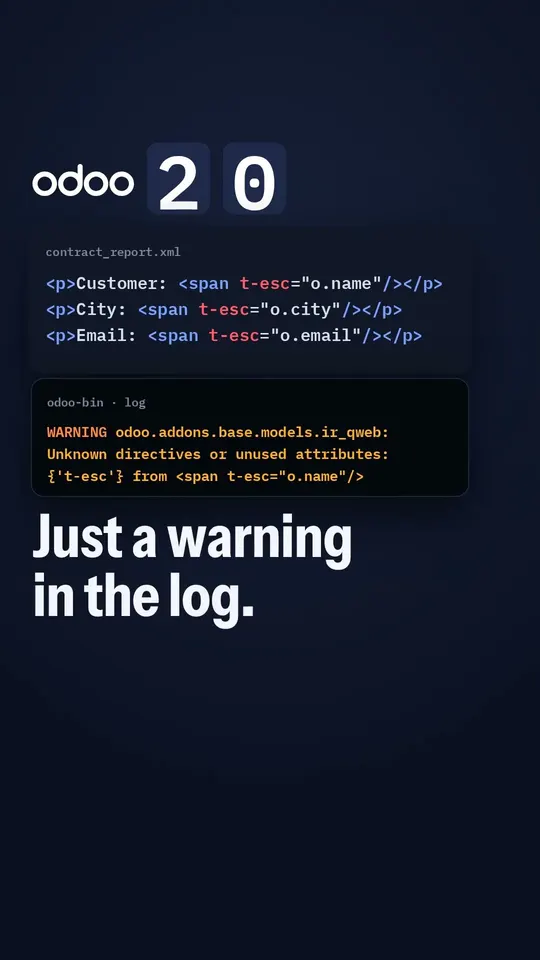
When setting up the dimension mapping
The dimension mapping is where you state which Odoo analytic plan and account each value from the source system goes to. Each line has only a few fields, and it pays to read what each one asks for in the help text built into the module. Work through them field by field:
Mapping Set(mapping_set_id): assign the line to the mapping set it belongs to.
Dimension Type(object_type): choose the dimension type from the drop-down.
Source Value(source_value): enter the source value. The field help says it is the name or value of the QuickBooks Class or Location/Department.
Analytic Plan(analytic_plan_id): choose the target analytic plan. According to the field help, it is the row or column for distributions.
Analytic Account(analytic_account_id): choose the target analytic account for that dimension.
Do Not Migrate(do_not_migrate): tick it only on the dimensions you want to leave out. With the box ticked, the dimension is explicitly excluded from the migration.
Before you sign off the mapping, filter the lines with Do Not Migrate ticked and confirm with someone who knows the source system that you really want to exclude each one.
The statuses you need to recognise
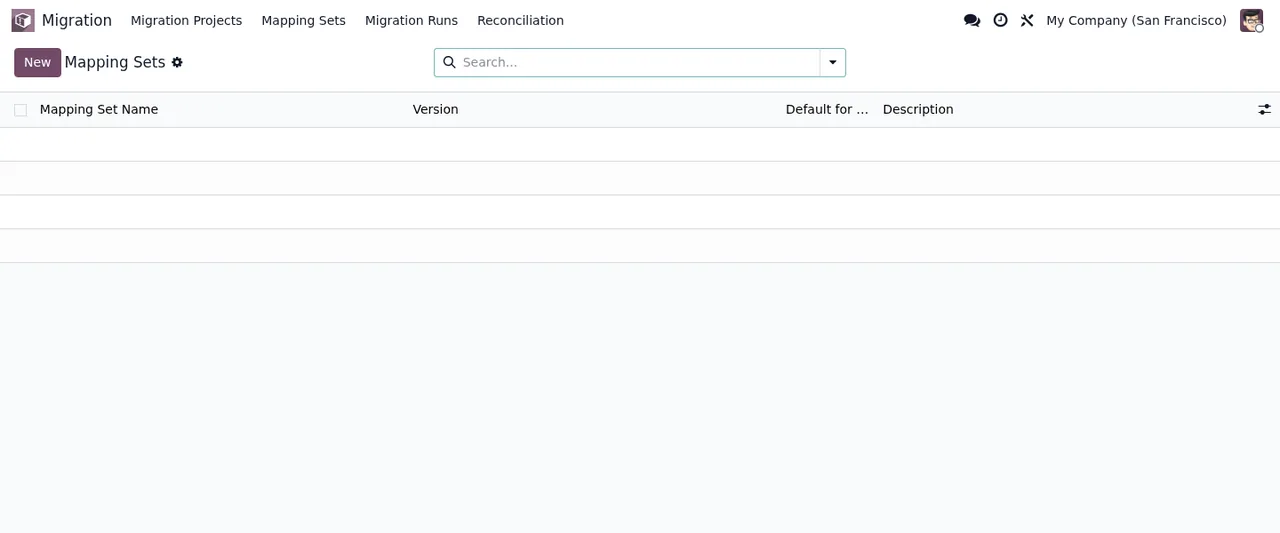
The module defines two status fields. Knowing their values, with the label and the technical code in brackets, helps you filter lists and read exports.
- Learn the values of
status, in the order the module defines them:Draft(draft),Connected(connected),Extracted(extracted),Mapped(mapped),Validated(validated),Loaded(loaded),Reconciled(reconciled),Live(live) andRolled Back(rolled_back).
- Learn the values of
validation_status:Pending(pending),Valid(valid) andInvalid(invalid).
- Keep the label-to-code pairs to hand (for example
Rolled Backandrolled_back) when you filter or export.
- If you come across a record in
Invalid, check the module's error messages and warnings to find out what text it showed you and what to do about it.
The first week: reviewing the reconciliation line by line
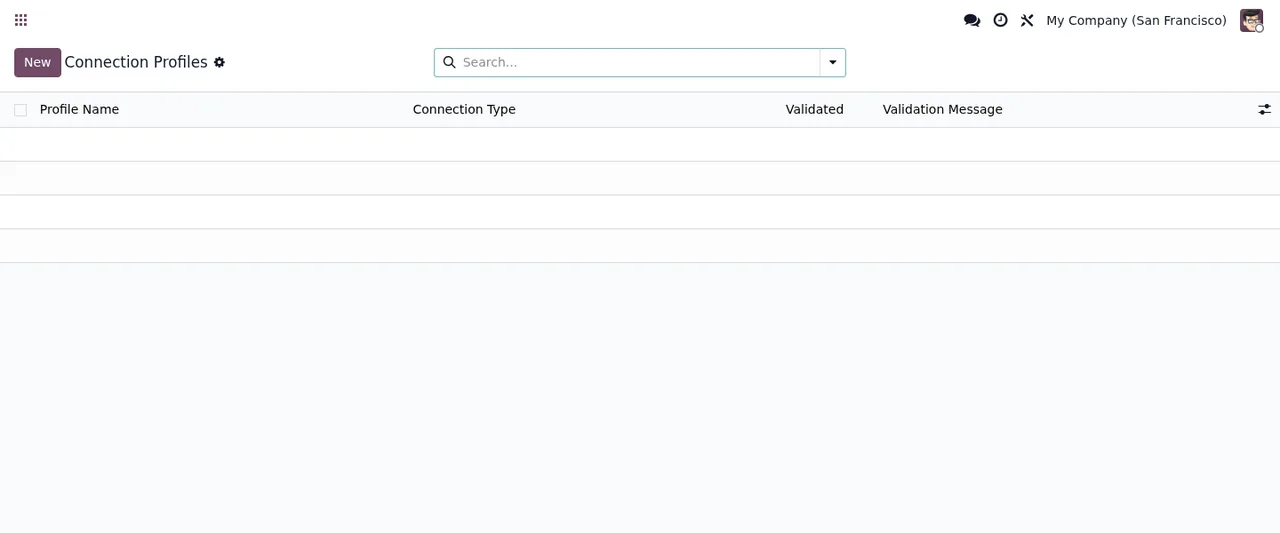
Each reconciliation line holds a source amount and a target amount for an account or product. During the first week, the job is to go through them carefully and keep a record of who has approved them. These are the fields you will read and what to check in each:
Migration Project(project_id): filter by your project so you do not mix in lines from others.
Reconciliation Type(reconciliation_type): group by reconciliation type so you review one block at a time.
Account / Product CodeandAccount / Product Name(account_code,account_name): identify the account or product on each line.
Source Amount,Target AmountandVariance(source_amount,target_amount,variance): compare the source and target amounts and note the lines with a variance.
Within ToleranceandTolerance Applied(within_tolerance,tolerance): find the lines whereWithin Toleranceis unticked and see what tolerance is shown.
Blocking(is_blocking): filter the lines flagged as blocking and review them first.
Reconciliation Date(reconciliation_date): check the date of each reconciliation.
Signed Off,Signed Off ByandSigned Off Date(signed_off,signed_off_by,signed_off_date): confirm which lines are signed off, who did it and when.
How FlexigoTech can help
If you would rather not handle the set-up on your own, FlexigoTech implements Odoo 17, 18, 19 and 20 and builds bespoke connectors and integrations. We can help you configure the mapping, review the reconciliation or adapt whatever your migration needs. You will find the module on its Odoo Apps listing, and if you are still unsure whether it suits you, start with what it covers and what it does not.
Keep reading
Checked in the module's source code (version 20.0) and the linked sources
Sources
- Module source code: flexigo_migration_base 20.0 (075d1af0): models/migration_dimension_map.py
- Module source code: flexigo_migration_base 20.0 (075d1af0): models/migration_reconciliation.py
- Module source code: flexigo_migration_base 20.0 (075d1af0): models/migration_project.py
- Module source code: flexigo_migration_base 20.0 (075d1af0): models/migration_staging_record.py
- apps.odoo.com/apps/modules/20.0/flexigo_migration_base
- apps.odoo.com/apps/modules/17.0/flexigo_migration_base
- apps.odoo.com/apps/modules/18.0/flexigo_migration_base
- apps.odoo.com/apps/modules/19.0/flexigo_migration_base
- flexigotech.com/en/services.html