

 Español
 Català
 Deutsch
 Français
 Português
 Italiano
 Nederlands
 Polski
Where the button is and what it does overall
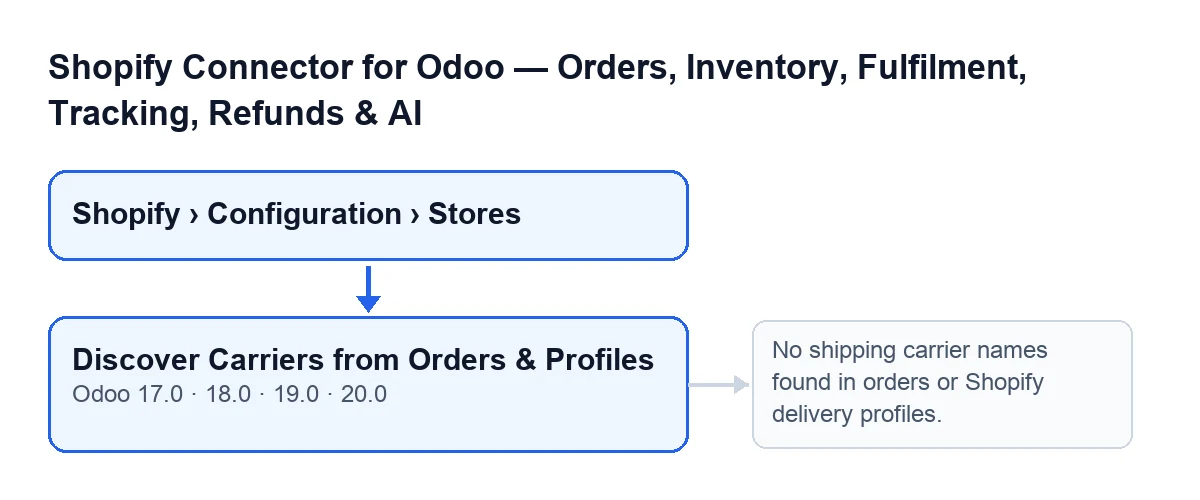
You will find it under Shopify › Configuration › Stores, on the Shopify Instances screen. Seeing those menus takes permissions: the Configuration section asks for Operator and the Shopify section asks for Viewer.
When you press Discover Carriers from Orders & Profiles, the module gathers the shipping names the store knows about, creates one mapping row for each name that does not have one yet, and opens that store's list of carrier mappings so you can review and edit it.

Wrong ideas about the button and what it really does
«If Shopify does not answer, the button fails»
The button starts with the Shopify orders the store already has saved in Odoo: it collects the titles of their shipping lines, and for that it does not call Shopify. It then queries Shopify for its delivery profiles. If that query fails, the module logs a warning and carries on with the names it already had.
There is one exception: if FlexigoTech Cloud has paused the call, the button does not treat the discovery as empty but shows FlexigoTech Cloud's notice.
«It creates the carriers in Odoo»
What it creates are mapping rows, one per new name, and each row records where the name came from: the orders or the delivery profiles. For each row it looks for an Odoo carrier whose name matches the Shopify name, ignoring upper and lower case. It only looks at carriers of the store's company (the Company field, visible on the form and in the list of Shopify Instances) or shared ones; a carrier from another company is not matched.
If it finds one, the row gets that carrier. If not, the row stays without an Odoo carrier, and that is where you decide when you review the list.
«It only discovers what has already been sold»
Orders are just the first place it looks. The query to Shopify adds the names of the shipping methods configured in the delivery profiles, even if no order has used them yet, and the names of the services a carrier calculates.
«Pressing it again duplicates the rows»
The button compares each discovered name, ignoring case, with the mappings the store already has and skips those already there. It does not modify the existing ones: pressing it again only adds names that do not have a row yet.
The title of the list that opens gives you the result: it says how many new mappings were created and how many were matched automatically with an Odoo carrier. If none were new, it says that all the names were already mapped.
«It only appears when something is missing, or in some versions»
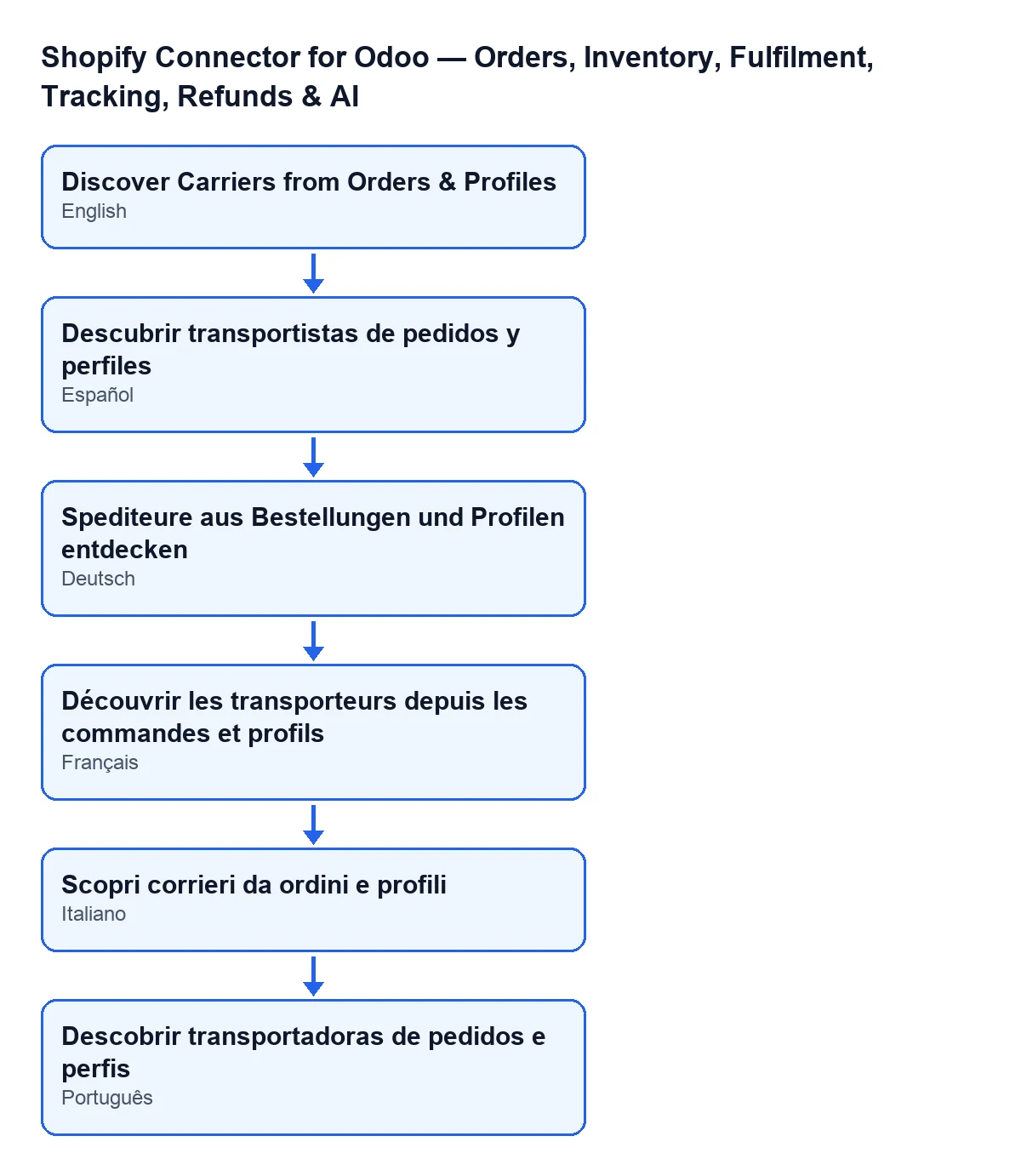
The button is shown with no condition and exists in every published branch: Odoo 17, 18, 19 and 20. With Odoo in English its label is Discover Carriers from Orders & Profiles; the other figure shows the same label in Spanish, German, French, Italian and Portuguese.
«If it finds nothing, something is broken»
It can happen without any fault. The button stops with this notice: No shipping carrier names found in orders or Shopify delivery profiles. No row is created when it appears.
It means that neither the saved orders nor the delivery profiles supplied any names. Bear in mind that, because a failure of the query to Shopify only leaves a warning in the log, the same message appears if the store has no saved orders with shipping and that query failed.
What else changes besides the mappings
Whenever the button has found at least one name, even if it creates no new row, the module recalculates the store's counters (among them those for carrier mappings and for mappings without a carrier) before opening the list. If it stops with the notice that it found no names, it never reaches that step.
That recalculation does not depend on the button: the scheduled task Shopify Refresh Instance Stats does it every hour for active stores, and it is active when the module is installed.
If you are after stock levels instead, see what the Pull Stock button does.
What you need and how FlexigoTech helps
The module is a one-off payment per Odoo version (17, 18, 19 and 20; the price of each is on its listing) and needs a FlexigoTech Cloud subscription, Connector plan: €49 a month or €490 a year excluding VAT, up to 3 platform accounts. The connection to Shopify goes through FlexigoTech Cloud, which keeps the credentials encrypted and emails you if synchronisation fails. Without a subscription, or with the service suspended, what it provides stops; your data stays in your Odoo. There is more on the module page.
If you are implementing Odoo and want your store's carriers mapped properly, FlexigoTech implements Odoo 17, 18, 19 and 20 and builds connectors and custom integrations.
Keep reading
Checked in the connector's source code (version 20.0) and the linked sources
Sources
- Module source code: flexigobe_shopify_seller_connector 20.0 (d7e627b4): views/shopify_instance_views.xml
- Module source code: flexigobe_shopify_seller_connector 20.0 (d7e627b4): models/shopify_instance.py
- Module source code: flexigobe_shopify_seller_connector 20.0 (d7e627b4): models/fgt_cloud.py
- apps.odoo.com/apps/modules/20.0/flexigobe_shopify_seller_connector
- flexigotech.com/en/services.html
- flexigotech.com/precios.html