

 Español
 Català
 Deutsch
 Français
 Português
 Italiano
 Nederlands
 Polski
When the button shows and who can use it
The Create Sales Order button is on the Amazon Orders screen, reached through the Amazon › Orders menu. Both menu levels ask for the Viewer permission. The button exists in the module's Odoo 17, 18, 19 and 20 versions, and the condition for seeing it is the same in all four.
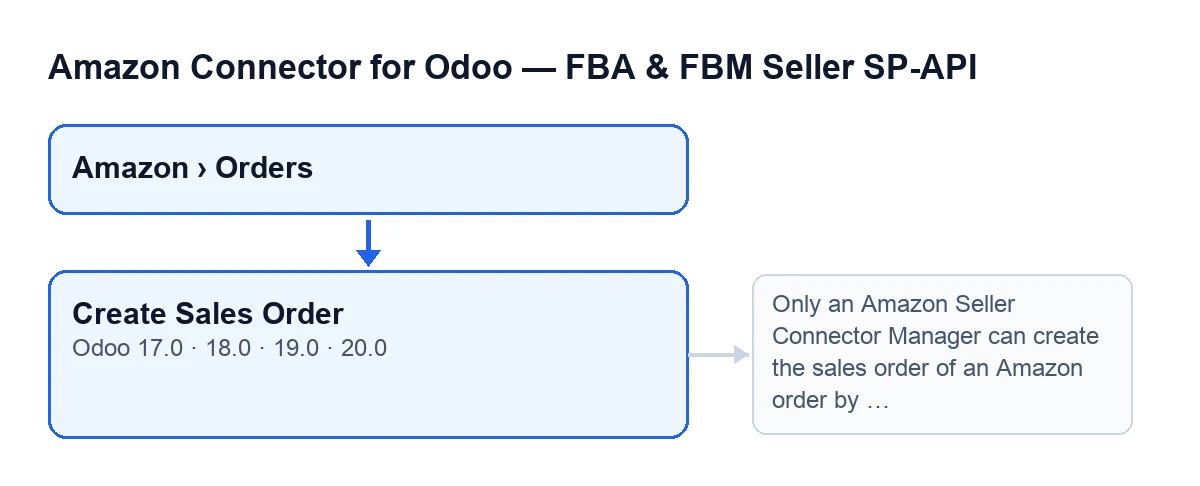
With the default values the button is not visible. It is hidden when the order already has a Sale Order or when the No Sales Order Because field is still at its default value. Put the other way round: it only shows on an Amazon order with no sales order whose No Sales Order Because field is no longer at its default value. The code itself describes the button as the way to create by hand the sales order of a held order. In the Amazon Orders list you can see the read-only Sale Order field.
According to the Odoo 20 code, the method requires membership of the Amazon Seller Connector Manager group (unless it runs with system privileges). Otherwise the action stops with this message: Only an Amazon Seller Connector Manager can create the sales order of an Amazon order by hand. It stops before changing anything.

Step by step: from a held order to a quotation
- Check whether Odoo has already done it by itself. The scheduled task
Amazon: Import Orders, active on install, runs every 15 minutes and creates the sales order of the imported orders that are not held and that are not already-shipped orders other than FBA ones. With the optionAuto-validate delivery when shipped on Amazon, an FBM order that Amazon already shipped is created with its whole delivery validated, or not created at all: if the delivery cannot be fully validated in Odoo, what was done is rolled back and the module leaves a log warning that points toCreate Sales Order. - Find the order. Open
Amazon › Ordersand look for the order in the list. If theSale Orderfield already has a value, the button is not shown. - Press
Create Sales Orderon the order. Odoo asks for confirmation with this text:It is created as a quotation that the connector never confirms: check first that this order was not shipped already. Create it? - Before accepting, do what the warning asks. Check that the order was not shipped already. That check is yours: the warning asks for it before anything is created.
- Accept and let the method work, in this order. If the order already has a sales order, it simply opens it. If not, it checks your permission and, if you are not a Manager, stops with the message above without changing anything. Then it puts
No Sales Order Becauseback to its default value, creates the sales order (or links the one that already exists) and opens it. - Review the quotation. The sales order opens in its form, as a quotation that the connector does not confirm. Back in the
Amazon Orderslist, theSale Orderfield shows it and the button is no longer visible, because the condition hides it once there is a sales order.
What the quotation created by the button contains
If a sales order already exists for that Amazon order, the module links it instead of creating a duplicate, and if the existing one lacks the Amazon order identifier or the account, it fills them in. If none exists, it creates a new one with:
- the customer of the Amazon order;
- as the date, the order's purchase date, or the current moment if it has none;
- as the origin, the name of the Amazon order, and as the customer reference, its Amazon order identifier;
- the company of the Amazon account, together with the order identifier and the account itself;
- the FBA flag, when the order is an FBA one;
- the account's default carrier, if there is one and if the sales order has a carrier field;
- one line for each line of the Amazon order: its product, the title as description (or the product name), the quantity ordered and the item price as unit price.
After saving the link with the Amazon order, the method returns the quotation and stops there. What follows on the automatic path (confirming the order, the optional invoice, noting the external Amazon status and, for FBA, cancelling the outgoing delivery and consuming stock from the FBA location) is not run by the button.
The invoice, what the button does not do and how we help
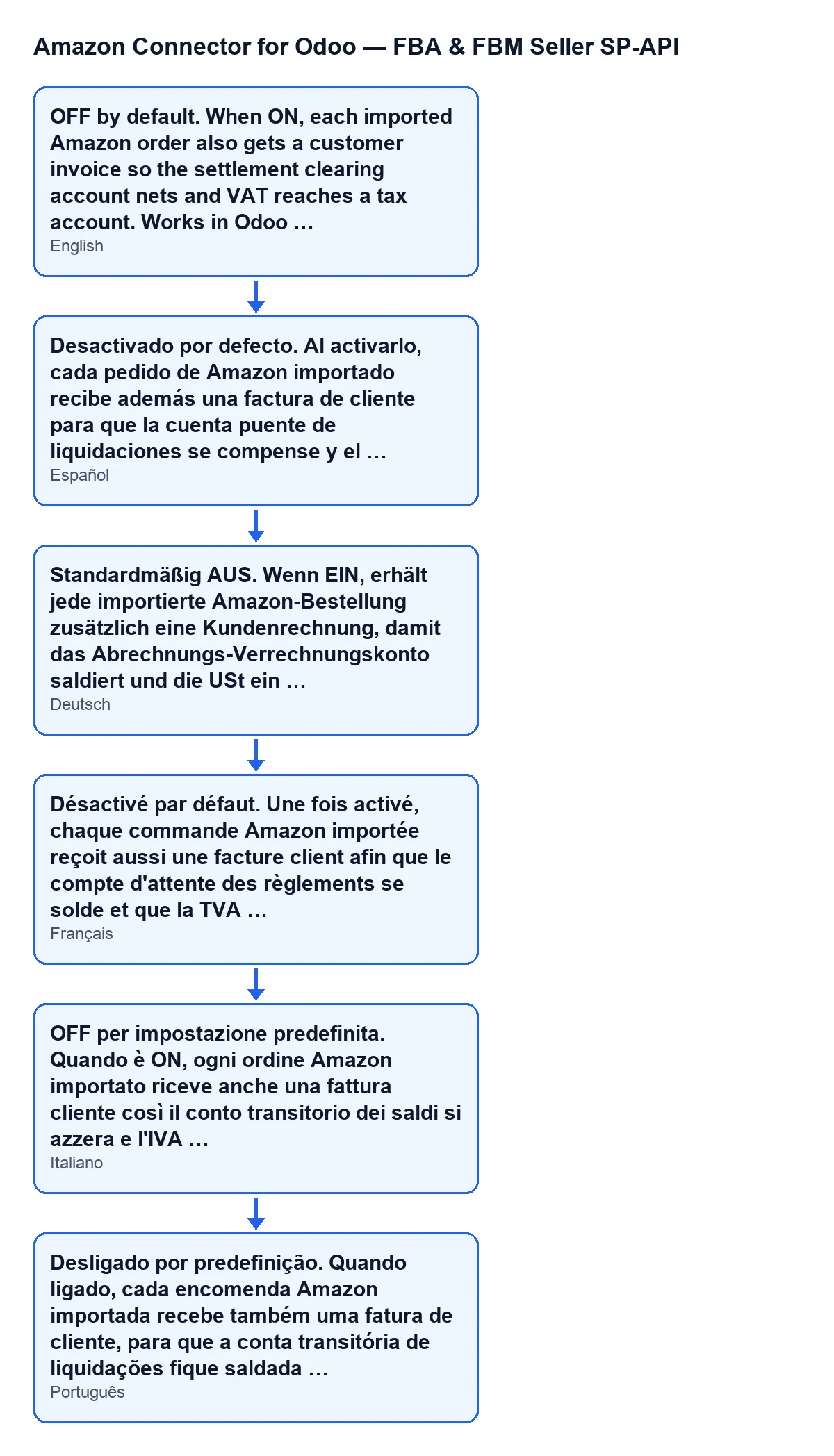
One of those pieces is the invoice. The Create customer invoices for Amazon orders checkbox is on the Accounts form, Payments & Accounting tab, and its default value is off. Its help text reads: OFF by default. When ON, each imported Amazon order also gets a customer invoice so the settlement clearing account nets and VAT reaches a tax account. Works in Odoo Community. With the checkbox on, the automatic path tries to create the invoice after confirming the order; the button ends before reaching that point.
If you are implementing Odoo and want the connector to fit the way you work, FlexigoTech implements Odoo 17, 18, 19 and 20 and develops connectors and custom integrations. On cost: the connector needs the FlexigoTech Cloud subscription (Connector plan: €49/month or €490/year excluding VAT, up to 3 accounts of the platform), in addition to the module's one-off payment, which you will find on the module page and in the Odoo Apps listing.
Keep reading
Checked in the connector's source code (version 20.0) and the linked sources
Sources
- Module source code: flexigobe_amazon_seller_connector 20.0 (8576afa5): views/amazon_order_views.xml
- Module source code: flexigobe_amazon_seller_connector 20.0 (8576afa5): models/amazon_order.py
- Module source code: flexigobe_amazon_seller_connector 20.0 (8576afa5): models/amazon_spapi_account.py
- apps.odoo.com/apps/modules/20.0/flexigobe_amazon_seller_connector
- flexigotech.com/en/services.html
- flexigotech.com/precios.html