

 Español
 Català
 Deutsch
 Français
 Português
 Italiano
 Nederlands
 Polski
When the button appears
The button is on the Order Cancellations form, which you open from the menu Temu › Orders & Fulfillment › Cancellations. The button is present in branches 17, 18 and 19.
Check Status.The button is hidden in two cases: when the request is in draft and when its type is remote. With the default values (appeal type, draft state) a new record does not show it. In other words, you only see it on a request that has left draft and is not remote. The condition is the same in Odoo 17, 18 and 19.

Step by step
- Let the module fill in what is missing. This is the automatic path: when the cancellation record is created and when it is saved, if it has a Temu order linked, the module completes whatever is empty. On creation it takes the
Instancefrom the order if you have not set one. It also fills in the parent order number (the order's own, or its Temu identifier if it has none) and, if the list of order numbers is empty, puts in the linked order's number, also inOrder Sn List Csv. - Open the record and look for the button. If you cannot see it, check the condition above: draft or remote type hides it.
- Check the data the query uses. For an appeal,
Apply Snmust have a value. For an out-of-stock request, the parent order number and at least one order number in the list are needed. The module uses the list already stored and, if it is empty, whatever is inOrder Sn List Csv, where you can separate the numbers with commas or line breaks (empty entries are ignored). The query goes out through theInstanceon the record. - Press
Check Status. The first thing it does is complete the parent order number and the list of order numbers from the linked order, if they are empty. Then it queries Temu according to the type of request. - If it is an appeal, it asks Temu for the result of that appeal using its
Apply Sn. It takes the first item in the response, reads its status code and translates it into the state of the record (table below). - If it is not an appeal, the module treats it as an out-of-stock request: it asks Temu using the parent order number and the list of order numbers. If Temu's response carries the result of the request, it stores it in
Apply Result(read-only on the form); if not, it keeps the previous value. It then goes through the status codes of the items in the response: if any is a rejection code (3, 4, 20 or 30) it keeps the highest of those; if all are 2 or 10 it keeps the lowest; otherwise it keeps the highest. - Look at the outcome. If the query succeeds, the module writes the state, the status code, the result items, the full Temu response and the date and time of the check, and clears the last stored error.
Which state the record ends up in
The status code returned by Temu is translated like this:
| Temu code | State the module writes |
|---|---|
| No code, or 1 | pending |
| 2 or 10 | approved |
| 3, 4, 20 or 30 | rejected |
| Anything else | pending |
There is one rule that comes first, for out-of-stock requests: if the request result (Apply Result) is false after reading the response, the state written is Failed, whatever the code. Reaching Failed this way does not require the query to have raised an error.
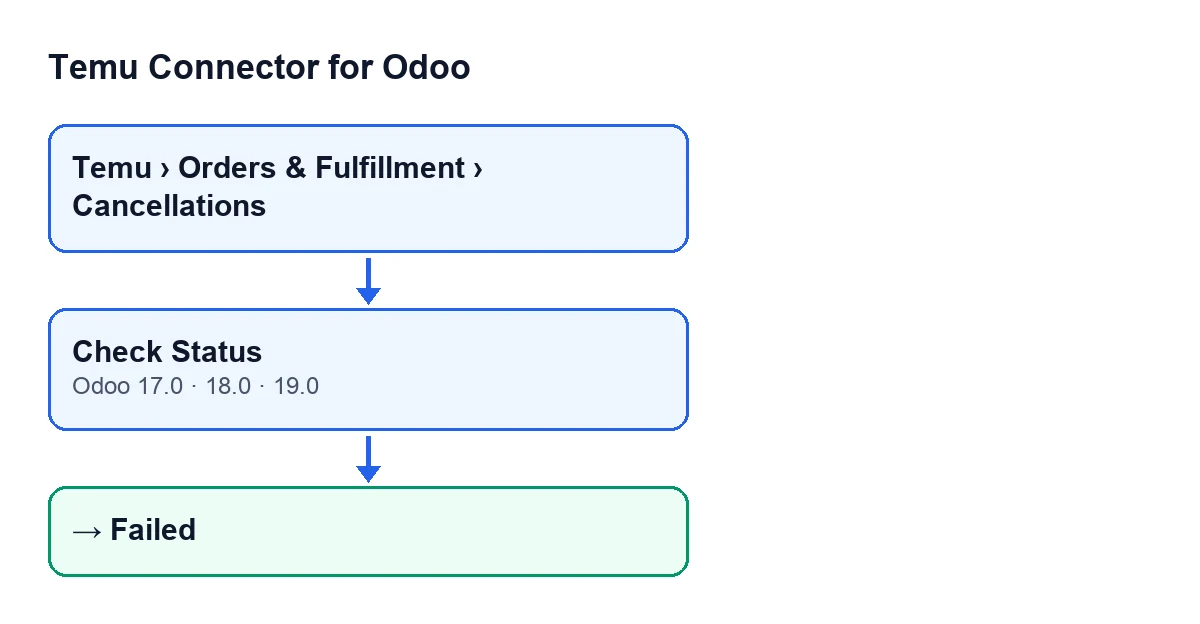
The Submit button also writes Apply Result; Check Status updates it when the request is an out-of-stock one and Temu's response carries that result.
If the query fails
The whole query runs inside a block that catches any error: missing data of the kind listed in step three, but also a failure when asking Temu. If one occurs, the code writes the state Failed and the error text, and raises the error again, so the action ends with an error notice on screen and the query result is not written.
What to do:
- Fill in what is missing:
Apply Snfor an appeal, orOrder Sn List Csvfor an out-of-stock request. If the record has a linked order, the module takes the parent order number and the list of numbers from it when they are empty. - Check that the
Instanceon the record is the right one, since the query goes through it. - Press the button again. Because
Failedis not draft, the view condition does not hide it as long as the request is not a remote one.
Versions, subscription and help
The module is published on Odoo Apps for Odoo 17, 18, 19 and 20. The module's one-off payment is per Odoo version: see each version's price on the listing or on the module page.
The connection to Temu goes through FlexigoTech Cloud, so the module needs its subscription: the Connector plan costs €49 a month or €490 a year, excluding VAT. The service stores the credentials encrypted, watches the synchronisation and emails you if it fails.
FlexigoTech implements Odoo 17, 18, 19 and 20 and builds custom connectors and integrations, in case you need to adapt the cancellation flow to the way you work.
Keep reading
Checked in the connector's source code (version 19.0) and the linked sources
Sources
- Module source code: flexigobe_temu_connector 19.0 (455b3f0f): views/temu_order_cancellation_views.xml
- Module source code: flexigobe_temu_connector 19.0 (455b3f0f): models/temu_order_cancellation.py
- apps.odoo.com/apps/modules/19.0/flexigobe_temu_connector
- flexigotech.com/en/services.html
- flexigotech.com/precios.html