

 Español
 Català
 Deutsch
 Français
 Português
 Italiano
 Nederlands
 Polski
Where the form is and what you see when you open it
Accounts open from the menu Amazon › Configuration › Accounts. Each part of the menu needs a permission: Amazon needs Viewer, and Configuration and Accounts need Manager. If you lack the permission for a part, you do not see it.
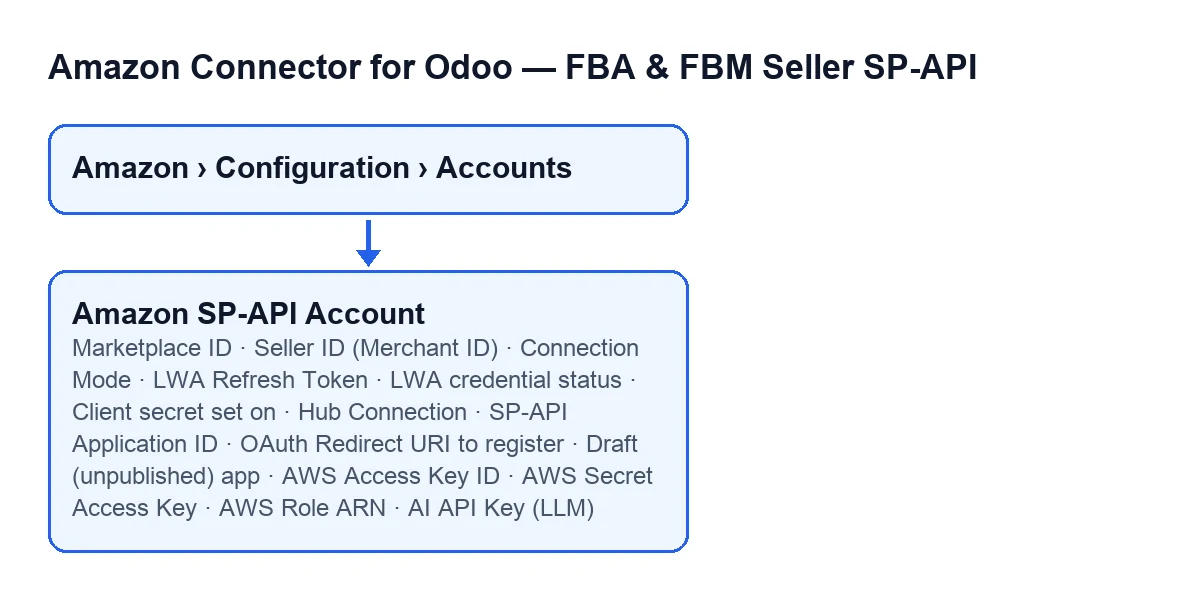
The fields in this glossary sit on two tabs of the form: Identity and Credentials. With the default values, the Credentials tab shows neither the connection mode nor the fields for your own Amazon app. Each term below says when it appears.

Identity: marketplace and seller
They sit on the Identity tab, in the Marketplace group.
- Marketplace ID
- Identifies the Amazon marketplace of the account. It also appears as a column in the
Accountslist. Its help gives the exampleExample ES: A1RKKUPIHCS9HS, and that is the value the code sets by default. What to enter: check that the value matches the marketplace you will work with.
- Seller ID (Merchant ID)
- According to its help, it is required for the Listings API (phase 2), with the example format
A2XXXXXXXXXXXX. What to enter: your seller identifier if you are going to use the Listings API.
Example ES: A1RKKUPIHCS9HS; in German, Beispiel ES: A1RKKUPIHCS9HS; in French, Exemple ES : A1RKKUPIHCS9HS; in Italian, Esempio ES: A1RKKUPIHCS9HS; in Portuguese, Exemplo ES: A1RKKUPIHCS9HS.Credentials: how the account connects
- Connection Mode
- Chooses how the account connects to Amazon. The options are
FlexigoTech Hub (one click, recommended)andYour own Amazon app (advanced). According to its help, with the Hub you connect in one click through FlexigoTech's already-published Amazon app, with no developer account and no LWA credentials to create; with your own app you bring your own Login-with-Amazon client id and secret. It sits on theCredentialstab, in theConnection Modegroup, and on screen it has no label: you only see the options. With the default values it is not shown, and the code's default value is the Hub. What to enter: with the default values you do not have to choose anything; the account uses the Hub.
- Hub Connection
- Opaque connection id issued by the FlexigoTech hub once connected. It is read-only and sits in the
Connect via FlexigoTech Hubgroup. It only appears when the mode is the Hub and the field has a value. TheDisconnectbutton empties it. What to enter: nothing, it is read-only.
Your own Amazon app: the LWA and OAuth fields
Every term in this section only appears when the connection mode is Your own Amazon app (advanced). They are in the LWA Credentials group of the Credentials tab.
- LWA Refresh Token
- The Login-with-Amazon refresh token. Its help says: “Filled automatically by “Connect to Amazon”, or paste it manually.” Only users with permission to manage the Amazon SP-API accounts see it. What to enter: paste by hand the refresh token of your own Login-with-Amazon app.
- LWA credential status
- Read-only. It shows the result of the last Login-with-Amazon token call:
Not verified yet(the default),ValidorRejected by Amazon. The module fills it in, not you. According to its help,Rejected by Amazonalmost always means the client secret expired and a new one must be generated in Seller Central.
- Client secret set on
- Read-only. It is the moment the current LWA client secret was saved here; its help adds that Amazon expires every client secret a number of days after issuing it. The scheduled task
Amazon SP-API - Warn before the LWA client secret expiresfills it in; it runs every day and is active on install. What to enter: nothing.
- SP-API Application ID
- It sits in the
Connect to Amazon (one-click, no manual token)subgroup. Its help says it is your Amazon SP-API app id (amzn1.sp.solution...oramzn1.application...), needed for the one-click “Connect to Amazon” self-install. What to enter: your app's id.
- OAuth Redirect URI to register
- Read-only, in the same subgroup. The help asks you to copy that exact URL into Seller Central > Apps & Services > Develop Apps > your app > “OAuth Redirect URI(s)”, because Amazon sends the seller back there after the consent screen. If it points to another Odoo (an old Odoo.sh build, production instead of staging, .odoo.com instead of your custom domain), the connection ends on
This Odoo has no record of your connection attempt. The help adds that the OAuth Login URI is the same address ending in/oauth/login. What to enter: nothing to type; copy it as it is into Seller Central.
- Draft (unpublished) app
- A tick box in the same subgroup, ticked by default in the code. According to its help, it adds
version=betato the consent URL and authorises the draft revision of your app. Tick it only while the app is in Draft. Once Amazon shows the app as Published, untick it: if it stays ticked, the draft revision keeps being authorised and the connection silently binds to the wrong version of your app. The help clarifies that “the current revision is in draft” in Seller Central means you have unsubmitted edits, not that the app is in Draft state.
Optional fields and the AI key
- AWS Access Key ID, AWS Secret Access Key and AWS Role ARN
- Three fields on the
Credentialstab, all optional according to their help. If you fill in the Access Key ID and the Secret Access Key together, AWS SigV4 signing is used. If you provide the Role ARN, that role is assumed via STS. Only users with permission to manage the Amazon SP-API accounts see the secret key. What to enter: leave them empty if you do not need them; if you use SigV4 signing, fill in the ID and the key at the same time.
- AI API Key (LLM)
- It sits in the
AI Insights (LLM)group of theCredentialstab and only users with permission to manage the Amazon SP-API accounts see it. Its help says to paste your free key here: Gemini at aistudio.google.com/apikey or Groq at console.groq.com/keys, no card required. What to enter: your key from one of those two services.
What it costs and how we can help
The module is a one-off payment per Odoo version and is published on Odoo Apps for 17, 18, 19 and 20; you can see the price of each version on its listing. It also needs the FlexigoTech Cloud subscription on the Connector plan: €49 a month or €490 a year, excluding VAT, with up to 3 accounts. The connection goes through FlexigoTech Cloud, which stores the credentials encrypted, monitors synchronisation and emails you if it fails. There is more on the module page.
If you are implementing Odoo and want help setting up the account, FlexigoTech implements Odoo 17, 18, 19 and 20 and builds custom connectors and integrations.
Keep reading
Checked in the connector's source code (version 20.0) and the linked sources
Sources
- Module source code: flexigobe_amazon_seller_connector 20.0 (8576afa5): models/amazon_spapi_account.py
- apps.odoo.com/apps/modules/20.0/flexigobe_amazon_seller_connector
- flexigotech.com/en/services.html
- flexigotech.com/precios.html