

 Español
 Català
 Deutsch
 Français
 Português
 Italiano
 Nederlands
 Polski
What Odoo does with each settlement
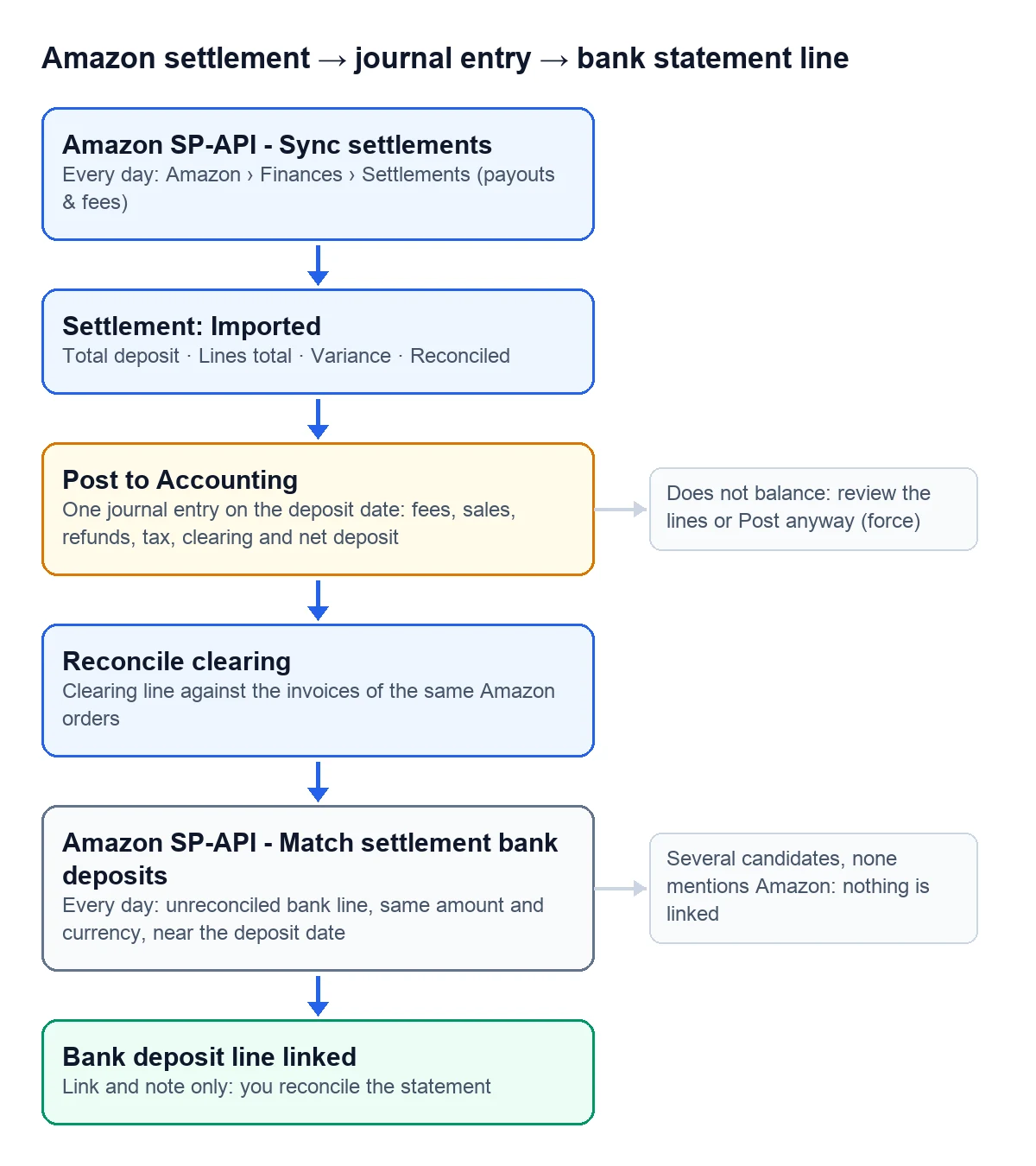
The «Amazon SP-API - Sync settlements» task brings new settlements into Amazon › Finances › Settlements (payouts & fees) every day. They arrive as Imported, with two figures up front: «Total deposit» is what Amazon pays out and «Lines total» is the sum of its lines. When the difference («Variance») is under one cent, the «Reconciled» box is ticked. The «Payout breakdown» group splits it into Sales, Refunds, Fees, Advertising, Tax and Other.
When you post it, each amount goes to its own account:
| Settlement amount | Odoo account | If you leave it empty |
|---|---|---|
| Referral, FBA, storage and service fees, and advertising | «Amazon fees expense account» | Nothing is posted: it is required |
| Sales | «Amazon sales/income account» | Goes to the clearing account |
| Refunds | «Amazon refunds account» | Goes to the clearing account |
| Tax | «Amazon VAT / tax account» | Goes to the clearing account |
| Shipping, promotions, adjustments, reserves and other | «Amazon clearing account» | Nothing is posted: it is required |
| Net payout | «Settlement deposit / bank account» | Nothing is posted: it is required |
The result is one journal entry, dated on the deposit date.

Step by step
- Open Amazon › Configuration › Accounts, go into the account and open the «Payments & Accounting» tab.
- Under «Settlement Sync (payouts & fees)», tick «Enable settlement sync», which ships unticked. Keep «Finances API (recommended)» as the data source; the other option is «Settlement Report (flat file)». «Settlement: days back» looks 90 days into the past.
- Press «Sync Settlements» to bring in the first ones without waiting for the daily task.
- In the «Post to Accounting» group, tick «Post settlements to accounting» and fill in «Settlement journal», «Amazon clearing account», «Amazon fees expense account» and «Settlement deposit / bank account». If you want revenue, refunds and VAT kept apart, add the sales, refunds and tax accounts too.
- In the chart of accounts, tick «Allow Reconciliation» on the clearing account. Without it, no settlement gets posted.
- To see Amazon on a contact's ledger, pick that contact in «Amazon settlement partner». For analytics, «Amazon analytic account» tags the income and expense lines.
- Open a settlement and press «Post to Accounting». The user who does it needs Accounting access.
When the settlement does not balance
«Settlement rounding tolerance» is 0.05 by default. If spreading the lines leaves a difference up to that amount, the module books it to the clearing account as rounding. If it is bigger, nothing is posted and you get Settlement %(name)s does not balance: …: a line is missing or sits in the wrong category.
You have two ways out. The right one is to go through the settlement lines until you find the culprit. The other is «Post anyway (force)», a button that only shows up when the settlement does not balance and pushes the whole difference into the clearing account. Use it when you know where that amount comes from.
If one of the four required fields is empty, the message is Configure these on the Amazon account before posting: %s, listing the missing ones.
Once the entry exists, the settlement offers these buttons:
- View Journal Entry
- Opens the settlement's journal entry.
- Reconcile clearing
- Reconciles the clearing line against those of the invoices for the same Amazon orders. The module already tries this when posting; the button repeats it when those invoices arrive later.
- Reverse
- Reverses the entry and sends the settlement back to Imported, so you can fix it and post it again.
- Match Bank Deposit
- Looks for the bank line of this payout right away.
Matching the payout with the bank
One side is still missing: the money as it shows on the bank statement. In the «Bank Deposit Match» group, tick «Match bank deposits automatically», which ships unticked. From then on, the «Amazon SP-API - Match settlement bank deposits» task checks every day the settlements from the last 60 days that have no bank line yet.
For each one it looks for a statement line that meets all of this:
- It is unreconciled, in a bank journal of the same company.
- Its amount equals the payout, less than one cent apart.
- It is in the same currency as the settlement.
- Its date falls within «Bank match: days around deposit date», which is 5 days either side.
- It is not linked to another settlement already.
With several candidates, it keeps the only one that mentions Amazon in the reference or the contact. If there are still several, it links none. The link leaves a note on the settlement and nothing else: you reconcile the statement line yourself in Odoo, against the deposit account of the entry.
What if «Match Bank Deposit» finds no line?
The message is No unreconciled bank line matches this deposit (%(amount)s around %(date)s). It happens when the statement has not been imported into Odoo yet, when the line is already reconciled or when its date falls outside the day margin. If several lines share the amount, the message says how many and links none.
Does it work in every Odoo version?
Yes. The import, the journal entry and the bank link are in the connector published for Odoo 17, 18, 19 and 20.
Keep reading
Checked in the connector's source code (version 17.0, 18.0, 19.0 and 20.0) and the linked sources
Sources
- Module source code: flexigobe_amazon_seller_connector · 17.0 9a6d49f · 18.0 aecae86 · 19.0 fa9ae73 · 20.0 be50529: views/menu_views.xml, views/amazon_spapi_account_views.xml
- Module source code: flexigobe_amazon_seller_connector · 17.0 9a6d49f · 18.0 aecae86 · 19.0 fa9ae73 · 20.0 be50529: models/amazon_spapi_account.py, data/ir_cron_data.xml
- Module source code: flexigobe_amazon_seller_connector · 17.0 9a6d49f · 18.0 aecae86 · 19.0 fa9ae73 · 20.0 be50529: models/amazon_spapi_settlement.py, views/amazon_spapi_settlement_views.xml
- Module source code: flexigobe_amazon_seller_connector · 17.0 9a6d49f · 18.0 aecae86 · 19.0 fa9ae73 · 20.0 be50529: models/amazon_spapi_settlement.py (_post_to_accounting)
- Module source code: flexigobe_amazon_seller_connector · 17.0 9a6d49f · 18.0 aecae86 · 19.0 fa9ae73 · 20.0 be50529: models/amazon_spapi_settlement.py, models/amazon_spapi_settlement_line.py (FEE_CATEGORIES)
- Module source code: flexigobe_amazon_seller_connector · 17.0 9a6d49f · 18.0 aecae86 · 19.0 fa9ae73 · 20.0 be50529: models/amazon_spapi_settlement.py, models/amazon_spapi_account.py, data/ir_cron_data.xml
- apps.odoo.com/apps/modules/20.0/flexigobe_amazon_seller_connector