

 Español
 Català
 Deutsch
 Français
 Português
 Italiano
 Nederlands
 Polski
Before you start
- This is for orders you fulfil yourself (FBM). An FBA return is received by Amazon in its own warehouse: the module creates no local stock move for it, and the quantity is brought in line by the FBA inventory sync.
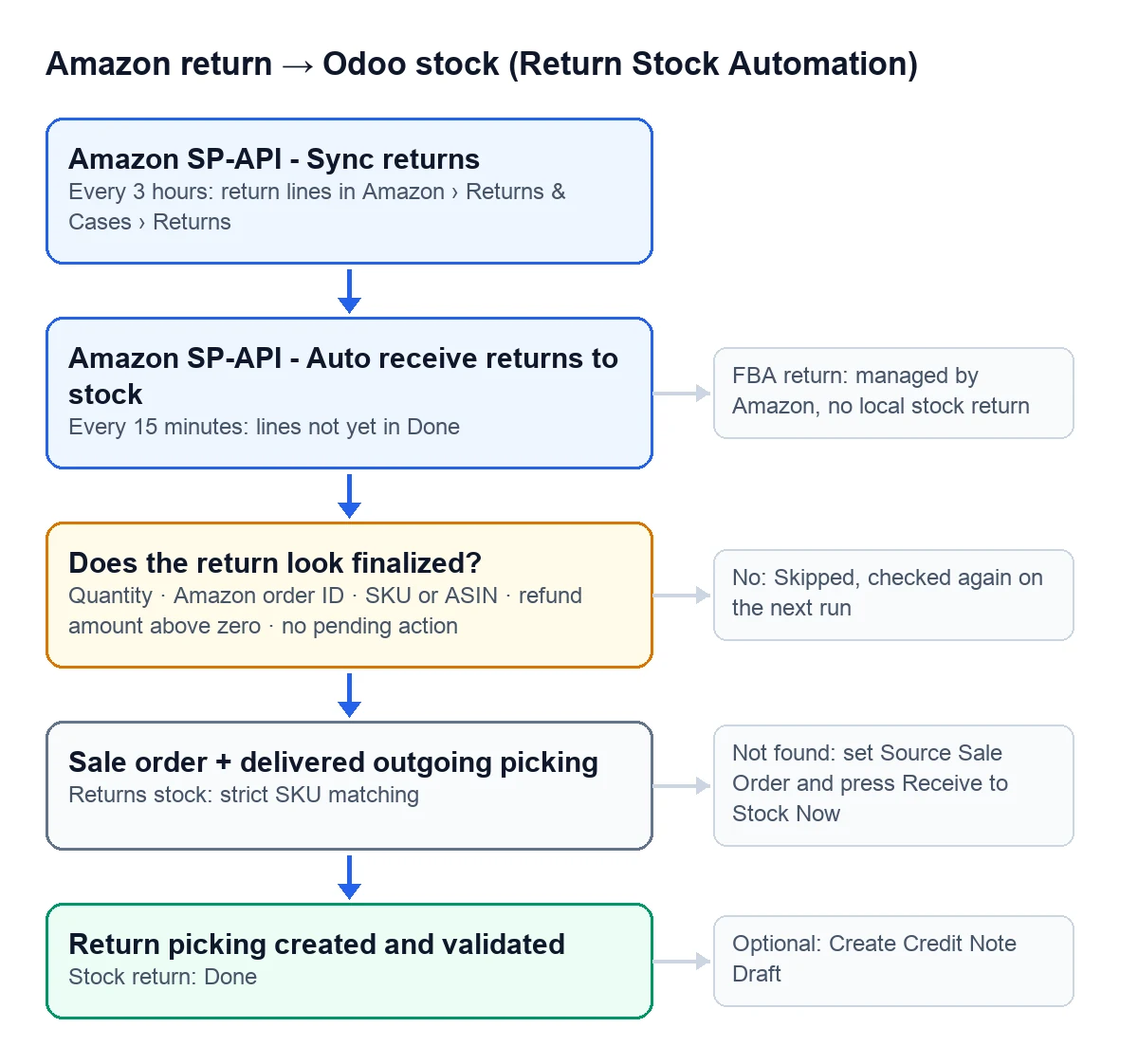
- Returns have to be coming into Odoo. The «Amazon SP-API - Sync returns» task brings them every 3 hours into Amazon › Returns & Cases › Returns.
- The order needs its outgoing delivery validated in Odoo. Without a validated delivery there is nothing to return against.
Step by step
- Open Amazon › Configuration › Accounts and go into the Amazon account you want to set up.
- Go to the «Returns & Reviews» tab and find the «Return Stock Automation» group.
- Check that «Returns: auto-receive to stock» is ticked.
- Decide when a return counts as closed. By default, «Returns stock: require refund amount» is ticked (only what Amazon has already refunded comes in), «Returns stock: allow pending-action returns» is unticked (anything with a pending action waits) and «Returns stock: require return delivery date» is unticked.
- Keep «Returns stock: strict SKU matching» ticked if the SKU you use on Amazon is the product's reference in Odoo. That way a product other than the one you sold never ends up in the warehouse.
- If you want the credit note ready, tick «Auto-create credit notes (opt-in)» in the «Credit Notes (opt-in)» group: it creates the credit note in draft, and it ships unticked.
- Press «Run Return Stock Automation» to do the first pass without waiting for the scheduled task.
What Odoo checks before touching stock
The «Amazon SP-API - Auto receive returns to stock» task goes every 15 minutes through the account's returns that are not in Done yet. It starts with the newest and checks up to 300 per pass, unless you have changed that limit. Each pass leaves its summary on the account itself.
A return is left out, with the reason written on the line, when any of these applies:
| Situation | Note on the line |
|---|---|
| The returned quantity is zero | Return quantity is zero. |
| Amazon flags a pending action and you do not allow those | Pending action still required. |
| You require a refund and Amazon has not refunded yet | Refund amount is required before stock return. |
| There is no closed status, no refund and no delivery date | Return does not look finalized yet. |
| Someone marked it as not to be restocked | Return marked as do not restock. |
Those lines stay in Skipped and the task looks at them again on its next pass: as soon as one meets the conditions, it comes in by itself.
When it cannot find the order or the delivery
Once the return is ready, the module looks for the sales order and its validated outgoing delivery, prepares the return with Odoo's return wizard and validates it. The line moves to Done with the note Stock return processed in picking %s., which carries the name of the new return transfer.
When something does not match, the note says so: Sale order not found for Amazon order %s., No sale lines mapped for return reference %(ref)s in order %(order)s. or No delivered outgoing picking found for %s.. On the automatic pass the line stays in Skipped; if you run it yourself, it goes to Error. This happens, for example, when the returned SKU is not the one you sold and you have strict matching ticked. Here is the fix:
- Open the line in Amazon › Returns & Cases › Returns.
- Fill in the source in «Source Sale Order», «Source Sale Line» or «Source Delivery Picking». Automatic linking does not overwrite those fields once they hold a value.
- Press «Receive to Stock Now». It processes that line on the spot, without waiting for the return to look closed. The button does not show on FBA returns, on those marked Do not restock or on those already done.
The ones that should not go back on the shelf
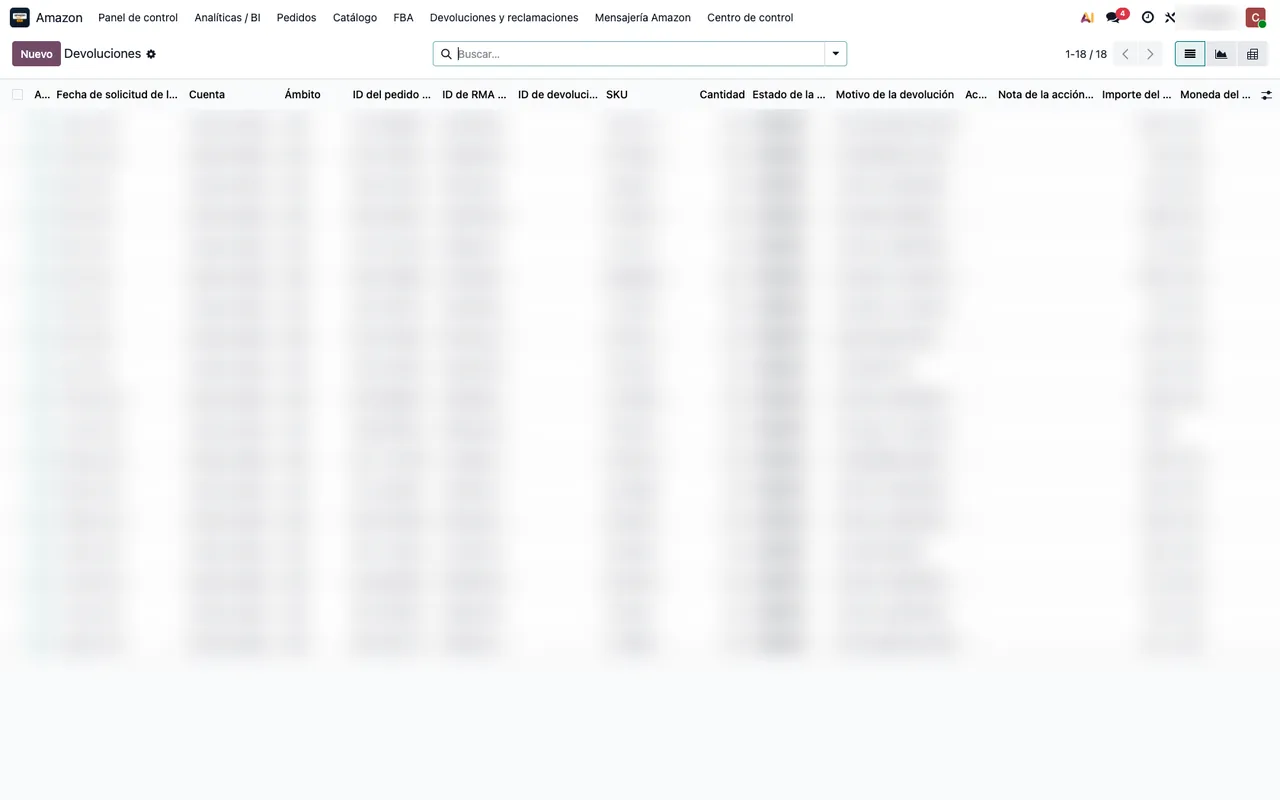
A broken or incomplete item should not add to sellable stock. Before the task picks it up, set «Stock Link Mode» on the line to Do not restock: the return stays in Skipped with its note and nothing moves. To find these later, the list has the «Do Not Restock» and «Manual Stock Review» filters.
Each line carries its stock status: Pending while it waits, Done once it is back in stock, Skipped if it was set aside and Error if it failed when run by hand.
What about the customer's refund?
Amazon refunds the buyer. In Odoo, the «Create Credit Note Draft» button on each line prepares the credit note in draft, and «Refresh Amazon Refund» asks Amazon again for the refund status. If you ticked «Auto-create credit notes (opt-in)», the draft credit note is created by itself.
Does it work the same in every version?
Yes. These settings, tasks and messages are in the module published for Odoo 17, 18, 19 and 20.
Keep reading
Checked in the connector's source code (version 17.0, 18.0, 19.0 and 20.0) and the linked sources
Sources
- Module source code: flexigobe_amazon_seller_connector · 17.0 9a6d49f · 18.0 aecae86 · 19.0 fa9ae73 · 20.0 be50529: views/amazon_spapi_account_views.xml
- Module source code: flexigobe_amazon_seller_connector · 17.0 9a6d49f · 18.0 aecae86 · 19.0 fa9ae73 · 20.0 be50529: models/amazon_spapi_account.py
- Module source code: flexigobe_amazon_seller_connector · 17.0 9a6d49f · 18.0 aecae86 · 19.0 fa9ae73 · 20.0 be50529: data/ir_cron_data.xml
- Module source code: flexigobe_amazon_seller_connector · 17.0 9a6d49f · 18.0 aecae86 · 19.0 fa9ae73 · 20.0 be50529: models/amazon_spapi_return_line.py
- Module source code: flexigobe_amazon_seller_connector · 17.0 9a6d49f · 18.0 aecae86 · 19.0 fa9ae73 · 20.0 be50529: views/amazon_spapi_return_line_views.xml
- Module source code: flexigobe_amazon_seller_connector 20.0 (e9fb0850): views/menu_views.xml
- apps.odoo.com/apps/modules/20.0/flexigobe_amazon_seller_connector