

 Español
 Català
 Deutsch
 Français
 Português
 Italiano
 Nederlands
 Polski
Where the button is and which permissions it needs
The Sync Storage Fees button is on the Accounts screen, which you reach through Amazon › Configuration › Accounts. It exists in Odoo 17, 18, 19 and 20 and is always visible, whatever the state.
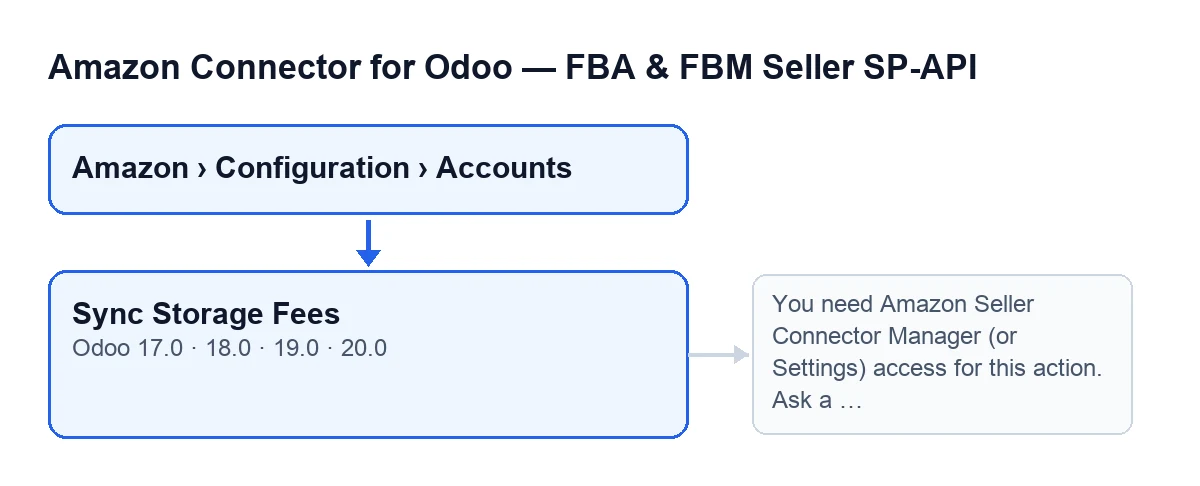
- Go in through
Amazon › Configuration › Accounts. TheAccountsstep needs theManagerpermission, and so does theConfigurationstep; theAmazonstep needsViewer. If you lack one of those permissions, you do not see that part of the menu.
- Check that you have Amazon Seller Connector Manager access, or Settings access. Even when the button is visible, the module checks again on the server when you press it: seeing the button does not give you permission.
- Bear in mind that, on top of the groups, the module checks that you are allowed to modify that Amazon account.
- Remember that the button acts on a single account at a time.

What happens without pressing anything
Before using the button, it helps to know that the sync already has an automatic path. The button is the exception: it is for running the sync by hand, now, for the account in front of you.
- Find the scheduled task
Amazon SP-API - Sync FBA storage fees reports (opt-in). It runs once a day and is active as soon as the module is installed.
- Keep in mind that this task only goes through active accounts that have the storage fees sync switched on. Other accounts are left out.
- Note the difference in origin: in the automatic run the summary carries
Source: CRON, and when you press the button it carriesSource: Manual.
- Do not expect to see the task's summary as a message on the account: the automatic run does not post it. It does save the result on the account, and on that path an error in one fee does not raise any warning.
- If an account gives a failure that does not end up inside the summary, the task logs it as a warning on the server and carries on with the next account.
What the button does when you press it, in order
- First, the permission check described above. If you do not pass it, the action stops with this message:
You need Amazon Seller Connector Manager (or Settings) access for this action. Ask a manager to grant Manager access.
- Then it syncs, in this order, the
Monthly storage feeand theLong-term storage surcharge. Each one runs on its own: if the first fails, the module still tries the second.
- From what happened with each fee it builds a text summary. It starts with
Amazon FBA storage fees sync finished., continues withAccount: …andSource: Manual, and adds the result of each fee.
- It saves on the account the date and time of the run and the summary text. The saved text is cut at 5000 characters.
- It posts the summary as a message on the account.
- If everything went well, the action finishes without raising any error warning.
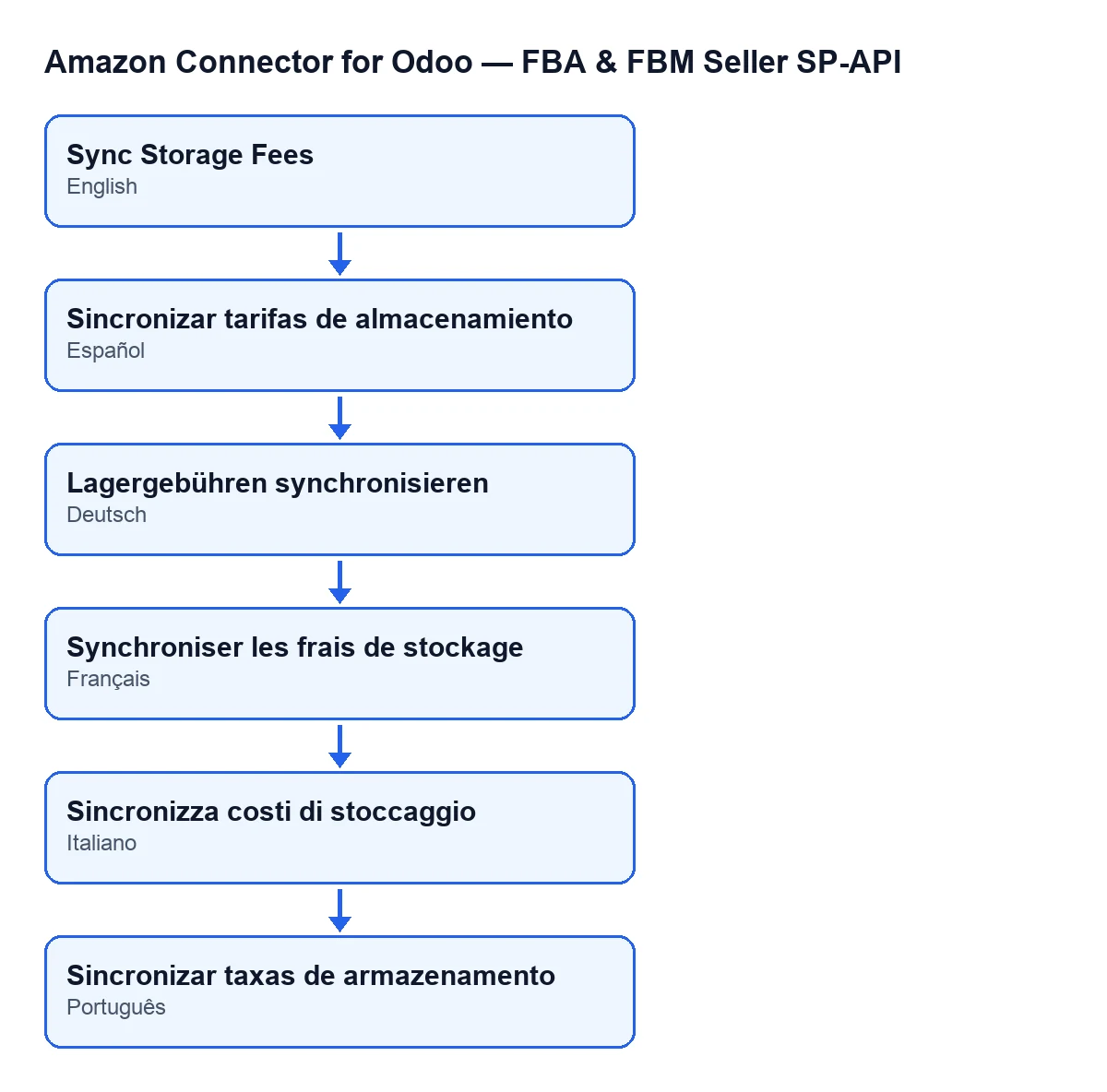
Sync Storage Fees; the module also ships the label translated into Spanish, German, French, Italian and Portuguese.If one of the fees fails
- If at least one of the fees gives an error, the button shows you the whole summary as a warning. In the part for the fee that failed there is an
Error: …line with the reason.
- Read the part of the warning for each fee first: since the module tries both, you can see the error of one and the result of the other in the same summary.
- If what you get is the access message, ask a manager to give you Manager access to the connector, as the message itself says, and press again.
- Once you have dealt with the cause, press the button again: it runs the sync for that account once more.
Subscription and versions
The module is published on Odoo Apps for Odoo 17, 18, 19 and 20 and is a one-off payment per version, but it also needs a FlexigoTech Cloud subscription: the Connector plan costs €49/month or €490/year, excluding VAT. The connection goes through FlexigoTech Cloud, which stores the credentials encrypted, watches the sync and emails you if it fails. Without a subscription, or with the service suspended, what the subscription provides stops; your data stays in your Odoo. With the subscription, the module for newer Odoo versions is included if you bought it on flexigotech.com; on the Odoo App Store, each Odoo version is bought there. You have the listing on Odoo Apps and the module page.
How FlexigoTech can help
FlexigoTech implements Odoo 17, 18, 19 and 20 and develops connectors and custom integrations. If you want to review who should have Manager access in your installation, or fit this connector in with the rest of your processes, get in touch.
Keep reading
Checked in the connector's source code (version 20.0) and the linked sources
Sources
- Module source code: flexigobe_amazon_seller_connector 20.0 (8576afa5): views/amazon_spapi_account_views.xml
- Module source code: flexigobe_amazon_seller_connector 20.0 (8576afa5): models/amazon_spapi_account.py
- apps.odoo.com/apps/modules/20.0/flexigobe_amazon_seller_connector
- flexigotech.com/en/services.html
- flexigotech.com/precios.html