

 Español
 Català
 Deutsch
 Français
 Português
 Italiano
 Nederlands
 Polski
When it appears and who can press it
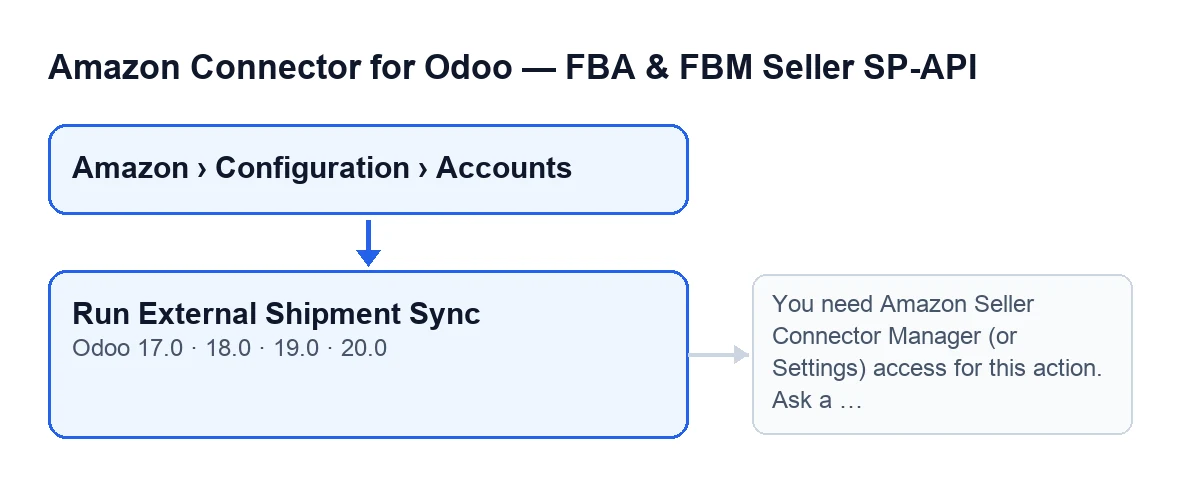
The Run External Shipment Sync button is on the module's Accounts screen, and it is always visible: the view puts no condition on it in Odoo 17, 18, 19 or 20. You get there from the menu Amazon › Configuration › Accounts.
Permissions count in two places. In the menu, the Amazon step asks for Viewer, but Configuration and Accounts ask for Manager: without that permission you do not see those steps. And when you press the button, the module checks your access again on the server, as you will see below.

Step by step: what the module does, in order
Odoo runs this same synchronisation by itself; the button is the way to start it by hand. Here is the path, beginning with the automatic one.
- First, Odoo does it on its own. The scheduled task
Amazon SP-API - Sync external shipping statusruns every 5 minutes and is active once the module is installed. It goes through the active accounts that have theSync external shipment statuscheckbox ticked and starts the synchronisation on each one. - Check the checkbox. It is ticked by default. You find it on the
Accountsform, in theOrders & Fulfillmenttab, in the groupExternal Shipment Sync (ON by default). Its help text reads: «Pull shipped order status from Amazon and update Odoo deliveries.» - Press the button only if you want to start it now, instead of waiting for the next run of the task. It runs with a manual source.
- The module checks your permissions. Unless the action runs with superuser privileges, you must have Amazon Seller Connector Manager access or Settings access; if not, it stops with the message in the next section. It then checks that you can write to the account.
- It goes through the accounts you launched the button on. If the
Sync external shipment statuscheckbox is off on one of them, the synchronisation for that account ends there, without contacting Amazon. - It asks Amazon for the orders of the account's marketplace with status
ShippedorPartiallyShipped, updated since the start of a time window that the module works out. It reads up to a maximum number of orders; if the account setting has no value, it uses 200. If Amazon returns none, it ends. - It keeps one record per Amazon order. If the same order appears more than once,
ShippedreplacesPartiallyShipped. Records without an order identifier are discarded. - It looks for the Odoo sale orders linked to those Amazon orders. If there are none, it ends.
- It processes each sale order. It takes its Amazon order identifier (the stored one or, if there is none, the one the module resolves) and looks up its status; if that is empty, it skips the order. With a status, it hands the order to the module function that processes it. Depending on its result, the module adds up validated deliveries or orders that were only updated or skipped.
What changes and what to check afterwards
What changes in Odoo is summed up by the checkbox help text: the status of shipped orders is pulled from Amazon and the Odoo deliveries are updated. The module keeps a count of validated deliveries and of orders that were only updated or skipped.
The difference between pressing and waiting is this: when the manual synchronisation ends early (checkbox off, no shipped orders in the window, or none linked in Odoo), it leaves a message with the result in the chatter of the account form. The scheduled task works without posting that message. The task also treats each account separately: if one fails, it leaves a warning in the server log, stores the error on that account and carries on with the next one.
The permissions message
If you press the button without the right permission, the action stops with this message:
You need Amazon Seller Connector Manager (or Settings) access for this action. Ask a manager to grant Manager access.
You reach it by pressing Run External Shipment Sync. It means your user has neither Amazon Seller Connector Manager access nor Settings access. The fix is the one the message gives: ask a manager to grant you that access. Nothing the synchronisation was going to change is saved.
Run External Shipment Sync.Cost and help getting started
The module is a one-off payment per Odoo version and needs the FlexigoTech Cloud subscription, Connector plan: €49/month or €490/year excluding VAT, for up to 3 accounts of the platform. It is published on Odoo Apps for 17.0, 18.0, 19.0 and 20.0; see the Odoo Apps listing or the module page. The connection goes through FlexigoTech Cloud, which stores the credentials encrypted, monitors the synchronisation and emails you if it fails. Without a subscription, or with the service suspended, what the subscription provides stops; your data stays in your Odoo.
If you are implementing Odoo and want to review permissions, accounts and settings before leaving the synchronisation running, FlexigoTech implements Odoo 17, 18, 19 and 20 and builds custom connectors and integrations.
Keep reading
Checked in the connector's source code (version 20.0) and the linked sources
Sources
- Module source code: flexigobe_amazon_seller_connector 20.0 (8576afa5): views/amazon_spapi_account_views.xml
- Module source code: flexigobe_amazon_seller_connector 20.0 (8576afa5): models/amazon_spapi_account.py
- apps.odoo.com/apps/modules/20.0/flexigobe_amazon_seller_connector
- flexigotech.com/en/services.html
- flexigotech.com/precios.html