

 Español
 Català
 Deutsch
 Français
 Português
 Italiano
 Nederlands
 Polski
Where the button is and who can press it
Listing forms open from Amazon › Catalog › Listings. Each stretch of the menu asks for the Viewer permission; without it you do not see that stretch. Inside a listing, the Refresh Attributes button has no view condition: it always shows, and it exists in the 17, 18, 19 and 20 branches of Odoo.
Seeing the button does not mean anyone can use it. The first thing it does when pressed is check your permissions. If you do not have at least Operator access, it stops with this message: You need at least Amazon Seller Connector Operator access for this action. Ask a manager to grant Operator or Manager access. On top of that access, the module checks that you can write to the listing. Because that check comes before everything else, the message changes nothing on the listing and never reaches Amazon.
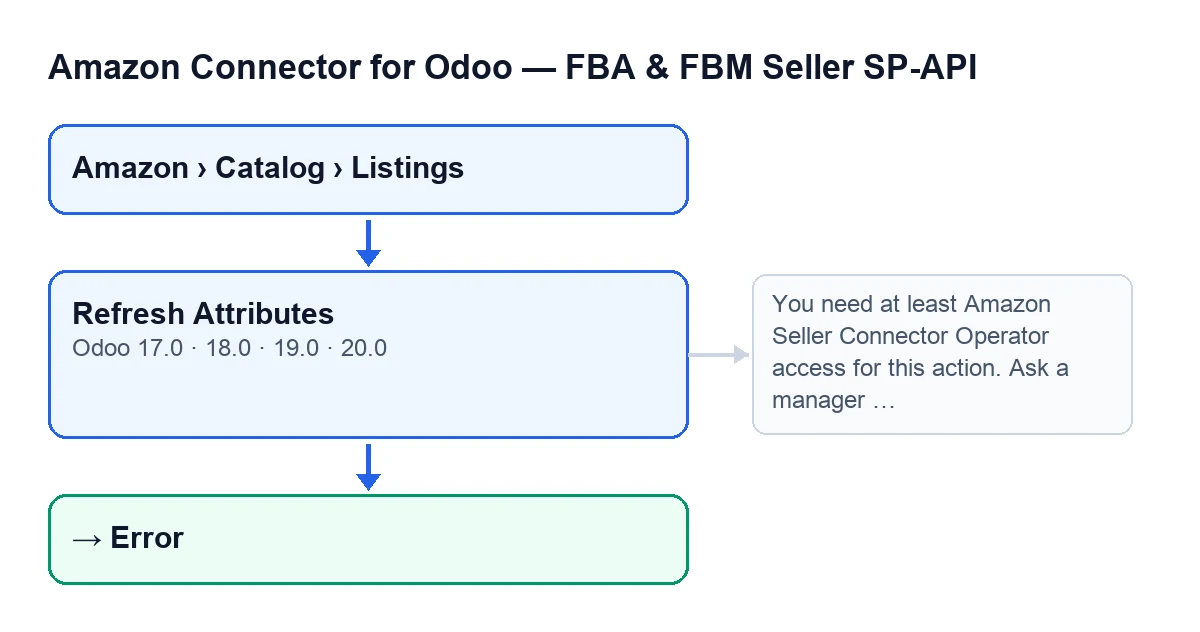
Error state at the end.With Odoo in English, the button reads Refresh Attributes.
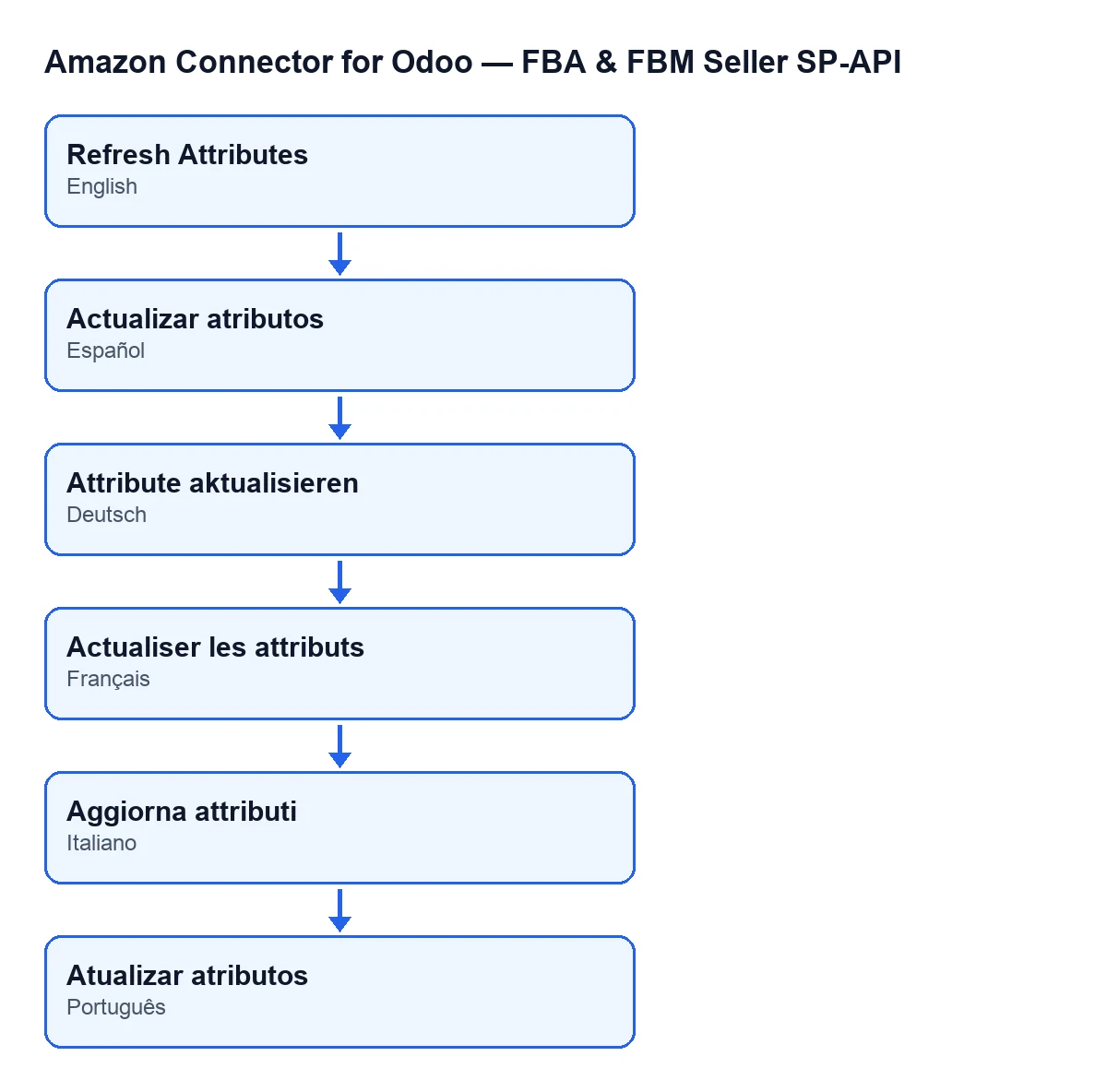
Refresh Attributes in Spanish, Attribute aktualisieren in German, Actualiser les attributs in French, Aggiorna attributi in Italian and Atualizar atributos in Portuguese.
Step by step: what the button does
In Odoo 20, the button does the following:
- Before pressing it, bear in mind that Odoo reaches this same action on its own: when a product form is saved and when a stock transfer is validated (in both cases, when the module's condition on the products is met), and the
Push Stock,Repair Listing IssueandRun Auto-repair Errorsbuttons also trigger it. In addition, the scheduled tasksAmazon SP-API - Sync pending bindings (price/stock)(every minute),Amazon SP-API - Auto-repair queue v2(every 3 minutes) andAmazon SP-API - Nightly auto-bind(once a day), all active on install, re-read the listing by themselves with another read in the module (recorded asRefresh Listing). That read also stores the attributes if Amazon returns them, the issues and the state, and adjusts the channel if the account hasAuto-detect channel when pulling catalogswitched on. PressingRefresh Attributesis the manual route, for re-reading one particular listing right now. - Open the listing from the menu and check that it has an
Account, which sits in theOverviewgroup of the form and also in the listings list. - Press
Refresh Attributes. Your permissions are checked first, as explained above. - The module checks that the listing has an account, a SKU and a marketplace ID, and that the account has a Seller ID. If any of them is missing, the action stops.
- If everything is there, the module asks Amazon for that seller's listing, for that SKU in that marketplace, requesting attributes, issues, product types and summaries. It is a read: it sends no changes to Amazon.
- If the response carries no attributes, the action stops. If it does, the module reads the product type, quantities, prices and issues from it and writes them all onto the listing (the detail is in the next section).
- If the account has the
Auto-detect channel when pulling catalogcheckbox switched on, the module adjusts the listing's fulfilment channel (the conditions are further down). - The module records the outcome, successful or failed, with the user, the duration and the message; if it goes well, it also stores Amazon's response (the permissions message is not recorded).
- Check the result on the form: the listing's state and the currencies on the
Offertab.
What changes on the listing
When the response carries attributes, the module writes the following onto the listing:
- Amazon's attributes, stored as sorted text.
- The product type, if Amazon gives one; otherwise the existing one is kept.
- The quantity and the quantity per channel.
- The offer price and the list price, each with its currency; if Amazon gives no currency, the previous one is kept. The currencies show, read-only, on the
Offertab,Offer Comparisongroup:Amazon Offer CurrencyandAmazon List Price Currency. - The date of the last catalogue sync.
- Amazon's full response, in
Last Response, on theTechnicaltab,Diagnosticsgroup. Only system administrators see it, and it may be hidden on the form. - The issues: how many are errors, warnings and information, and their text.
The state follows from those issues: if Amazon returns any issue of error type, the listing ends up in Error; if not, it ends up active.
The fulfilment channel
This step only happens with the Auto-detect channel when pulling catalog checkbox switched on. It is on the Accounts form, Catalog & Listings tab, Auto-bind & Import group, and it is on by default. Its help reads: «If enabled, pulling the catalog on a binding automatically adjusts fulfillment_channel_code.» The module works out a recommended channel and then:
- If there is no recommended channel, it changes nothing.
- If the listing's channel already is the recommended one, it changes nothing either.
- If it differs, it only changes it when the listing's channel is empty or is
DEFAULT, or when the account has forced replacement of the channel switched on.
Which errors it can give and what to do
- Missing permissions. This is the message
You need at least Amazon Seller Connector Operator access for this action. Ask a manager to grant Operator or Manager access.Ask a manager to give you Operator or Manager access. Nothing changes on the listing. - A reference detail is missing, or Amazon returns no attributes. If the listing has no account, SKU or marketplace ID, if the account has no Seller ID, or if the response arrives without attributes, the action stops and the listing goes to
Error. Fill in whatever is missing, or check that the SKU and marketplace match an offer on that account, and press again. - Any other error during the process, including any that comes from the request to Amazon. The listing goes to
Error, the module stores the error text (cut short if it is very long), records it and shows it to you. - Error-type issues in the response. The action finishes, but the listing is left in
Errorbecause Amazon returned issues of that type. The module stores how many there are and their text on the listing.
If you need help with the connector
The module is a one-off purchase per Odoo version (the price of each is on the listing page) and needs the FlexigoTech Cloud subscription, Connector plan: €49 a month or €490 a year, excluding VAT. It is published for Odoo 17, 18, 19 and 20; the module page has the purchase details. If you are implementing Odoo and want to set up the Amazon catalogue properly, FlexigoTech implements Odoo 17, 18, 19 and 20 and builds custom connectors and integrations.
Keep reading
Checked in the connector's source code (version 20.0) and the linked sources
Sources
- Module source code: flexigobe_amazon_seller_connector 20.0 (8576afa5): views/amazon_spapi_product_binding_views.xml
- Module source code: flexigobe_amazon_seller_connector 20.0 (8576afa5): models/amazon_spapi_product_binding.py
- Module source code: flexigobe_amazon_seller_connector 20.0 (8576afa5): models/amazon_spapi_account.py
- Module source code: flexigobe_amazon_seller_connector 20.0 (8576afa5): models/amazon_spapi_new_product.py
- apps.odoo.com/apps/modules/20.0/flexigobe_amazon_seller_connector
- flexigotech.com/precios.html
- flexigotech.com/en/services.html