

 Español
 Català
 Deutsch
 Français
 Português
 Italiano
 Nederlands
 Polski
What the message says and when you will see it
Here is the full text: The order with "Y2_advance_sale" label and the order without "Y2_advance_sale" label can't be fulfilled simultaneously. You will see it when you click the Execute button on a Fulfillment record, which you open from the menu Temu › Orders & Fulfillment › Fulfillment. In Odoo 17, 18 and 19 that button is always visible. It is an error that stops the action.
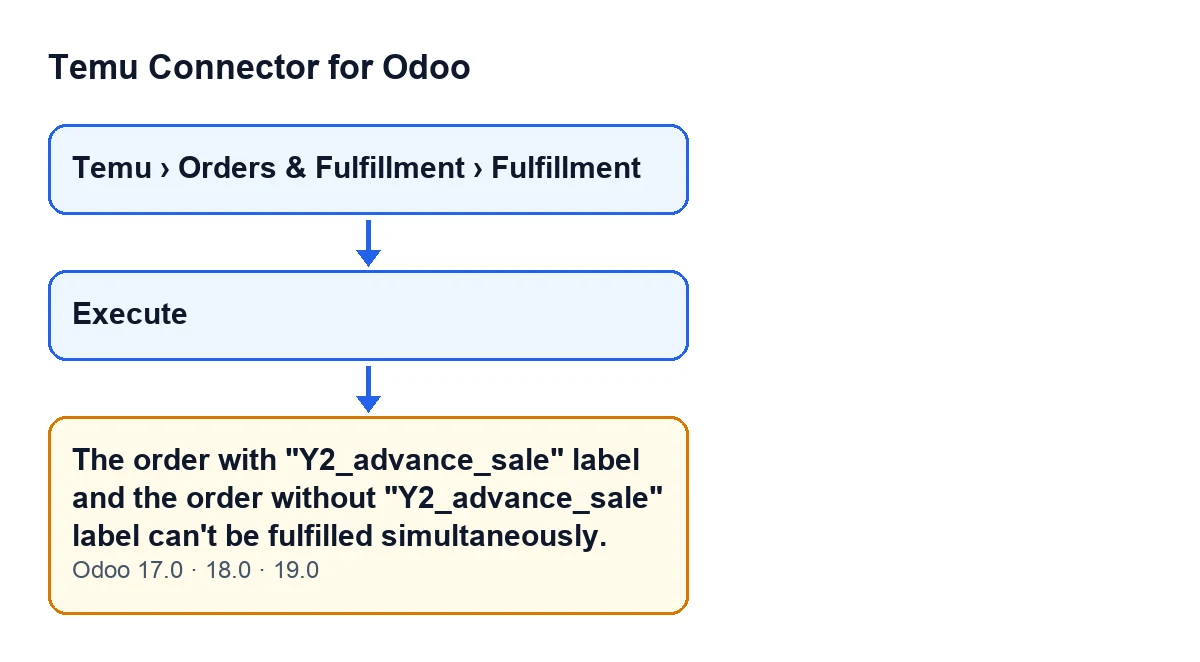
The message says that one record cannot fulfil orders with the Y2_advance_sale label and orders without it at the same time. In other words, the record has gathered orders of both kinds and the module refuses to run it like that.

The exact condition in the code
The module runs this check when you execute the record, and the message only appears if all of the following hold, in this order:
- The record's operation is creating or retrying the buy shipping purchase. For any other operation type, the check ends there.
- The record has related orders. If none are found, the check ends.
- At least one of those orders carries the
Y2_advance_salelabel. If none does, the check ends. - In addition, at least one related order does not carry the label. That is the condition that raises the message.
So this message does not appear when every related order carries the label, nor when none does: it appears only on a mix.
Which orders the record counts as related
The related orders are not only the one linked on the record. According to the code, the module gathers:
- The order linked to the record.
- If the record has a Temu instance assigned, the orders in that same instance whose parent order number or order number match those found on the record: in its number lists, in its own order details and in its lines.
- If the record has no instance, only the linked order counts.
In the end, the module keeps only the orders belonging to the record's instance. A practical consequence: an order number that appears on a line can bring an unexpected order into the check, and if that order lacks the label, the message appears even though the linked order is the right one.
Checklist to resolve it
Before clicking Execute
- Confirm the record's operation. If it is neither creating nor retrying the buy shipping purchase, this message does not come from this check.
- Note which orders the record groups: the linked one and those that come from the order and parent order numbers it holds (in its lists, in its own order details and in its lines).
- Identify which of those orders carry the
Y2_advance_salelabel and which do not.
- Check that they all belong to the same Temu instance as the record: orders from another instance do not count.
If the message has already appeared
- Remember that the action has stopped.
- Verify that there really is a mix: at least one order with the label and at least one without it on the same record.
- Split the orders: one record only with the orders that carry the
Y2_advance_salelabel and another only with those that do not.
- Review the order and parent order numbers in the lines and lists in case they pull in an order you did not mean to execute.
After correcting
- Click
Executeagain on each record, one by one.
- If a different message appears, read it in full: it is a different error and calls for a different fix. To see what the button does and which other errors it can give, read what the Execute button does, step by step.
For whoever is implementing the connector
- Test the flow with labelled and unlabelled orders before going live, and check that each kind runs on its own record.
- Write down in your internal procedure that the two kinds are not mixed on one record.
Versions
The message is in the published code of branches 17.0, 18.0 and 19.0 of Temu Connector for Odoo, and in those three versions the Execute button is always visible. The module is published on Odoo Apps for 17.0, 18.0, 19.0 and 20.0.
How FlexigoTech can help
If you are implementing Odoo and want the Temu order flow tidy from the start, FlexigoTech implements Odoo 17, 18, 19 and 20 and builds custom connectors and integrations. You can see the connector on its page at flexigotech.com.
Keep reading
Checked in the connector's source code (version 19.0) and the linked sources
Sources
- Module source code: flexigobe_temu_connector 19.0 (455b3f0f): models/temu_fulfillment.py
- Module source code: flexigobe_temu_connector 19.0 (455b3f0f): views/temu_fulfillment_views.xml
- apps.odoo.com/apps/modules/19.0/flexigobe_temu_connector
- flexigotech.com/en/services.html