

 Español
 Català
 Deutsch
 Français
 Português
 Italiano
 Nederlands
 Polski
Where and when it appears
It only appears when you press a button
Temu instance records open from the Temu menu. That view has the Detect Outbound IP button, which is always visible in Odoo 17, 18 and 19. The message Could not detect outbound public IP from this Odoo environment. is the error that button gives when the detection returns nothing, and it stops the action. The text is in the published code of all three branches: 17, 18 and 19.
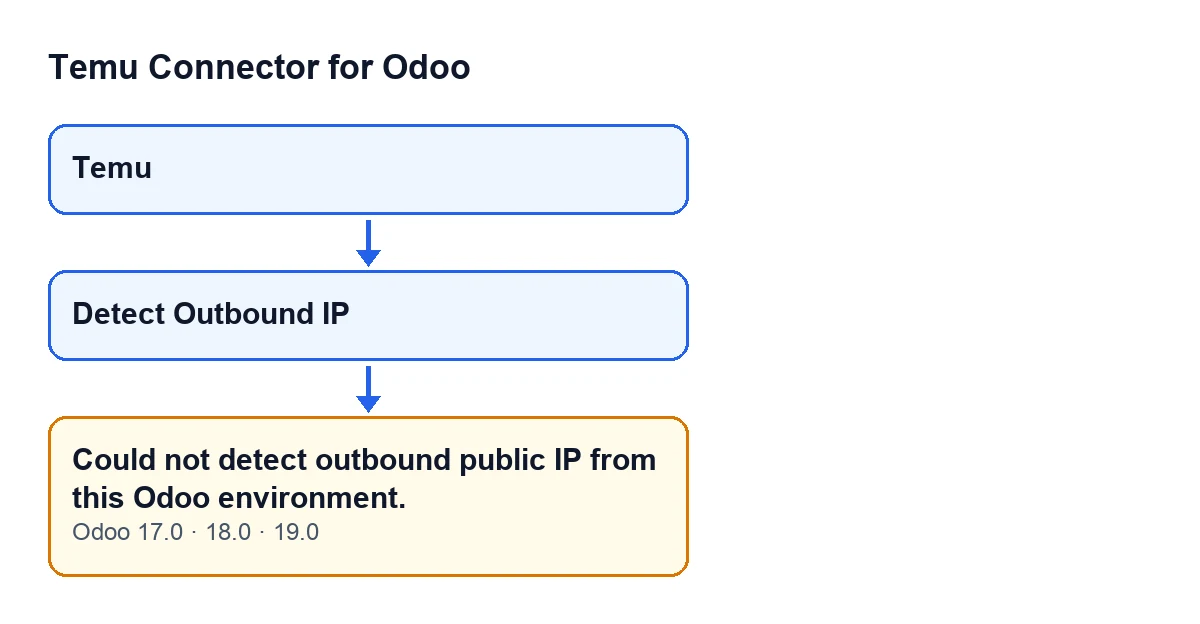
Temu menu to the button and on to the message, with the labels as they appear in the code.The button label follows your Odoo language
The module ships published translations, so the label of the button depends on the language your Odoo uses. With Odoo in English it is Detect Outbound IP; with Odoo in another language that the module is translated into, you will see the translated label. It is the same button either way.
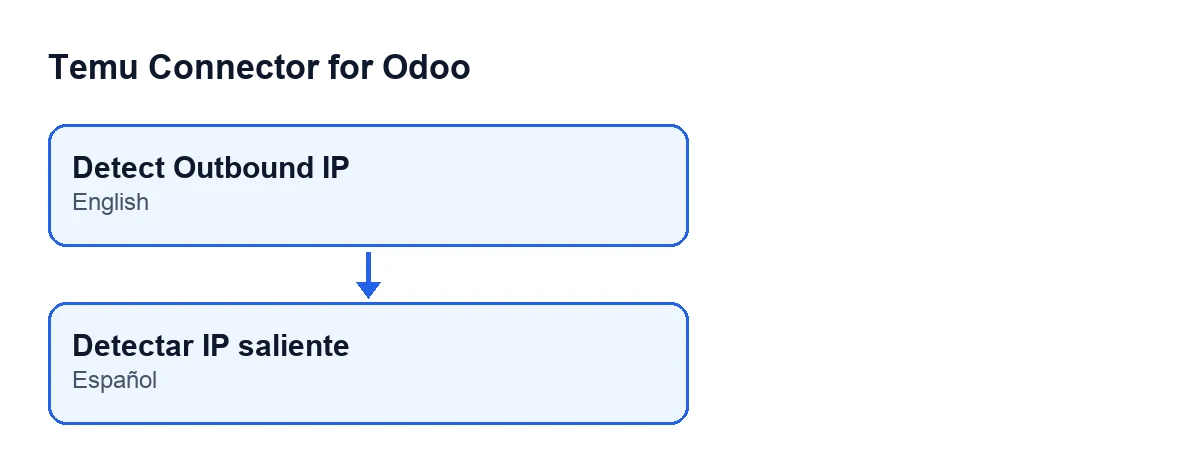

What the module does before it gives the error
There is a single condition: no IP
When you press the button, the module tries to find out the public IP your Odoo environment uses to reach the internet. If the result is empty, it raises the message and stops. In the code, that is the condition that leads to the error: either an IP is obtained or the message appears.
It asks three services, one after another
The order is:
api.ipify.org, from which the module expects a JSON response and reads theipfield.ifconfig.me/ip, from which it expects plain text.icanhazip.com, from which it also expects plain text.
The first one that returns a non-empty IP wins and the rest are not queried. The message only appears when all three have failed.
What counts as a failure for a service
As far as the module is concerned, a service has failed and the next one is tried in any of these cases:
- The request raises any error: no connection, the service does not answer in time, or any other exception.
- The service answers with an HTTP error status.
- The service answers with a redirect. The module does not follow it, skips it, and leaves a warning in the server log with the address and the HTTP status.
- The response arrives fine but has no IP (it is empty).
Each request waits at most ten seconds, or less if the instance's timeout is lower. That is why the error arrives after all three services have been tried, not at the first failure.
What happens to what you already had
If it fails, nothing is saved
An error stops the action and nothing that the action was going to change is saved. Here, the module neither stores a new IP nor the time of the check: whatever an earlier detection left stays as it was.
If it works, it saves the IP and the time
When any service answers, the module stores the detected IP and the moment of the check on the instance, and shows a success notification with the current IP. That notification does not stay fixed on screen.
What to check when it appears
Test from the server where Odoo runs
The requests are made by the Odoo environment, not by your browser. Checking the address from your laptop tells you nothing about what the server sees: you have to test from the machine where Odoo runs. These are the points the code lets you check:
- That this server can reach the three addresses above over HTTPS.
- That none of them answers with a redirect, because the module does not follow redirects.
- That what they return is what the module expects: an
ipfield in JSON from the first, plain text with the IP from the other two.
Then press Detect Outbound IP again: each press repeats the detection from the beginning.
The message does not say which of the three services failed
The text is the same whether they failed through a timeout, an HTTP error or an empty response. Only redirects leave a warning in the server log, with the service address and the HTTP status; in every other case the module simply moves on to the next service. If you need to know which one fails, test each address separately from the server.
If you need help with the set-up
The module is a one-off purchase per Odoo version and needs the FlexigoTech Cloud subscription (Connector plan: €49 a month or €490 a year, excluding VAT); it is published on Odoo Apps for Odoo 17, 18, 19 and 20, and you can also find it on the module page. If your Odoo environment sits on a network with outbound restrictions and you are not sure where to start, FlexigoTech implements Odoo 17, 18, 19 and 20 and builds custom connectors and integrations: tell us about it and we will look at it with you.
Keep reading
Checked in the connector's source code (version 19.0) and the linked sources
Sources
- Module source code: flexigobe_temu_connector 19.0 (455b3f0f): models/temu_instance.py
- Module source code: flexigobe_temu_connector 19.0 (455b3f0f): views/temu_instance_views.xml
- Module source code: flexigobe_temu_connector 19.0 (455b3f0f): models/fgt_cloud.py
- apps.odoo.com/apps/modules/19.0/flexigobe_temu_connector
- flexigotech.com/precios.html
- flexigotech.com/en/services.html