

 Español
 Català
 Deutsch
 Français
 Português
 Italiano
 Nederlands
 Polski
What the button does, in the order of the code
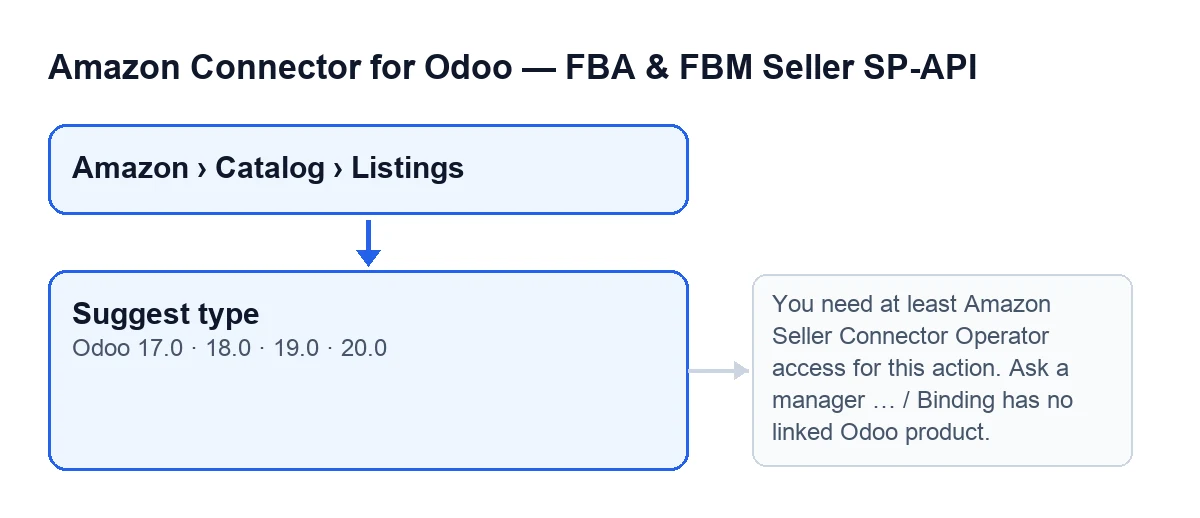
In Odoo 20.0, listing records open from Amazon › Catalog › Listings, and each part of the menu asks for the Viewer permission. When you press Suggest type, the module does this, in this order: it checks that your user has permission, it checks that the listing has a linked Odoo product, it creates a query with the name of that product as the search text, and it puts that query to Amazon. The result opens in the Amazon product type window, where you pick one of the suggestions.
A few mistaken ideas go round about this button. They are worth correcting before you use it.

Mistaken ideas about Suggest type, and what the code says
Myth: “The button is always on the form”
Reality: the view hides the button when the Asin field has a value. With the default values, that is, with Asin empty, the button is visible. The condition is the same in Odoo 17, 18, 19 and 20.
Myth: “Odoo guesses the product type by itself”
Reality: the module does not choose the type. It creates a query with the name of the linked product as the search text, asks Amazon, and opens the Amazon product type window with what Amazon suggests. The person using Odoo is the one who chooses.
Each time the search is launched, the list of suggestions of that query is emptied and filled again with what Amazon returns.
Myth: “I have to type the search text myself”
Reality: the search text is the name of the Odoo product linked to the listing, and the button uses it when it creates the query. The linked product is shown in the Variante field of the Listings form.
Myth: “If I can see the menu, I can use the button”
Reality: seeing the menu and being allowed to run the action do not depend on the same permission. The parts of the menu (Amazon, Catalog, Listings) ask for Viewer, but according to the module's own code comment, a Viewer has read-only access. That is why, when you press Suggest type, the module checks by itself that you have at least Operator access. If you do not, the action stops with this message:
You need at least Amazon Seller Connector Operator access for this action. Ask a manager to grant Operator or Manager access.
The fix is the one the message gives: ask a manager to grant you Operator or Manager access. Besides the group, the code checks that you can write to the record, and it repeats the access check when it launches the search on Amazon. If the action runs as superuser, that check is skipped.
Myth: “Having the listing created is enough”
Reality: the listing must have a linked Odoo product. If it does not, pressing the button gives this message and the action stops:
Binding has no linked Odoo product.
To check, look at the Variante field on the Listings form, inside the Overview group, or in the Listings list. If there is no product there, the module stops with that message and the query to Amazon is never prepared.
Myth: “It is a button from the latest version and is called the same in every language”
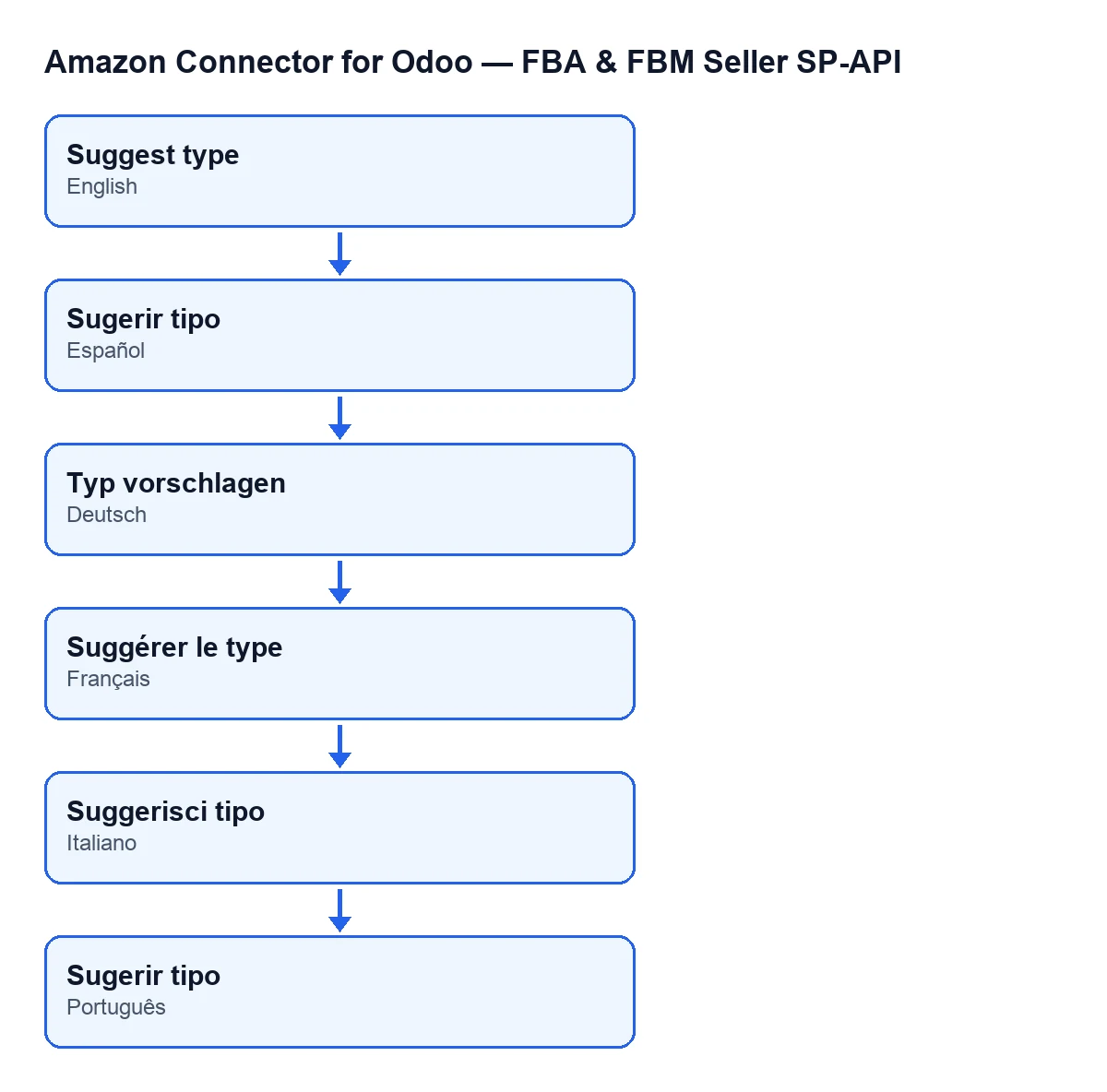
Reality: the Suggest type button on the Listings screen is in all the published branches of the module: Odoo 17, 18, 19 and 20. With Odoo in English it is called Suggest type; the module also publishes translations, which the next diagram shows for other languages.
What to check if something does not work
- If you cannot see the button, remember that the view hides it when the
Asinfield of the listing has a value. - If the access message appears, the problem is your permission (Operator or Manager), not the listing.
- If the linked-product message appears, check the
Variantefield of the listing. - If all goes well,
Amazon product typeopens with Amazon's suggestions for you to choose from.
How FlexigoTech can help
The module is published on Odoo Apps for Odoo 17, 18, 19 and 20 (listing, module page). It is a one-off purchase per version and needs a FlexigoTech Cloud subscription, Connector plan: €49 a month or €490 a year, excluding VAT, for up to 3 platform accounts. The connection goes through FlexigoTech Cloud, which stores the credentials encrypted. If you are implementing Odoo and want to review permissions and product data before connecting Amazon, FlexigoTech implements Odoo 17, 18, 19 and 20 and builds custom connectors and integrations.
Keep reading
Checked in the connector's source code (version 20.0) and the linked sources
Sources
- Module source code: flexigobe_amazon_seller_connector 20.0 (8576afa5): views/amazon_spapi_new_product_views.xml
- Module source code: flexigobe_amazon_seller_connector 20.0 (8576afa5): models/amazon_spapi_new_product.py
- Module source code: flexigobe_amazon_seller_connector 20.0 (8576afa5): models/amazon_spapi_product_binding.py
- apps.odoo.com/apps/modules/20.0/flexigobe_amazon_seller_connector
- flexigotech.com/en/services.html
- flexigotech.com/precios.html