

 Español
 Català
 Deutsch
 Français
 Português
 Italiano
 Nederlands
 Polski
The task and the screen it feeds
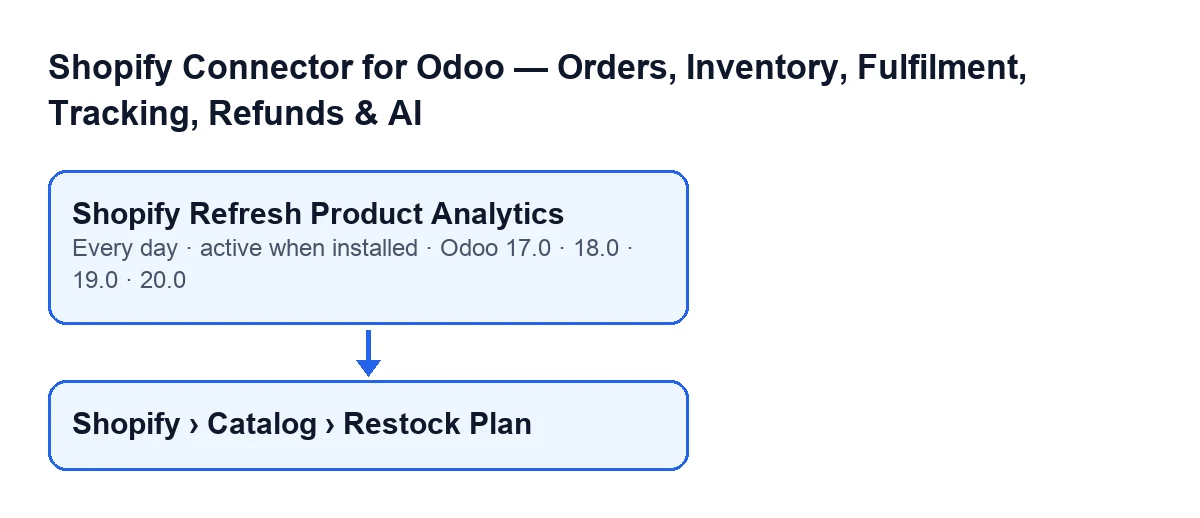
The scheduled action Shopify Refresh Product Analytics exists in every published branch of the module: 17.0, 18.0, 19.0 and 20.0. It runs once a day and is active on installation. In Odoo 17.0 it is also set to repeat without end. This is how the task works in Odoo 20.0.
You open its result from the menu Shopify › Catalog › Restock Plan. To see that menu you need the Viewer permission on the Shopify level and on the Catalog level: if you lack either one, you do not see that level.

Timeline of one run
- On installing the module The task is active. In Odoo 17.0 it is set to repeat without end.
- Once a day Odoo launches
Shopify Refresh Product Analytics, which runs the recalculation of product analytics. - First check It checks that whoever runs it is an administrator. If not, it stops with
Only an administrator can run this scheduled action.and nothing is calculated. - Instance search It looks for the active Shopify instances. By default, up to one hundred instances.
- Instance by instance It goes through them one at a time. Each one is processed inside a block that catches errors: if one fails, the task discards the pending changes and moves on to the next.
- Reading sales For each instance it adds up, per product, the units sold in the last seven, thirty and ninety days, and the revenue of the last thirty. It only counts product lines from orders of that instance that are in one of the two states the code treats as sold.
- Products without sales It adds the products with an active binding to that instance, even if they have sold nothing, so that they get a row too.
- Calculation per product It works out velocities, days of cover, projected stock-out date and recommended quantity (details below).
- Saving If a row already exists for that instance and product, it updates it; if not, it creates one. Each row records when it was refreshed.
- End Once it has gone through every instance, the task finishes.
What it calculates for each product
- Units and velocity. For each window (seven, thirty and ninety days) it stores the units sold and the daily velocity, which is those units divided by the days in the window. Revenue is only stored for the thirty-day window.
- Planning velocity. This is the thirty-day one.
- Stock. It takes the product's available quantity in the instance's company.
- Days of cover. This is stock divided by planning velocity. If that velocity is zero, it is 9999 when there is stock and zero when there is none.
- Projected stock-out date. It is only calculated if there is planning velocity and stock: it is today plus the whole days of cover.
- Recommended quantity. If there is planning velocity, it multiplies that velocity by the sum of the instance's default lead time (zero if empty) and the target cover days (thirty if empty, and at least one), subtracts the stock, rounds, and never goes below zero. With no velocity, it stays at zero.
- Mover class and restock state. The task fills these in too: the class from the thirty-day and ninety-day velocity, and the state from the stock, the velocity, the days of cover, the lead time and the target.
What to check if it does nothing
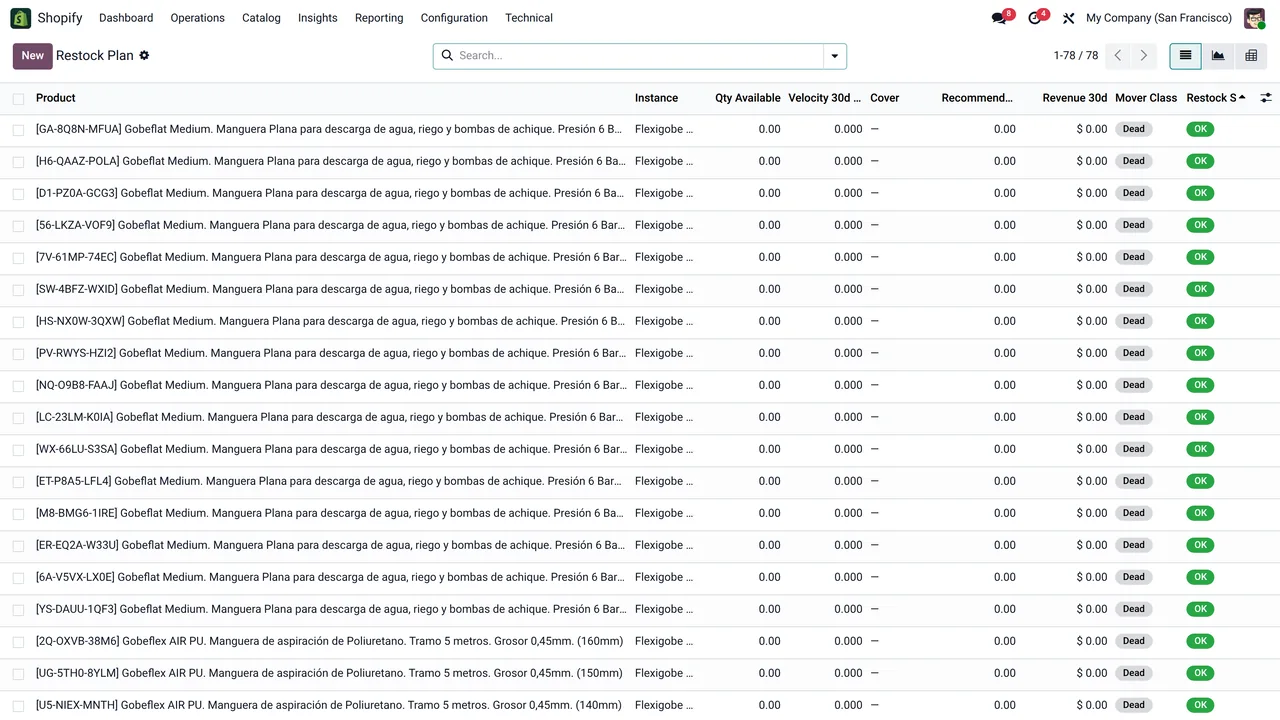
The code explains several cases in which the Restock Plan looks still or full of zeros:
- The task is active. It is active on installation; check that it still is.
- Whoever runs it is an administrator. If not, it stops with
Only an administrator can run this scheduled action.before touching anything. - The instance is active. The task only goes through active instances, and with the task's own call the limit is one hundred.
- There are sales or a binding. A product gets a row if it has lines from orders of that instance in the last ninety days, in the states the code treats as sold, or if it has an active binding to the instance. Otherwise the task does not create a row for it; if it already had one from an earlier run, it is not updated and keeps the values and the date of its last refresh.
- Zeros can be correct. A bound product with no recent sales and no stock comes out with velocities, revenue and days of cover at zero. If it has stock but has not sold in thirty days, its cover comes out as 9999 and there is no stock-out date.
- An instance may be failing. If an error is raised inside an instance, the task discards what is pending and moves to the next, so the others keep being processed.
- Permissions to see it. Without
VieweronShopifyand onCatalogyou do not see the menu, even if the task has run.
How FlexigoTech can help
FlexigoTech implements Odoo 17, 18, 19 and 20 and builds custom connectors and integrations, in case you need to adjust how your restocking is fed. The module is published on Odoo Apps for 17.0, 18.0, 19.0 and 20.0 (listing, module page). It is a one-off payment per version and needs the FlexigoTech Cloud subscription, Connector plan: €49 a month or €490 a year, excluding VAT. The connection goes through FlexigoTech Cloud, which stores the credentials encrypted, monitors the synchronisation and emails you if it fails.
Keep reading
Checked in the connector's source code (version 17.0 and 20.0) and the linked sources
Sources
- Module source code: flexigobe_shopify_seller_connector 20.0 (d7e627b4): data/ir_cron_data.xml
- Module source code: flexigobe_shopify_seller_connector 17.0 (437257e3): data/ir_cron_data.xml
- Module source code: flexigobe_shopify_seller_connector 20.0 (d7e627b4): models/shopify_product_analytics.py
- apps.odoo.com/apps/modules/20.0/flexigobe_shopify_seller_connector
- flexigotech.com/en/services.html
- flexigotech.com/precios.html