

 Español
 Català
 Deutsch
 Français
 Português
 Italiano
 Nederlands
 Polski
Where the form lives
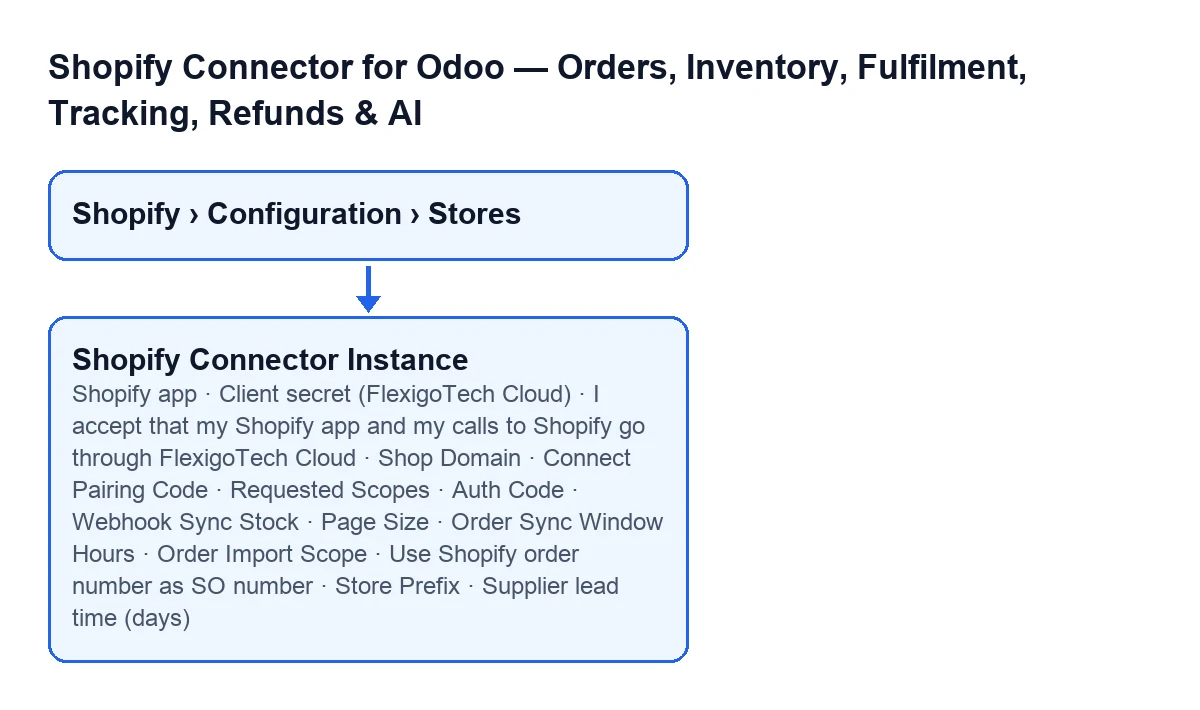
The Shopify Instances form opens from the menu Shopify › Configuration › Stores. If a section of the menu is missing, a permission is missing: Configuration asks for Operator and Shopify asks for Viewer. In Odoo 20 the form has the fields explained below; the module is published on Odoo Apps for 17.0, 18.0, 19.0 and 20.0.

Connecting to Shopify
The fields in this part are on the Connection tab. The connection goes through FlexigoTech Cloud, which keeps the credentials encrypted, watches the sync and emails you if it fails.
Shopify app- Selection field on the
Connectiontab, in theFlexigoTech Cloudgroup. With the default values it is visible; it is hidden when the connection does not go through FlexigoTech Cloud, and only users with the administration permission for Settings see it. Its values areMy own app (made in the Dev Dashboard of this store's organization)andAn app distributed to this store (authorization code); in the code the first one is pre-selected. According to its help, with your own app FlexigoTech Cloud gets the token with the client credentials grant and there is nothing to authorise; with an app distributed to the store (Custom distribution) you authorise it in Shopify once, after saving. What to set: the option that matches how you created the app.
Client secret (FlexigoTech Cloud)- Text field in the same group, with the same visibility conditions as the previous one. Its help says it is sent once, encrypted, to FlexigoTech Cloud together with the client ID and the shop, and that it is never stored in Odoo. What to set: the secret of your Shopify app.
I accept that my Shopify app and my calls to Shopify go through FlexigoTech Cloud- Checkbox in the same group, with the same visibility conditions. According to its help, FlexigoTech Cloud keeps the client secret encrypted, gets and renews the access token, and passes every call of this store to Shopify (orders, products, stock, locations, fulfilments and tracking, refunds, cancellations and order edits, carriers, payouts and disputes), with the data each call carries. It adds that Odoo keeps no copy of the secret or of the token. Ticking it means accepting that.
Shop Domain- Text shown on the form and also in the
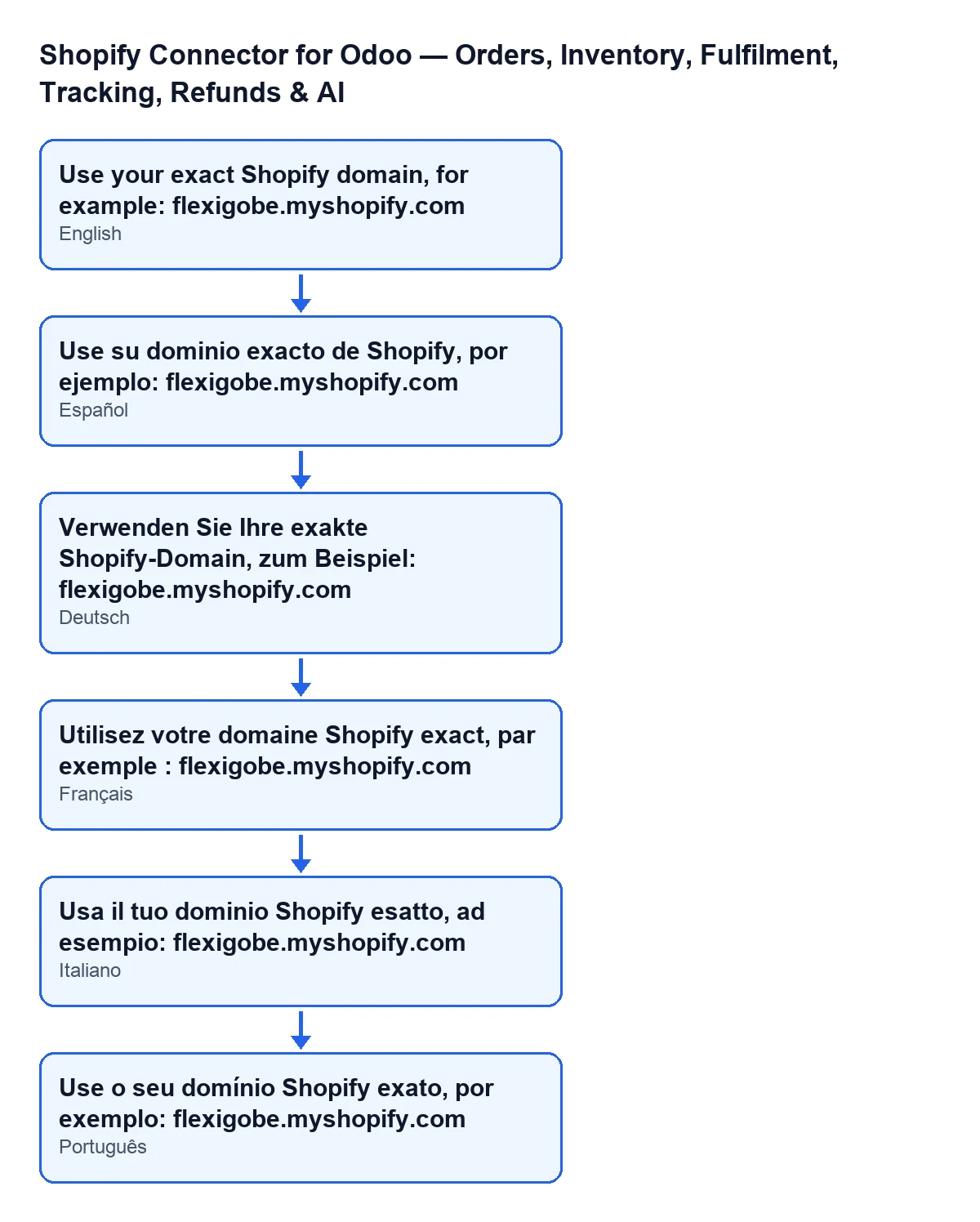
Shopify Instanceslist. Its help asks for your exact Shopify domain, for exampleflexigobe.myshopify.com. What to set: that domain, exactly as it is for your store.
Connect Pairing Code- Field on the form. It is hidden if the instance is already connected or if another condition of the view is not met. Its help reads: «Paste the one-time pairing code shown in the embedded Shopify app (when you install from the Shopify App Store), then click Pair with Shopify.».
Requested Scopes- Long text on the
Connectiontab, in theShopify App Credentialsgroup. According to its help, these are the OAuth scopes requested from Shopify, separated by commas. The module fills it with a default value that it calculates itself; if you edit it, keep the commas between scopes.
Auth Code- Field on the
Connectiontab. With the default values it is not visible: it is hidden when the connection goes through FlexigoTech Cloud, so it appears when it does not. Its help describes it as the one-time code returned by the Shopify OAuth callback.
A note on the domain: with Odoo in English, the help next to Shop Domain reads «Use your exact Shopify domain, for example: flexigobe.myshopify.com». The diagram below also shows the Spanish, German, French, Italian and Portuguese versions.
Stock and queries to Shopify
These two fields are on the Operations tab, in the Sync Settings group.
Webhook Sync Stock- Checkbox, off by default. Its help says it receives Shopify
inventory_levels/updatewebhooks to update Odoo stock in near real time, and that it requires stock sync to be enabled. What to set: tick it only if you want that near-immediate update, and with theSync Stock Enabledcheckbox in the same group already ticked.
Page Size- Number of records requested from Shopify per page, from 1 to 100; it starts at 50. Its help warns of two things: above 100 Shopify rejects the query outright, and a large page on a rich query can exceed the cost limit. What to set: a value within the range; the starting one is 50.
Orders
The fields in this part are on the Operations tab, in the Order Settings group.
Order Sync Window Hours- Integer that starts at 24. Its help defines it as the fallback time window for the first order sync when no previous timestamp exists. What to set: whatever you want that first read to cover.
Order Import Scope- Which Shopify orders are imported as sale orders. Options:
All orders,Paid onlyandPaid & Unfulfilled, which is the default. The last one imports only paid orders that are not yet fulfilled, and the help recommends it when you fulfil from Odoo.
Use Shopify order number as SO number- Checkbox, on by default. According to its help, it sets the Odoo sale order number to the Shopify order number, overriding Odoo's own sequence, so that numbers match Shopify.
Store Prefix- Identifier of the Shopify store (the help gives ZA and EU as examples). It is stored on each imported sale order to show which store it came from. What to set: a short identifier that tells this store apart from the others.
Supplier lead time (days)- Integer that starts at 7. Its help says product analytics uses it to compute reorder timing and recommended quantities.
If you would rather have it set up for you
FlexigoTech implements Odoo 17, 18, 19 and 20 and builds custom connectors and integrations. You can see the module on its page and on the Odoo Apps listing.
Keep reading
Checked in the connector's source code (version 20.0) and the linked sources
Sources
- Module source code: flexigobe_shopify_seller_connector 20.0 (2950bdc0): models/fgt_cloud.py
- Module source code: flexigobe_shopify_seller_connector 20.0 (2950bdc0): models/shopify_instance.py
- apps.odoo.com/apps/modules/20.0/flexigobe_shopify_seller_connector
- flexigotech.com/precios.html
- flexigotech.com/en/services.html