

 Español
 Català
 Deutsch
 Français
 Português
 Italiano
 Nederlands
 Polski
Before pressing Create Credit Note
The condition behind the error is a single one: the Sale Order field of the refund is empty. Looking at it before you press the button tells you what to expect. The Create Credit Note button is in the refund view and, in Odoo 17, 18, 19 and 20, it is hidden when the refund is in the ignored state, or when it already has a credit note created and the Credit Note field is filled in. With the default values it is visible.
- Open
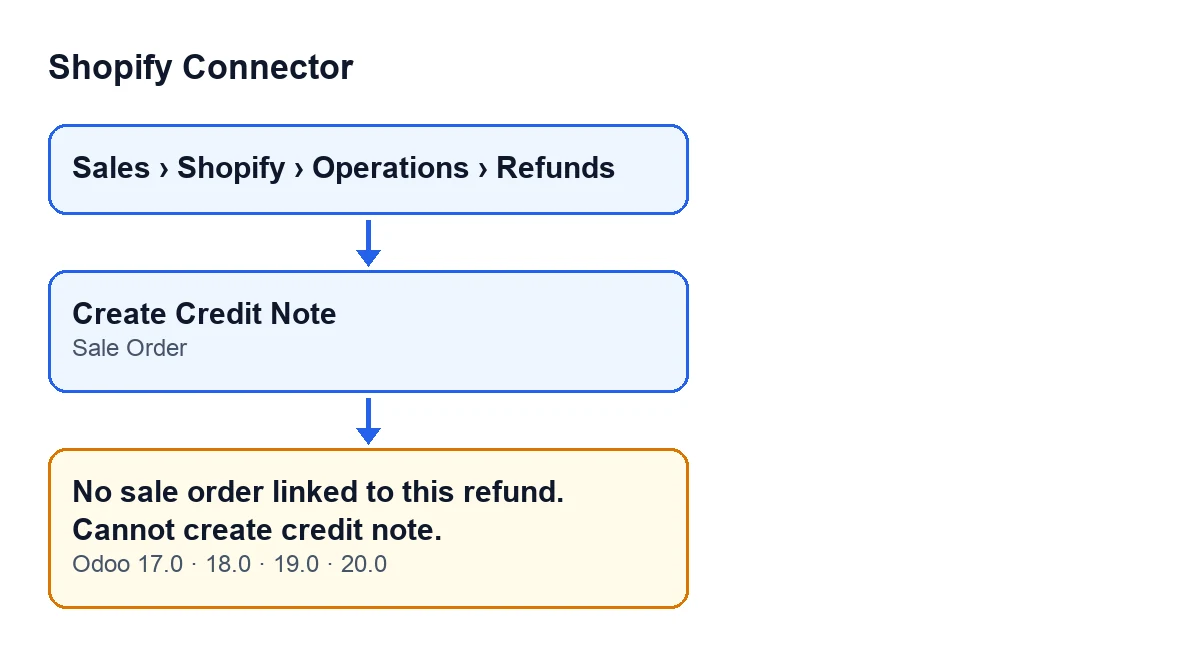
Sales › Shopify › Operations › Refundsand go into the refund you want to credit.
- On the
Shopify Refundsform, in theAmountsgroup, find theSale Orderfield. You also see it in the refunds list, and in both places it is read-only.
- If the field is empty, pressing the button gives the message
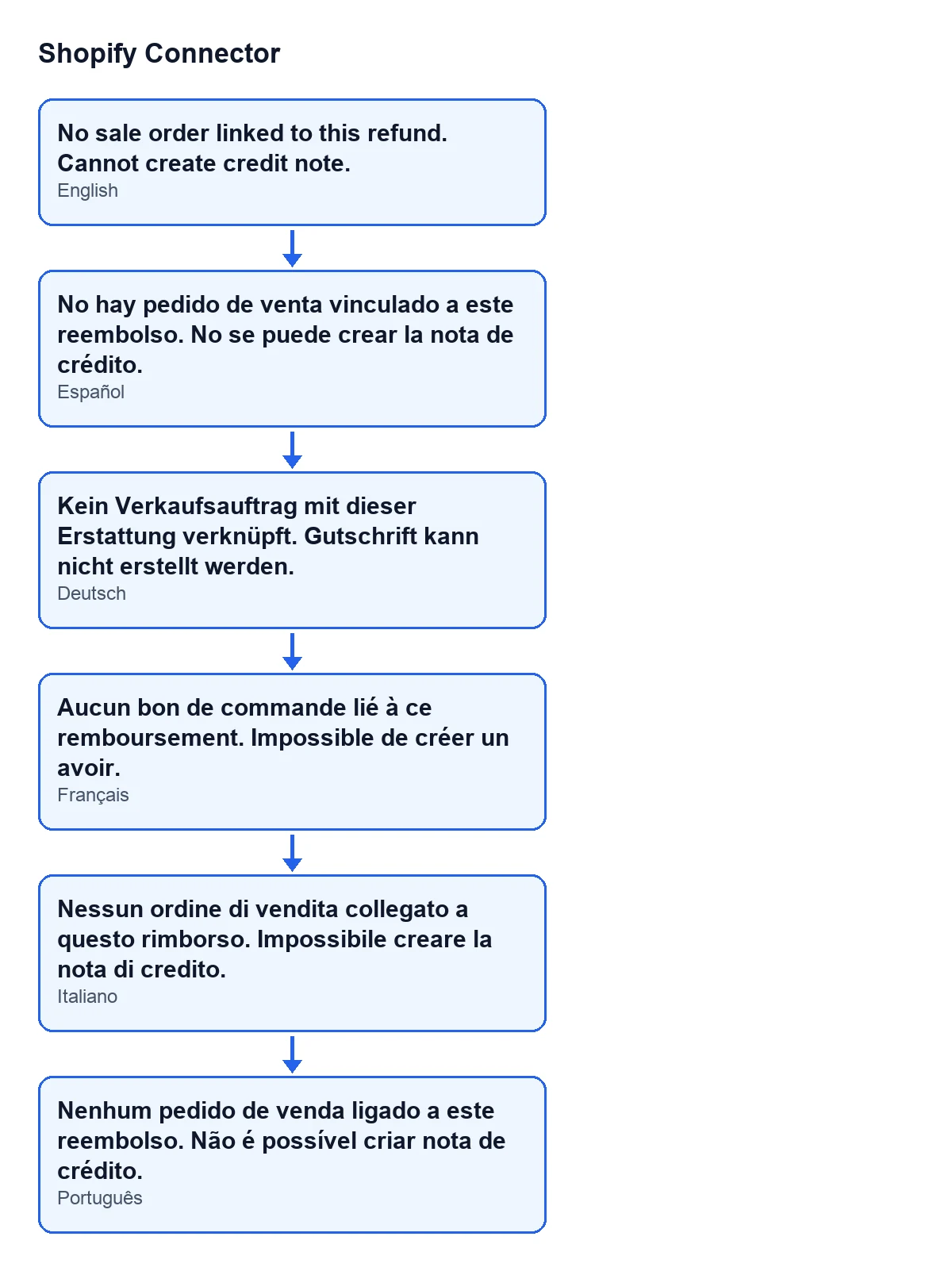
No sale order linked to this refund. Cannot create credit note.
- Check whether the refund already has a credit note: if the
Credit Notefield is filled in and the refund is in the credit-note-created state, the button is not even shown.
- Keep the order of the method in Odoo 20 in mind: before looking at the sale order, it checks whether the refund is already in the credit-note-created state and has its note attached. If so, it opens that note instead of raising the error.

When the message appears
The message appears when you press Create Credit Note. The method behind the button looks at the refund's sale order and, if there is none, raises the error. You see exactly this: No sale order linked to this refund. Cannot create credit note.
- Confirm the condition: the code checks whether the
Sale Orderfield is empty. If it is, the message is the expected one and there is no need to look for another cause.
- Be clear about what happens to the action: the error stops it and nothing it was going to change is saved. No credit note is created in that attempt.
- Do not try to fill the field in by hand.
Sale Orderis read-only: the module itself writes it, not the user.
- If you work on another version, the same message is in the published code of Odoo 17, 18, 19 and 20.
The second diagram puts the text of the message side by side in Spanish, German, French, Italian and Portuguese, as the user sees it depending on the language of their Odoo. The Spanish one reads No sale order linked to this refund. Cannot create credit note.
What to check afterwards
Since the field cannot be edited, while the form still shows Sale Order empty the credit note button will give the same message. According to its code, the module itself writes the field, not the user, and that code is reached from the Create Sale Order button.
- Reopen the refund from
Sales › Shopify › Operations › Refundsand see whetherSale Ordernow shows an order.
- Once the form shows an order, press
Create Credit Noteagain.
- With the order linked, the method carries on: it looks at the order's posted customer invoices and at the items Shopify refunded, and uses them to prepare the credit note.
- If the note is created, check that the refund moves to the credit-note-created state, that the
Credit Notefield is filled in and that the note's form opens.
- If this message no longer appears when you try again, the
Sale Orderfield holds an order: read the new alert in full, because it is a different matter.
What it costs and where to get help
Shopify Connector costs €9 per Odoo version, one-off payment and excluding VAT, for 17, 18, 19 and 20. It also needs the FlexigoTech Cloud subscription: the Connector plan costs €49 a month or €490 a year, excluding VAT.
If you are implementing Odoo and want someone to go through the refund flow with you, FlexigoTech implements Odoo 17, 18, 19 and 20 and develops custom connectors and integrations.
Keep reading
Checked in the connector's source code (version 20.0) and the linked sources
Sources
- Module source code: flexigobe_shopify_connector 20.0 (c7078cd8): models/shopify_refund.py
- Module source code: flexigobe_shopify_connector 20.0 (c7078cd8): views/shopify_refund_views.xml
- apps.odoo.com/apps/modules/17.0/flexigobe_shopify_connector
- apps.odoo.com/apps/modules/18.0/flexigobe_shopify_connector
- apps.odoo.com/apps/modules/19.0/flexigobe_shopify_connector
- apps.odoo.com/apps/modules/20.0/flexigobe_shopify_connector
- flexigotech.com/precios.html
- flexigotech.com/en/services.html