

 Español
 Català
 Deutsch
 Français
 Português
 Italiano
 Nederlands
 Polski
How to read the module's messages
Where the message contains %s, %(country)s, %(countries)s, %(refunded)s or %(total)s, the screen shows the detail of your case: a name, the value you typed, a country, some amounts or the reason seQura gives. Read it before you try again.
Example Illustrative case: the company and its figures are made up to explain the flow.
Cerámicas Brisa is a made-up shop selling tableware in Spain that wants to offer deferred payment with seQura from its Odoo. Marta, who runs the admin side, connects the account, sets up the widgets, collects payment by link and handles a refund. These are the messages she meets, in the order they appear.
Connecting the account through FlexigoTech Cloud
When saving the credentials, the first message is Before saving the seQura username and password, an administrator has to accept that they and the calls to seQura go through FlexigoTech Cloud. Nothing was sent. An administrator has to accept that the username, password and calls to seQura go through FlexigoTech Cloud, and nothing has been sent. Marta asks whoever administers Odoo to accept it.
She then types only the username and gets Type both the seQura username and the password: they are saved together. Nothing was sent.: they are saved together, so type both. If she tries to connect before saving them, the message is Type your seQura username and password for FlexigoTech Cloud and save before connecting. or Add your seQura username and password before connecting.: type, save, then connect. If The seQura username and password of %s are not saved in FlexigoTech Cloud: type them again. appears later, type them in again. And Connect a seQura account first. means a connected seQura account is needed first.
Once connected, Marta sees seQura accepted the credentials but reported no merchant account for a country Odoo knows. Ask seQura which countries your account covers. The credentials are valid, but seQura has returned no merchant account for a country Odoo recognises. The message gives the next step: ask seQura which countries the account covers.
Moving from sandbox to live
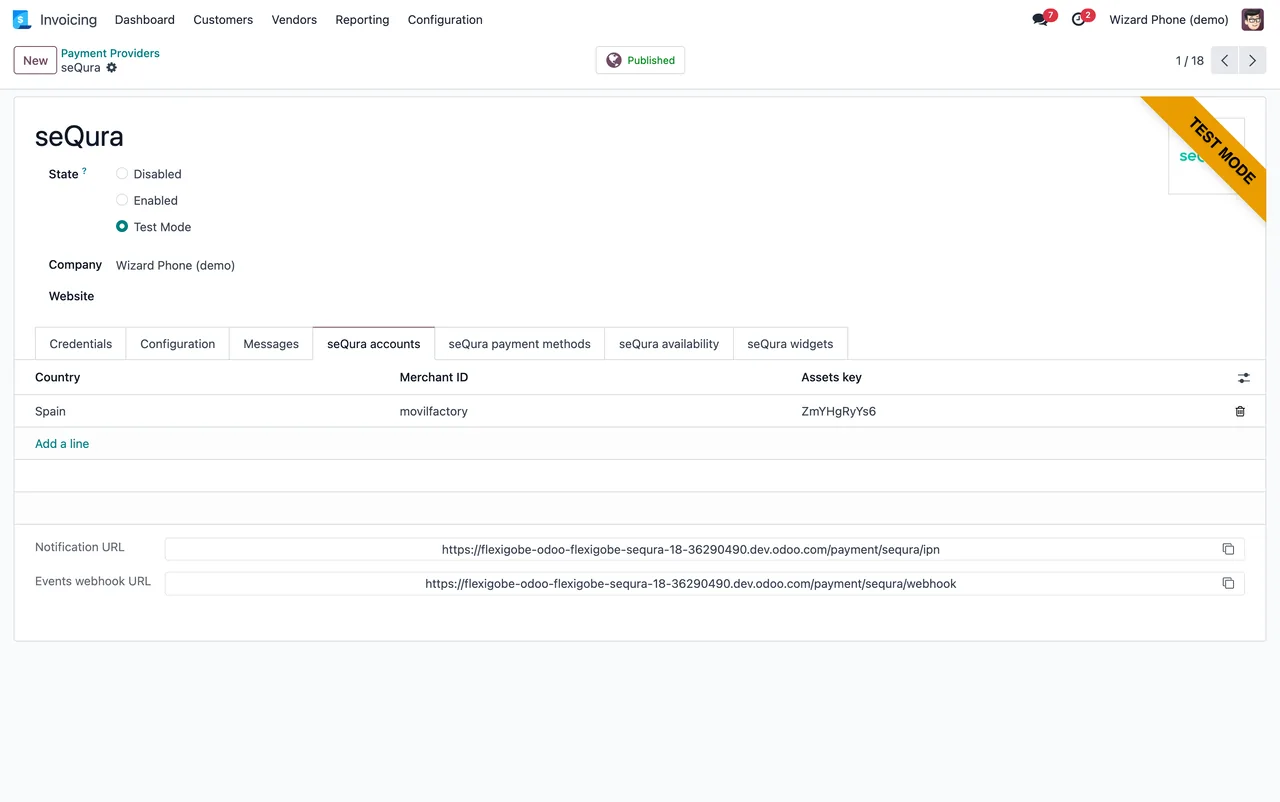
When leaving testing, she gets To go live with %s on FlexigoTech Cloud, type the username and password of your live seQura account: sandbox and live are different accounts. Sandbox and live are different accounts, so type the live account's credentials.
To change the deployment with credentials saved, the message is Delete the seQura credentials of %s from FlexigoTech Cloud before changing its deployment: the saved ones belong to the current deployment.: delete them from FlexigoTech Cloud first. And the connection type cannot be changed: The connection of a seQura provider does not change: a new provider goes through FlexigoTech Cloud and the ones bought before keep the direct connection.
The full set of settings is in setting up seQura.
Widgets, durations and countries
For the promotional widgets, Marta types the appearance by hand and gets The widget appearance must be the JSON produced by seQura's widget simulator. %s Use the JSON produced by seQura's widget simulator; the %s gives the detail. If the value is not an object, the message is The widget appearance must be a JSON object.
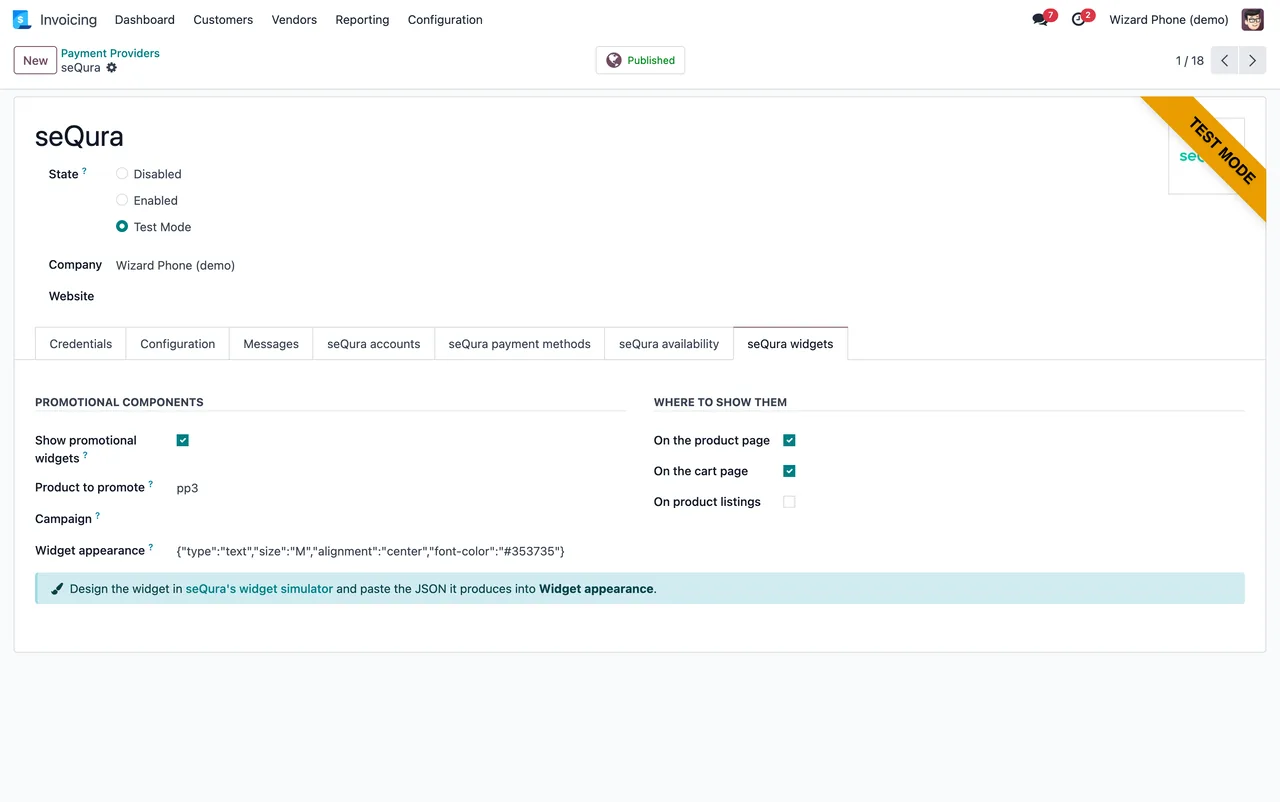
For durations, %s is not a valid service duration. Use an ISO-8601 duration such as P15D, P3M or P1Y6M. asks for an ISO-8601 duration, and %s is neither an ISO-8601 duration (P3M, P1Y6M) nor a date (2027-06-30). also accepts a date in the form 2027-06-30. In both, the %s is what you typed.
A country that does not fit brings seQura does not sell in %(country)s. It operates in %(countries)s., which already lists the countries where seQura operates.
Collecting payment by link
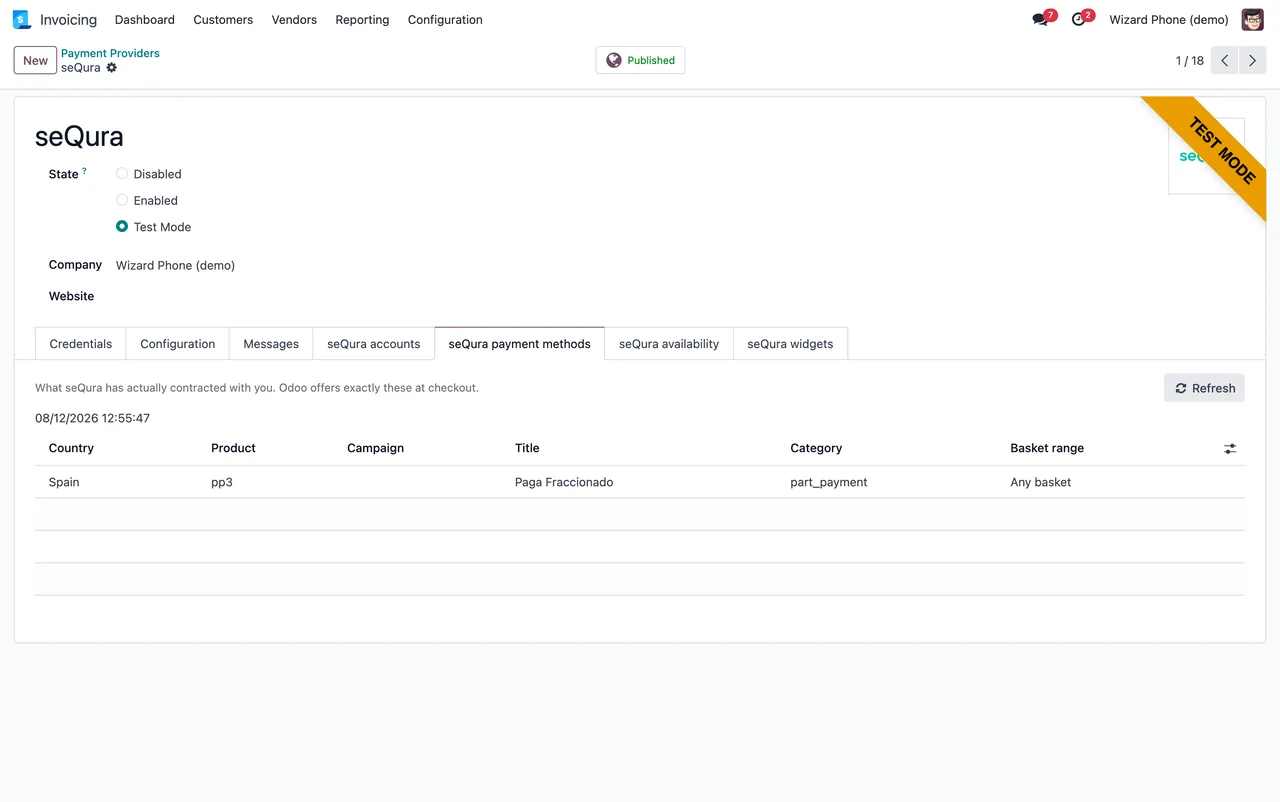
With the order still empty, sending the link gives Add something to the order before sending a payment link. She adds the lines and gets A mobile number is needed: seQura sends the link by SMS.: the customer needs a mobile number. seQura cannot finance this order: %s and seQura could not send the link: %s carry seQura's reason in the %s. seQura could not be reached: %s means seQura could not be contacted, and This transaction has not reached seQura yet. that the transaction has not got to seQura yet.
When handling the payment, Only a seQura payment that is waiting can be confirmed this way. appears if the payment is not waiting. seQura refused the capture: %s and seQura refused the void: %s give the reason the capture or the void was rejected.
With an old order, Marta sees This order was created in seQura's test environment and this account is now live, so seQura has never seen it here. There is nothing to do on seQura's side: no real money moved. Cancel the order in Odoo instead. The order was created in testing, no real money moved and it is cancelled in Odoo.
Refunding an order with a credit note
A customer returns a plate. From the invoice, Marta gets Only a credit note can be refunded through seQura.: refunds go through a credit note. With the credit note not yet posted: Post the credit note first.
If no settled payment is linked to the document, you see No settled seQura payment is linked to this document. With nothing left, the message is There is nothing left to refund on this seQura order. or There is nothing left to refund on this seQura order: %(refunded)s of %(total)s has already been returned., which shows what has been returned against the total. If seQura rejects it, seQura did not accept the refund. See the transaction %s for the reason. points you to that transaction for the reason.
Payouts and orders with no match
seQura could not report your payouts: %s means seQura could not report the payouts, with the reason in the %s. No Odoo sales order matches %s. says no Odoo sales order matches the detail in the %s. To see what each record goes through, read how the module works inside.
What the case teaches
- Sandbox and live are different accounts: credentials are not reused and a test order is cancelled in Odoo.
- The username and password are saved together in FlexigoTech Cloud, after an administrator has accepted.
- When something is rejected, the reason is in the
%sor in the transaction named. - Refunds come from a posted credit note linked to a settled payment.
- Widget appearance is the simulator's JSON; durations are ISO-8601 or a date.
How FlexigoTech helps
The connection goes through FlexigoTech Cloud, which stores the credentials encrypted, monitors the sync and emails you if it fails; if seQura changes its API, the module and the service are adapted. The module costs €9 excluding VAT per Odoo version, one-off, for 17, 18, 19 and 20 on Odoo Apps, and the connection runs on the Connector plan, available on the module page. If you also need Odoo implemented or a bespoke integration, we do that too.
Keep reading
Checked in the connector's source code (version 20.0) and the linked sources
Sources
- Module source code: flexigo_sequra_bnpl 20.0 (f94d334a): models/account_move.py
- Module source code: flexigo_sequra_bnpl 20.0 (f94d334a): models/payment_provider.py
- Module source code: flexigo_sequra_bnpl 20.0 (f94d334a): models/payment_transaction.py
- Module source code: flexigo_sequra_bnpl 20.0 (f94d334a): models/product_template.py
- Module source code: flexigo_sequra_bnpl 20.0 (f94d334a): models/sequra_country_config.py
- Module source code: flexigo_sequra_bnpl 20.0 (f94d334a): models/sequra_disbursement.py
- Module source code: flexigo_sequra_bnpl 20.0 (f94d334a): models/sequra_fgt_cloud.py
- Module source code: flexigo_sequra_bnpl 20.0 (f94d334a): wizards/sequra_send_link.py
- apps.odoo.com/apps/modules/20.0/flexigo_sequra_bnpl
- apps.odoo.com/apps/modules/17.0/flexigo_sequra_bnpl
- apps.odoo.com/apps/modules/18.0/flexigo_sequra_bnpl
- apps.odoo.com/apps/modules/19.0/flexigo_sequra_bnpl
- flexigotech.com/en/services.html
- flexigotech.com/precios.html