

 Español
 Català
 Deutsch
 Français
 Português
 Italiano
 Nederlands
 Polski
What changes on the Employees form
The module extends the standard model of the Employees app with two pieces: a Scrive field and a Send for signature (Scrive) button. Both appear on the employee form and both depend on conditions that are not obvious at a glance.
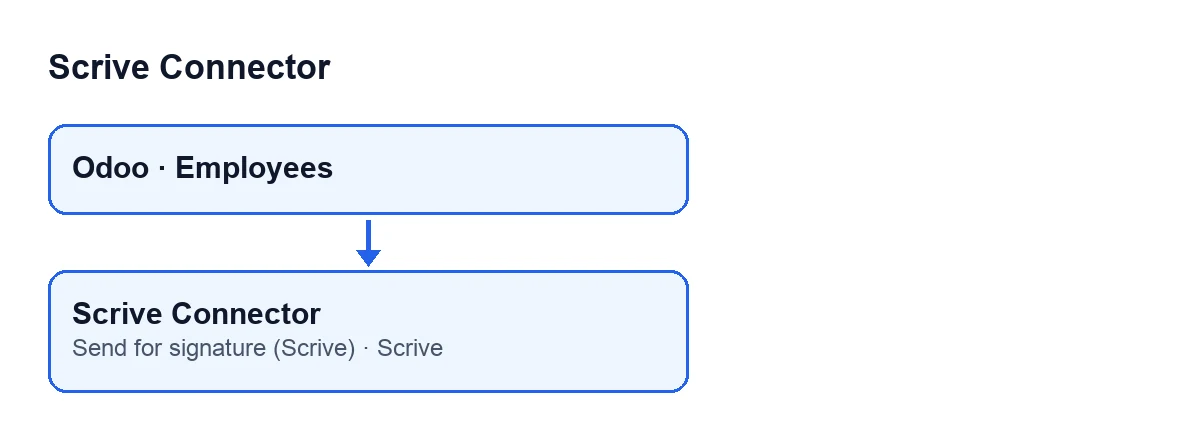
Employees app at the top, and below it what Scrive Connector adds. The labels are in English, the original text in the code.
Details on the form that are easy to miss
The Scrive field stays hidden while it is zero
Scrive is a numeric field shown on the employee form. It is hidden when its value is zero, and only users who have the Scrive user permission can see it. If you cannot see it, either the employee has no signature documents or your user lacks that permission.
It counts the contract history, not just the current contract
The module calculates the field and, according to the code, it gathers the signature documents of every contract the employee has had, not only those of the current version. The code's own reasoning is that an employee's signed contracts are their history, and this field is the only place where that history shows. If an employee moved to a new contract and the earlier one was sent for signing with Scrive, that document still counts towards the field.
The calculation runs with elevated permissions
According to the code, contract records are reserved for HR users and signature documents are reserved for Scrive users. Because the field is shown to whoever opens the employee form, the module runs the search with elevated permissions on both sides. It is the calculation that runs with elevated permissions: whether you see the result on screen still depends on the Scrive user permission mentioned above.
The button depends on a field you cannot see
The Send for signature (Scrive) button is hidden when Contract Ready to Sign does not hold. That field does not appear in any view, so there is no box to tick: the module calculates it. The view condition is the same in Odoo 17, 19 and 20.
According to the Odoo 20.0 code, the contract is ready when three things are true together: the contract record the form is showing exists, that record is linked to an employee, and it has a contract start date. In Odoo 20.0, if any of those three things is missing, the button is not shown.
It sends the contract the form is showing, not always the current one
The employee form can show different versions of the contract. According to the code, which one it shows depends on what the versions timeline in the header and the list of employee records set, and the button sends exactly the one you are looking at, not always the current one. Before pressing it, check which version is open on the form.
With Odoo in English, the button is called Send for signature (Scrive). The diagram below shows what it is called with Odoo in other languages.
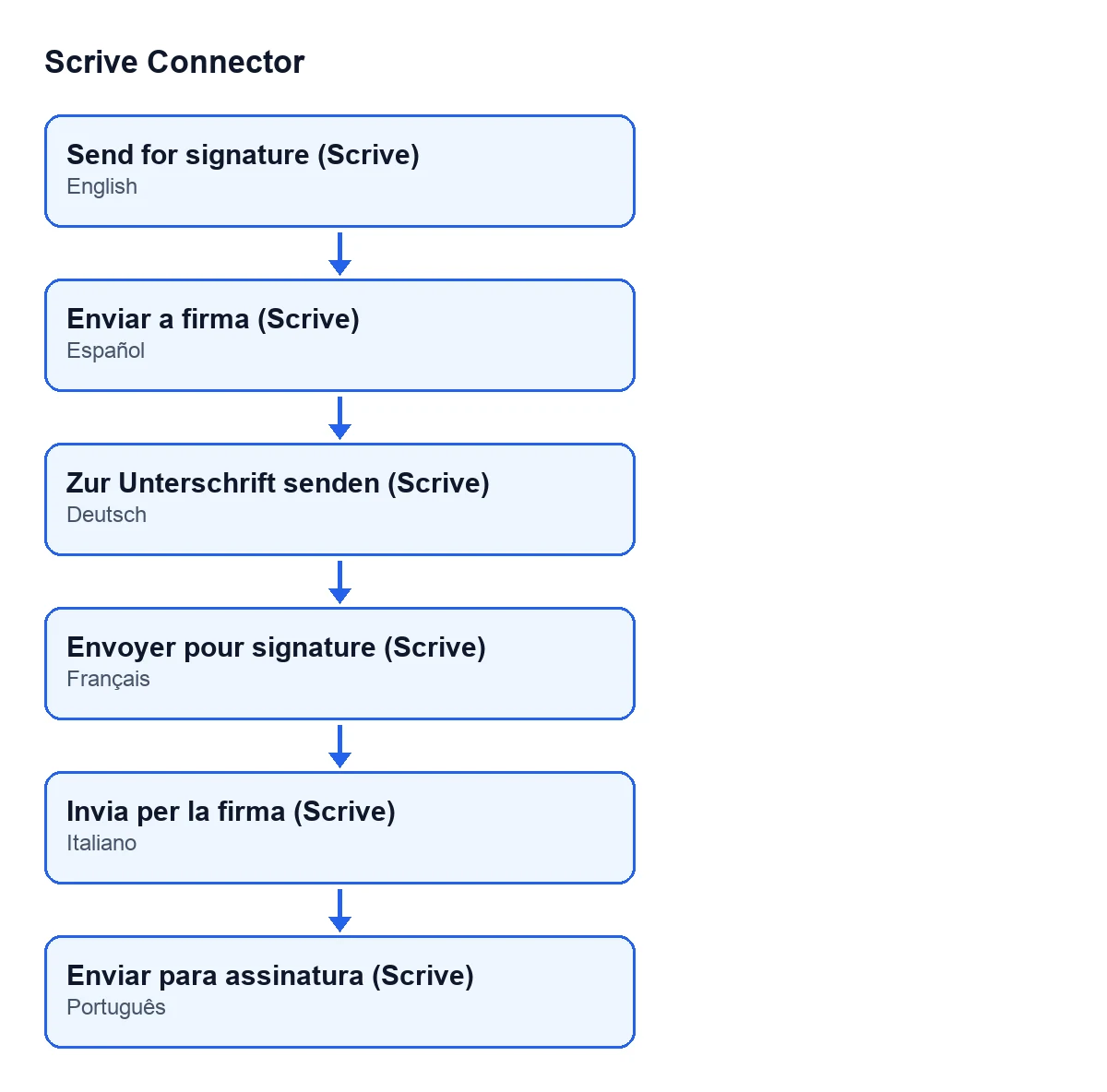
Enviar a firma (Scrive), in German Zur Unterschrift senden (Scrive), in French Envoyer pour signature (Scrive), in Italian Invia per la firma (Scrive) and in Portuguese Enviar para assinatura (Scrive).With no contract to send, the action stops
When you press Send for signature (Scrive), the module can stop with this message: … has no contract record to send for signature. The dots stand for the employee's name. When it appears, the action stops and nothing is sent.
If there is a contract record, the button hands the sending over to that contract. How the sending itself works is covered in What the Send button of Scrive Connector does.
What each piece does and when you see it
The module calculates the Scrive field, and it gathers the signature documents of all the employee's contracts. On screen it only appears if its value is not zero and your user has the Scrive user permission.
The Send for signature (Scrive) button acts when you press it: it hands over to the sending of the contract the form is showing. In Odoo 20.0, it is only visible if that contract is ready to sign, under the three conditions above.
The two pieces are shown under different rules. The field is hidden by a counter at zero and by the Scrive user permission. The button is hidden when the contract on the form is not ready to sign.
If you cannot see the field or the button
- If you cannot see the
Scrivefield: it may be zero, meaning none of the employee's contracts has signature documents, or your user may lack the Scrive user permission. - If you cannot see the
Send for signature (Scrive)button: in Odoo 20.0, check that the contract version the form is showing exists, is linked to an employee and has a contract start date.
Versions, subscription and help
Scrive Connector is published on Odoo Apps for Odoo 17, 18, 19 and 20. The price for each version is on the listing and on the module page. The module is a one-off purchase per version and needs a FlexigoTech Cloud subscription, Connector plan: €49 a month or €490 a year, excluding VAT. The connection goes through FlexigoTech Cloud, which stores the credentials encrypted, monitors synchronisation and emails you if it fails.
If you are implementing Odoo and want to review which users should see the field and the button on Employees, FlexigoTech implements Odoo 17, 18, 19 and 20 and builds custom connectors and integrations.
Keep reading
Checked in the connector's source code (version 20.0) and the linked sources
Sources
- Module source code: flexigobe_scrive_connector_hr 20.0 (21b3b940): models/hr_employee.py
- Module source code: flexigobe_scrive_connector_hr 20.0 (21b3b940): views/hr_employee_views.xml
- apps.odoo.com/apps/modules/20.0/flexigobe_scrive_connector
- flexigotech.com/en/services.html
- flexigotech.com/precios.html
- Module source code: flexigobe_scrive_connector 20.0 (21b3b940): __manifest__.py
- Module source code: flexigobe_scrive_connector 20.0 (21b3b940): wizard/scrive_send_wizard.py