

 Español
 Català
 Deutsch
 Français
 Português
 Italiano
 Nederlands
 Polski
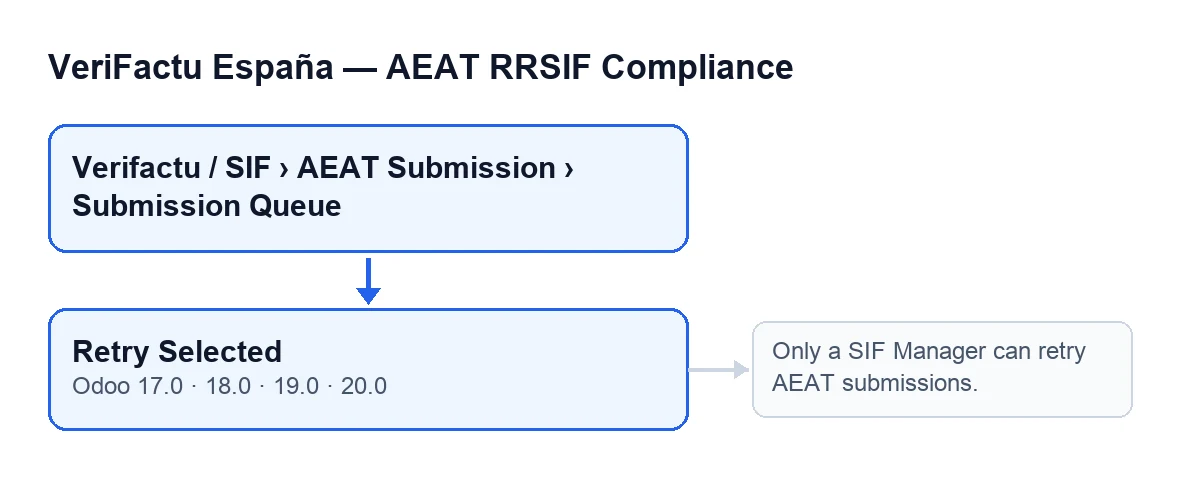
What follows describes the button according to the Odoo 20 code. The Retry Selected button is on the AEAT Errors screen in the 17, 18, 19 and 20 branches of the module, and it has no view condition: it is always shown. The module is published on Odoo Apps for those same versions: 17, 18, 19 and 20.
Before you press: permissions, menu and states
- Check that your user is a
SIF Manager. This is the permission the module requires when you press the button, and the server enforces it, not just the screen. The button being visible does not prove you can use it: the permission is checked when you press.
- Find the queue. The queue records open from
Verifactu / SIF › AEAT Submission › Submission Queue. TheAEAT Submissionlevel is visible toAccountant,Auditor (read-only)andSIF Manager. TheVerifactu / SIFlevel is also visible toAsesoría OperatorandPrivacy Officer. Seeing the menu is not the same as being able to retry: that takes theSIF Managerrole.
- Look at the
Estadofield. It appears on the form and in the list ofAEAT Errors. Its values arePending,Retrying,Submitted,FailedandDead Letter. Note the state of each record before you touch anything.
- Select the records you want to reset. The button acts on the whole selection in bulk. The ones it changes are those in
FailedorDead Letter; what happens to the rest is covered below.
When you press: what the button does, in code order
- First it checks the permission. If you are not a
SIF Manager, the action stops with the messageOnly a SIF Manager can retry AEAT submissions.and nothing the action was about to change is saved. The check is skipped when the action runs with superuser privileges.
- Then it filters the selection. It keeps the records whose
EstadoisFailedorDead Letter.
- Those records get three changes at once.
EstadobecomesPending, the attempts counter goes back to zero and the next-retry date is cleared. The change is written with elevated privileges, once the permission check has passed.
- The others are skipped without an error. Records in
Pending,RetryingorSubmittedare left alone and do not make the action fail: they are only counted for the final notice.
After you press: the notice and what to check
- Read the notice titled
Retry Selected. It says… item(s) reset to pending for retry.If any records were skipped, it adds… item(s) skipped (not in failed/dead-letter state).The dots stand for the number the notice shows.
- Look at the type of notice. It is a success notice if at least one record was reset and a warning if none was. It does not stay fixed on screen.
- Go back to the list and review
Estado. The reset records should bePending; the skipped ones keep the state they had before you pressed.
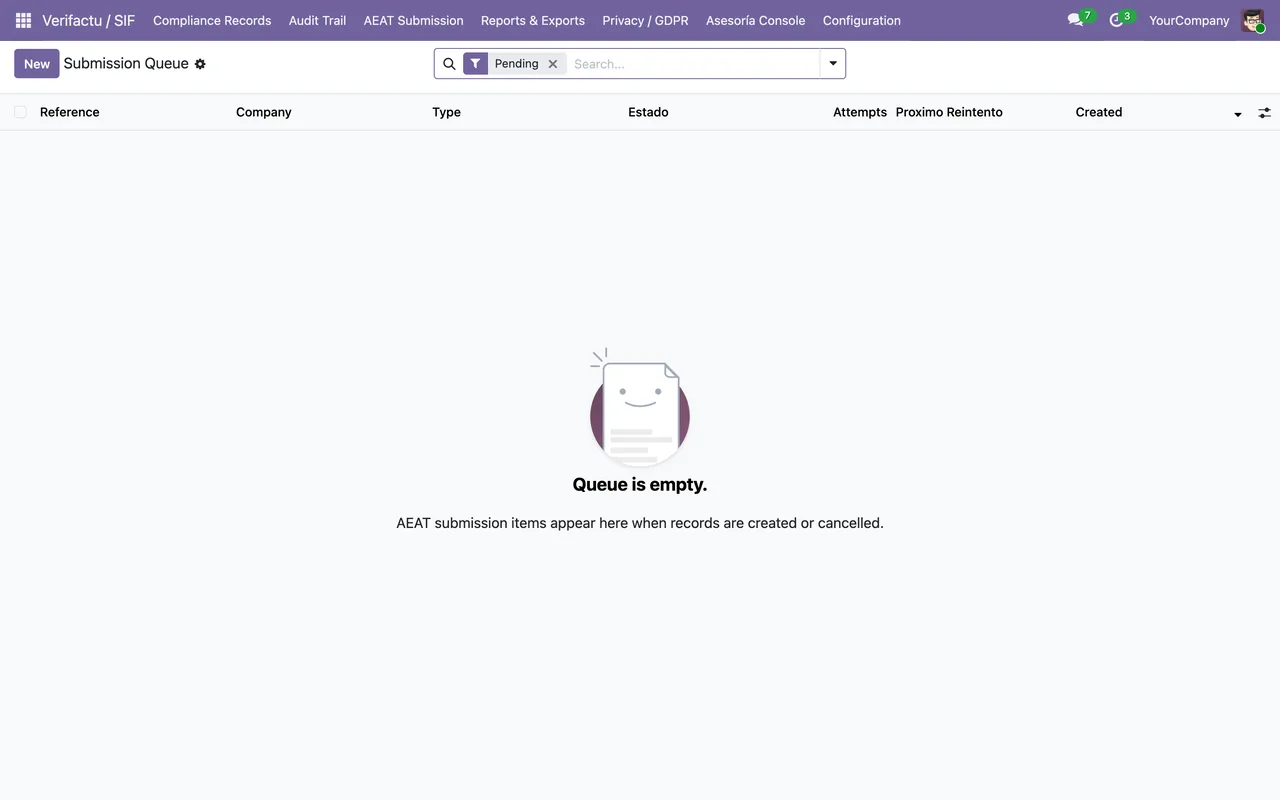
- If the notice is a warning and everything was skipped, nothing has changed: no record in the selection was
FailedorDead Letter. Review the selection and try again.
If something does not go as expected
- You get
Only a SIF Manager can retry AEAT submissions.Your user is not aSIF Manager. Ask someone with that role to press the button with the same selection.
- A record has not changed state. Check its
Estadofrom before: if it wasPending,RetryingorSubmitted, the button skips it by design and counts it in the skipped notice.
- You selected many records at once. That is fine: the action is built to work on several records in one press, and the ones that do not qualify are skipped without stopping the rest.
How FlexigoTech can help
FlexigoTech implements Odoo 17, 18, 19 and 20 and builds custom connectors and integrations. If you are setting up VeriFactu and want to review another button in the same app, see What the Ejecutar Comprobación Previa button does.
Keep reading
Checked in the module's source code (version 20.0) and the linked sources
Sources
- Module source code: flexigo_spain_verifactu 20.0 (1fdc980f): views/verifactu_aeat_errors_views.xml
- Module source code: flexigo_spain_verifactu 20.0 (1fdc980f): models/verifactu_cola_envio.py
- apps.odoo.com/apps/modules/20.0/flexigo_spain_verifactu
- flexigotech.com/en/services.html