

 Español
 Català
 Deutsch
 Français
 Português
 Italiano
 Nederlands
 Polski
Where the button is and when you see it
Migration records open from the menu Verifactu / SIF › Configuration › Migration Runs. If a section of the menu is missing, you lack a permission: the Configuration section asks for SIF Manager, and the Verifactu / SIF section asks for Accountant, Asesoría Operator, Auditor (read-only), Privacy Officer or SIF Manager.
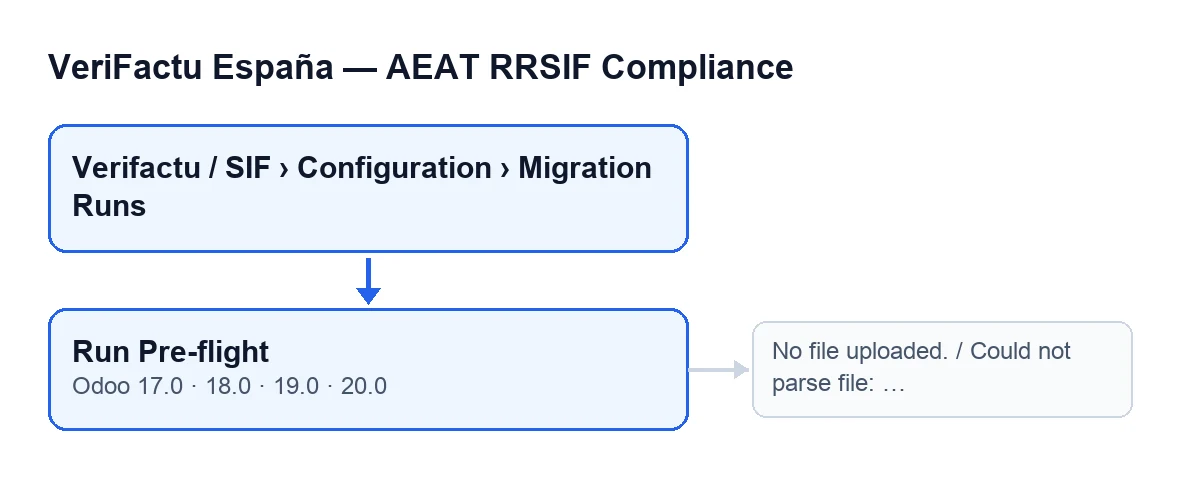
The Run Pre-flight button is on the Migration Runs screen in every published branch of the module: Odoo 17, 18, 19 and 20. In all four it is hidden when the Estado field does not hold the value with which the button shows by default; with the default values it shows.
When the check finishes without stopping, the Estado field changes and the button is no longer shown. If it stops because the file is missing or cannot be parsed, the status does not change and the button remains available.
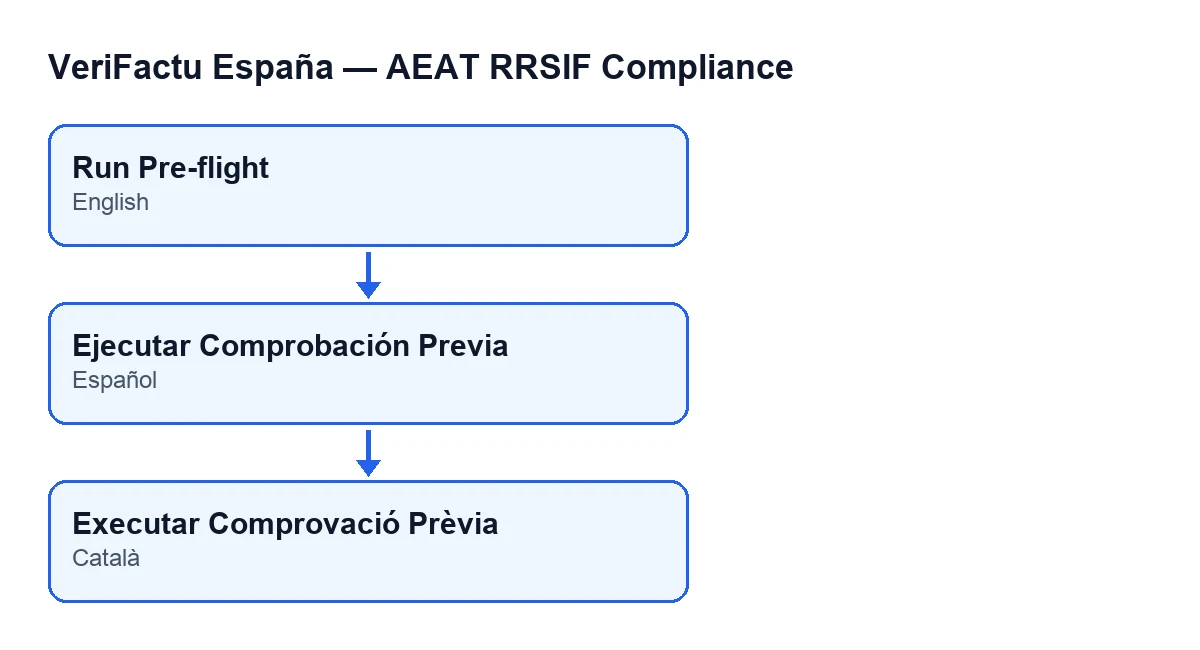
Ejecutar Comprobación Previa; in Catalan, Executar Comprovació Prèvia.Step by step: what happens when you press it
What follows comes from the Odoo 20 code.
- It chooses the file reader according to the migration's source system. There are readers for several invoicing and accounting programs (Holded, Quipu or Contasol, for example) and a generic CSV one, which is used if the system matches none of them.
- It checks that a file has been uploaded. The file lives in the
Fichero Origenfield, in theSourcegroup of the migration form. If it is empty, the button stops withNo file uploaded.and nothing is saved. - It parses the file with the chosen reader. If the reader fails, the button stops with
Could not parse file: …, with the details of the failure in place of the ellipsis. Again, nothing is saved. - It goes through the rows it obtained and notes issues as it goes (details in the next section). Noting an issue does not stop the pass.
- It saves the result: the list of issues in the pre-flight log, the total number of records read and the change to the
Estadofield. - It replaces the migration's lines: it deletes any that already existed for that migration and creates one for every row read, with its original number, date and total and an initial status.
A useful detail: the pre-flight does not discard rows. Even if there are issues, step six creates one line for each row read.
What it checks on each row
The module goes through the rows in order, starting with the first, and for each one it can note the following.
- Counterparty NIF. Only if the row carries a counterparty identifier, it passes it through the module's NIF validator, using the row's identifier type (if the row has none, it uses NIF). If it does not validate, it notes
Row … (…): Invalid NIF/CIF/NIE "…". The brackets hold that row's invoice number, or a question mark if it has none; at the end comes the identifier as it arrived. - Empty invoice number. If the row has no number, it notes
Row …: missing invoice number (column not recognized or empty). - Repeated number. If the number already appeared in an earlier row, it notes
Row …: Duplicate series number "…" (also row …). The second row it cites is the first one where that number appeared. - Reader warnings. If the reader flagged the row with a warning of its own, it notes it as
Row …: …, with the text of the warning.
The row number counts the rows the reader obtained, and issues are noted in the same order they are checked.
What changes when the check finishes
When the pass finishes without stopping, the module writes three things to the migration:
- The list of issues, saved as text, with accents and special characters kept as they are.
- The total number of records, which is the number of rows read.
- The
Estado, which moves to a value different from the one it had. With that change the button is no longer shown.
In addition, the migration's previous lines are deleted and created again from what has just been read.
What to do if it stops
No file uploaded.Upload the file inFichero Origen, in theSourcegroup of the form, and press the button again. Nothing had been saved: the status is as it was and the button is still there.Could not parse file: …Read the details after the colon and check that the file matches the migration's source system, because the reader is chosen from that system. Nothing has been saved in this case either, and the button remains available.
If what you see are row issues, the button has not stopped: the check has finished and saved them. Rows with an invalid NIF, no number or a repeated number are the ones you can review in the source file. If you want to know how the module differs from one branch to another, see what changes between the published Odoo versions.
How FlexigoTech can help
If you are implementing Odoo and about to bring in invoices from another program, FlexigoTech implements Odoo 17, 18, 19 and 20 and builds custom connectors and integrations. You can see the app on its Odoo Apps page, published for versions 17, 18, 19 and 20.
Keep reading
Checked in the module's source code (version 20.0) and the linked sources
Sources
- Module source code: flexigo_spain_verifactu 20.0 (1fdc980f): views/verifactu_migracion_views.xml
- Module source code: flexigo_spain_verifactu 20.0 (1fdc980f): models/verifactu_migracion.py
- apps.odoo.com/apps/modules/20.0/flexigo_spain_verifactu
- flexigotech.com/en/services.html