

 Español
 Català
 Deutsch
 Français
 Português
 Italiano
 Nederlands
 Polski
When the message appears
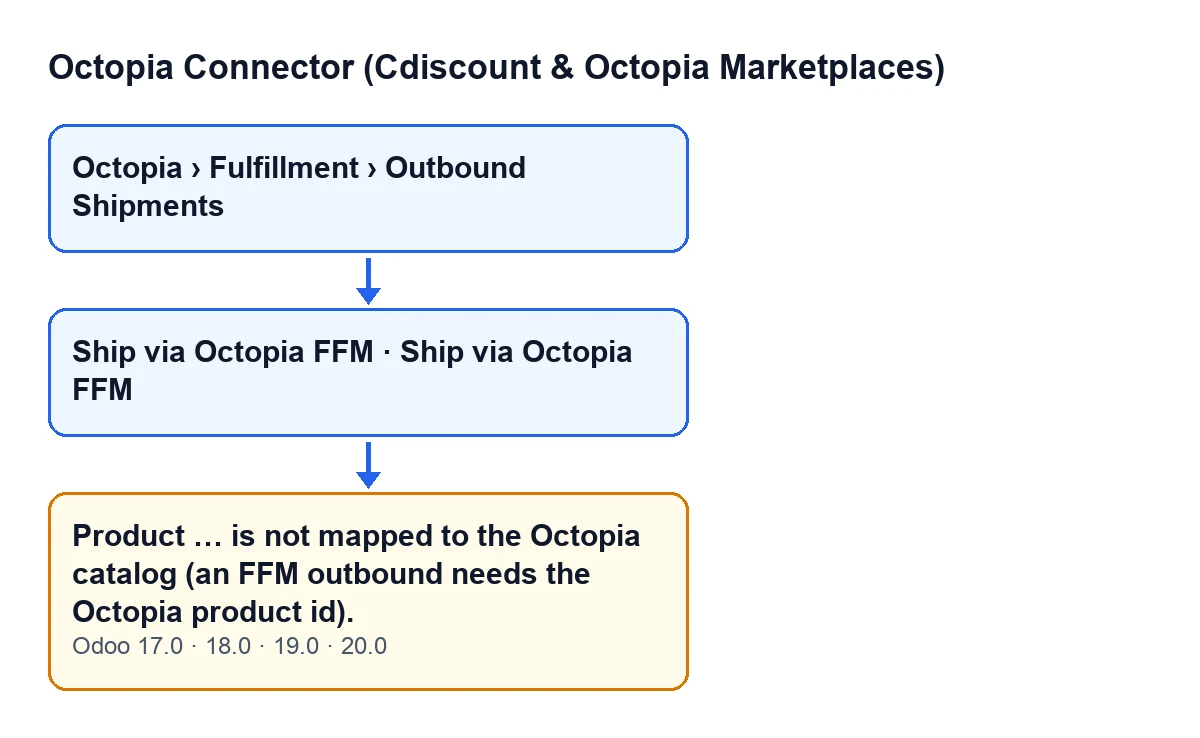
When you press Ship via Octopia FFM on a sales order, Odoo asks for confirmation with the text Inject this order into Octopia Fulfillment? The FFM warehouse will pick, pack and ship it. That button is the one that can end in this error:
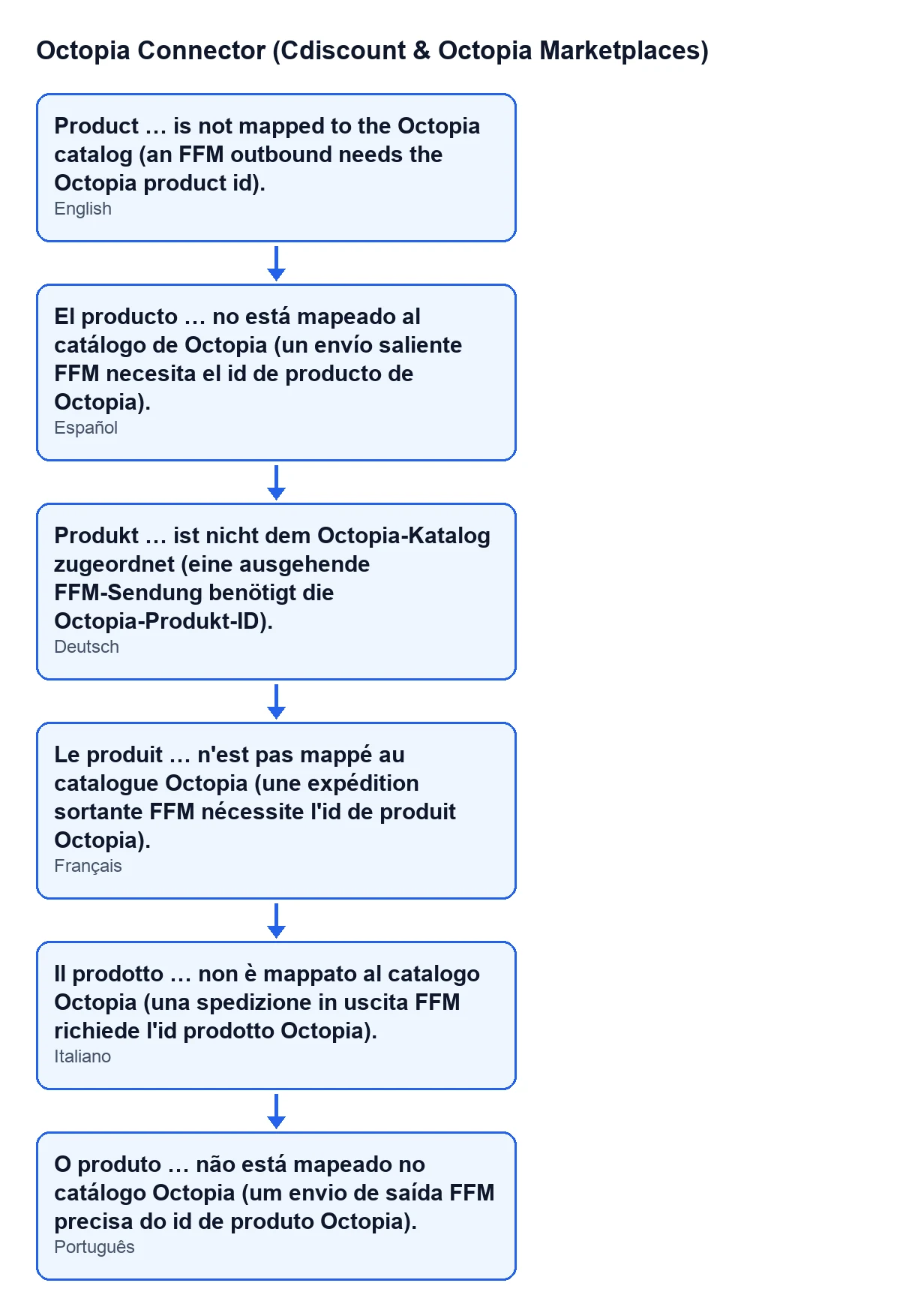
Product … is not mapped to the Octopia catalog (an FFM outbound needs the Octopia product id).
The ellipsis is replaced by the product's name. The condition in the code, in plain words: the module goes through the order lines that are not services and, for each one, looks in the account's Octopia catalogue for a record of that product. If it finds none, it raises the message and the action stops.
The message is in the published code of Odoo 17, 18, 19 and 20. The detail of the checks below is the one in the Odoo 20 code.
With Odoo in Spanish the text reads as in the Spanish version of this article; the module also ships its translation into German, French, Italian and Portuguese.

Details of the check that the form does not show
The gap in the message is the product name
What replaces the ellipsis is the name Odoo displays for the line's product. It is your clue to which order line to look at.
Service lines are not checked
The module only looks at lines whose product is not of the service type. Service lines are neither checked against the catalogue nor included in the shipment, so this message will never name a product of that type.
The catalogue is checked account by account
The search asks for two things at once: the Octopia account the order ships with and the line's product. A product being in the catalogue of another Octopia account does not count for this one.
It stops at the first unmapped product
The module goes through the lines in order and stops at the first one it cannot find. If the order has several unmapped products, you will see them one at a time: once you fix one, the next may appear.
Before the lines, the module looks at the company
This is not the method's first check: before going through the lines, the module requires the order to belong to the same company as the Octopia account it ships with. Only if that passes does it reach the product lookup in the catalogue.
When it appears, nothing is created
The error stops the action and nothing it was about to do is saved. The outbound shipment record is created later, after the request to Octopia has been prepared and sent, so that attempt leaves no new record. Records open from Octopia › Fulfillment › Outbound Shipments; you only see the Octopia branch if you have the Octopia User permission.
The check asks for the record, not the id
The message talks about the Octopia product id, but what the code requires is that the product's record exists in that account's catalogue. If the record exists, the shipment line carries the seller product reference stored on it and the quantity ordered on the order line; if the record also has an Octopia product id, it is added to the line.
The button only shows on confirmed orders
In Odoo 17, 18, 19 and 20, Ship via Octopia FFM is hidden when the order is neither in the Sales Order state nor in the one other state the view condition allows. If you cannot see the button, the order is not in one of those states, so you cannot reach this message from there either.
How to fix it
- Read the product name in the message.
- Find that line on the sales order.
- Check that the product is in the Octopia catalogue of the account you ship the order with. Being in another account's catalogue is not enough.
- Press
Ship via Octopia FFMagain and accept the confirmation. If another product name comes up, repeat from the first step. - Once the shipment goes through, check in
Octopia › Fulfillment › Outbound Shipmentsthat there is a new record for that order.
Passing this check does not mean the shipment is done: the method goes on with other checks on the order before sending it to Octopia. Only when they all pass does the module send the request and create the outbound shipment record with the order's reference.
How FlexigoTech can help
The module is published on Odoo Apps for Odoo 17, 18, 19 and 20. If you are implementing Odoo and want to review how your catalogue is organised before shipping orders through Octopia, FlexigoTech implements Odoo 17, 18, 19 and 20 and builds custom connectors and integrations.
If you also want to understand what else the module adds to sales orders, get in touch and we can look at it on your own installation.
Keep reading
Checked in the connector's source code (version 20.0) and the linked sources
Sources
- Module source code: flexigobe_octopia_connector 20.0 (4848da6a): models/octopia_fulfillment.py
- Module source code: flexigobe_octopia_connector 20.0 (4848da6a): views/octopia_fulfillment_views.xml
- apps.odoo.com/apps/modules/20.0/flexigobe_octopia_connector
- flexigotech.com/en/services.html