

 Español
 Català
 Deutsch
 Français
 Português
 Italiano
 Nederlands
 Polski
Exactly when it appears
The full message is Missing Amazon Order ID on the return line. and it stops the action you have just launched. The condition in the code is that the Amazon Order ID field of the return line is empty.
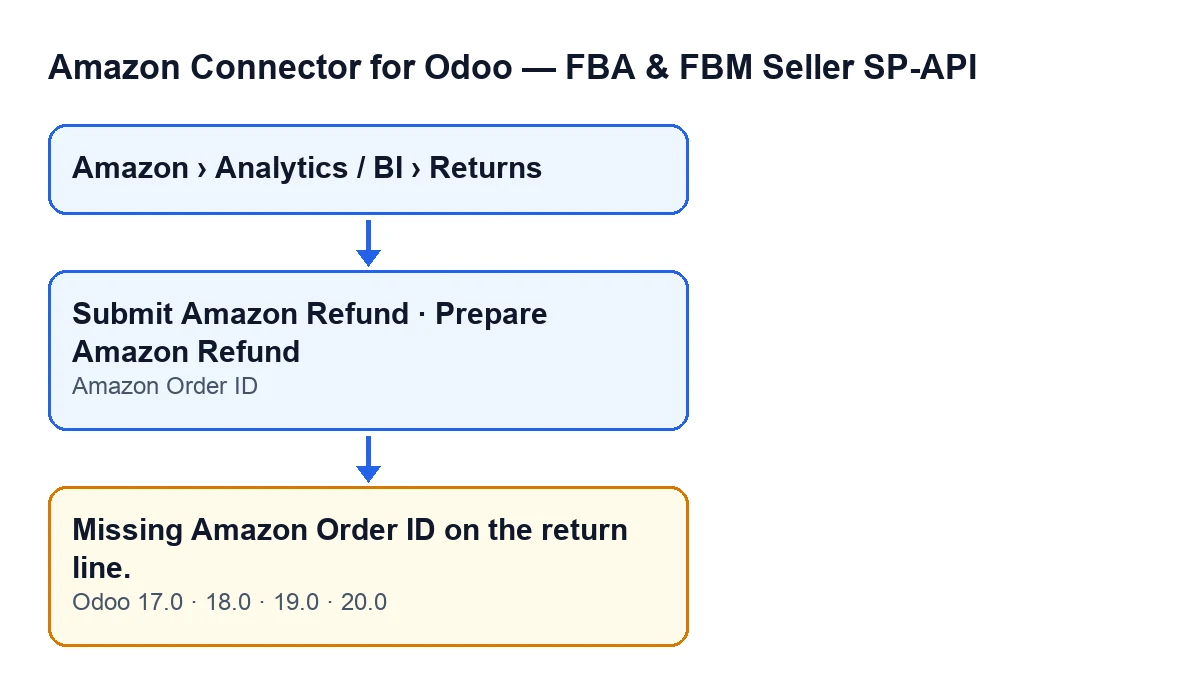
It can appear when you press either of these buttons in the return line view: Submit Amazon Refund or Prepare Amazon Refund. Both reach the same check, so the error text is identical whichever one you use.

Where to look in Odoo
Return lines open from the menu Amazon › Analytics / BI › Returns. Each step of the menu asks for the Viewer permission: if you lack it on one of them, you do not see that step. Once inside, the Amazon Order ID field appears on the Returns (BI) form and also in the Returns (BI) list, so from the list you can review which lines have it empty.
It also helps to know which button you have in front of you, because they are not shown under the same conditions (the same in Odoo 17, 18, 19 and 20):
| Button | When it is visible |
|---|---|
Prepare Amazon Refund | With the default values it is visible. It is hidden when the Amazon Refund Processing Status field shows that the refund is already done, submitted, queued or in progress. |
Submit Amazon Refund | It is hidden while the Amazon Refund Submission Ready field is not active. That field does not appear in any view. |
The text of the message does not depend on the button: if the order ID is empty, either one gives you the same message.
What it means
It means the return line has not been told which Amazon order it belongs to. The check happens before the module asks Amazon for the order's items, which is why the action stops there.
According to the Odoo 20 code, the order ID is what the module uses next to ask Amazon for the items of that order and work out which one the return refers to: if the line carries an order item ID typed in by hand, it looks for it among the items; if not, it compares the line's SKU and ASIN with those of each item; and if the order has only one item, it uses that one. With the order ID empty, none of that even starts.
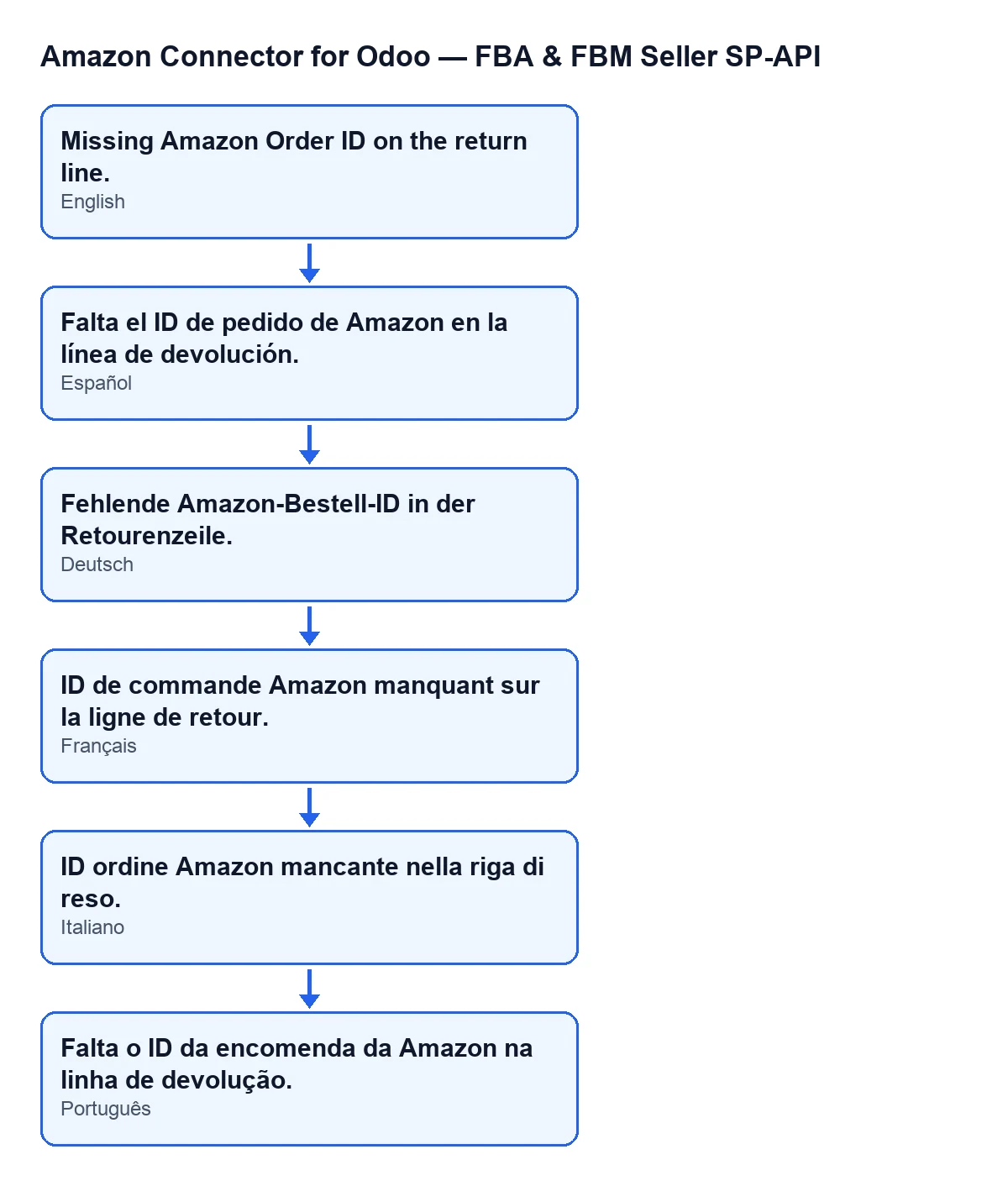
Missing Amazon Order ID on the return line. In Spanish: Missing Amazon Order ID on the return line. In German: Fehlende Amazon-Bestell-ID in der Retourenzeile. In French: ID de commande Amazon manquant sur la ligne de retour. In Italian: ID ordine Amazon mancante nella riga di reso. In Portuguese: Falta o ID da encomenda da Amazon na linha de devolução.Checklist to resolve it
Before pressing the button
- Go to
Amazon › Analytics / BI › Returnsand open the return line. If a step of the menu is missing, you lack theViewerpermission on it. - On the
Returns (BI)form or list, look at theAmazon Order IDfield: does it have a value? - Note which refund button you see (
Prepare Amazon RefundorSubmit Amazon Refund), which one you pressed and on which line, so you can repeat the same action afterwards.
When the message appears
- Compare the text with
Missing Amazon Order ID on the return line., complete and with the final full stop. - Confirm that the
Amazon Order IDfield on that line is empty: that is the condition that raises this message. - Enter in that field the Amazon order ID the return line belongs to.
After fixing it
- Press the same button again on the same line.
- If a different message appears, this check has been passed: read that text in full.
- If
Prepare Amazon Refundstops showing, remember its condition: it is hidden when the refund processing status shows it is done, submitted, queued or in progress. - If you cannot see
Submit Amazon Refund, remember that it is hidden while theAmazon Refund Submission Readyfield is not active, and that field is not shown in any view.
Versions
The message is in the published code of Odoo 17, 18, 19 and 20, and the module is published on Odoo Apps for those same versions. The visibility conditions of the two buttons are the same in all four. The description of what the module does after the check comes from the Odoo 20 code.
If you need help with the connector
FlexigoTech implements Odoo 17, 18, 19 and 20 and builds custom connectors and integrations. If you are setting up this connector and want to review the returns flow with someone who knows the module, see the module page or the listing on Odoo Apps.
Keep reading
Checked in the connector's source code (version 20.0) and the linked sources
Sources
- Module source code: flexigobe_amazon_seller_connector 20.0 (8576afa5): models/amazon_spapi_return_line.py
- Module source code: flexigobe_amazon_seller_connector 20.0 (8576afa5): views/amazon_spapi_return_line_views.xml
- apps.odoo.com/apps/modules/20.0/flexigobe_amazon_seller_connector
- flexigotech.com/en/services.html