

 Español
 Català
 Deutsch
 Français
 Português
 Italiano
 Nederlands
 Polski
What the message says and what it means
When you press Refund in Mirakl on an order, Odoo stops and shows this text:
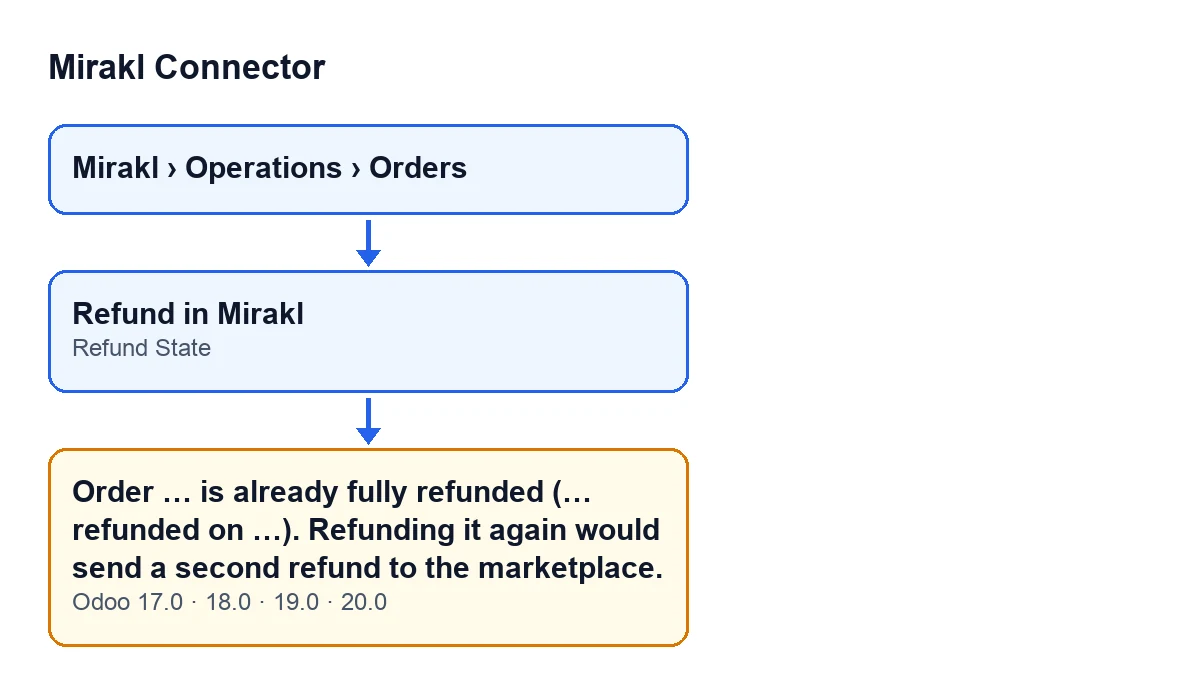
Order … is already fully refunded (… refunded on …). Refunding it again would send a second refund to the marketplace.
The gaps are filled with three pieces of data. The first is the order name or, if it has none, its Mirakl identifier. The second is the amount already refunded. The third is the refund date, or a hyphen - if none is stored.
The meaning is straightforward: the order is recorded as fully refunded and the module will not send the refund again. It is an error that stops the action, so whatever that click was going to change is not saved.
The message is in the published code of every branch: Odoo 17, 18, 19 and 20.

Exactly when it appears
There is a single condition: the order's Refund State is Refunded. That field is visible on the Mirakl Orders form, in the Refund group, and also in the list under the same menu. Its values are Pending, Refunded, Partial, Error and Not Requested, which is the default. With any of the others the check does not trigger.
The Refund in Mirakl button is always visible in Odoo 17, 18, 19 and 20, including when the order is already refunded. The message is what stops the second click.
In Odoo 20.0 the button's method works in this order: first it checks that your user belongs to the Mirakl Manager group; then, order by order, it looks at whether the state is Refunded and, if so, raises the message. Only if it is not does it send the refund.
The code explains why the guard exists: a refund is money and the call to Mirakl is not idempotent. Without the check, a second click would have resent a full refund, because when the order carries no requested amount the module uses the order total.
How to resolve it, step by step
- Open
Mirakl › Operations › Ordersand go into the order named in the message. Its name, or identifier, is the first gap. - Look at
Refund Statein theRefundgroup of the form. If it saysRefunded, the message is the expected one: it is exactly the condition that raises it. - Compare the amount and date in the message with the refund you thought you had made.
- If they match, do not press again. The order is already recorded as fully refunded, and repeating it would send a second refund to the marketplace.
- If they do not match, your click has sent nothing new: the message stops the action. Review that refund before doing anything else.
- For other orders, check the state in the
Mirakl Orderslist before pressing the button: it is shown there too.
If the state is Pending, Partial, Error or Not Requested, this message will not stop you: the check only looks at whether the state is Refunded.
What happens when the message does not appear
With the order in any other state, the Odoo 20.0 method sends the refund to Mirakl through the order's instance. The amount is the one requested on the order and, if there is none, the order total. The fields of that instance are explained in The Mirakl Instance fields.
If the send succeeds, the module stores the state Refunded, or Partial if the amount sent is lower than the order total, together with the amount and the date. Those are the data this message later shows you.
If the send fails, Odoo shows you the error and the refund is not marked as done. The same applies if it is FlexigoTech Cloud that does not let the send through: the order is not marked as refunded. The connection to Mirakl goes through that service, which keeps the credentials encrypted and watches the synchronisation.
What to check afterwards
Once you have checked an order, go back to the Mirakl Orders list and look at the Refund State of the others: that field is in the list too. That way, before pressing Refund in Mirakl, you know whether the message will appear or whether the module will send the refund.
Remember that the button does not change or disappear when the order is already refunded: it is always visible, and what stops it is the message. If a different message appears when you press it, it is not this one: this one only appears with the state Refunded.
How FlexigoTech can help
FlexigoTech implements Odoo 17, 18, 19 and 20 and builds custom connectors and integrations. If you want to review how the refund flow looks in your Odoo, get in touch from the module page or see its Odoo Apps listing.
Keep reading
Checked in the connector's source code (version 20.0) and the linked sources
Sources
- Module source code: flexigobe_mirakl_connector 20.0 (aa05e537): models/mirakl_order.py
- Module source code: flexigobe_mirakl_connector 20.0 (aa05e537): views/mirakl_order_views.xml
- flexigotech.com/en/services.html
- flexigotech.com/precios.html