

 Español
 Català
 Deutsch
 Français
 Português
 Italiano
 Nederlands
 Polski
What changes on the invoice once the module is installed
Mirakl Connector extends the invoice of Odoo's standard Invoicing app with one button and several fields: the Send to Mirakl button, and the read-only fields Sent to Mirakl on and Mirakl order. The module is published on Odoo Apps for Odoo 17, 18, 19 and 20, and the condition that decides when the button is visible is the same in all four versions.
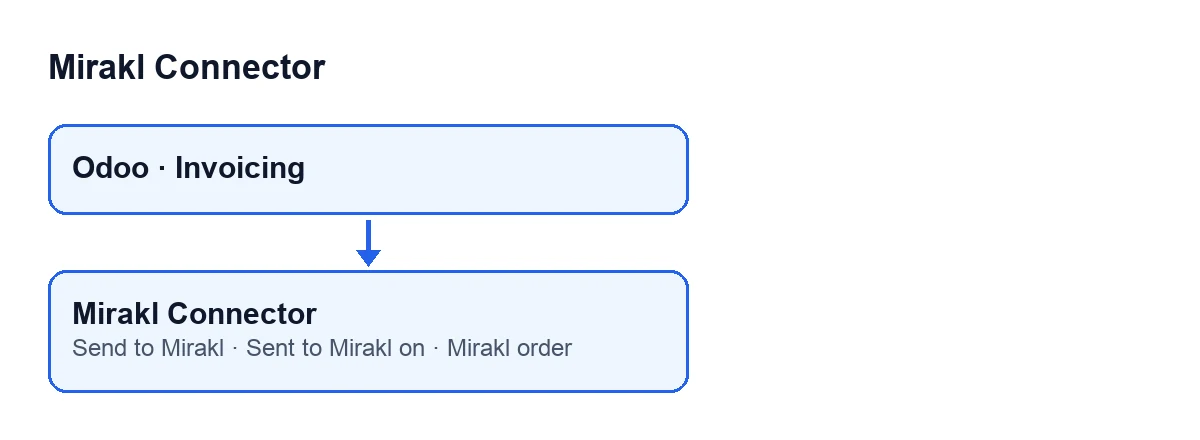
Everything revolves around one idea: a customer invoice whose lines come from a sale order linked to a Mirakl order. The module looks through the sale orders behind the invoice lines for the first one linked to Mirakl, and it only does so for invoices of type Customer Invoice. From that order it takes the Mirakl instance to talk to and the order's identifier in Mirakl.

Comparison: automatic upload or the button
The invoice can reach Mirakl automatically, when the delivery is validated and the instance is set up for it, or by hand with the button. Both go through the same upload routine.
| Automatic upload | Send to Mirakl button | |
|---|---|---|
| Who triggers it | Odoo, when a delivery is validated | You, from the invoice |
| When it acts | When the instance has invoice sending set to automatic, the delivery has no invoice upload date yet and the instance is not paused | When the button is visible: invoice of type Customer Invoice, in state Posted and flagged as a Mirakl invoice |
| If it was already sent | Only acts if the delivery still has no such date | Does not check: it uploads the invoice and replaces the order's previous document |
| What it leaves on the invoice | The upload routine fills in Sent to Mirakl on | The same, plus a note on the invoice with the result |
Reading the table
The automatic path hangs off the standard validate button of the delivery, which the module extends.
The button uploads the invoice by hand. It does not look at whether the delivery already has an upload date: it starts the upload and replaces the order's previous document, even if the invoice had already been sent. That replacement is best effort: Mirakl is first asked for the order's documents of the same type and they are deleted, and if the Mirakl operator does not allow listing or deleting documents, the previous one stays.
The fields, one by one
| Field | Where it is | When it is hidden |
|---|---|---|
Sent to Mirakl on | Invoice form, read-only | When the invoice is not a Mirakl invoice |
Mirakl order | Invoice form, read-only | When the invoice is not a Mirakl invoice |
Mirakl invoice | Not shown in any view | Not applicable: it is the condition the other fields and the button depend on |
The help text of Sent to Mirakl on reads: Date/time this invoice PDF was last uploaded to the Mirakl marketplace. So if the invoice is sent again, the date reflects the latest upload. The module fills it in after uploading the PDF.
The button, step by step
The Send to Mirakl button only appears when all of these hold: the invoice is of type Customer Invoice, it is flagged as a Mirakl invoice (the Mirakl invoice field, which is not shown) and its state is Posted. In Odoo 20.0, when pressed, it does this, in order:
- It looks for the Mirakl sale order behind the invoice lines and takes the instance from it. If there is no instance, it stops.
- It generates the PDF with the invoice report set on the instance or, if the instance has none, with Odoo's standard invoices report.
- It asks Mirakl for the order's documents of the same type and deletes any it finds, so the previous one is replaced rather than duplicated.
- It uploads the PDF to the Mirakl order, with a file name taken from the invoice number (ASCII characters only, ending in
.pdf) and the document type the instance specifies; if it specifies none, the customer invoice type. - It fills in
Sent to Mirakl onand leaves a note on the invoice,Invoice sent to Mirakl (…)., with the Mirakl order identifier where the dots are.
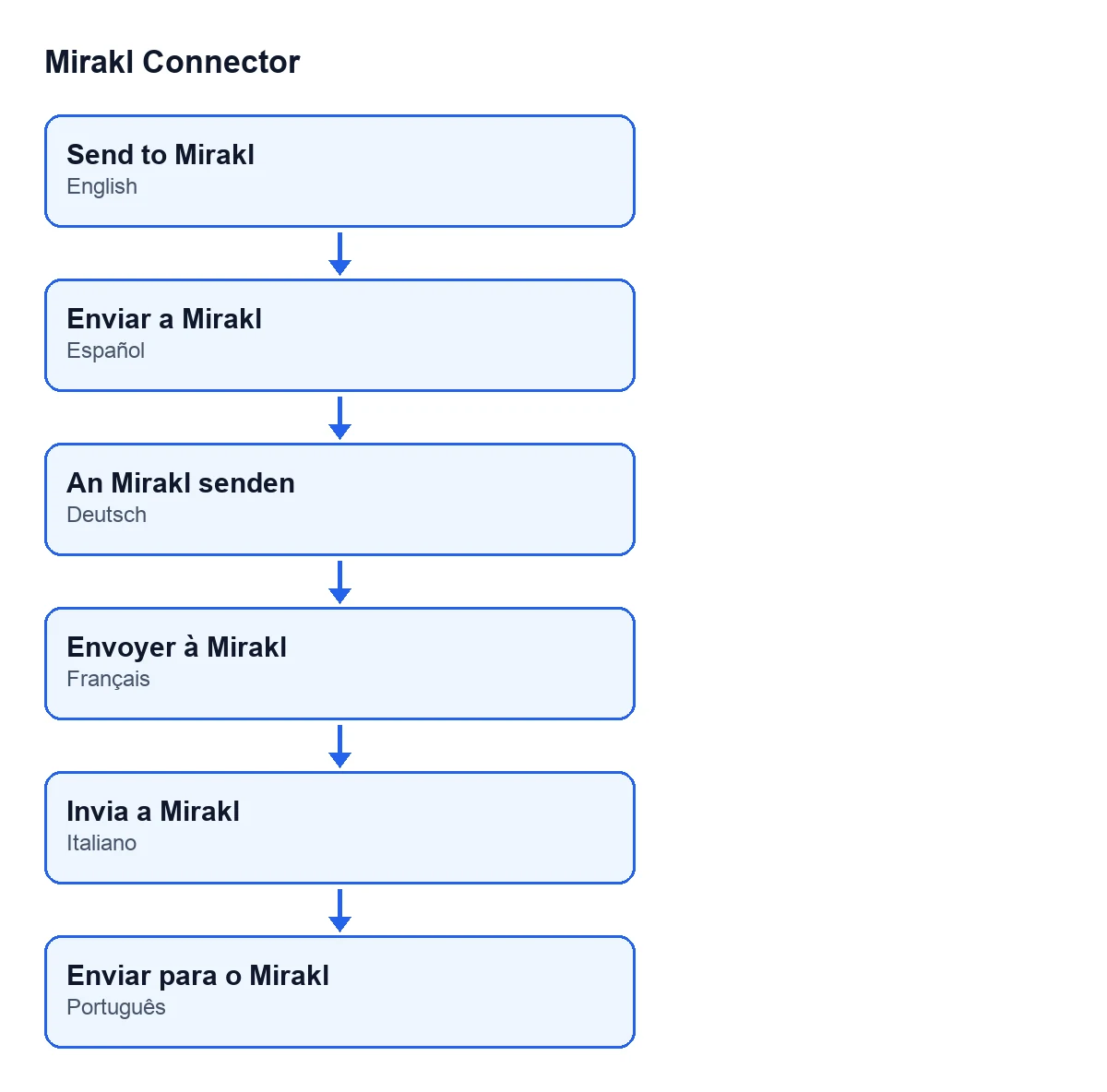
With Odoo in English the button is called Send to Mirakl; in Spanish, Enviar a Mirakl; in German, An Mirakl senden; in French, Envoyer à Mirakl; in Italian, Invia a Mirakl; in Portuguese, Enviar para o Mirakl.
What happens when it fails
If the module finds no Mirakl instance behind the invoice, pressing Send to Mirakl stops with This invoice is not linked to a Mirakl order. Check that the invoice lines come from a sale order linked to a Mirakl order.
If the upload fails for any other reason, the module leaves a note on the invoice, Mirakl invoice send failed: …, with the reason where the dots are, and shows the error again. If FlexigoTech Cloud does not let the call through (because there is no subscription or the service is paused), the error is shown again too, but in that case nothing is marked.
Cost and help
The module is a one-off payment per Odoo version and needs the FlexigoTech Cloud subscription, Connector plan: €49 a month or €490 a year, excluding VAT. Without a subscription, or with the service suspended, what the subscription provides stops and your data stays in your Odoo. You can see the module on its page or on the Odoo Apps listing.
If you are implementing Odoo and want the invoices for your Mirakl orders to go out with the report and workflow you use, FlexigoTech implements Odoo 17, 18, 19 and 20 and builds custom connectors and integrations.
Keep reading
Checked in the connector's source code (version 20.0) and the linked sources
Sources
- Module source code: flexigobe_mirakl_connector 20.0 (aa05e537): models/account_move.py
- Module source code: flexigobe_mirakl_connector 20.0 (aa05e537): views/account_move_views.xml
- Module source code: flexigobe_mirakl_connector 20.0 (aa05e537): models/mirakl_instance.py
- apps.odoo.com/apps/modules/20.0/flexigobe_mirakl_connector
- flexigotech.com/en/services.html
- flexigotech.com/precios.html