

 Español
 Català
 Deutsch
 Français
 Português
 Italiano
 Nederlands
 Polski
The normal route and where the button is
Do I have to press the button to get an AI report?
Not necessarily. The module ships a scheduled task, Amazon AI - Weekly digest, which runs every week and is active as soon as the module is installed. It goes through the active accounts (by default, up to 100) and generates one report per account with the same method the button uses. That makes Generate AI Report the exception: it is for asking for a report by hand, without waiting for the task.
Where is the button and when does it show?
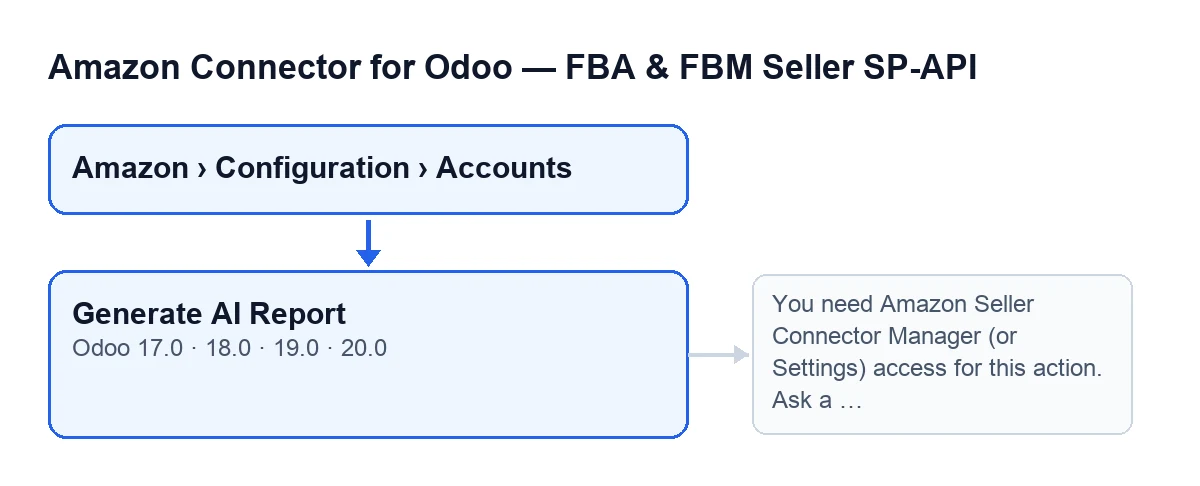
It is on the Accounts screen, which opens from the menu Amazon › Configuration › Accounts. Getting there takes permissions: the Amazon level asks for Viewer, and the Configuration and Accounts levels ask for Manager; if you lack the permission for a level, you do not see it. The button has no view condition: it is always visible, in Odoo 17, 18, 19 and 20. Seeing it does not mean you can use it, as the next section explains.

What it checks and what it does when pressed
What does the button check first?
Permissions, and it does so on the server: it does not depend on the button being visible on screen. Unless the action runs with superuser privileges, the person pressing it must belong to the Amazon connector managers group or to the Settings group. If not, the action stops with the message You need Amazon Seller Connector Manager (or Settings) access for this action. Ask a manager to grant Manager access. and no report is created. It then also checks that you have write permission on that account. The fix is the one the message gives: ask a manager to grant you Manager access.
What does it do once you have permission?
In the Odoo 20 code, the button asks the reports model to generate the weekly report for that account, and it does so in this order. First it checks whether AI is disabled: if it is, it creates the report without calling the AI API. Otherwise it prepares the account's data sheet. Then it checks whether the account's monthly cost limit has been reached: if so, it creates the report with the source data and the body already filled in, again without calling the API. If neither of those applies, it prepares the instructions for the AI and the report language. When it finishes, it opens the form of the report returned.
What happens if AI is disabled or the cost limit has been reached?
There is no error. The method itself explains that a disabled AI, a missing key, a refusal, the cost limit or an outage all produce a friendly report instead of an exception. With AI disabled, the report carries the note AI disabled in Settings. With the cost limit reached, the note is The monthly AI cost limit has been reached. and the source data is stored as well. In both cases the report is created without calling the API, and each press creates a new report.
What does the module ask the AI to do?
The instructions ask it to answer only from the data it is given, without inventing figures or SKUs, and to say so clearly when there is not enough data. They ask for an analysis of the urgent replenishment SKUs, a review of the best sellers with their cover and trend, a flag on SKUs holding FBA stock that are not selling and, only if they exist, the account alerts. They also ask that a low-confidence forecast be presented with that warning, never as certainty. The requested output is a markdown summary and a list of actions, one per relevant SKU.
What you see afterwards and what happens when it fails
What do I see when it finishes?
The form of the report opens in the same window. When AI is disabled or the cost limit has been reached, the report's title begins with AI Report and is followed by the account name. The account name is the Name field, which you see on the Accounts form, Identity tab, Account group, and also in the Accounts list.
What happens if the weekly task fails on one account?
Each account is processed inside its own protected block, so a failure stops neither the other accounts nor the task. The module leaves a warning in the server log and tries to store a report titled AI Report (error) with a note starting Unexpected error: …. If even that cannot be stored, the failure stays only in the server log.
In which language does the report come out, and in which versions is the button?
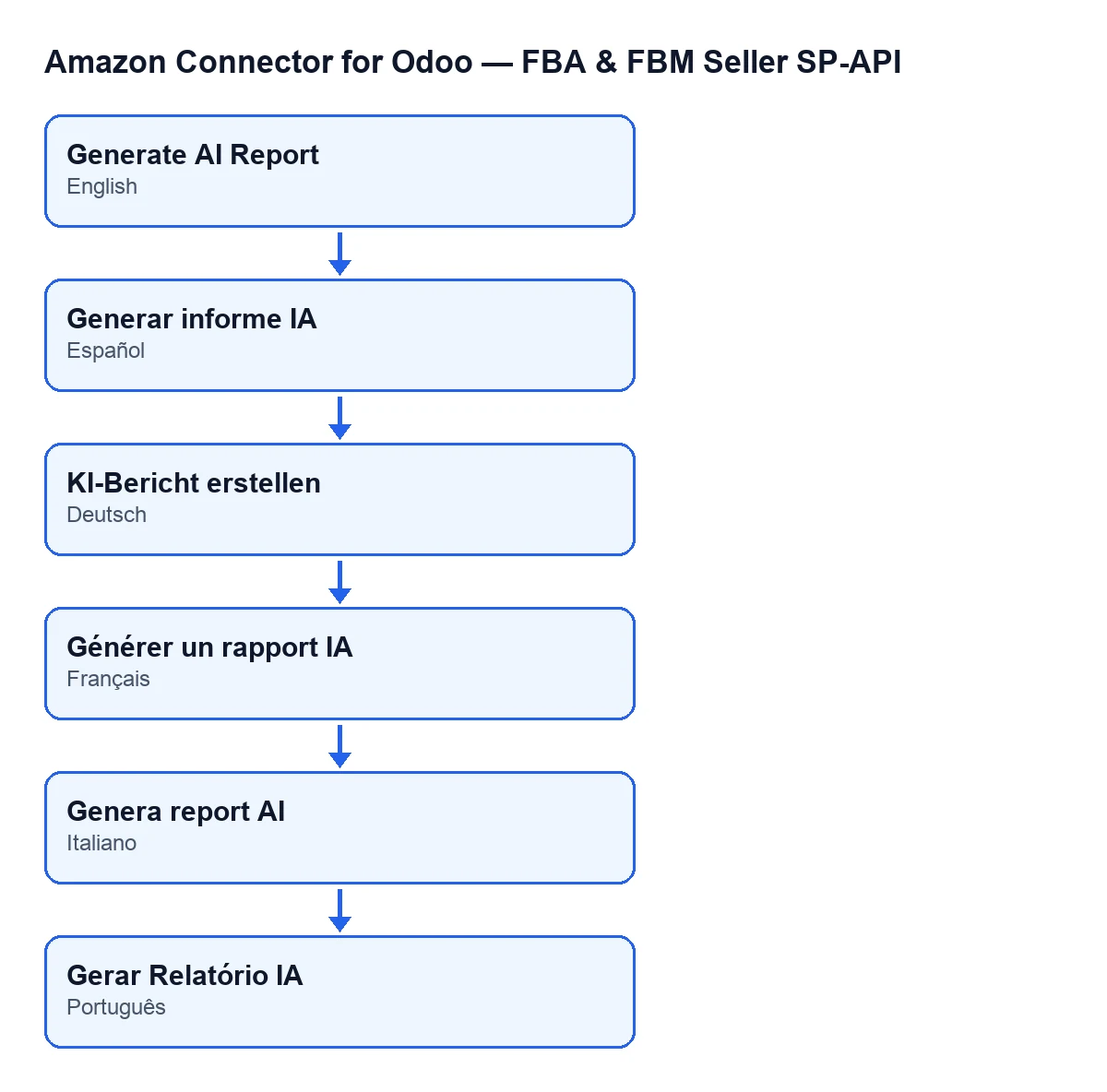
According to the code comment, the instructions to the AI are in Spanish but the output language follows the seller's Odoo language. The code takes the language of the account's company contact and, if it has none, the user's or the session's; if there is none of those, English. The button exists in branches 17, 18, 19 and 20, and the module is published on Odoo Apps for those same versions. The label changes with your Odoo language: with Odoo in English it is Generate AI Report.
If you need help with the connector
FlexigoTech implements Odoo 17, 18, 19 and 20 and builds bespoke connectors and integrations. If you want to review who should have manager access or adjust what the connector does with your accounts, see the Odoo Apps listing or the module page.
Keep reading
Checked in the connector's source code (version 20.0) and the linked sources
Sources
- Module source code: flexigobe_amazon_seller_connector 20.0 (88c7e241): views/amazon_spapi_account_views.xml
- Module source code: flexigobe_amazon_seller_connector 20.0 (88c7e241): models/amazon_spapi_account.py
- Module source code: flexigobe_amazon_seller_connector 20.0 (88c7e241): models/amazon_ai_insight.py
- apps.odoo.com/apps/modules/20.0/flexigobe_amazon_seller_connector
- flexigotech.com/en/services.html