

 Español
 Català
 Deutsch
 Français
 Português
 Italiano
 Nederlands
 Polski
What the notice means
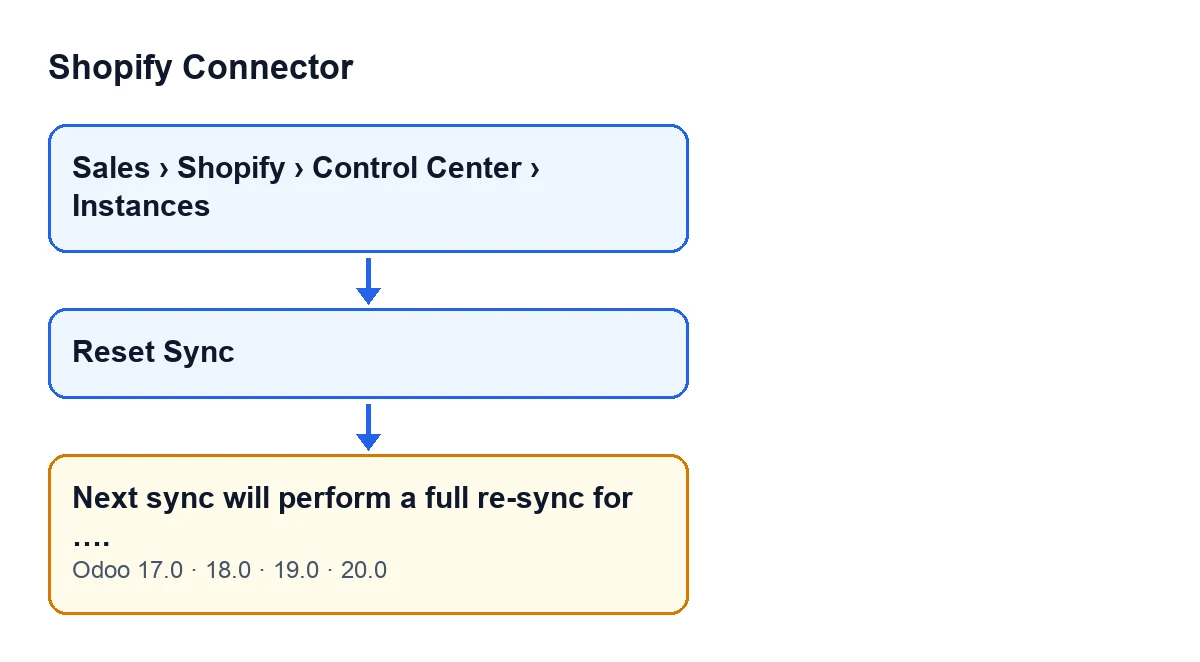
When you press Reset Sync on an instance, Odoo shows a warning-type notification. Its title is Sync Timestamps Cleared and its text is Next sync will perform a full re-sync for ….. Where the message has the ellipsis, the module writes the domain of that instance's Shopify shop.
It is not an error and it does not block anything: the notification does not stay pinned on screen. By the time you read it, the module has already emptied the marks of the last sync: what the notice announces is what the next sync will do.

When exactly it appears
The notice comes from the method behind the Reset Sync button on the instance form. That method does two things, in this order: first it writes values on the instance, then it returns the notification. There is no check between the two in its code, so the condition for seeing the notice is pressing the button.
The button is always visible on the instance form, in Odoo 17, 18, 19 and 20.
These are the values the method writes on the instance before showing the notice:
- It clears the mark of the last orders sync.
- It clears the mark of the last products sync.
- It clears the mark of the last stock push.
- It resets the counter of consecutive sync errors to zero.
- It clears the last sync error.
The method writes nothing else on the instance and shows no other text.
Step by step: trigger the notice and read it properly
- Open the menu
Sales › Shopify › Control Center › Instancesand go into the form of the instance for the shop you are interested in. - Press
Reset Sync. It is visible without conditions, so you do not need to switch anything on first. - Read the notification: the title
Sync Timestamps Clearedconfirms that the marks have already been emptied, and the textNext sync will perform a full re-sync for ….tells you for which shop. - Check that the domain shown in place of the ellipsis is the one for the shop you meant to reset. If you pressed the button on the wrong instance, go to the right form and repeat the previous step there.
- Wait for the next sync of that instance: according to the notice, that is the one that will be full.
- If you want to ask for a full sync again, press
Reset Synconce more: the method empties the same marks again and shows the same notice.
The same notice in other Odoo languages
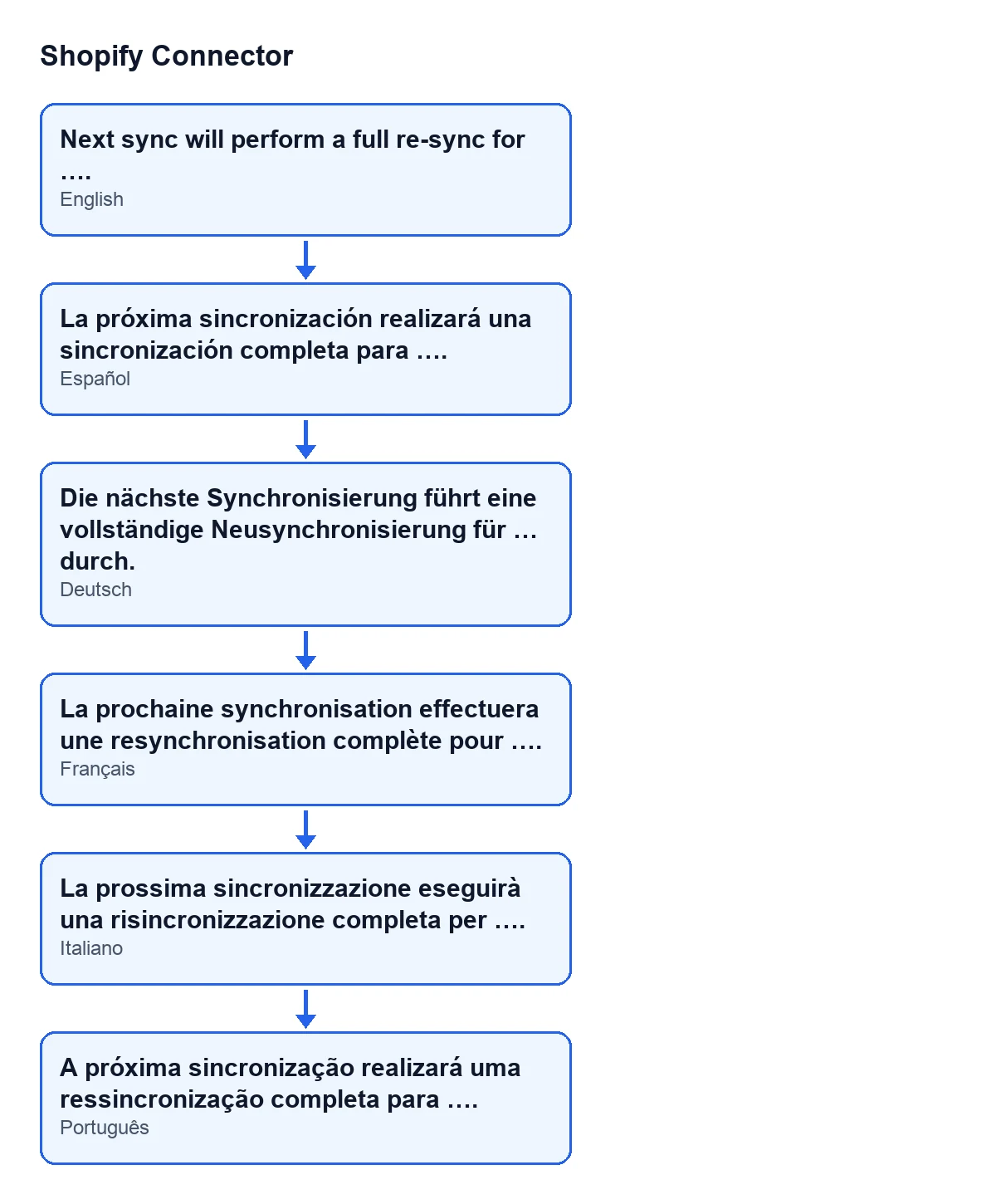
With Odoo in German, the notice is Die nächste Synchronisierung führt eine vollständige Neusynchronisierung für … durch.; in French, La prochaine synchronisation effectuera une resynchronisation complète pour ….; in Italian, La prossima sincronizzazione eseguirà una risincronizzazione completa per ….; in Portuguese, A próxima sincronização realizará uma ressincronização completa para …. With Odoo in Spanish it reads Next sync will perform a full re-sync for …..
Specific questions about the notice
Is it an error I have to fix?
No. It is a warning notification that does not block anything. It appears after you press Reset Sync, and its title says the sync timestamps have been cleared.
Where is the button?
On the instance form, which opens from the menu Sales › Shopify › Control Center › Instances.
What appears in place of the ellipsis?
The domain of the Shopify shop of the instance on which you pressed the button.
Are orders or products deleted from Odoo?
The method only writes the values in the list above on the instance.
What happens to the error counter and the last error?
The counter of consecutive sync errors goes back to zero and the last sync error is emptied, at the same moment the marks are cleared.
Does it depend on the Odoo version?
The message is in the published code of all four branches: 17.0, 18.0, 19.0 and 20.0. The Reset Sync button is always visible in all of them.
What if I want to know what another button of the module does?
For another button of the module, see what Pull Stock does.
Cost and how FlexigoTech can help
Shopify Connector costs €9 per Odoo version, excluding VAT, for 17, 18, 19 and 20. It is a one-off payment per version. It also needs a FlexigoTech Cloud subscription: the Connector plan costs €49 a month or €490 a year, excluding VAT.
If you are implementing Odoo and want someone to review with you how the shop is connected, FlexigoTech implements Odoo 17, 18, 19 and 20 and builds custom connectors and integrations.
The module's page on Odoo Apps has the version you need.
Keep reading
Checked in the connector's source code (version 20.0) and the linked sources
Sources
- Module source code: flexigobe_shopify_connector 20.0 (c7078cd8): models/shopify_instance.py
- Module source code: flexigobe_shopify_connector 20.0 (c7078cd8): views/shopify_instance_views.xml
- Module source code: flexigobe_shopify_connector 20.0 (c7078cd8): models/fgt_cloud.py
- apps.odoo.com/apps/modules/20.0/flexigobe_shopify_connector
- apps.odoo.com/apps/modules/17.0/flexigobe_shopify_connector
- apps.odoo.com/apps/modules/18.0/flexigobe_shopify_connector
- apps.odoo.com/apps/modules/19.0/flexigobe_shopify_connector
- flexigotech.com/precios.html
- flexigotech.com/en/services.html