

 Español
 Català
 Deutsch
 Français
 Português
 Italiano
 Nederlands
 Polski
Where the button is and what it runs through
You will find it on the Shopify Orders form, opened from Sales › Shopify › Operations › Orders. The button exists on the 17.0, 18.0, 19.0 and 20.0 branches, and the condition to see it is the same on all four: it is hidden when the Sale Order field has a value, and with the default values, that is, empty, it shows. The code itself describes the button as the way to make by hand the sales order of an order that has none (it speaks of held orders: deleted, already done on Shopify…).
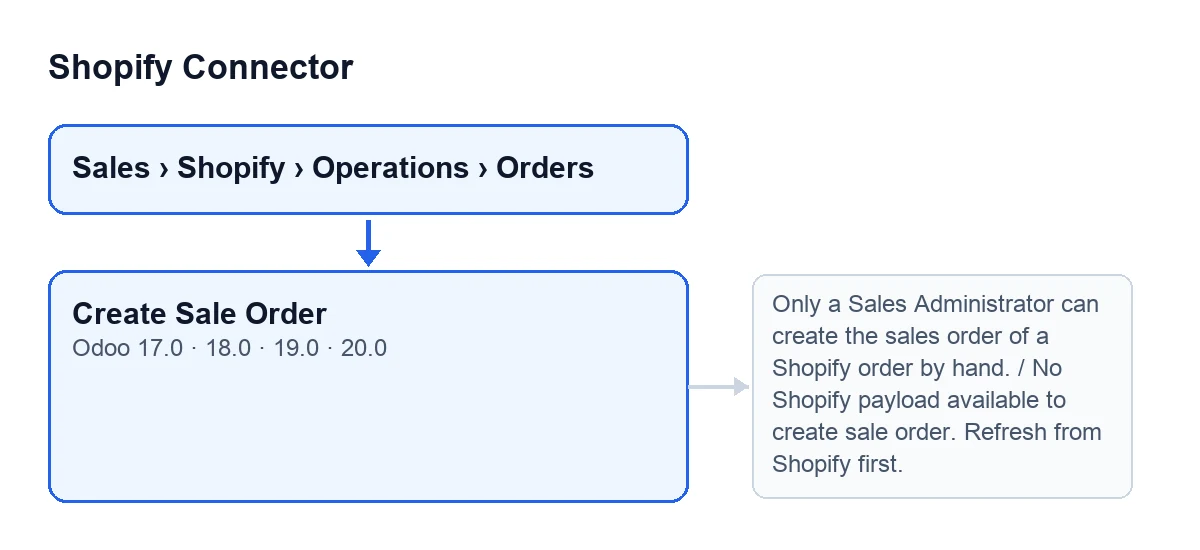
When you press it, Odoo asks for confirmation with this text: It is created as a quotation that the connector never confirms: check first that this order was not shipped already. Create it?. If you accept, in Odoo 20.0 the method does this, in this order:
- If the order already has a
Sale Order, it creates nothing: it opens that sales order. - It checks that whoever pressed the button is a Sales Administrator.
- It checks that the order has its Shopify data stored.
- It checks that the order's Shopify store is not archived.
- It removes the hold on the order and marks it as made by hand.
- It processes the stored Shopify data with a routine that updates the order's form and looks for the sales order already linked to it, or one in the same company carrying that Shopify order's reference.
- It re-reads the form: if
Sale Ordernow has a value, it opens that order; if not, nothing opens.
The checks come before any change: if one of them stops the action with a message, nothing the button was going to change is saved.

Wrong ideas about the button
It creates the order and confirms it
It is the other way round. According to the confirmation text, it is created as a quotation that the connector never confirms. The same notice asks you for something before you accept: check first that this order was not shipped already.
It shows on every Shopify order
It only shows while the Sale Order field is empty. As soon as the order has one, the button is hidden. And if the method were called anyway on an order that already has one, the first step of the code does not create another: it opens the existing one. To know whether an order has one, look at that field on the form or in the Shopify Orders list; it is read-only and filled in by the code, not by the user.
Any internal user can press it
The code checks that whoever uses it is a Sales Administrator. If they are not, the action stops with Only a Sales Administrator can create the sales order of a Shopify order by hand.. If you get it, that action has to be done by a Sales Administrator.
It builds the order from whatever Shopify has right now
The method starts from the Shopify data the order already has stored. If there is none, it stops with No Shopify payload available to create sale order. Refresh from Shopify first.. That data sits in the Technical tab of the Shopify Orders form, without a label: only its content shows, read-only, and only users with the system administration permission can see it. The message itself points the way: refresh from Shopify first.
It works with any store, whatever its state
If the order's Shopify store is archived, the button stops with Its Shopify store is archived: create the sales order from the store connected now.. The message points the way: create the sales order from the store that is connected now. The Instance field, visible on the form and in the Shopify Orders list, tells you which store each order belongs to.
What changes besides the quotation
The button does not only create the sales order. Before processing the data it removes the hold on the order and marks it as made by hand. And the routine that processes the stored data updates the Shopify order's form with what the data carries: amounts, dates, shipping address, tags and note, among others. You can see the result on the form and in the list: if the order ends up with a sales order, Sale Order will have a value and Odoo opens it; if not, nothing opens.
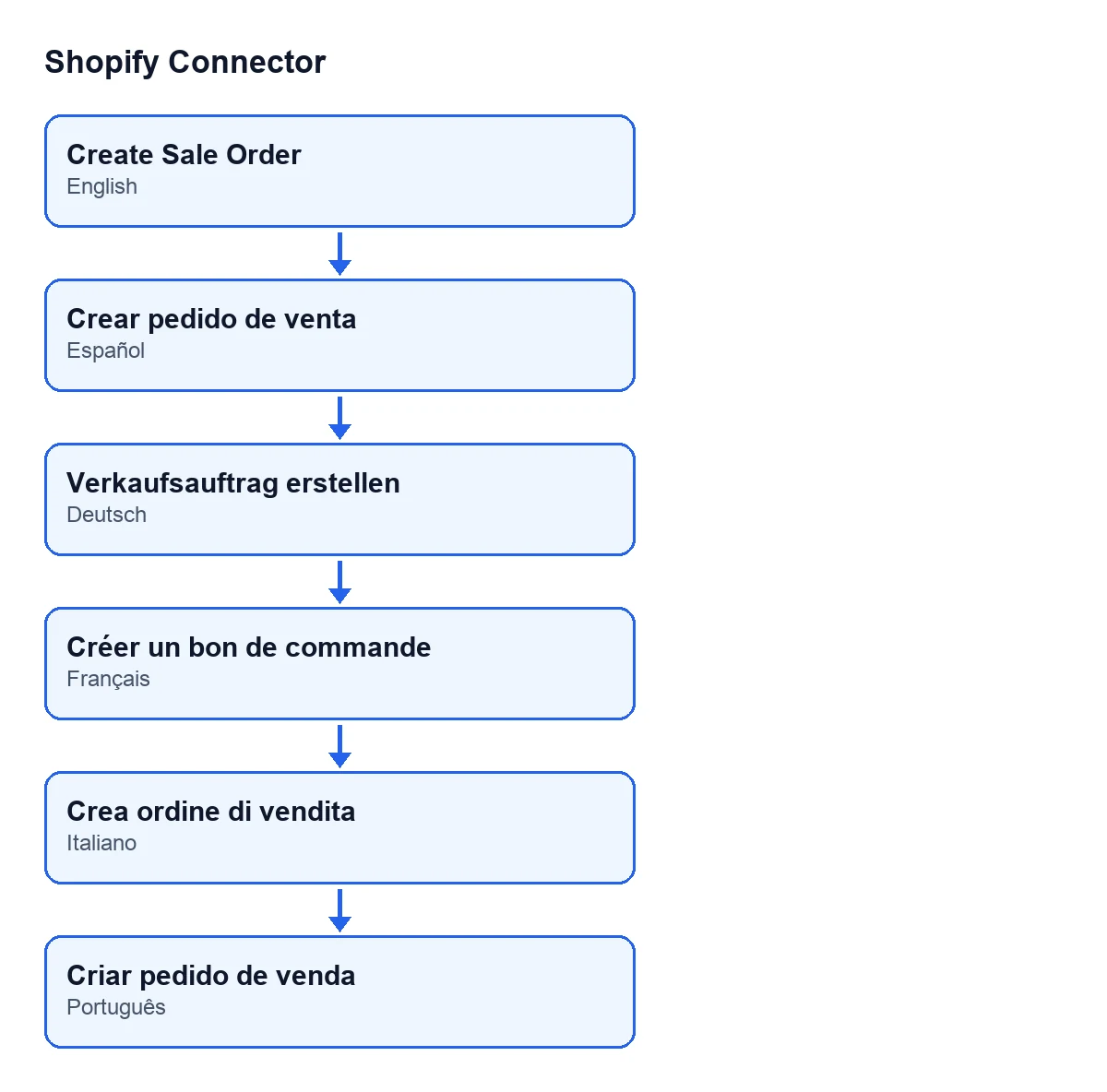
As for the button's name, with Odoo in English it is called Create Sale Order. In Spanish it is Create Sale Order, in German Verkaufsauftrag erstellen, in French Créer un bon de commande, in Italian Crea ordine di vendita and in Portuguese Criar pedido de venda.
If something does not work
Each message above says what to do: have a Sales Administrator carry out the action, refresh from Shopify first, or create the sales order from the store connected now.
How FlexigoTech can help
FlexigoTech implements Odoo 17, 18, 19 and 20 and builds custom connectors and integrations. If you want to review who should have the Sales Administrator role, or how held orders are handled before you use this button, we can go through it with you. The module costs €9 per Odoo version (17, 18, 19 and 20), one-off payment excluding VAT, on its Odoo Apps page, and it needs the FlexigoTech Cloud subscription: Connector plan, €49 a month or €490 a year excluding VAT.
Keep reading
Checked in the connector's source code (version 20.0) and the linked sources
Sources
- Module source code: flexigobe_shopify_connector 20.0 (c7078cd8): views/shopify_order_views.xml
- Module source code: flexigobe_shopify_connector 20.0 (c7078cd8): models/shopify_order.py
- apps.odoo.com/apps/modules/20.0/flexigobe_shopify_connector
- apps.odoo.com/apps/modules/17.0/flexigobe_shopify_connector
- apps.odoo.com/apps/modules/18.0/flexigobe_shopify_connector
- apps.odoo.com/apps/modules/19.0/flexigobe_shopify_connector
- flexigotech.com/en/services.html
- flexigotech.com/precios.html