

 Español
 Català
 Deutsch
 Français
 Português
 Italiano
 Nederlands
 Polski
Where the button is and who can reach it
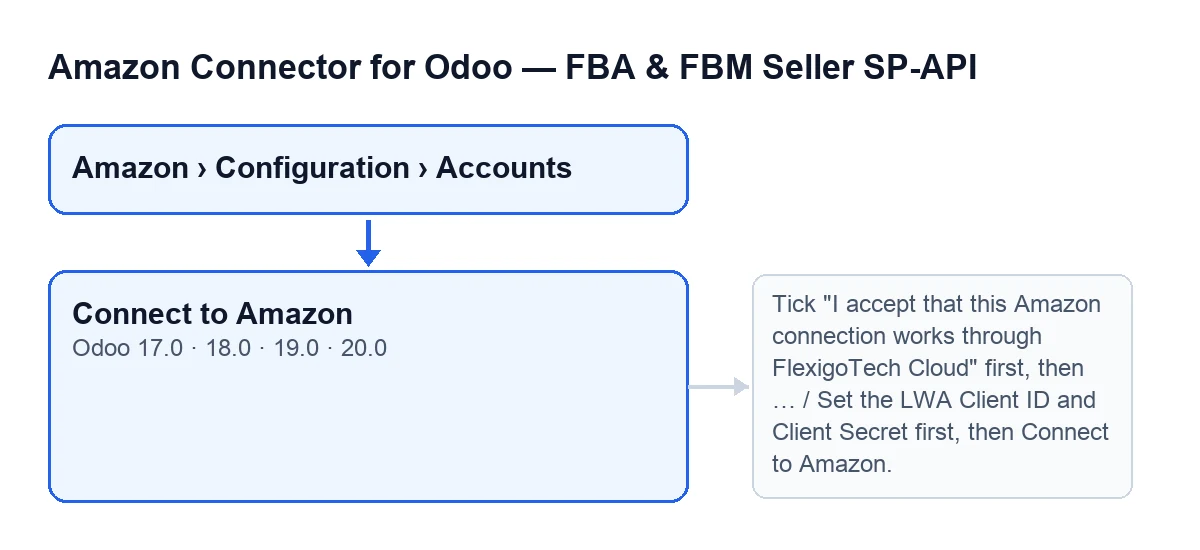
The Amazon account records open from the menu Amazon › Configuration › Accounts. Each part of the menu asks for a permission, and if you do not have it you do not see that part: Amazon asks for Viewer, while Configuration and Accounts ask for Manager. The Connect to Amazon button is on that screen, in the 17, 18, 19 and 20 branches of Odoo.
What follows describes the published code of Odoo 20.0.

Misconceptions about the button and what the code does
"The button shows on every account"
Reality: it is hidden in two cases. One, when the Connection Mode field is not set to Hub. The other, when the Hub Connection field has a value. With the default values it is visible, because the default mode is Hub and the hub connection starts empty. The condition is the same in the 17, 18, 19 and 20 branches.
"If you can see the menu, you can connect"
Reality: the menu already filters (Accounts asks for Manager), but the button repeats the check on its own, and it is the first thing it does. Unless it runs as the superuser, you need the connector's Manager access or Settings access. If you do not have it, the action stops with this message:
You need Amazon Seller Connector Manager (or Settings) access for this action. Ask a manager to grant Manager access.
It then also checks that you can write to the account. The fix is the one the message gives: ask a manager to grant you the access.
"Pressing the button connects the account"
Reality: in Hub mode the button prepares the exit and opens a FlexigoTech Hub address in the same tab, not in a new window. The order in the code is this:
- It checks your permission, as seen above.
- On some accounts, after checking your permission, it checks the FlexigoTech Cloud service and then requires the connector's own consent. If it has not been given, it stops with the message shown below.
- It marks as used any earlier connection attempts that user left unfinished.
- It creates a new attempt for this account and this user.
- It opens the Hub's start address, with a return address, the identifier of that attempt and a region code.
The button's code ends there. If the consent is missing, it stops with this message:
Tick "I accept that this Amazon connection works through FlexigoTech Cloud" first, then press Connect to Amazon.
The message asks you to accept the connection through FlexigoTech Cloud and then press Connect to Amazon again.
"Hub and your own app ask for the same thing"
Reality: the mode field offers two options, FlexigoTech Hub (one click, recommended) and Your own Amazon app (advanced). Its help text explains that with Hub you connect in one click through the Amazon app FlexigoTech has already published, with no developer account and no LWA credentials to create, and that with your own app you bring your own Login-with-Amazon client id and secret.
The field is on the Accounts record, Credentials tab, Connection Mode group, and on screen it has no label: you only see its content. With the default values it is not visible: it is hidden while the account's route is cloud, which is its default, and it appears when that stops being the case.
One caveat: in Your own Amazon app (advanced) mode the Connect to Amazon button does not appear on the record.
"Several open attempts all count"
Reality: in Hub mode, before creating the new attempt, the code marks as used every pending attempt of that user, even those for another account. Only the one it creates at that moment is left unused. The reason the code gives is to prevent finishing an old, abandoned consent from ending up binding the Hub credentials to an account other than the one you meant.
"The button has the same name in every language"
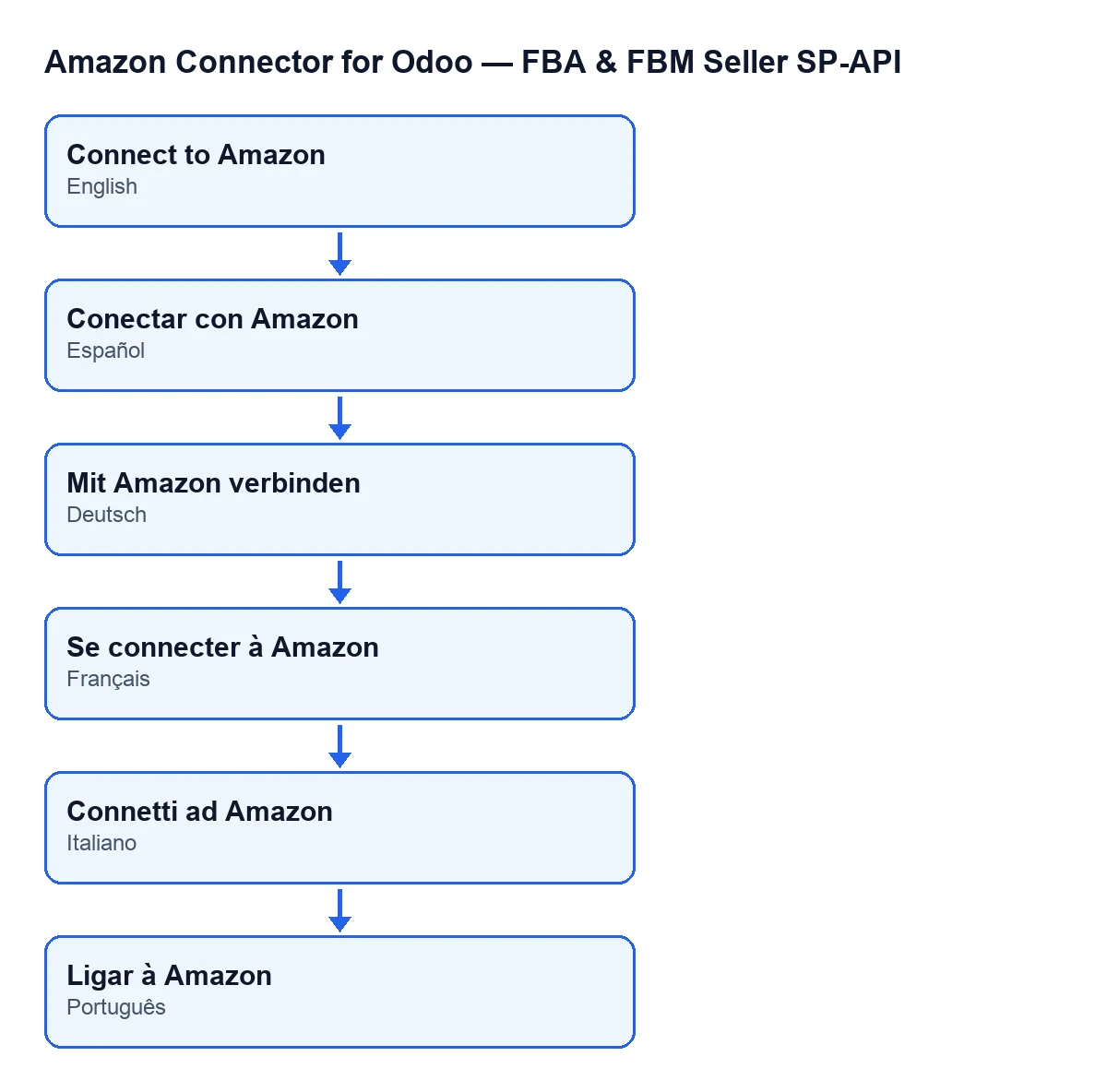
Reality: it depends on your Odoo's language. The module ships translations of the button text for Spanish, German, French, Italian and Portuguese, as the diagram shows. With Odoo in English, the button is called Connect to Amazon.
What it needs to work and how we can help
The module is published on Odoo Apps for 17.0, 18.0, 19.0 and 20.0, and it is a one-off payment per Odoo version (the price of each is on its Odoo Apps page). It also needs the FlexigoTech Cloud subscription, Connector plan: €49 a month or €490 a year, excluding VAT, with up to 3 accounts of the platform. The connection goes through FlexigoTech Cloud: it stores the credentials encrypted, watches the synchronisation and emails you if it fails. Without a subscription, or with the service suspended, whatever the subscription provides stops; your data stays in your Odoo. If you buy on flexigotech.com, the module for newer Odoo versions is included with the subscription; on the Odoo App Store, each version is bought there. The details are on the module page.
If you want to look at other buttons of the module, start with the article on the preview button. And if you are implementing Odoo and need help with the connector, FlexigoTech implements Odoo 17, 18, 19 and 20 and builds connectors and custom integrations.
Keep reading
Checked in the connector's source code (version 20.0) and the linked sources
Sources
- Module source code: flexigobe_amazon_seller_connector 20.0 (8576afa5): views/amazon_spapi_account_views.xml
- Module source code: flexigobe_amazon_seller_connector 20.0 (8576afa5): models/amazon_spapi_account.py
- apps.odoo.com/apps/modules/20.0/flexigobe_amazon_seller_connector
- flexigotech.com/precios.html
- flexigotech.com/en/services.html