

 Español
 Català
 Deutsch
 Français
 Português
 Italiano
 Nederlands
 Polski
What to fill in before your first BAS
Which accounts does the module ask for on the BAS labels?
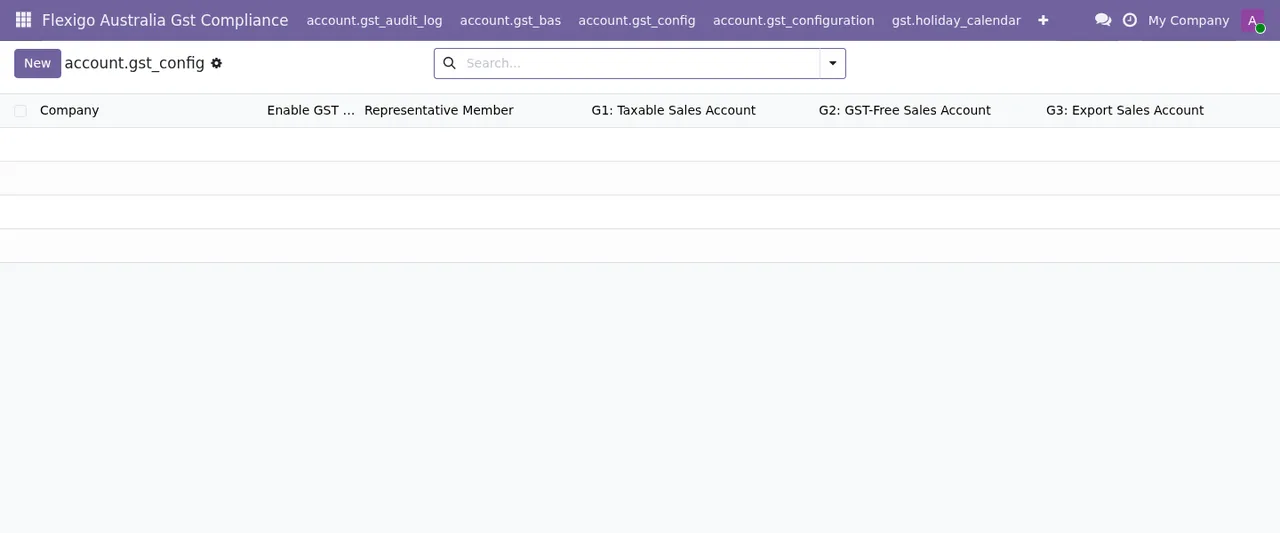
The configuration is tied to a company (the company_id field) and has an account field for each label. Here they are, with the label you will see on screen and the technical name:
G1: Taxable Sales Account(gl_account_g1_id)G2: GST-Free Sales Account(gl_account_g2_id)G3: Export Sales Account(gl_account_g3_id)G4: Capital Purchases Account(gl_account_g4_id)1A: GST-Free Purchases Account(gl_account_1a_id)1B: ITC Claim Account(gl_account_1b_id)1E: Capital Purchases (ITC) Account(gl_account_1e_id)
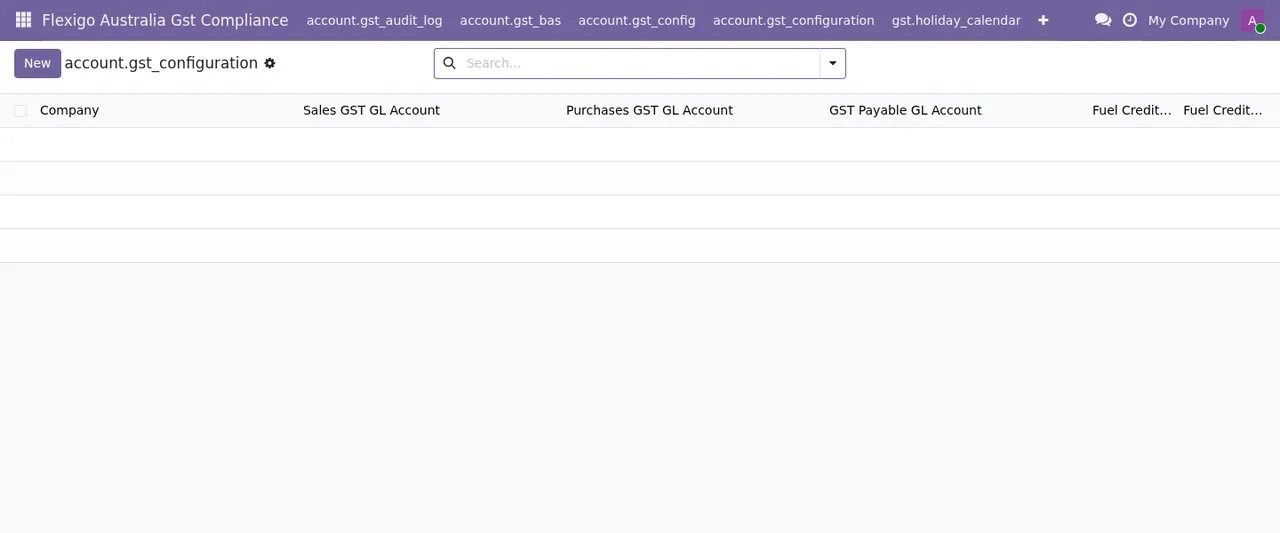
There are also three account fields for GST itself: Sales GST GL Account, Purchases GST GL Account and GST Payable GL Account. Before choosing them, have your Australian chart of accounts to hand and agree who decides which account goes on each label.
When does it make sense to tick Enable GST Group?
According to the field help, gst_group_enabled turns on GST group consolidation for associated entities. Next to it you have Representative Member (gst_group_representative_member_id), described as the representative member that submits the consolidated BAS, and Group Members (gst_group_member_ids), where you pick the group's members. If you are not sure whether your companies form a group of associated entities, check with whoever handles your Australian tax before ticking it.
Which amounts and rates should you check?
The numeric fields are the ones worth going through one by one, because the module uses them exactly as you leave them:
G10 Reconciliation Tolerance (A$)(bas_g10_reconciliation_tolerance): its help calls it «BAS Gate 1», the maximum allowed variance between G10 and the GL tagged lines. Beside it sitsG10 Tolerance (%), and another form showsBAS Reconciliation Tolerance (A$)(bas_tolerance_amount).Mandatory Proof Doc Threshold (A$): transactions above this amount require a proof document attachment.Allowed File Types: a comma-separated list of allowed file extensions.Petrol Rate (cents/L),Diesel Rate (cents/L)andLPG/Gas Rate (cents/kg): the help says these are the ATO fuel tax credit rates and asks you to update them annually. You will also seeFuel Credit Rate - Diesel (cents/L)andFuel Credit Rate - Petrol (cents/L).GST Registration Threshold (A$): the field help describes it as the amount above which registration is mandatory when 12-month turnover exceeds it, citing GST Act s.23-5.Data Jurisdiction(gdpr_jurisdiction), a drop-down, andCurrency(currency_id).
Keep a note of where each fuel rate came from and the date you entered it: the field help asks for an annual update.
The two error messages you may see early on
What does Audit log retention must be at least 5 years (GST Act 1999 s.353). mean?
The module checks the Audit Log Retention (years) field (audit_log_retention_years) and will not accept a value below 5 years; the field help cites GST Act 1999 s.353. The fix is to enter 5 or more. If your entity is APRA-regulated (insurance, superannuation), there is also APRA Extended Retention (years) (audit_log_retention_years_apra) for extended retention.
Why does a user get Only an Accounting Administrator submits a BAS or changes a submitted one.?
Because, as the message says, only an Accounting Administrator submits a BAS or changes one that has already been submitted. If it appears for someone who prepares the BAS but does not submit it, nothing is broken: have a user with that permission submit it, or ask whoever administers Odoo to review their access if submitting is part of their job. Decide who submits before the first period so this message does not turn up on the due date.
What to check in the first week
Which menu lists are worth opening?
Under the Flexigo Australia Gst Compliance menu you will find, among others, the ITC apportionment list (account.gst_apportionment), the audit log (account.gst_audit_log, with the columns Company, Entity Type, Entity ID, Action, User and Timestamp), the BAS list (account.gst_bas) and the configuration list (account.gst_config). Straight after installing, open them to confirm your user can see them and that the company is the right one once they start filling up.
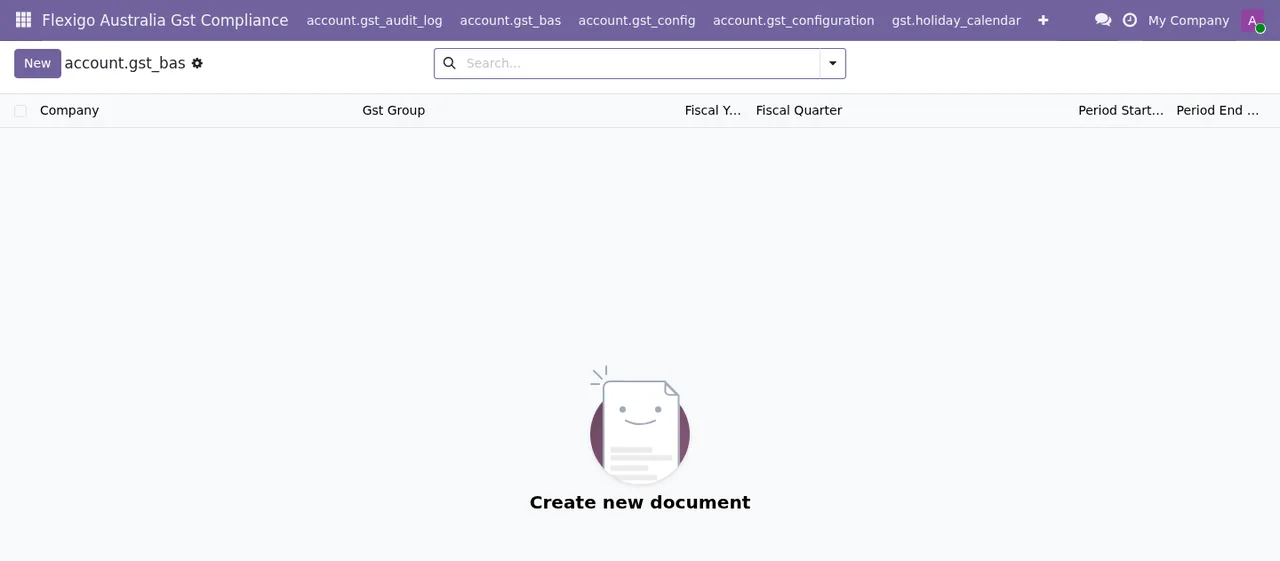
In the BAS list, the Fiscal Year, Fiscal Quarter, Period Start and Period End columns let you check at a glance that each period you create has the year, quarter and dates you expect.
Which email alerts can you switch on?
Enable Email Notifications (email_notifications_enabled) turns the emails on. Then you set two lead times: BAS Due Reminder (days before), how many days before the due date the BAS reminder goes out, and ITC Expiry Reminder (days before), which warns about ITCs expiring within that many days. Pick values that give both the person preparing the BAS and the person submitting it enough room.
What about Odoo versions and the local service?
The module is published on Odoo Apps for 17, 18, 19 and 20, at €9 per Odoo version as a one-off payment, excluding VAT. The FlexigoTech Cloud local service costs €29/month or €290/year excluding VAT (Pro: €58/month or €580/year). Without a subscription, or with the service suspended, whatever the subscription provides stops and your data stays in your Odoo. With the subscription, the module for new Odoo versions is included if you bought it on flexigotech.com; on the Odoo App Store, each version is bought there. If you are still unsure whether it fits, see what it covers and what you need before installing it.
How FlexigoTech can help
We implement Odoo 17, 18, 19 and 20 and build bespoke connectors and integrations. If you would like us to go through the account setup, tolerances or permissions with you before your first BAS, get in touch through the module page. You can also see the listing on Odoo Apps.
Keep reading
Checked in the module's source code (version 20.0) and the linked sources
Sources
- Module source code: flexigo_australia_gst_compliance 20.0 (18da350f): models/account_gst_bas.py
- Module source code: flexigo_australia_gst_compliance 20.0 (18da350f): models/account_gst_config.py
- Module source code: flexigo_australia_gst_compliance 20.0 (18da350f): models/account_gst_configuration.py
- apps.odoo.com/apps/modules/20.0/flexigo_australia_gst_compliance
- apps.odoo.com/apps/modules/17.0/flexigo_australia_gst_compliance
- apps.odoo.com/apps/modules/18.0/flexigo_australia_gst_compliance
- apps.odoo.com/apps/modules/19.0/flexigo_australia_gst_compliance
- flexigotech.com/en/services.html
- flexigotech.com/precios.html