

 Español
 Català
 Deutsch
 Français
 Português
 Italiano
 Nederlands
 Polski
Where the button is and when you see it
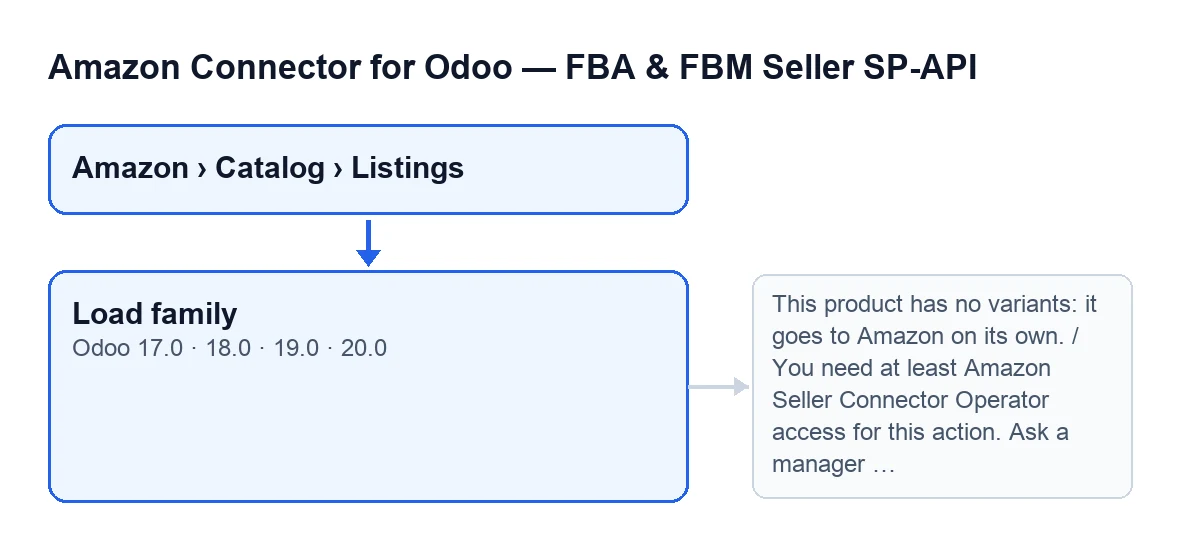
The Load family button is on the Listings form, which opens from Amazon › Catalog › Listings. Each menu level asks for the Viewer permission. The button exists in Odoo 17, 18, 19 and 20.
It is hidden when Product Variant Count is below two or when Amazon Product Type is empty. With the default values you will not see it, because the product type is empty.

What it does when you press it
These are the main steps visible in the code, in order:
- It checks your permissions: you need operator access to the connector (or manager access) and, as well, the ability to write to the listing.
- If the product has fewer than two variants, it stops with a message and does not get as far as creating listings or writing data to the family.
- It creates listings for variants that have a reference and are not yet part of the family, using the same account, the same marketplace and the reference as the SKU.
- It settles the variation theme: if the listing already has one, it keeps it; if not, the connector may propose one or leave it empty.
- It writes to every listing in the family the theme, parent SKU, product type, requirements mode and GTIN exemption of the listing you pressed the button on.
- If there is a theme, it copies some values you typed on this listing to the others (see below for which).
- It writes the report in
Variation familyand shows the noticeFamily of … listings ready: see "Variation family"., with the number of listings in the family. The form reloads to show the new values.
Common misconceptions about Load family
"The button is on every listing"
Reality: you only see it with two or more variants and with Amazon Product Type filled in. If you open a freshly created listing and cannot see it, that is what the default values give.
"If I can see the menu, I can press the button"
Reality: the menu asks for Viewer at every level, but the action checks more. If your user does not have at least operator access, it stops with You need at least Amazon Seller Connector Operator access for this action. Ask a manager to grant Operator or Manager access. The fix is to ask a manager to give you Operator or Manager access. Apart from the groups, the code checks that you can write to the listing.
"Loading the family means creating it on Amazon"
Reality: the button prepares the family in Odoo (new listings, data written to the listings in the family and a report); creating it on Amazon is a different button's job.
"It creates a listing for every variant"
Reality: it creates listings only for variants that have a reference and are not yet part of the family. Variants that are already part of the family are not created again. Variants without a reference that were not in the family are left out, and the report lists them after Variants without a reference (SKU), left out of the family:. If the product has fewer than two variants, the action stops with This product has no variants: it goes to Amazon on its own.
"What I type in one listing is copied to all the others"
Reality: not everything is treated the same way. The theme, parent SKU, product type, requirements mode and GTIN exemption are written to every listing in the family. Attribute values, on the other hand, are copied under conditions: only if there is a theme, only those typed on the listing you pressed the button on, only for attributes the chosen theme does not need, and only into the matching lines on the other listings that are empty.
"If the report flags rows, it has failed"
Reality: if the action gets to the end, the notice is the same either way; the detail is in the report. When something does not fit, it does not show up as a failure of the action but as a flagged row in the report's table.
What to look at in the Variation family report
At the top you will see Theme:, it needs: and Parent SKU:. Below is a table with Odoo attribute and Amazon attribute. Each row says OK or, highlighted, Does not fit the theme: set "Amazon attribute" on the Odoo attribute, or type the value in each variant.
Next comes the Variants: list, with the SKU of each listing and, in brackets, its ASIN if it comes from Amazon or new if not. If there is no theme, the report shows none fits: choose one and a list of Themes this product type allows (some):.
If you want help getting set up
The module is a one-off payment per version and needs the FlexigoTech Cloud subscription (Connector plan: €49 a month or €490 a year, excluding VAT); the connection goes through that service. FlexigoTech implements Odoo 17, 18, 19 and 20 and builds custom connectors and integrations. See the module page for more.
Keep reading
Checked in the connector's source code (version 20.0) and the linked sources
Sources
- Module source code: flexigobe_amazon_seller_connector 20.0 (8576afa5): views/amazon_spapi_variation_views.xml
- Module source code: flexigobe_amazon_seller_connector 20.0 (8576afa5): models/amazon_spapi_variation.py
- Module source code: flexigobe_amazon_seller_connector 20.0 (8576afa5): models/amazon_spapi_product_binding.py
- Module source code: flexigobe_amazon_seller_connector 20.0 (8576afa5): models/amazon_spapi_new_product.py
- apps.odoo.com/apps/modules/20.0/flexigobe_amazon_seller_connector
- flexigotech.com/en/services.html
- flexigotech.com/precios.html